
1. Einleitung
The Vantec CB-M2SAT-U3 Multi-Function Storage Adapter is designed to provide versatile connectivity and data management solutions for various storage devices. This adapter allows you to connect M.2 NVMe, M.2 SATA, 2.5-inch, or 3.5-inch SATA SSDs/HDDs to your computer system via a fast USB 3.2 Gen2x1 USB-C interface. It supports standalone cloning, data recovery, data transfer, and acts as a convenient dock or adapter for your storage needs. This manual provides detailed instructions for setup, operation, and troubleshooting to ensure optimal use of your device.

Image 1.1: The Vantec CB-M2SAT-U3 Multi-Function Storage Adapter, a versatile device for connecting and cloning various storage drives.
2. Packungsinhalt
Bitte überprüfen Sie, ob alle Artikel in Ihrem Paket vorhanden sind:
- Vantec Multi-Function Storage Adapter (CB-M2SAT-U3)
- Montieren
- Netzteil
- USB-C to C/A Cable
- Anleitung zur Schnellinstallation
3. Produktmerkmale
The Vantec CB-M2SAT-U3 offers a comprehensive set of features for data management:
- Universelle Kompatibilität: Access data on M.2 NVMe, M.2 SATA, 2.5-inch, or 3.5-inch SATA devices.
- M.2 Drive Support: Compatible with M.2 NVMe/SATA drives of sizes 2242, 2260, 2280, 22110, 2580, and 25110.
- Hochgeschwindigkeitsverbindung: Utilizes USB 3.2 Gen2x1 (10Gbps) with native USB-C and included USB-C to C/A cable.
- Werkzeugloses Design: No drivers needed; hot-swappable, plug-and-play functionality.
- Multi-Clone Function: Supports standalone cloning or software-based cloning for various drive combinations:
- Clone M.2 NVMe to M.2 SATA
- Clone M.2 NVMe to 2.5-inch SATA
- Clone M.2 NVMe to 3.5-inch SATA
- Clone M.2 SATA to M.2 NVMe
- Clone 2.5-inch SATA to M.2 NVMe
- Clone 3.5-inch SATA to M.2 NVMe
- Multi-Storage Function: Mount two drives simultaneously with individual drive letters.
- Data Recovery & Transfer: Ideal for data recovery, transferring data between drives, and accessing storage like a dock.
- OS Upgrade Support: Facilitates upgrading SATA OS drives to M.2 NVMe OS drives.
- Breite Betriebssystemkompatibilität: Designed for Windows 10/11, Mac OS X 10.10 or higher, and Linux OS, with UASP, BOT, and TRIM support.
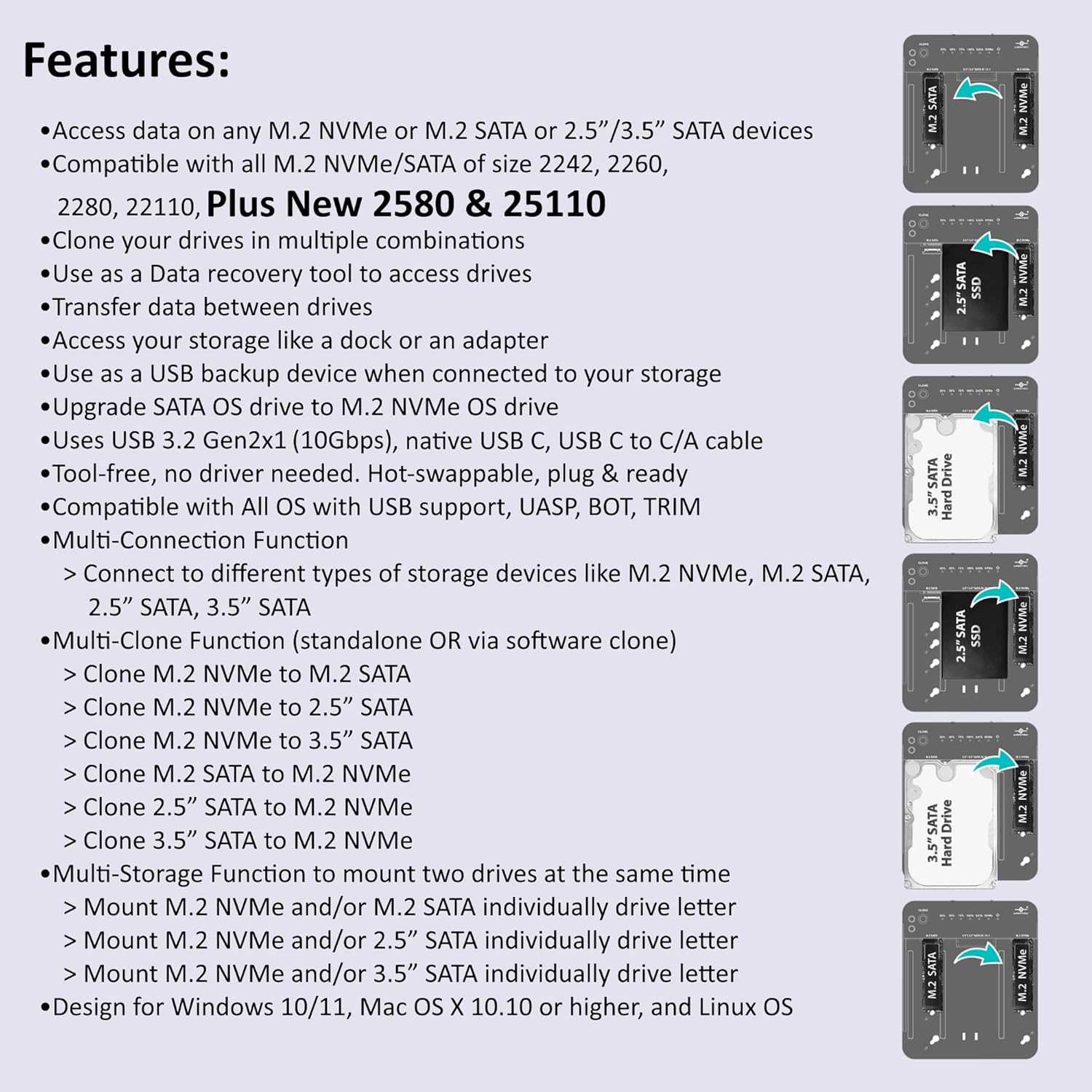
Image 3.1: Visual representation of the Vantec adapter's key features, including multi-drive support and cloning capabilities.
4. Installationsanleitung
Follow these steps to set up your Vantec Multi-Function Storage Adapter:
4.1 Anschließen von Speichergeräten
- Stromanschluss: Connect the included AC adapter to the "DC 12V" power input connector on the adapter and then to a power outlet.
- USB-Verbindung: Connect the USB-C to C/A cable from the adapter's USB-C Upstream Port to an available USB port on your computer.
- M.2 NVMe SSD einlegen: Carefully insert your M.2 NVMe SSD into the M.2 NVMe slot (typically labeled on the right side). Secure it with the provided rubber stop.
- Insert M.2 SATA SSD: Carefully insert your M.2 SATA SSD into the M.2 SATA slot (typically labeled on the left side). Secure it with the provided rubber stop.
- Insert 2.5"/3.5" SATA SSD/HDD: For 2.5-inch or 3.5-inch SATA drives, align the drive with the central SATA III/II/I connector and gently push it down until it connects securely.

Bild 4.1: Hinten view of the adapter showing the USB-C upstream port, power switch, and DC 12V power input connector.

Image 4.2: The adapter demonstrating compatibility with various M.2 NVMe/SATA sizes, 2.5-inch SATA SSDs, and 3.5-inch SATA HDDs.
4.2 Einschalten
Once all desired drives are connected, press the Power Switch to turn on the adapter. The LED indicators will illuminate, signifying power and drive activity.
5. Bedienungsanleitung
5.1 Data Access and Transfer
When connected to your computer, the adapter will mount the inserted drives as individual drive letters. You can then access, manage, and transfer data between these drives using your operating system's file Forscher.
5.2 Standalone Cloning Function
The adapter supports standalone cloning, meaning it can clone drives without being connected to a computer. This is ideal for upgrading drives or creating backups.
- Laufwerke vorbereiten: Ensure both the source drive (containing data to be copied) and the target drive (where data will be copied) are properly inserted into their respective slots. The target drive must be equal to or larger in capacity than the source drive.
- Set Clone Direction: Use the "Clone Direction Switch" to select the desired cloning path. For example, to clone from M.2 SATA to M.2 NVMe, ensure the switch is set accordingly. Refer to the diagram below for specific combinations.
- Klonen initiieren: Press and hold the "Clone" button for approximately 3-5 seconds until the cloning progress LEDs (25%, 50%, 75%, 100%) begin to flash.
- Fortschritt überwachen: The LEDs will indicate the cloning progress. Once the 100% LED is solid, the cloning process is complete.
- Ausschalten: Safely power off the adapter and remove the drives.
Wichtig: Ensure the clone direction is correctly set to prevent accidental data loss on your source drive. All data on the target drive will be overwritten during the cloning process.

Image 5.1: Detailed diagram illustrating the correct clone switch settings for various source and target drive combinations.
6. Spezifikationen
| Hardware-Schnittstelle | USB 3.2 Gen 2 |
| Marke | Vantec |
| Farbe | Schwarz |
| Produktabmessungen (L x B x H) | 6.5" x 5.5" x 0.6" (164 mm x 140 mm x 16 mm) |
| Hardware-Plattform | Linux PC, Mac OS X, Windows PC |
| Speicherkapazität | Bis zu 32 TB |
| Kompatible Geräte | M.2 NVMe, M.2 SATA, 2.5" SATA SSD/HDD, 3.5" SATA SSD/HDD |
| Formfaktor der Festplatte | 2.5 Inches (for SATA drives) |
| Supported Devices Quantity | 2 (simultaneously) |
| Datenübertragungsrate | 10 Gigabit pro Sekunde |
| Gehäusematerial | Metall, Kunststoff |
| Artikelgewicht | 6.9 Unzen |
| Hersteller | Vantec Thermal Technologien |
| UPC | 844767023724 |

Image 6.1: The adapter with its physical dimensions indicated in millimeters.
7. Fehlerbehebung
If you encounter issues with your Vantec Multi-Function Storage Adapter, please refer to the following common solutions:
- Gerät nicht erkannt:
- Ensure the power adapter is securely connected and the power switch is ON.
- Verify the USB cable is firmly connected to both the adapter and your computer. Try a different USB port or cable.
- Check if the storage drive is properly seated in its slot.
- For new drives, they may need to be initialized and formatted in your operating system's Disk Management (Windows) or Disk Utility (Mac) before they appear.
- Klonfehler:
- Confirm the target drive's capacity is equal to or larger than the source drive's capacity.
- Ensure the "Clone Direction Switch" is set correctly for your desired cloning path.
- Verify both source and target drives are securely connected and detected by the adapter (indicated by LEDs).
- Disconnect the adapter from the computer during standalone cloning.
- Langsame Übertragungsgeschwindigkeiten:
- Ensure you are connected to a USB 3.2 Gen2x1 (10Gbps) compatible port on your computer. Older USB ports will result in slower speeds.
- The performance of the drives themselves can affect transfer speeds.
- Intermittierende Verbindung:
- Prüfen Sie alle Kabelverbindungen auf festen Sitz.
- Stellen Sie sicher, dass das Netzteil eine stabile Stromversorgung gewährleistet.
- Versuchen Sie, den Adapter an einen anderen USB-Anschluss Ihres Computers anzuschließen.
8. Garantie und Support
The Vantec CB-M2SAT-U3 Multi-Function Storage Adapter comes with a 1 Jahre Garantie auf Teile und Arbeitsleistung Diese Garantie gilt ab Kaufdatum und deckt Herstellungsfehler ab. Sie gewährleistet, dass Ihr Produkt bei normalem Gebrauch wie vorgesehen funktioniert.
For technical support, warranty claims, or further assistance, please visit the official Vantec website or contact their customer service department. Please have your product model number (CB-M2SAT-U3) and proof of purchase ready when contacting support.