
Einführung
Thank you for choosing the AVMTON Wireless Gaming Mouse. This manual provides detailed instructions on how to set up, operate, and maintain your new mouse, ensuring optimal performance and an enhanced gaming and work experience. Designed for comfort and precision, this ergonomic wireless mouse features adjustable DPI, customizable buttons, and vibrant RGB lighting.
Produkt überview
The AVMTON Wireless Gaming Mouse is engineered for both gaming and office use, offering a comfortable ergonomic design and responsive control. It features a honeycomb hollow design with RGB backlighting, providing both aesthetic appeal and lightweight performance.
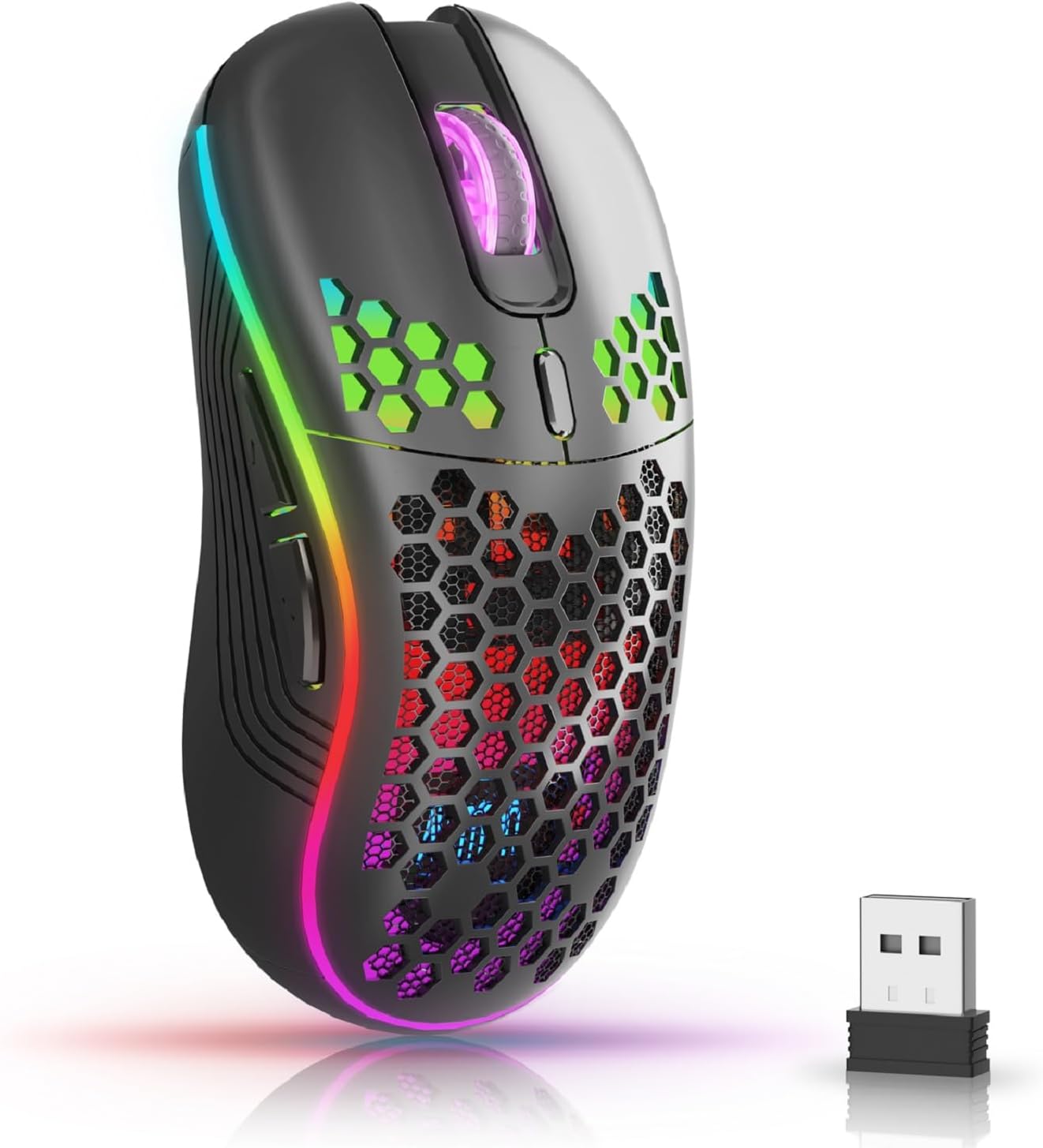
The AVMTON Wireless Gaming Mouse in black, featuring RGB lighting and a honeycomb design, shown alongside its compact USB receiver.

Illustration of the mouse's connectivity modes, including Type-C charging, 2.4G wireless receiver, and a 10m sensing range, suitable for home, gaming, and office environments.
Hauptmerkmale:
- Ergonomisches Design: Shaped to fit the hand comfortably, reducing strain during extended use.
- Einstellbare DPI: Easily switch between 800/1200/1600/2400/4800 DPI settings for precise control.
- 6 programmierbare Tasten: Includes forward/backward, left/right click, scroll wheel, and DPI adjustment button.
- Wiederaufladbarer Akku: Built-in lithium battery with USB-C charging, offering 15-20 days of use on a single charge.
- Geräuschloses Klickdesign: Ideal for quiet environments like libraries or offices.
- Breite Kompatibilität: Supports Windows 2000/ME/XP/7/8/10/Vista/98, Mac OS, Linux, and compatible with laptops, PCs, desktops, and Macbooks.
- Langlebige Konstruktion: Tested for over 5 million clicks, ensuring long-lasting performance.
Installationshandbuch
Follow these steps to set up your AVMTON Wireless Gaming Mouse:
- Laden Sie die Maus auf: Before first use, fully charge the mouse using the provided USB-C charging cable. Connect the cable to the mouse's Type-C port and a USB power source (e.g., computer USB port, USB wall adapter). The charging indicator will show the charging status.
- Suchen Sie den USB-Empfänger: The compact USB 2.4G wireless receiver is typically stored in a compartment on the underside of the mouse for safe keeping during transport.
- Schließen Sie den Empfänger an: Insert the USB receiver into an available USB port on your computer (laptop, PC, desktop, Macbook).
- Einschalten: Turn on the mouse using the power switch located on the underside of the mouse.
- Automatische Verbindung: Die Maus sollte sich automatisch mit Ihrem Computer verbinden. Für die grundlegende Funktionalität sind in der Regel keine zusätzlichen Treiber erforderlich.
Bedienungsanleitung
Understanding the functions of your mouse buttons and settings will enhance your experience.
Tastenfunktionen:
- Linksklick-Taste: Standardmäßige primäre Klickfunktion.
- Rechtsklick-Schaltfläche: Standardmäßige Sekundärklickfunktion.
- Scrollrad: Scrollen Sie in den Dokumenten nach oben oder unten und web Seiten. Kann auch für die Funktion eines Mittelklicks gedrückt werden.
- DPI-Einstelltaste: Located near the scroll wheel. Press this button to cycle through available DPI settings (800/1200/1600/2400/4800). Each press changes the cursor speed and sensitivity.
- Vorwärts-Taste: Typically located on the side of the mouse. Used for navigating forward in web Browser bzw file Entdecker.
- Rückwärts-Taste: Typically located on the side of the mouse. Used for navigating backward in web Browser bzw file Entdecker.
RGB-Hintergrundbeleuchtungssteuerung:
The mouse features dynamic RGB backlighting. If you prefer to turn off the backlight, refer to the specific instructions provided with your mouse or check the manufacturer's website for software utilities, if available. Some models allow toggling RGB with a combination of buttons (e.g., DPI button + another button).
Wartung
Durch sachgemäße Wartung wird die Langlebigkeit und Leistungsfähigkeit Ihrer Maus sichergestellt.
- Laden: Recharge the mouse when the battery indicator shows low power. A full charge provides approximately 15-20 days of use. It is recommended to fully charge the mouse before extensive use.
- Reinigung: Reinigen Sie die Oberfläche der Maus mit einem weichen, trockenen Tuch. Bei hartnäckigem Schmutz kann ein leicht feuchtes Tuch helfen.amp Ein Tuch kann verwendet werden, achten Sie jedoch darauf, dass keine Feuchtigkeit in die internen Bauteile eindringt. Vermeiden Sie aggressive Chemikalien oder scheuernde Materialien.
- Lagerung: Bei längerer Nichtbenutzung sollte die Maus ausgeschaltet werden, um die Batterielebensdauer zu verlängern. Bewahren Sie sie an einem kühlen, trockenen Ort auf.
Fehlerbehebung
If you encounter issues with your AVMTON Wireless Gaming Mouse, try the following solutions:
- Maus reagiert nicht:
- Stellen Sie sicher, dass die Maus eingeschaltet ist.
- Prüfen Sie, ob der USB-Empfänger fest an einen funktionierenden USB-Anschluss Ihres Computers angeschlossen ist.
- Recharge the mouse. A low battery can cause unresponsiveness.
- Versuchen Sie, den USB-Empfänger an einen anderen USB-Anschluss anzuschließen.
- Starten Sie Ihren Computer neu.
- Verzögerung oder intermittierende Verbindung:
- Ensure the mouse is within the 10-meter sensing range of the USB receiver.
- Remove any large metallic objects or other wireless devices that might be causing interference between the mouse and the receiver.
- Versuchen Sie, den USB-Empfänger an einen Anschluss näher an der Maus anzuschließen.
- DPI-Anpassung funktioniert nicht:
- Stellen Sie sicher, dass Sie die dafür vorgesehene DPI-Einstelltaste drücken.
- Sollte das Problem weiterhin bestehen, versuchen Sie, die Maus und Ihren Computer neu zu starten.
- RGB-Lichter funktionieren nicht:
- Check if the RGB backlight has been intentionally turned off (refer to "RGB Backlight Control" in Operating Instructions).
- Stellen Sie sicher, dass die Maus über ausreichend Akkuladung verfügt.
If these steps do not resolve the issue, please contact AVMTON customer support for further assistance.
Technische Daten
| Besonderheit | Detail |
|---|---|
| Marke | AVMTON |
| Modellnummer | AV-DDMB-1 |
| Farbe | Schwarz |
| Konnektivitätstechnologie | 2.4-GHz-Funk (USB-Empfänger) |
| DPI-Einstellungen | 800 / 1200 / 1600 / 2400 / 4800 |
| Anzahl der Tasten | 6 |
| Handausrichtung | Rechts |
| Akkulaufzeit | Approx. 15-20 days (on a single charge) |
| Ladeanschluss | USB Typ C |
| Kompatible Betriebssysteme | Windows 2000/ME/XP/7/8/10/Vista/98, Mac OS, Linux |
| Kompatible Geräte | Personalcomputer, Laptop |
| Besondere Merkmale | Portable, Ergonomic, Rechargeable, RGB Backlight, Silent Click |
Garantie und Support
AVMTON offers a 12-month worry-free after-sales service for this product. If you encounter any problems with your wireless mouse, please do not hesitate to contact us. Our customer support team is ready to assist you.
For support, please visit the official AVMTON webWebsite oder wenden Sie sich an Ihren Händler.