
1. Einleitung
This manual provides detailed instructions for the MEIZE D115A Android 13 Tablet. Please read this manual thoroughly before using your device to ensure proper operation and to maximize its features. Keep this manual for future reference.
The MEIZE D115A tablet features a powerful Octa-Core processor, 10.1-inch HD screen, Android 13 operating system, and comes with essential accessories to enhance your user experience.
2. Lieferumfang
Überprüfen Sie, ob alle Artikel im Paket vorhanden sind:
- MEIZE D115A Android 13 Tablet
- Bluetooth-Tastatur
- Drahtlose Maus
- Touchpen (Stift)
- Schutzhülle
- Netzteil
- USB-Kabel

Image: The MEIZE D115A tablet displayed with its complete set of accessories, including the Bluetooth keyboard, wireless mouse, stylus, charging cable, power adapter, and protective case.
3. Gerätelayout
Machen Sie sich mit den physischen Komponenten Ihres Tablets vertraut:

Image: A detailed diagram illustrating the location of the front camera, flash, rear camera, headphone jack, Micro SD slot, Type-C port, volume buttons, power button, and speakers on the MEIZE D115A tablet.
- Frontkamera: Befindet sich oben in der Mitte, wenn das Gerät horizontal gehalten wird, und dient für Videoanrufe und Selfies.
- Rückfahrkamera: Located on the back, equipped with a flash for photography and video recording.
- Netzschalter: Dient zum Ein-/Ausschalten des Tablets oder zum Versetzen in den Ruhemodus/Aufwecken.
- Lautstärketasten: Passen Sie die Lautstärke an.
- Typ C-Anschluss: Zum Aufladen und zur Datenübertragung.
- Micro-SD-Steckplatz: Legen Sie eine Micro-SD-Karte ein, um den Speicherplatz zu erweitern (bis zu 512 GB).
- 3.5mm Kopfhörerbuchse: Schließen Sie kabelgebundene Kopfhörer an.
- Referenten: Audioausgabe bereitstellen.
4. Einrichtung
4.1 Erstes Einschalten
- Halten Sie die Netzschalter bis der Bildschirm aufleuchtet.
- Folgen Sie den Anweisungen auf dem Bildschirm, um Ihre Sprache und Region auszuwählen und die Allgemeinen Geschäftsbedingungen zu akzeptieren.
4.2 Wi-Fi-Verbindung
- Gehe zu Einstellungen > Netzwerk & Internet > W-lan.
- WLAN ein-/ausschalten On.
- Wählen Sie das gewünschte Netzwerk aus der Liste aus und geben Sie gegebenenfalls das Passwort ein.

Image: The tablet screen showing a graphic indicating support for both 5G and 2.4G Wi-Fi networks, ensuring stable and fast internet connectivity.
4.3 Google-Konto einrichten
Sign in with your Google account to access the Google Play Store, Gmail, and other Google services. If you don't have one, you can create one during this step.
4.4 Zubehöranschluss
The MEIZE D115A tablet comes with a Bluetooth keyboard, wireless mouse, and stylus for enhanced functionality.
- Bluetooth-Tastatur: Turn on the keyboard and enable Bluetooth on your tablet (Settings > Connected devices > Bluetooth). Select the keyboard from the available devices and follow pairing instructions.
- Kabellose Maus: Insert the USB receiver from the mouse into the OTG adapter, then plug the OTG adapter into the tablet's Type-C port. The mouse should connect automatically.
- Stift: The stylus is a passive input device and does not require pairing. Simply use it to interact with the screen.

Image: A user operating the MEIZE D115A tablet with the connected Bluetooth keyboard and wireless mouse, demonstrating its capability as a portable workstation.
5. Bedienung Ihres Tablets
5.1 Grundlegende Navigation
- Berühren: Tippen Sie auf ein Symbol, um eine App zu öffnen oder ein Element auszuwählen.
- Wischen: Bewegen Sie Ihren Finger über den Bildschirm, um durch Seiten oder Inhalte zu scrollen.
- Prise: Verwenden Sie zwei Finger, um Bilder zu vergrößern oder zu verkleinern. web Seiten.
- Startbildschirm: Die zentrale Anlaufstelle für Ihre Apps und Widgets.
5.2 Anwendungen
- Installiere Apps: Laden Sie Anwendungen aus dem Google Play Store herunter.
- Apps verwalten: Gehe zu Einstellungen > Apps Zu view, manage, or uninstall applications.

Image: The tablet screen displaying numerous application icons and media content, illustrating the ample 128GB internal storage and 16GB RAM (8GB physical + 8GB virtual) for diverse usage.
5.3 Speicherverwaltung
The tablet comes with 128GB of internal storage. You can expand this by inserting a Micro SD card (up to 512GB) into the dedicated slot. To manage storage, go to Einstellungen > Lagerung.
5.4 Kameranutzung
Das Tablet verfügt über eine 13-Megapixel-Rückkamera und eine 8-Megapixel-Frontkamera.
- Öffnen Sie die Kamera App.
- Tap the shutter button to take photos or switch to video mode for recording.
- Use the front camera for video calls and selfies.
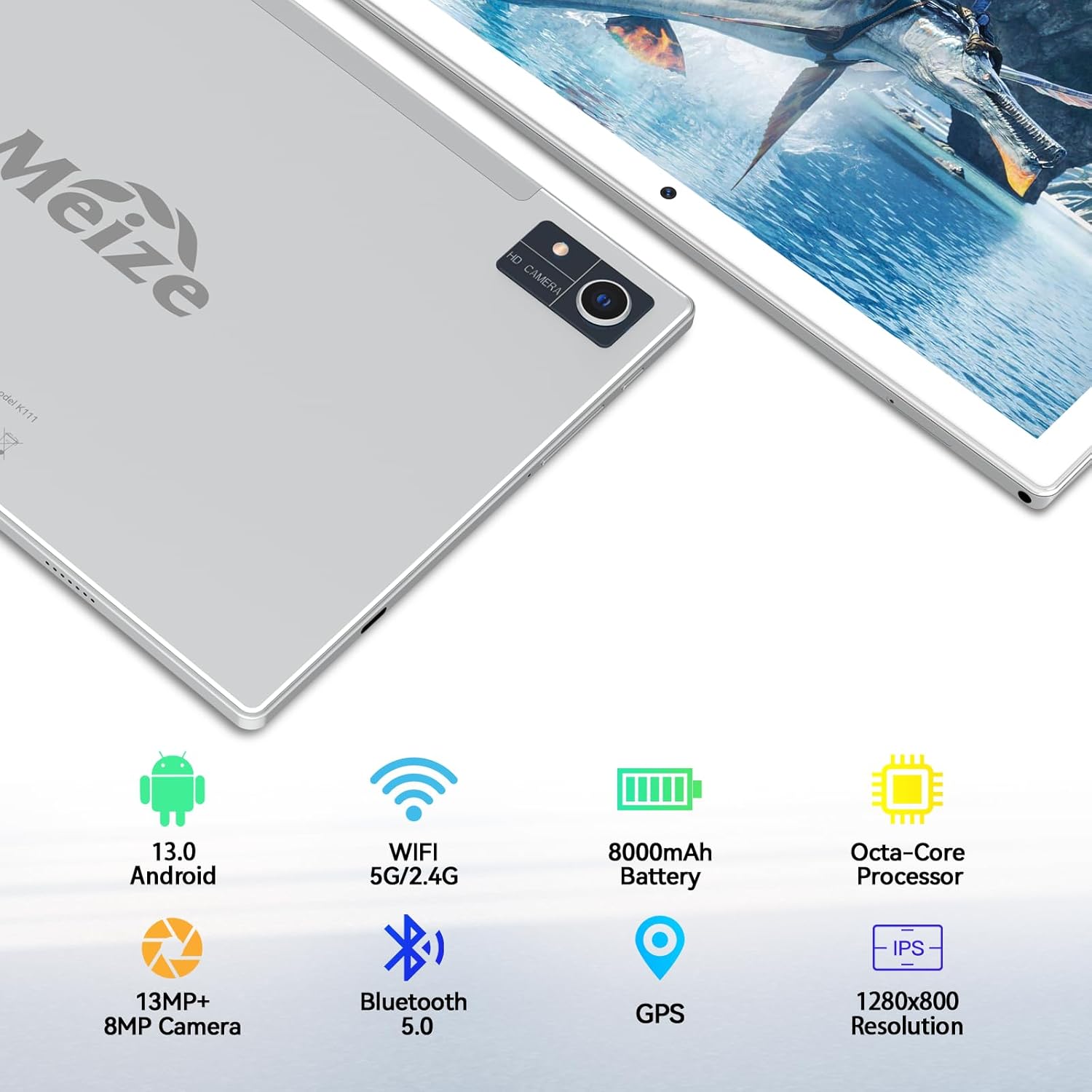
Image: An infographic highlighting the tablet's camera specifications, showing a 13MP rear camera and an 8MP front camera, alongside other key features.
5.5 Batteriemanagement
Der 8000-mAh-Akku ermöglicht längere Nutzungszeiten. So optimieren Sie die Akkulaufzeit:
- Bildschirmhelligkeit anpassen.
- Schließen Sie nicht benötigte, im Hintergrund laufende Anwendungen.
- Schalten Sie WLAN oder Bluetooth aus, wenn Sie sie nicht benötigen.

Image: A visual representation of the tablet's 8000mAh battery, indicating approximate usage durations: 10 hours for videos, 8 hours for games, and 12 hours for music playback.
6. Wartung
- Reinigung: Reinigen Sie Bildschirm und Gehäuse des Tablets mit einem weichen, fusselfreien Tuch. Vermeiden Sie scheuernde Materialien oder aggressive Chemikalien.
- Software-Updates: Prüfen Sie regelmäßig auf Systemaktualisierungen in Einstellungen > System > Systemaktualisierung um optimale Leistung und Sicherheit zu gewährleisten.
- Datensicherung: Periodically back up important data to a cloud service or external storage device to prevent data loss.
7. Fehlerbehebung
7.1 Tablet lässt sich nicht einschalten
- Stellen Sie sicher, dass das Tablet aufgeladen ist. Schließen Sie es an das Netzteil an und warten Sie einige Minuten, bevor Sie versuchen, es erneut einzuschalten.
- Um einen Neustart zu erzwingen, halten Sie den Netzschalter mindestens 10-15 Sekunden lang gedrückt.
7.2 Probleme mit der WLAN-Verbindung
- Starten Sie Ihren WLAN-Router und das Tablet neu.
- Vergessen Sie das Netzwerk in den WLAN-Einstellungen und stellen Sie die Verbindung erneut her.
- Stellen Sie sicher, dass Sie sich in Reichweite des WLAN-Signals befinden.
7.3 Langsame Leistung
- Nicht verwendete Anwendungen schließen.
- Löschen Sie den Cache häufig verwendeter Apps (Einstellungen > Apps > [App-Name] > Speicher & Cache > Cache leeren).
- Consider performing a factory reset if performance issues persist (Notiz: This will erase all data on the tablet. Back up your data first).
8. Spezifikationen
| Besonderheit | Spezifikation |
|---|---|
| Marke | MEIZ |
| Modellnummer | D115A |
| Betriebssystem | Android 13 |
| Bildschirmgröße | 10.1 Zoll |
| Bildschirmauflösung | 1280 x 800 Pixel |
| Prozessor | Achtkernprozessor, 2 GHz |
| RAM | 8 GB (expandable to 16GB with virtual RAM) |
| Interner Speicher | 128 GB |
| Erweiterbarer Speicher | Bis zu 512 GB (Micro-SD) |
| Rückfahrkamera | 13 Megapixel |
| Frontkamera | 8 Megapixel |
| Batteriekapazität | 8000 mAh |
| Durchschnittliche Akkulaufzeit | 10 Hours (video), 8 Hours (gaming), 12+ Hours (music) |
| Kabelloser Typ | 802.11ac (5-GHz-/2.4-GHz-WLAN) |
| Bluetooth | Bluetooth 5.0 |
| Abmessungen (LxBxH) | 10 x 7 x 0.3 Zoll |
| Artikelgewicht | 2.94 Pfund |
9. Garantie und Support
MEIZE is committed to customer satisfaction. If you encounter any issues with your product, please contact our professional support team. We are dedicated to providing excellent service and assistance.
For support inquiries, please refer to the contact information provided with your product packaging or visit the official MEIZE webWebsite.