
1. Produktüberschreitungview
The Tenveo VHD20U is a professional 1080P Full HD 60FPS video conference camera featuring a 20x optical zoom and AI tracking capabilities. Equipped with a 1/2.8-inch SONY CMOS sensor and 2.38 megapixels, it delivers crystal-clear images with accurate color reproduction. Its ultra-wide 60° viewing angle ensures all participants are visible. The camera supports smooth and silent pan/tilt movements, with 350° horizontal rotation (±175°) and 180° vertical rotation (±90°).
The VHD20U offers versatile connectivity options including USB3.0, HDMI, RS485, and RS232, making it suitable for various scenarios such as business meetings, educational institutions, medical applications, and live streaming events. It is compatible with popular conferencing software like Zoom, Microsoft Teams, Google Meet, Skype, and OBS, and supports Windows, Mac OS, Linux, and Android operating systems.
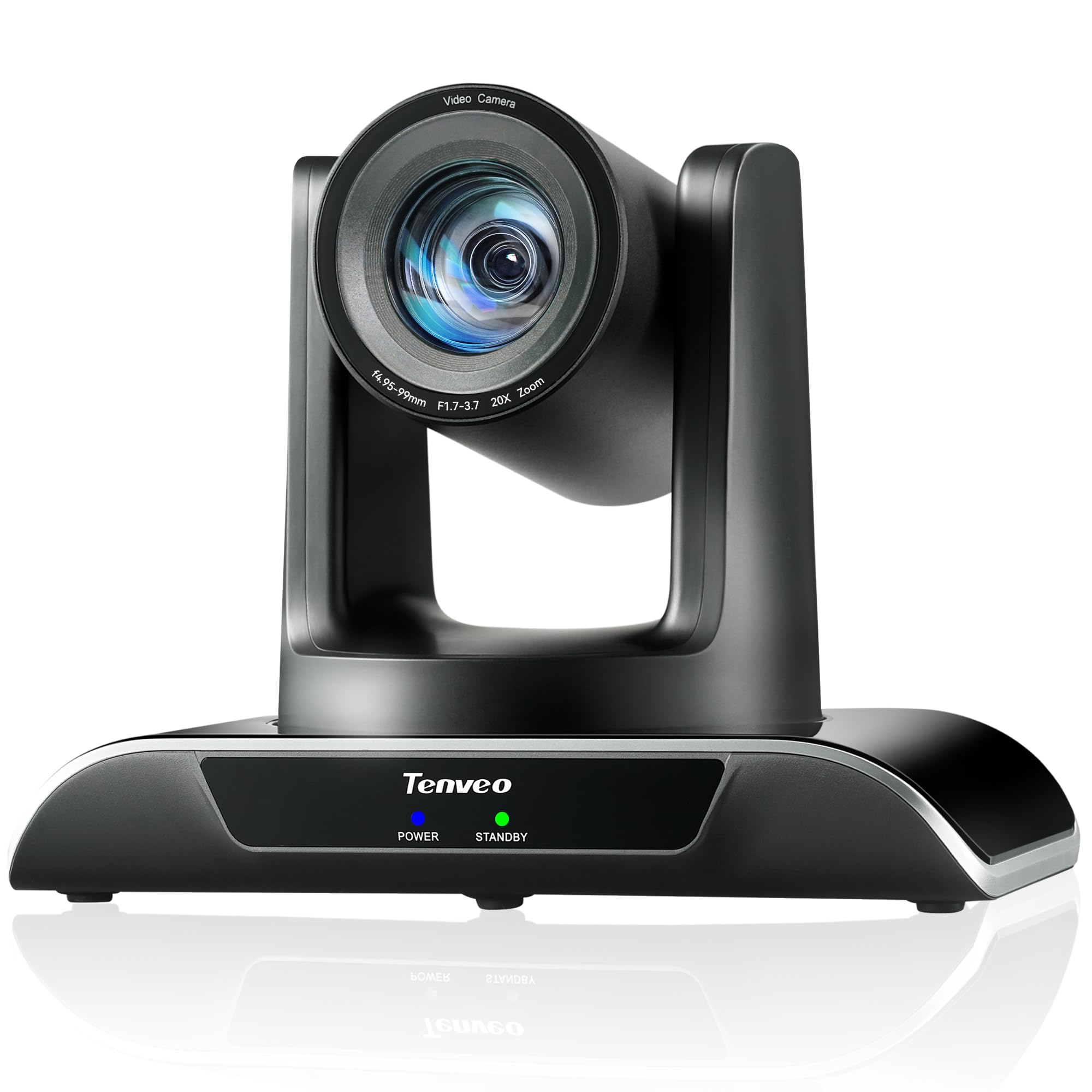
Figure 1: Tenveo VHD20U PTZ Conference Camera.

Figure 2: Tenveo VHD20U Conference Camera highlighting 20X Optical Zoom.
2. Packungsinhalt
Bitte kreuzen Sie das Kästchen für die folgenden Elemente an:
- Tenveo VHD 20X HDMI PTZ Camera
- IR Remote Control (batteries not included)
- USB-Kabel
- Wandhalterung mit Schrauben
- DC 12 V/2 A Netzteil
- Bedienungsanleitung
3. Einrichtungsanweisungen
Follow these steps to set up your Tenveo VHD20U camera:
- Stromanschluss: Connect the DC 12V/2A power adapter to the camera's power input port and then plug it into a power outlet.
- Videoausgang:
- USB-Verbindung: For direct connection to a computer, use the provided USB cable to connect the camera's USB3.0 port to your computer. This is plug-and-play for most operating systems.
- HDMI-Verbindung: For high-definition video output to a display or video switcher (e.g., Blackmagic ATEM Mini), connect an HDMI cable from the camera's HDMI port to your display device.
- Steueranschlüsse (optional):
- RS232/RS485: For professional control systems, connect the appropriate serial cables to the RS232 or RS485 ports.
- Montage: The camera can be installed in various ways to suit your environment: desktop, tripod, ceiling, or wall mount. Use the included wall mount bracket and screws for wall installation. Ensure the camera is securely fastened in your chosen position.

Figure 3: Various installation methods for the Tenveo VHD20U camera.

Figure 4: HDMI 2.0 connectivity for video conferencing and live streaming.
4. Bedienungsanleitung
4.1 Fernbedienungsfunktionen
The included IR remote control allows for easy adjustment of camera settings and movement:
- PTZ-Steuertasten: Use the arrow keys to pan (horizontal movement) and tilt (vertical movement) the camera.
- Zoom Keys: Use the '+' and '-' buttons to zoom in and out. The camera features 20x optical zoom.
- Focus Keys: Adjust the focus manually using the dedicated focus buttons. Auto-focus is the default setting.
- Preset Keys: The camera supports up to 10 presets via the IR remote. To set a preset, move the camera to the desired position, then press the 'PRESET' button followed by a number (0-9). To recall a preset, press the number button.
- Menü-Schaltfläche: Access the On-Screen Display (OSD) menu for advanced settings.
- PTZ Reset Key: Bringt die Kamera in ihre Ausgangsposition zurück.

Abbildung 5: Aufbau und Funktionen der Fernbedienung.
4.2 Softwarekompatibilität
The Tenveo VHD20U camera is designed for broad compatibility with leading video conferencing and streaming platforms:
- Zoom
- Microsoft Teams
- Google Meet
- Skype
- Cisco WebEx
- BlueJeans
- OBS Studio
- vMix
- And most other compatible conferencing software.

Figure 6: Universal compatibility with various platforms and operating systems.
5. Wartung
To ensure optimal performance and longevity of your Tenveo VHD20U camera, follow these maintenance guidelines:
- Reinigung: Use a soft, dry cloth to clean the camera body. For the lens, use a specialized lens cleaning cloth and solution. Avoid abrasive cleaners or solvents that could damage the surface.
- Lagerung: Bei längerer Nichtbenutzung sollte die Kamera an einem kühlen, trockenen Ort, geschützt vor direkter Sonneneinstrahlung und übermäßigem Staub, aufbewahrt werden.
- Handhabung: Handle the camera with care to prevent physical damage. Avoid dropping or subjecting it to strong vibrations.
- Leistung: Always use the provided power adapter. Disconnect power during electrical storms or when the camera is not in use.
6. Fehlerbehebung
If you encounter issues with your Tenveo VHD20U camera, refer to the following common troubleshooting tips:
- No Image/Video Output:
- Ensure the camera is powered on and the power indicator light is active.
- Check all cable connections (USB, HDMI) are secure and correctly plugged into the camera and the receiving device.
- Verify that the correct input source is selected on your display or conferencing software.
- Try connecting the camera to a different USB port or computer.
- Fernbedienung reagiert nicht:
- Ensure batteries are inserted correctly and are not depleted. Replace batteries if necessary.
- Point the remote directly at the camera's IR receiver.
- Remove any obstructions between the remote and the camera.
- Schlechte Videoqualität:
- Sorgen Sie für ausreichende Beleuchtung in der Umgebung.
- Reinigen Sie das Kameraobjektiv mit einem weichen, fusselfreien Tuch.
- Check your internet connection speed if streaming or conferencing online.
- Adjust camera settings (e.g., exposure, white balance) via the OSD menu if needed.
- Kamera vom Computer nicht erkannt:
- Starten Sie Ihren Computer und die Kamera neu.
- Stellen Sie sicher, dass Ihr Betriebssystem auf dem neuesten Stand ist.
- Versuchen Sie es mit einem anderen USB-Kabel oder einem anderen USB-Anschluss.
7. Spezifikationen
| Besonderheit | Spezifikation |
|---|---|
| Marke | Tenveo |
| Modellnummer | VHD20U |
| Sensor Technology | CMOS |
| Größe des optischen Sensors | 1/2.8 Zoll |
| Effective Capture Resolution | 2.38 Megapixel |
| Auflösung der Videoaufzeichnung | 1080p |
| Effektive Videoauflösung | 1080 Pixel |
| Maximale Bildschirmauflösung | Full HD |
| Optischer Zoom | 20x |
| Viewing-Winkel | 60 Grad |
| Schwenkbewegung | ±175° |
| Neigungsbewegung | ±90° |
| Konnektivitätstechnologie | HDMI, USB, RS485, RS232 |
| USB-Typ | USB 3.0 |
| Unterstützte Betriebssysteme | Windows 7/8.1/10, Mac OS X 10.4 or higher, Linux, Android |
| Empfohlene Produktverwendungen | Meetings, Education, Medical, Live Streaming, Conference |
| Bildstabilisierung | NEIN |
| Fokustyp | Manuell, Auto |
| Maximale Brennweite | 60.0 mm |
| Minimale Brennweite | 10.0 mm |
| Maximale Blendenöffnung | f/3.9 |
| Minimale Blende | f/1.8 |
| Unterstütztes Bildformat | JPEG |
| Unterstütztes Videoformat | MP4 or MOV |
8. Garantie und Support
Tenveo provides comprehensive support for your VHD20U camera:
- Garantie: Für das Produkt gilt eine 3-jährige Garantie auf Teile und Arbeitsleistung.
- Geld-Zurück-Garantie: A 30-day no-questions-asked money-back guarantee is offered.
- Technische Unterstützung: Profitieren Sie von lebenslangem technischen Support für Ihr Produkt.

Figure 7: Warranty and money-back guarantee information.

Figure 8: Lifetime technical support available.