
1. Einleitung
This manual provides detailed instructions for the setup, operation, and maintenance of your KOORUI MG27K1Q 27-inch QHD 240Hz VA Mini LED Gaming Monitor. Please read this manual thoroughly before using the product to ensure proper functionality and to prevent damage.
2. Packungsinhalt
Verify that all items listed below are included in your product package. If any items are missing or damaged, please contact KOORUI customer support.
- KOORUI MG27K1Q 27-inch Gaming Monitor
- Monitor Stand (Base and Support)
- Netzteil
- DisplayPort (DP)-Kabel
3. Einrichtung
3.1 Montage des Ständers
- Nehmen Sie die Monitor- und Standfußkomponenten vorsichtig aus der Verpackung.
- Attach the stand support to the monitor panel. Ensure it clicks securely into place or is fastened with screws if provided.
- Connect the stand base to the stand support. Tighten any screws to secure the assembly.
- Stellen Sie den zusammengebauten Monitor auf eine stabile, ebene Fläche.
3.2 Mit Geräten verbinden
The monitor offers multiple connectivity options for various devices. Ensure the monitor is powered off before making any connections.
- DisplayPort (DP 1.4): Connect the included DisplayPort cable from your computer's graphics card to the DisplayPort input on the monitor for optimal performance, including 240Hz refresh rate and Adaptive Sync.
- HDMI (HDMI 2.0): Connect an HDMI cable from your device (PC, gaming console) to one of the two HDMI 2.0 inputs on the monitor.
- Audio Ausgang: Über die 3.5-mm-Audiobuchse können Sie externe Lautsprecher oder Kopfhörer anschließen.
Bild: Rückseite view of the monitor illustrating the available connection ports (DisplayPort 1.4, 2x HDMI 2.0, Audio Out) and VESA mount points. Examples of compatible devices like PS5, Xbox, Laptop, and Nintendo Switch are shown.
3.3 Stromanschluss
- Schließen Sie das Netzteil an den Stromeingang des Monitors an.
- Stecken Sie das Netzteil in eine Wandsteckdose.
4. Bedienung des Monitors
4.1 Grundlegende Bedienung
- Ein-/Ausschalten: Drücken Sie den Netzschalter, der sich normalerweise auf der Rückseite oder unten rechts am Monitor befindet, um den Monitor ein- oder auszuschalten.
- Eingangsauswahl: Use the On-Screen Display (OSD) menu to select the desired input source (DP, HDMI 1, HDMI 2).
4.2 Anzeigefunktionen
The KOORUI MG27K1Q monitor is equipped with advanced display technologies for an enhanced visual experience.
- QHD-Auflösung (2560x1440): Liefert scharfe und detailreiche Bilder.
- VA Mini LED Panel: Offers deep blacks, high contrast, and vibrant colors.
- HDR 1000: High Dynamic Range support for brighter whites and darker blacks, enhancing visual depth and realism.

Image: Visual comparison demonstrating the enhanced contrast and detail provided by HDR 1000 technology compared to a standard display.
4.3 Spieleleistung
Designed for gaming, this monitor delivers smooth and responsive gameplay.
- 240Hz Bildwiederholfrequenz: Ensures ultra-smooth motion and reduced input lag.
- 1 ms Reaktionszeit: Minimiert Bewegungsunschärfe und Geisterbilder für klare, temporeiche Action.
- Adaptive Sync (G-SYNC Compatible): Synchronisiert die Bildwiederholfrequenz des Monitors mit der Bildrate Ihrer Grafikkarte, um Tearing und Ruckeln zu vermeiden.
- Exclusive Game Display Modes: Features like Crosshair, Timer, and FPS Counter can be enabled via the OSD for an advantage im Gaming.

Image: The monitor displaying a high-speed racing game, emphasizing its 240Hz refresh rate and 1ms response time for a fluid gaming experience.
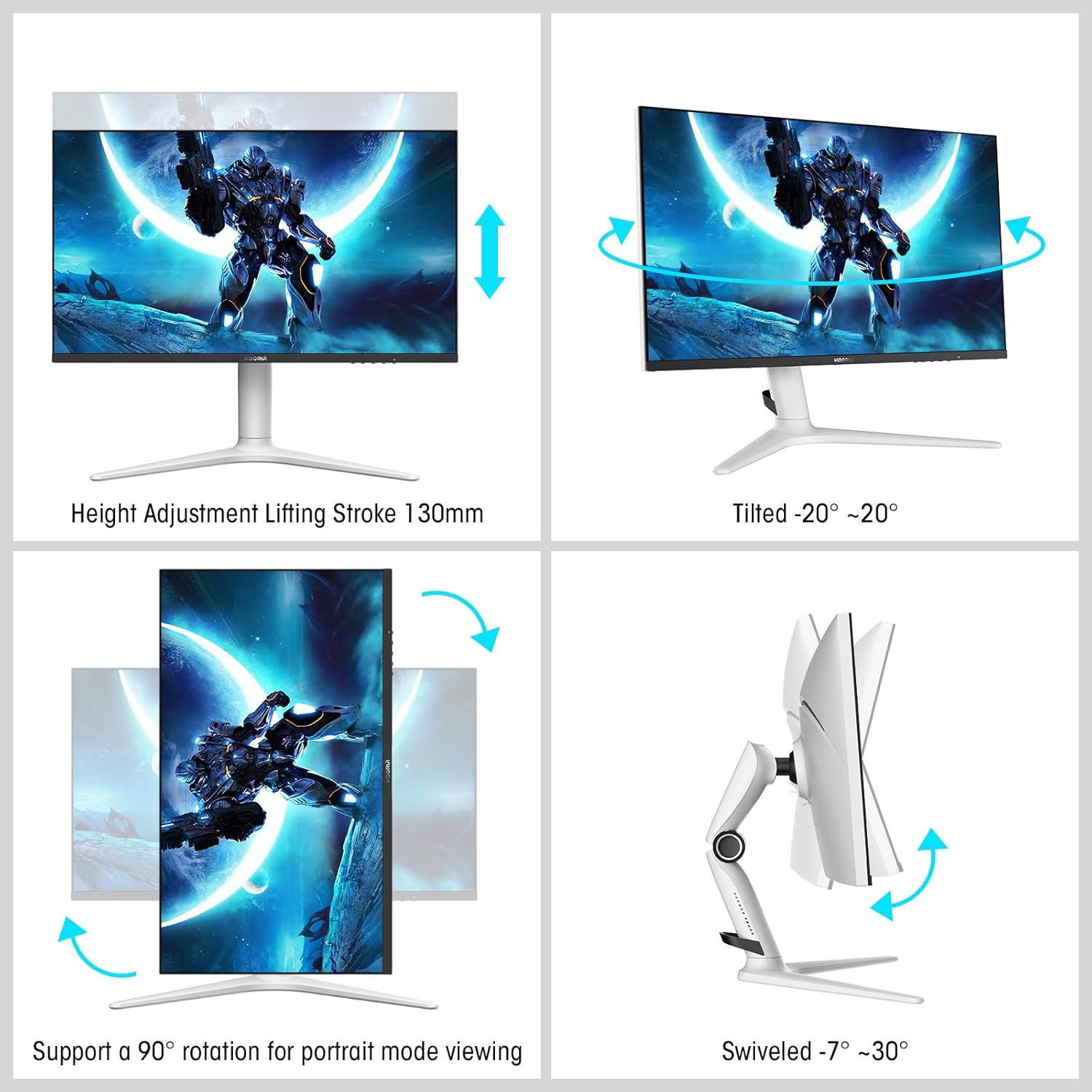
Image: A gaming scenario on the monitor, illustrating the 'Exclusive Game Display Mode' features such as Crosshair, Timer, FPS Counter, and RTS Counter, alongside Adaptive Sync functionality.
4.4 Funktionen für die Augenpflege
The monitor includes features to reduce eye strain during prolonged use.
- Blaulichtfilter: Reduces harmful blue light emissions. This can be adjusted or enabled/disabled through the OSD menu.
5. Anpassungen
Der Monitorständer ermöglicht verschiedene ergonomische Einstellungen zur Optimierung Ihres Arbeitsplatzes. viewKomfort.
- Höhenverstellung: Stellen Sie die Monitorhöhe auf bis zu 130 mm ein.
- Neigung: Tilt the screen from -7° (downward) to 30° (upward).
- Schwenken: Rotate the monitor horizontally from -20° to 20°.
- Drehpunkt: Drehen Sie den Bildschirm um 90°, um den Hochformatmodus zu aktivieren. viewing.
- VESA-Halterung: Compatible with VESA 75x75mm mounting solutions for alternative setups.

Image: Diagrams demonstrating the monitor's ergonomic adjustments, including height, tilt, swivel, and pivot for portrait mode.
6. Spezifikationen
| Besonderheit | Spezifikation |
|---|---|
| Modellnummer | MG27K1Q |
| Bildschirmgröße | 27 Zoll |
| Panel-Typ | VA Mini-LED |
| Auflösung | QHD (2560 x 1440) |
| Seitenverhältnis | 16:9 |
| Bildwiederholrate | 240 Hz |
| Ansprechzeit | 1 ms |
| Kontrastverhältnis (statisch) | 3000:1 |
| Kontrastverhältnis (dynamisch) | 20,000,000:1 |
| Helligkeit | 275 Nits |
| Viewing-Winkel | 178 Grad |
| HDR-Unterstützung | HDR 1000 |
| Adaptive Synchronisierung | Compatible with NVIDIA G-SYNC |
| Konnektivität | 2x HDMI 2.0, 1x DisplayPort 1.4, Audioausgang |
| VESA-Montierung | 75 x 75 mm |
| Energieaufnahme | 90 Watt |
| Abmessungen (T x B x H) | 32 x 61.3 x 52.3 cm |
| Gewicht | 9.34 Kilogramm |
| Besondere Merkmale | Blue Light Filter, Gaming Modes (Crosshair, Timer, FPS Counter) |
7. Fehlerbehebung
Sollten Sie Probleme mit Ihrem Monitor haben, beachten Sie bitte die folgenden gängigen Schritte zur Fehlerbehebung:
- Kein Strom: Vergewissern Sie sich, dass das Netzteil fest mit dem Monitor und einer funktionierenden Steckdose verbunden ist. Prüfen Sie, ob die Betriebsanzeige am Monitor leuchtet.
- Kein Signal: Verify that the video cable (DP or HDMI) is correctly connected to both the monitor and your computer/device. Ensure the correct input source is selected in the monitor's OSD menu. Try a different video cable or port.
- Flackerndes/Verzerrtes Bild: Check the video cable connections. Ensure your graphics card drivers are up to date. Try reducing the refresh rate in your display settings to see if the issue persists.
- Adaptive Sync Not Working: Ensure Adaptive Sync (G-SYNC Compatible) is enabled in both the monitor's OSD settings and your graphics card control panel. Use a DisplayPort cable for optimal performance.
- Tote Pixel: While rare, a small number of dead pixels may be considered within manufacturing tolerances. Refer to the warranty policy for specific details regarding pixel defects.
8. Garantie und Support
KOORUI provides comprehensive support for your product.
- Garantie: This monitor comes with a 3-year warranty from the date of purchase.
- Ersatzservice: A 1-year replacement service is offered for qualifying issues.
- Kundendienst: If you encounter any damages, malfunctions, or find missing accessories, please do not hesitate to contact KOORUI customer support for assistance.