
1. Einleitung
The ELECOM EX-G Left Hand Wired USB Ergonomic Mouse (M-XGL31UBSKBK) is designed to provide comfort and efficiency for left-handed users. Its unique ergonomic shape supports a natural hand posture, reducing strain during extended use. This manual provides essential information for setting up, operating, and maintaining your mouse.

Image: A person's left hand resting comfortably on the ELECOM ergonomic mouse, demonstrating its left-handed design.

Image: Diagram illustrating the ergonomic shape of the mouse, highlighting the concave nest for fingers and angled shape to reduce wrist stress.

Image: Comparison image showing the difference in hand posture between a vertical mouse and the EX-G Half-Vertical mouse, emphasizing easier clicking with gravity.
2. Hauptmerkmale
- Ergonomische Form: Designed with a specific height and angle to allow for a relaxed posture from the palm to the wrist and arm.
- Left-Handed Design: Exclusively crafted for left-handed users, with the left click button positioned on the right side for primary index finger operation.
- Silent Click Switch: Equipped with a silent switch to eliminate clicking sounds, ideal for quiet environments like meetings or late-night work.
- Anpassbare Schaltflächen: Utilize the ELECOM Mouse Assistant software (available for download) to assign preferred functions to the mouse buttons.
- Hochpräziser optischer Sensor: Features a 2000 DPI optical sensor with BlueLED technology, ensuring comfortable operation and accurate tracking on various surfaces.
- Kabelgebundene USB-Verbindung: Provides a reliable plug-and-play connection without concerns about radio interference.

Image: A hand fitment chart with measurements to help users determine the correct mouse size.

Image: Close-up of the Panasonic silent click switch components and a user operating the mouse quietly.

Image: A hand on the mouse with a DPI gauge, indicating 2000 DPI for comfortable operation.
3. Einrichtung
The ELECOM EX-G mouse is a plug-and-play device, requiring no additional driver installation for basic functionality.
- Suchen Sie einen freien USB-Anschluss an Ihrem Computer (PC, Mac oder Laptop).
- Stecken Sie den USB-Stecker des Mauskabels in den USB-Anschluss.
- Your operating system will automatically detect and install the necessary drivers. The mouse will be ready for use within a few moments.

Image: The wired USB connection of the mouse to a laptop, with a coiled 1.5m USB cable shown next to it.
4. Bedienungsanleitung
Tastenfunktionen
- Left Click (Primary Button): Located on the right side of the mouse, operated by the index finger. Performs primary selection and activation functions.
- Right Click (Secondary Button): Located on the left side of the mouse, typically operated by the thumb. Accesses contextual menus and secondary functions.
- Scrollrad: Located on the top surface. Scroll up or down to navigate documents and web pages. Can also be pressed for middle-click functionality (e.g., opening links in new tabs).
- Seitentasten: Two additional buttons are located on the side for customizable functions, often used for 'forward' and 'back' navigation in web Browsern.
DPI-Anpassung
The mouse operates at 2000 DPI, providing a balance of speed and precision for most tasks. No manual DPI adjustment button is present on this model, as it is optimized for consistent performance.
Anpassungssoftware
For advanced customization of button functions and other settings, download the ELECOM Mouse Assistant software from the official ELECOM website (elecomusa.com).
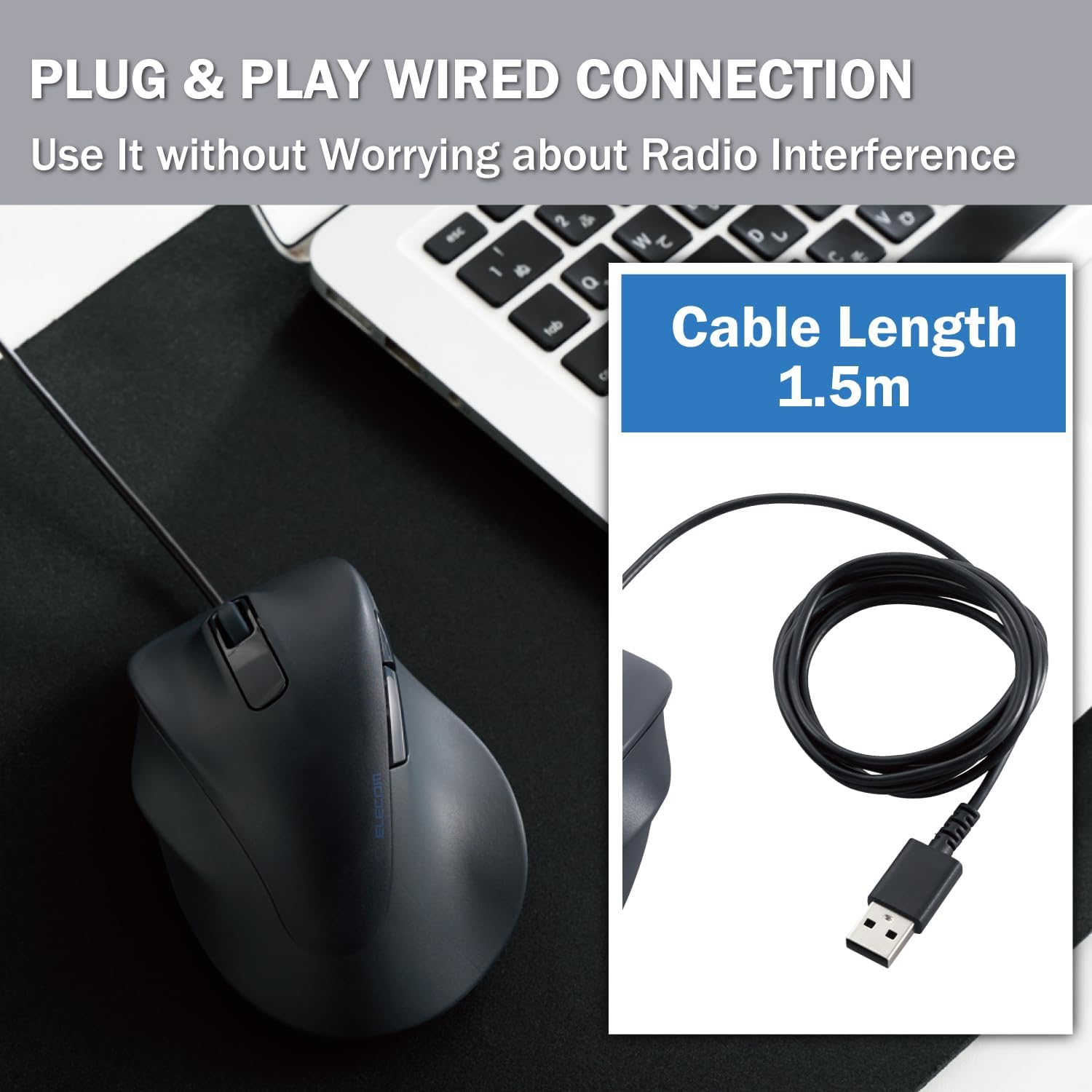
Image: Screenshot of the ELECOM Mouse Assistant software interface on a laptop, showing customization options for buttons and cursor speed.
5. Wartung
- Reinigung: Wischen Sie die Mausoberfläche regelmäßig mit einem weichen, trockenen Tuch ab. Bei hartnäckigem Schmutz verwenden Sie ein leicht dämpfendes Tuch.amp Mit einem Tuch und milder Seife abwischen und anschließend gründlich trocknen. Scharfe Chemikalien oder scheuernde Materialien vermeiden.
- Sensorpflege: Um eine genaue Abtastung zu gewährleisten, halten Sie den optischen Sensor an der Unterseite der Maus sauber und frei von Staub und Schmutz.
- Kabelmanagement: Um Beschädigungen zu vermeiden, sollten Sie das USB-Kabel nicht scharf biegen oder übermäßig daran ziehen.
- Lagerung: Bewahren Sie die Maus bei Nichtgebrauch an einem sauberen, trockenen Ort fern von extremen Temperaturen auf.
6. Fehlerbehebung
- Maus reagiert nicht:
- Stellen Sie sicher, dass das USB-Kabel fest an einen funktionierenden USB-Anschluss angeschlossen ist.
- Versuchen Sie, die Maus an einen anderen USB-Anschluss oder an einen anderen Computer anzuschließen, um Probleme mit dem Anschluss oder dem System auszuschließen.
- Starten Sie Ihren Computer neu.
- Unregelmäßige Cursorbewegung:
- Reinigen Sie den optischen Sensor an der Unterseite der Maus.
- Achten Sie darauf, die Maus auf einer geeigneten Oberfläche zu verwenden. Stark reflektierende oder transparente Oberflächen können die Abtastung beeinträchtigen. Ein Mauspad wird empfohlen.
- Tasten funktionieren nicht:
- Check if the ELECOM Mouse Assistant software is installed and configured correctly. Reset settings to default if necessary.
- Test the mouse on another computer to determine if it's a hardware or software issue.
7. Spezifikationen
| Technische Daten | 4.72 x 3.11 x 2.28 Zoll |
| Artikelgewicht | 4.1 Unzen |
| Artikelmodellnummer | M-XGL31UBSKBK |
| Marke | ELECOM |
| Farbe | Left-Hand Black |
| Konnektivitätstechnologie | USB (kabelgebunden) |
| Besonderheit | Stiller Schalter |
| Bewegungserkennungstechnologie | Optisch |
8. Garantie und Support
This ELECOM product comes with a 2 Jahr Garantie. In the unlikely event of a product defect, ELECOM offers a product warranty for quality issues. Within 2 years of purchase, you may be eligible for a replacement of the defective product by applying for a return or exchange through the return/exchange request form on the official ELECOM USA website (elecomusa.com).
For more information regarding warranty terms, product support, or to download the ELECOM Mouse Assistant software, please visit the official ELECOM USA webWebsite.


