
Einführung
This manual provides detailed instructions for the setup, operation, and maintenance of your Easyfone Prime-A1 Pro 4G Flip Phone. Please read this guide thoroughly to ensure proper use and to maximize the device's functionality.
Produkt überview
The Easyfone Prime-A1 Pro is a 4G flip phone designed for ease of use, featuring a classic flip design, a 2.4-inch HD screen, and a dedicated SOS button. It is equipped with a silicone keyboard with large buttons for comfortable dialing and navigation.
Hauptmerkmale:
- Classic Flip Design: Compact and protective.
- 4G-Konnektivität: Supports modern network standards.
- 2.4"-HD-Bildschirm: Klares und gut lesbares Display.
- Dedicated SOS Button: Für Notrufe.
- Large Silicone Keyboard: User-friendly buttons.
- 1500 mAh Akku: Provides extended standby time and talk time.
- Ladestation: Komfortable Ladelösung.

The Easyfone Prime-A1 Pro flip phone shown with its charging dock. The phone is in a closed position, displaying the external screen with time and date.
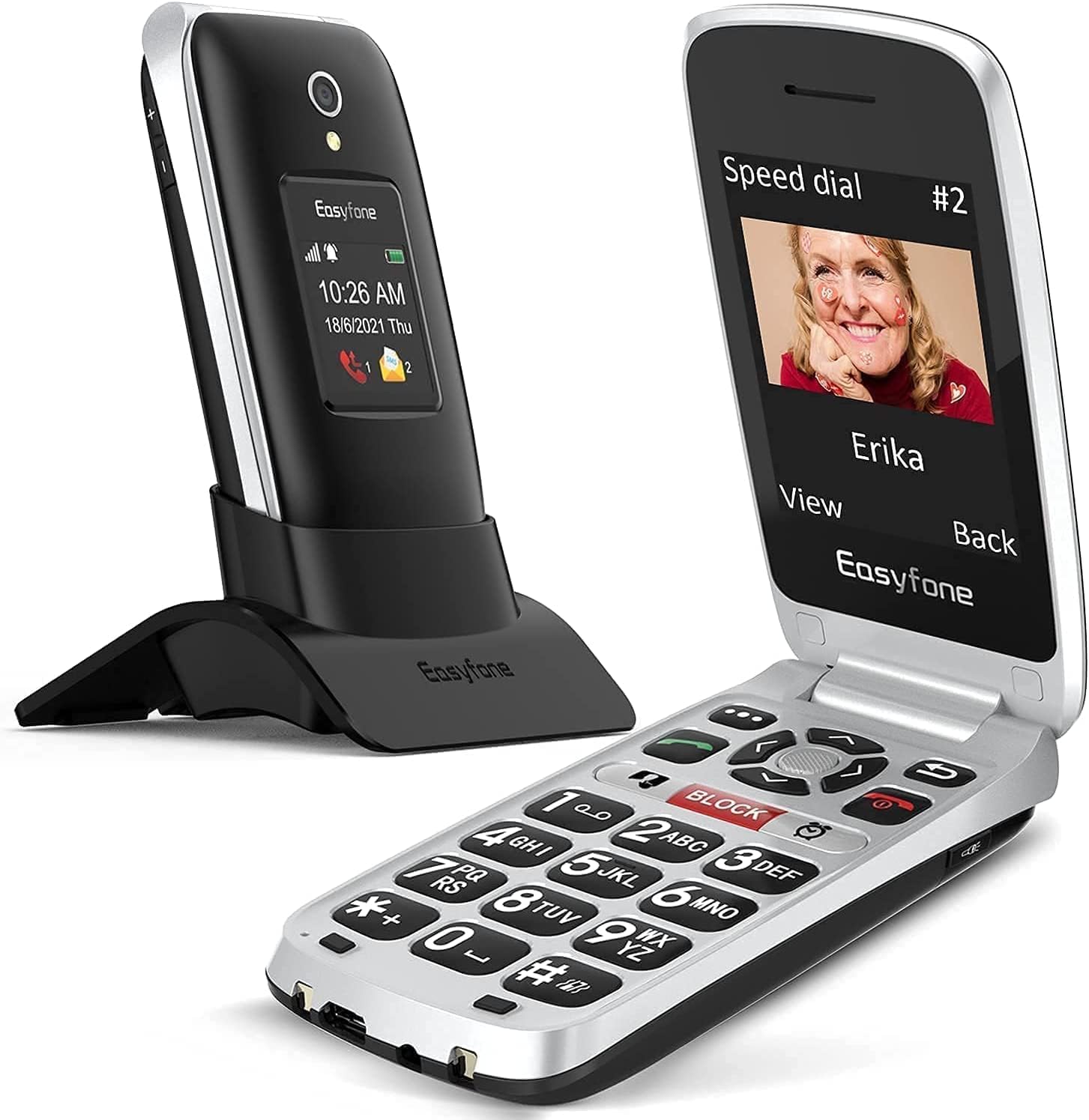
The Easyfone Prime-A1 Pro flip phone in an open position, revealing the large button keypad and the internal display screen.

Eine Nahaufnahme view of the Easyfone Prime-A1 Pro's silicone keyboard, highlighting the large, easy-to-press buttons for improved usability.

The Easyfone Prime-A1 Pro's 2.4-inch HD IPS screen displaying a messaging icon, demonstrating its clear and readable interface.

The Easyfone Prime-A1 Pro charging in its dock, illustrating the 1500 mAh battery capacity and easy charging feature.

Features of the Easyfone Prime-A1 Pro designed for the elderly and hard of hearing, including a loud and clear receiver and a powerful loudspeaker.
Aufstellen
1. Auspacken und erste Inspektion
Carefully remove all components from the packaging. Verify that the phone, battery, USB cable, and charging dock are present. Inspect the phone for any visible damage.
2. Einlegen der Batterie
- Suchen Sie die Abdeckung des Batteriefachs auf der Rückseite des Telefons.
- Schieben oder heben Sie den Deckel vorsichtig an, um ihn zu öffnen.
- Insert the provided Lithium-ion battery, ensuring the gold contacts align with the phone's terminals.
- Bringen Sie den Batteriefachdeckel wieder an, bis er einrastet.
3. SIM-Karteninstallation
The Easyfone Prime-A1 Pro uses a Nano SIM card.
- Nachdem der Akku entfernt wurde, suchen Sie den SIM-Kartensteckplatz.
- Insert your Nano SIM card into the slot with the gold contacts facing down and the cut corner aligned as indicated.
- Stellen Sie sicher, dass die SIM-Karte fest sitzt.
4. Erstes Aufladen
Vor der ersten Benutzung muss der Akku des Telefons vollständig aufgeladen werden.
- Connect the USB cable to the charging dock and then to a power adapter.
- Place the phone into the charging dock, ensuring it is properly seated. The charging indicator on the phone's screen will activate.
- Alternatively, connect the USB cable directly to the phone's charging port.
- Lassen Sie das Telefon aufladen, bis die Akkuanzeige eine vollständige Ladung anzeigt.
Bedienungsanleitung
1. Ein-/Ausschalten
- So schalten Sie das Gerät ein: Halten Sie die Strom-/Endanruf Drücken Sie die Taste (normalerweise rot), bis der Bildschirm aufleuchtet.
- So schalten Sie das Gerät aus: Halten Sie die Strom-/Endanruf Drücken Sie die Taste so lange, bis die Option zum Ausschalten auf dem Bildschirm erscheint, und bestätigen Sie dann.
2. Anrufe tätigen und entgegennehmen
- Anrufen: Wählen Sie die Nummer über das Tastenfeld und drücken Sie die Taste Anruf button (usually green).
- So erhalten Sie einen Anruf: Wenn das Telefon klingelt, drücken Sie die Taste Anruf Schaltfläche zum Antworten.
- So beenden Sie einen Anruf: Drücken Sie die Strom-/Endanruf Taste.
3. Verwendung der SOS-Taste
The dedicated SOS button is located on the back of the phone. It is designed for emergency situations.
- Aufstellen: Before using, configure emergency contacts in the phone's settings. Refer to the phone's menu for "SOS Settings" or "Emergency Contacts."
- Aktivierung: Im Notfall die Taste gedrückt halten SOS-Taste for a few seconds. The phone will automatically call and send an emergency SMS to your pre-set contacts.
4. Messaging (SMS)
- Navigate to the "Messaging" menu from the main screen.
- Select "New Message" or "Create Message."
- Geben Sie die Nummer des Empfängers ein oder wählen Sie eine Nummer aus den Kontakten aus.
- Geben Sie Ihre Nachricht über die Tastatur ein.
- Press "Send."
5. Lautstärkeregelung
Verwenden Sie die Lautstärketasten an der Seite des Telefons, um die Anruflautstärke, die Klingeltonlautstärke und die Medienlautstärke anzupassen.
Wartung
1. Reinigen Sie Ihr Telefon
- Verwenden Sie ein weiches, trockenes, fusselfreies Tuch, um den Bildschirm und das Gehäuse des Telefons zu reinigen.
- Avoid using harsh chemicals, cleaning solvents, or strong detergents, as these can damage the phone's surface.
- Do not expose the phone to excessive moisture during cleaning.
2. Batteriepflege
- Um die Batterielebensdauer zu verlängern, sollten extreme Temperaturen vermieden werden.
- Laden Sie den Akku regelmäßig auf, vermeiden Sie es jedoch, ihn über längere Zeiträume vollständig entladen zu lassen.
- Use only the original charger and battery provided with the phone.
3. Wasserbeständigkeit
Dieses Gerät ist nicht wasserdicht. Avoid exposing it to water, rain, or high humidity to prevent damage.
Fehlerbehebung
| Problem | Mögliche Ursache | Lösung |
|---|---|---|
| Das Telefon lässt sich nicht einschalten. | Die Batterie ist entladen oder nicht ordnungsgemäß eingesetzt. | Laden Sie den Akku auf. Stellen Sie sicher, dass der Akku richtig eingesetzt ist. |
| Ich kann keine Anrufe tätigen oder empfangen. | Kein Netzsignal, Problem mit der SIM-Karte oder Kontoproblem. | Check network coverage. Reinsert SIM card. Contact your service provider. |
| Die SOS-Taste funktioniert nicht. | Notfallkontakte nicht eingerichtet oder falsch. | Überprüfen und konfigurieren Sie die Notfallkontakte in den Telefoneinstellungen. |
| Der Bildschirm reagiert nicht oder ist eingefroren. | Softwarefehler. | Um einen Hard-Reset durchzuführen, muss die Batterie entfernt und wieder eingesetzt werden. |
Technische Daten
| Besonderheit | Detail |
|---|---|
| Modellname | Prime-A1 Pro |
| Marke | Easyfone |
| Betriebssystem | Nucleus OS |
| Zellulartechnologie | 4G LTE |
| Bildschirmgröße | 2.4 Zoll |
| Anzeigetyp | LCD |
| Maximale Bildschirmauflösung | 320 x 240 Pixel |
| Größe des installierten RAM-Speichers | 64 MB |
| Speicherkapazität | 1 GB |
| Anzahl der SIM-Kartensteckplätze | Einzelne SIM |
| SIM-Kartengröße | Nano |
| Batteriekapazität | 1500 mAh Lithium-Ionen- |
| Gesprächszeit | 6 Stunden |
| Auflösung der Rückkamera | 2 Megapixel |
| Kopfhöreranschluss | 3.5 mm |
| Wasserbeständigkeit | Nicht wasserdicht |
| Maße | 10.4 x 5.2 x 2.3 cm |
| Im Lieferumfang enthaltene Komponenten | USB Cable, Prime-A1 Pro phone |
Garantie und Support
For warranty information and technical support, please contact Easyfone directly. Details regarding specific warranty periods or service procedures are typically provided with your purchase documentation or on the manufacturer's official webWebsite.
Bewahren Sie Ihren Kaufbeleg unbedingt für eventuelle Garantieansprüche auf.