
1. Einleitung
The Jinvocloud Tuya Smart Zigbee IR Remote Controller, model UFO-R4Z, is a universal infrared remote control hub designed to integrate traditional infrared-controlled home appliances into your smart home ecosystem. It allows for remote control, voice control, and scene linkage through the Tuya/Smart Life mobile application, compatible with Zigbee wired gateways.
This device supports a wide range of infrared appliances, including air conditioners, TVs, set-top boxes, fans, internet boxes, projectors, and stereos. It offers features such as DIY customized learning, remote control via mobile app, scene linkage with other smart devices, and voice control through Alexa and Google Assistant.
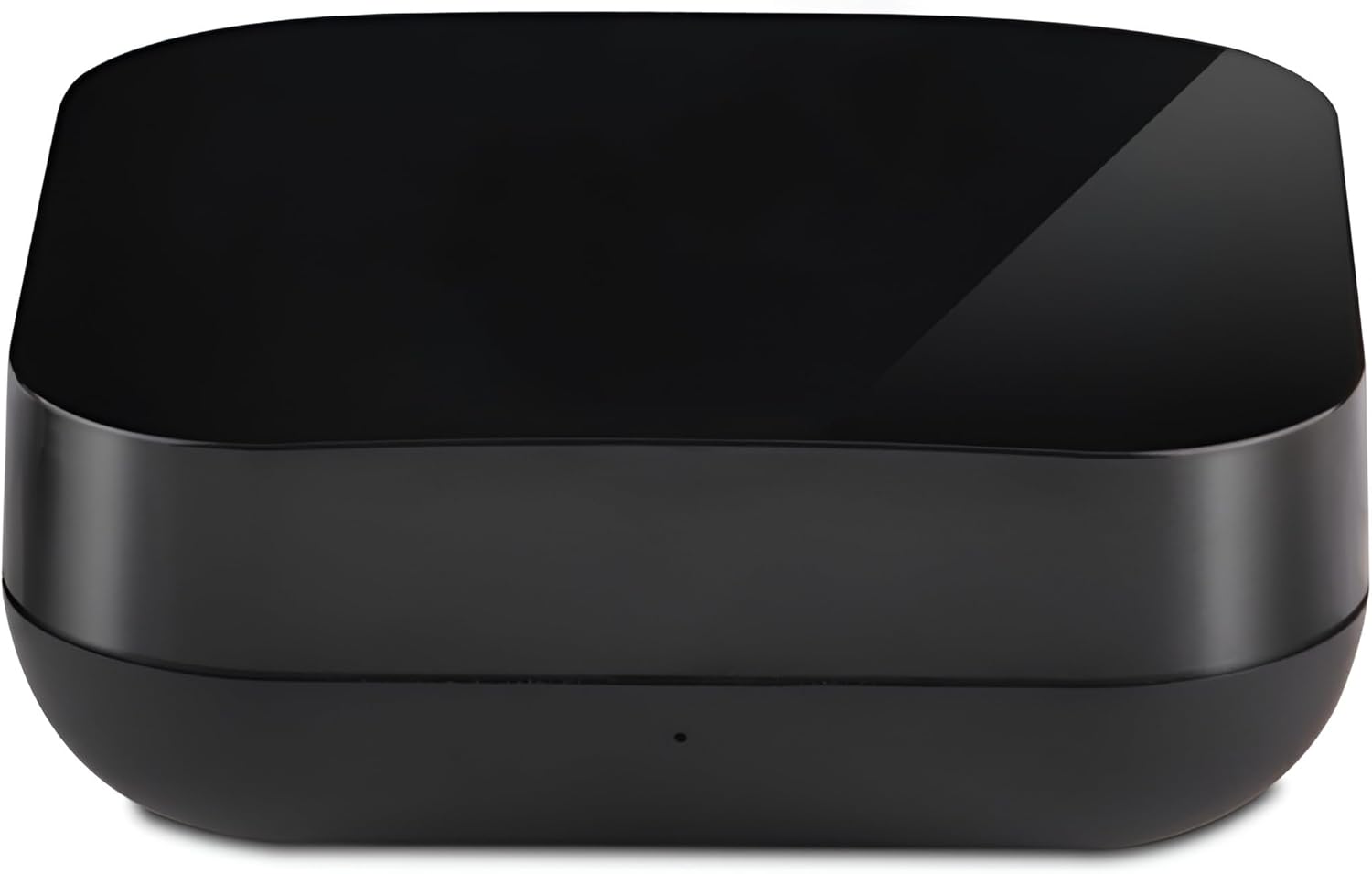
Abbildung 1.1: Vorderseite view of the Jinvocloud Tuya Smart Zigbee IR Remote Controller.
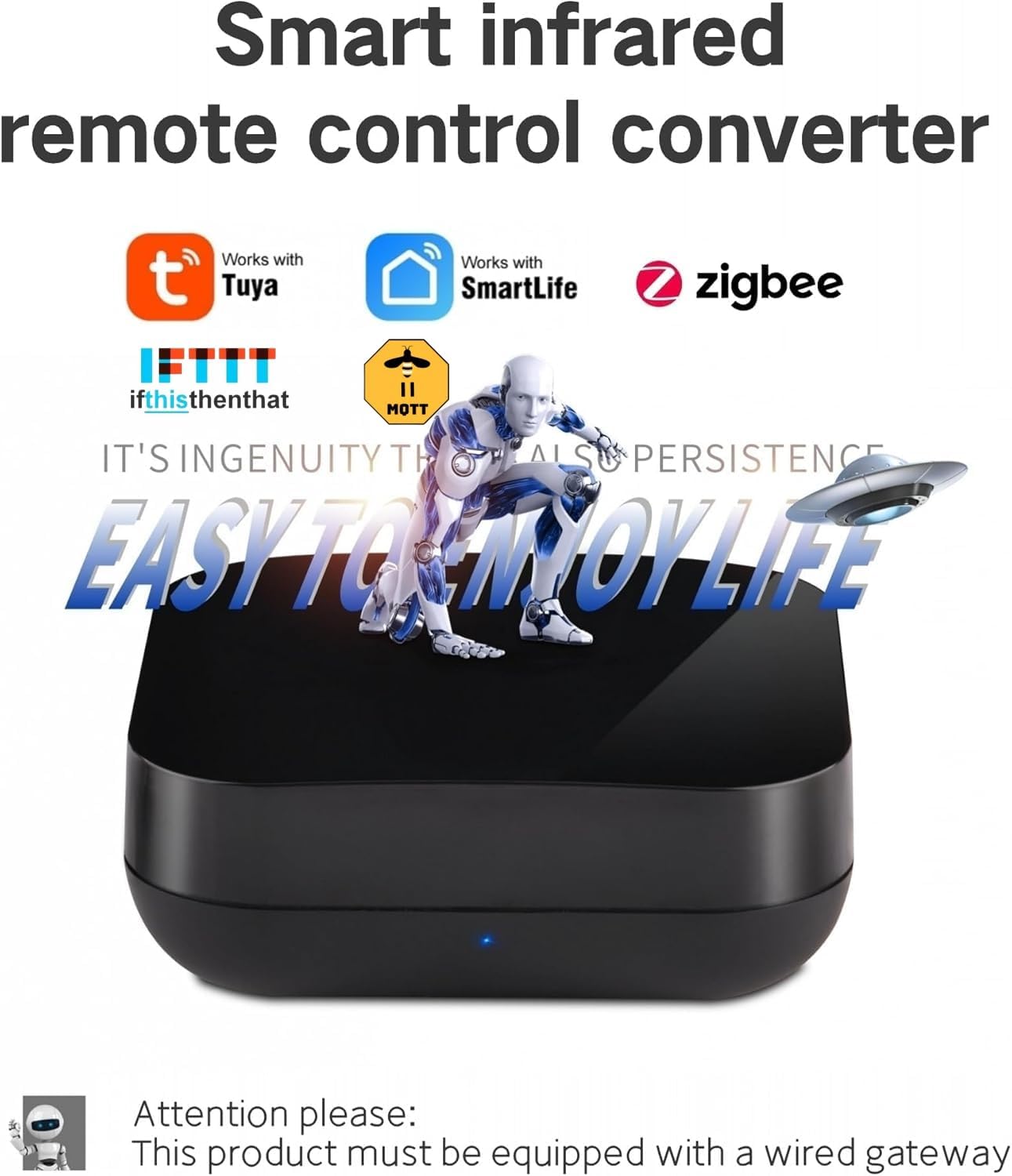
Figure 1.2: The smart infrared remote control converter, highlighting compatibility with Tuya, SmartLife, Zigbee, IFTTT, and MQTT.
2. Lieferumfang
- 1 x Zigbee Smart IR-Fernbedienung
- 1 x USB-Kabel
- 1 x englisches Benutzerhandbuch
3. Einrichtung und Installation
Before proceeding, ensure you have a Zigbee wired gateway, as this product requires one for operation and does not support wireless Zigbee gateways. Connect your phone to a 2.4 GHz Wi-Fi network (5GHz Wi-Fi is not supported) and ensure both your phone and the smart gateway are on the same network.
3.1 Powering On and Resetting
Connect the provided USB cable to the IR Remote Controller and a power source. The blue indicator light on the device should begin flashing. If the blue light does not flash, press and hold the reset button located on the bottom of the device until the blue light starts flashing. This indicates the device is in pairing mode.

Abbildung 3.1: Unten view of the IR Remote Controller, showing the USB power interface and reset button.

Abbildung 3.2: Ausführlich view of the device's features, including the network indicator and reset button location.
3.2 Pairing with Smart Life APP
Follow these steps to pair your device with the Smart Life application:
- Open the Smart Life APP on your smartphone.
- Navigate to the Zigbee section within the app.
- Click on 'Wired Gateway' to initiate the device search.
- The app will discover nearby devices. Once the IR Remote Controller is found and successfully added, proceed to the next step.
- After successful addition, you can find your appliance brand in the list provided by the app. Click on the brand to automatically match the remote codes.
- Once matched, you can use the app to control your appliances.
Video 3.1: Step-by-step guide on how to connect and pair the Zigbee infrared remote control with the Smart Life app.
4. Bedienungsanleitung
4.1 Remote Control Devices
Control your home's infrared devices using the universal remote control feature within the Tuya/Smart Life mobile app. This includes air conditioners, TVs, set-top boxes, fans, internet boxes, projectors, and stereos.

Figure 4.1: The remote controller supports various household appliances, including TV, Refrigerator, Washing Machine, DVD Player, Range Hood, IR LED Light, Fan, and Air Conditioning.

Figure 4.2: Control your air conditioner and other appliances remotely using the mobile application.
4.2 Individuelles Lernen
The device supports customized learning, allowing you to teach it commands from existing remote controls. This is useful for appliances without pre-matched remote control codes in the cloud database. Simply set the device to 'learn_ir_code' mode, press the desired button on your original remote, and the code will be learned and stored.

Figure 4.3: The IR code base is enriched with data, supporting over 4000 brand global codes, covering mainstream appliances and integrating control into your mobile device.
4.3 Sprachsteuerung
The controller is compatible with Amazon Alexa and Google Assistant, enabling voice commands for your infrared devices. For example, you can say "Alexa, turn on the TV" or "Google, open the set-top box."

Figure 4.4: Simplify control with voice commands through compatible smart speakers.
4.4 Scene Linkage & Automation
Utilize the scene and automation settings within the app to link the IR controller with other smart devices. For instance, if a temperature sensor detects a high temperature, the air conditioner can be automatically turned on to cool the room.
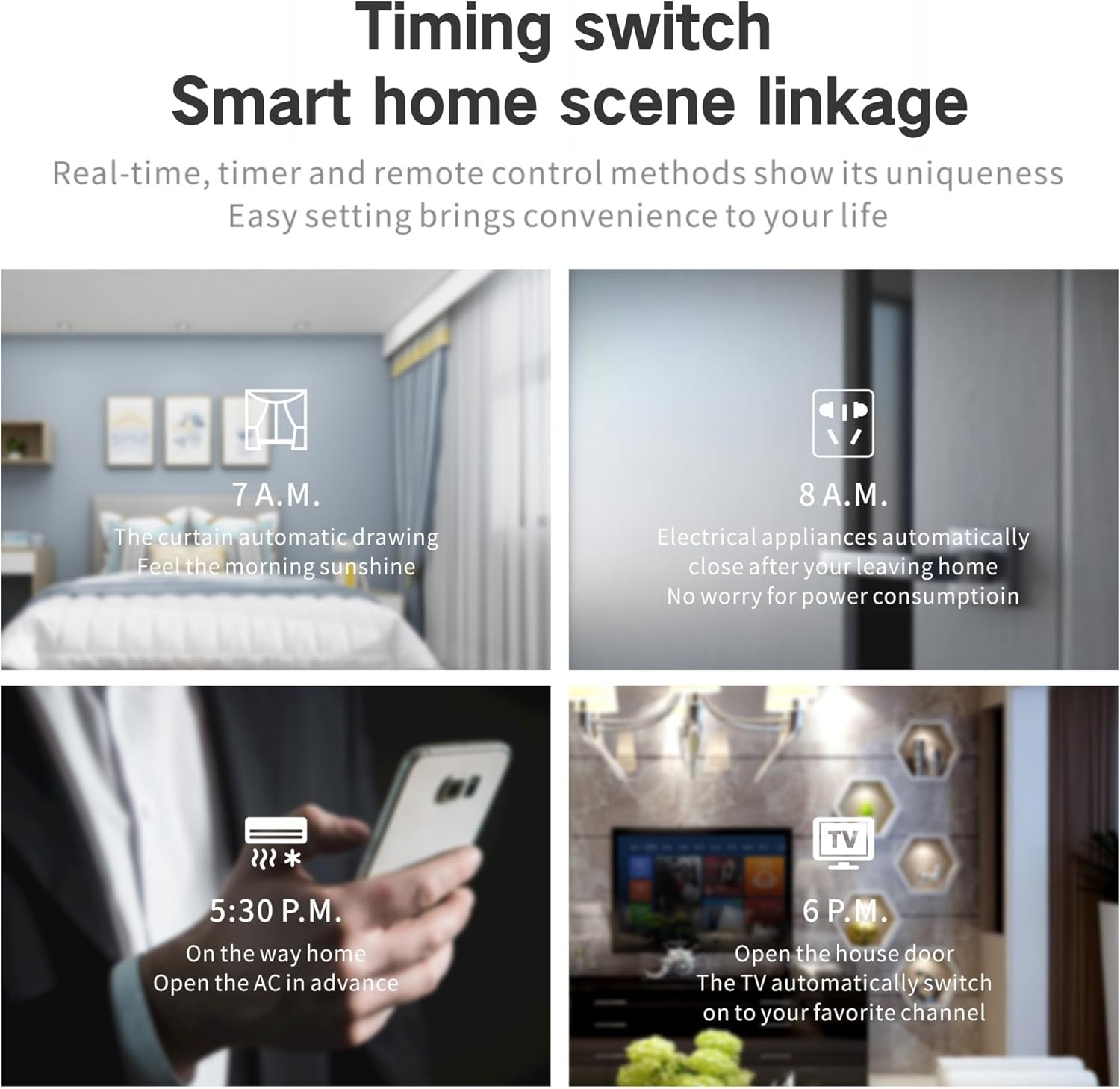
Abbildung 4.5: Bspamples of smart home scene linkages for automated control.
4.5 Gerätefreigabe und Gruppensteuerung
Share control of your home's infrared devices with family members, allowing multiple users to manage smart appliances from their own devices.

Figure 4.6: Transform ordinary appliances into smart devices through seamless integration.

Figure 4.7: The device provides broad signal coverage for controlling appliances throughout your home.
5. Wartung
To ensure optimal performance and longevity of your Jinvocloud Tuya Smart Zigbee IR Remote Controller, follow these general maintenance guidelines:
- Halten Sie das Gerät sauber und staubfrei. Verwenden Sie zum Reinigen ein weiches, trockenes Tuch.
- Setzen Sie das Gerät keinen extremen Temperaturen, direkter Sonneneinstrahlung oder hoher Luftfeuchtigkeit aus.
- Lassen Sie das Gerät nicht fallen und setzen Sie es keinen starken Stößen aus.
- Stellen Sie sicher, dass das USB-Kabel ordnungsgemäß angeschlossen und nicht beschädigt ist.
6. Fehlerbehebung
If you encounter issues with your IR Remote Controller, refer to the following common problems and solutions:
- Blue Light Not Flashing: If the blue indicator light is not flashing during setup, press and hold the reset button on the bottom of the device until it begins to flash. Ensure the device is properly powered via the USB cable.
- Gerät kann nicht gekoppelt werden: Verify that your phone is connected to a 2.4 GHz Wi-Fi network and that both your phone and the Zigbee wired gateway are on the same network. Ensure the device is in pairing mode (blue light flashing).
- Difficulty Learning IR Codes: Ensure the original remote control is pointed directly at the IR Remote Controller during the learning process. Some users have reported that the battery cover can be difficult to open, which might be relevant if the device requires internal access for certain resets or if it had a battery variant.
- Slow or Unreliable Command Transmission: While the device is designed for efficient IR transmission, external factors or network congestion can sometimes affect performance. Ensure the device has a clear line of sight to the appliances it controls. If using with Home Assistant via Z2M, some users have noted slower transmission speeds compared to Wi-Fi IR blasters.
- Device Not Reconnecting After Power Outage: In some cases, the device may not automatically reconnect to the Zigbee network after a power interruption. If this occurs, you may need to re-pair the device with your Zigbee gateway.
7. Spezifikationen
Below are the technical specifications for the Jinvocloud Tuya Smart Zigbee IR Remote Controller (UFO-R4Z):
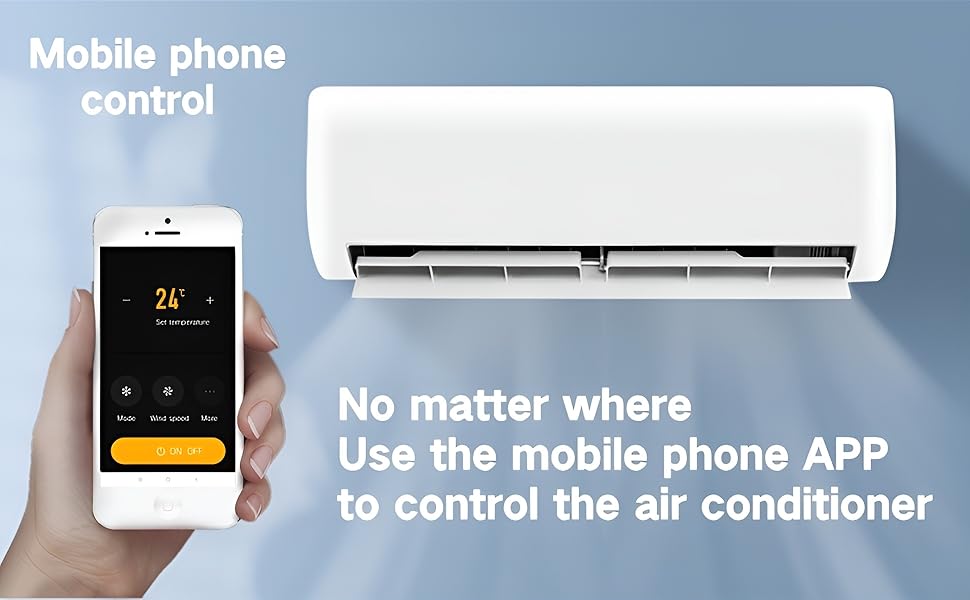
Figure 7.1: Detailed product parameter table.
| Besonderheit | Spezifikation |
|---|---|
| Produktname | Universelle IR-Fernbedienung |
| Stromversorgung | 5 V DC, 1 A (Micro-USB) |
| Standby-Verbrauch | ≤ 0.4 W |
| Arbeitstemperatur | 0–50℃ (32–122℉) |
| Arbeitsfeuchtigkeit | 85 % relative Luftfeuchtigkeit (nicht kondensierend) |
| Verbindungsprotokoll | Zigbee 802.15.4 |
| Produktgröße | 65 × 65 × 27.5 mm (2.56 × 2.56 × 1.08 Zoll) |
| Übertragungsmethode | Zigbee |
| IR-Lernfrequenz | 38 kHz |
| IR-Richtung | Multidirektional |
| IR-Steuerungsdistanz | Horizontale Richtung ≤ 8 m, entgegengesetzte Richtung ≤ 15 m (abhängig von der Umgebung) |
| IR-Fernstudium | Gegenläufige Richtung ≤3 m, Winkel ±45° (abhängig von der Umgebung) |
| Support-Gerät | Android 4.0 / iOS 8.0 oder höher |
| Nettogewicht des Produkts | ca. 50g (Batterie nicht im Lieferumfang enthalten) |
| Maximale Anzahl unterstützter Geräte | 15 |
| Kompatible Geräte | Set Top Box, Television, Air Conditioner, Fan, Projector, Stereo, etc. |
8. Garantie und Support
For warranty information or technical support, please refer to the documentation provided with your purchase or contact the seller, Tuya Cloud Smart, directly. You can also visit the Jinvocloud brand store on Amazon for additional resources and contact information.
Manufacturer: Shenzhen Tuya Cloud Technology Co.,Ltd.