
Einführung
The Manhattan 7-in-1 USB-C & USB-A Multi-Card Reader, Model 102605, is a versatile device designed for quick and efficient data transfer from various memory card formats to your computer or mobile device. Featuring both USB-C and USB-A connectors, this reader offers broad compatibility and high-speed data transfer rates, simplifying your workflow for photos, videos, and other files.
Produkteigenschaften
- Seven dedicated slots for popular flash card formats: SD / MMC, microSD / TF, MS, xD, and CF.
- USB 3.2 Gen 1 compliant, supporting SuperSpeed transfer rates up to 5 Gbps.
- Integrated 3 ft (1m) 2-in-1 combo cable with nestable USB-C and USB-A plugs for universal connectivity.
- Plug-and-play functionality, requiring no additional drivers.
- Kompatibel mit den Betriebssystemen Windows, macOS, Linux, Chrome OS, iPadOS und Android.
Aufstellen
Setting up your Manhattan Multi-Card Reader is a straightforward process:
- Verbinden Sie den Leser: Identify the appropriate USB port on your computer, laptop, tablet, or smartphone (USB-A or USB-C). Connect the reader's integrated cable to the port. The 2-in-1 connector allows you to switch between USB-A and USB-C by detaching the USB-C adapter from the USB-A plug.
- Einschalten: The card reader is bus-powered, meaning it draws power directly from the USB port. No external power adapter is required.
- Treiberinstallation: The device is plug-and-play. Your operating system will automatically detect and install any necessary drivers. No manual driver installation is typically needed.
- LED-Anzeige: A small LED indicator on the reader will illuminate when connected and active, indicating readiness for use.

Image: The Manhattan 7-in-1 Multi-Card Reader connected via its 3-foot USB-C and USB-A combo cable.
Bedienungsanleitung
To transfer data using your multi-card reader:
- Ausweisfach: Locate the correct slot on the reader for your specific memory card type. Refer to the labels next to each slot.
- Speicherkarte einlegen: Gently insert your memory card into the corresponding slot. Ensure the card is oriented correctly; do not force it. The card should slide in smoothly and typically click into place.
- Zugriffsdaten: Once the card is inserted, your operating system will recognize it as a removable drive. Open your file Entdecker (z.B. File Explorer on Windows, Finder on macOS) to access the contents of the memory card.
- Überweisen Files: You can now copy, paste, or move files between your memory card and your connected device.
- Sicher auswerfen: Before removing the memory card, always safely eject the drive from your operating system to prevent data corruption. After ejection, gently pull the memory card out of its slot.

Bild: Oben view of the card reader highlighting the various card slots and their labels.

Image: Close-up of the card reader with an illuminated LED indicator, signifying active operation.
Unterstützte Medientypen
The Manhattan 7-in-1 Multi-Card Reader supports the following memory card formats:
- SD / MMC: SD, SDHC, SDXC, RS-MMC
- microSD / TF: microSD, microSDHC, microSDXC
- MS: Memory Stick, MS Pro Duo, MS Duo
- xD: xD Bildkarte
- CF: CompactFlash

Image: A visual representation of the different memory card types compatible with the reader.
Kompatibilität
This card reader offers wide compatibility with various devices and operating systems:
- Betriebssysteme: Windows, macOS, Linux, Chrome OS, iPadOS, Android.
- Kompatible Geräte: Computers, Laptops, Tablets, Smartphones.
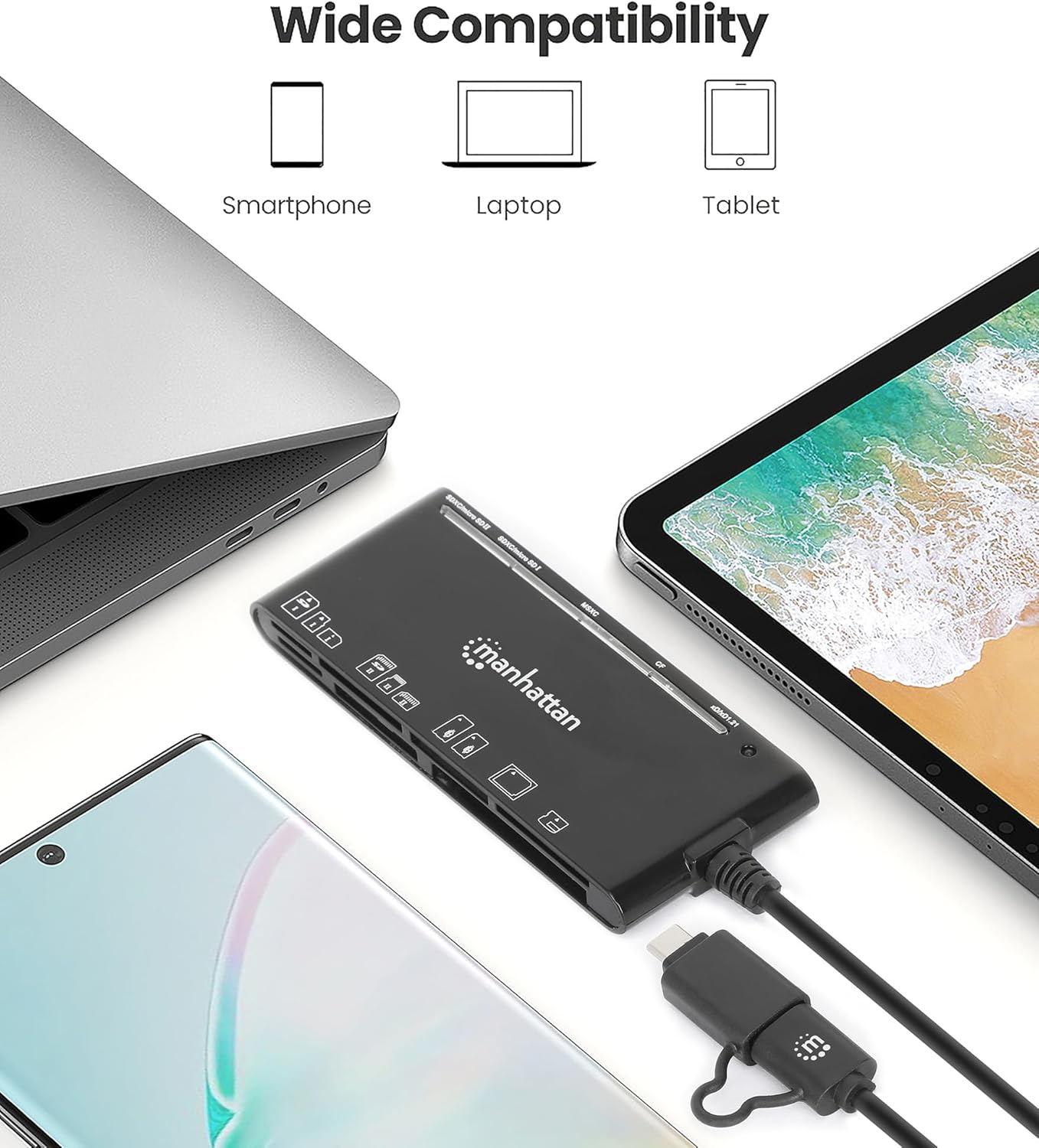
Image: The card reader shown with a laptop, tablet, and smartphone, demonstrating its broad device compatibility.

Image: The card reader connected to a smartphone, illustrating mobile device compatibility.
Fehlerbehebung
If you encounter issues with your card reader, consider the following troubleshooting steps:
- Gerät nicht erkannt:
- Ensure the USB cable is fully and securely connected to both the reader and your device.
- Versuchen Sie, den Leser an einen anderen USB-Anschluss Ihres Geräts anzuschließen.
- If using a USB hub, try connecting the reader directly to your computer's USB port.
- Starten Sie Ihren Computer oder Ihr Mobilgerät neu.
- Speicherkarte wird nicht gelesen:
- Verify that the memory card is inserted correctly into the appropriate slot. Do not force the card.
- Test with a different memory card to determine if the issue is with the card or the reader.
- Check the memory card for any visible damage or dirt on the contacts.
- Langsame Datenübertragungsgeschwindigkeiten:
- Ensure the reader is connected to a USB 3.0 (or higher) port on your device to achieve SuperSpeed transfer rates. Connecting to a USB 2.0 port will result in slower speeds.
- The actual transfer speed also depends on the speed class of your memory card. Use high-speed cards for optimal performance.
- Vermeiden Sie es, viele kleine Mengen zu übertragen. filegleichzeitig, da dies langsamer sein kann als die Übertragung einiger weniger großer Datenmengen. files.
Technische Daten
| Marke | MANHATTAN |
| Modellnummer | 102605 |
| Konnektivitätstechnologie | USB Typ A, USB Typ C |
| Datenübertragungsrate | Bis zu 5 Gbit/s (USB 3.2 Gen 1) |
| Unterstützte Medientypen | CompactFlash, MMC, Memory Stick, SD Card, microSD, xD Picture Card |
| Slot Count | 7 |
| Betriebssystemkompatibilität | Chrome OS, Linux, Mac OS, Windows, iPadOS, Android |
| Kabellänge | 3 Fuß (1 m) |
| Farbe | Schwarz |
Wartung
To ensure the longevity and optimal performance of your card reader:
- Halten Sie das Gerät sauber und frei von Staub und Schmutz. Verwenden Sie zur Reinigung ein weiches, trockenes Tuch.
- Avoid exposing the reader to extreme temperatures or humidity.
- Do not force memory cards into slots, as this can damage both the card and the reader.
- Store the reader in a safe place when not in use to prevent physical damage to the connectors or slots.
Garantie und Support
This Manhattan 7-in-1 USB-C & USB-A Multi-Card Reader is backed by a 3 Jahr Herstellergarantie.
For technical support, warranty claims, or further assistance, please visit the official Manhattan Products website or contact their customer service department. Refer to your product packaging or the manufacturer's webAuf dieser Website finden Sie die aktuellsten Kontaktinformationen für den Support.