
1. Einleitung
Thank you for choosing the Docooler Smart Biometric Fingerprint Cabinet Lock. This device provides a secure and convenient keyless access solution for your cabinets, drawers, wardrobes, and other furniture. Utilizing advanced fingerprint recognition and Bluetooth app control, it offers enhanced security and ease of use. Please read this manual thoroughly before installation and operation to ensure proper functionality and safety.
2. Produktüberschreitungview und Funktionen
The Docooler Smart Biometric Fingerprint Cabinet Lock integrates modern technology to protect your personal items and documents. Its compact design allows for discreet installation within various furniture types.
Hauptmerkmale:
- Mehrere Entsperrmethoden: Access your belongings using fingerprint recognition, Bluetooth app control, or emergency USB key.
- Hohe Sicherheit: Advanced biometric technology ensures only authorized fingerprints can unlock the device.
- Bluetooth-App-Steuerung: Connect via Bluetooth to manage fingerprints, view unlock records, and monitor battery status directly from your smartphone.
- Schnellentsperrung: Features a 0.5-second reaction time for rapid access.
- Automatische Verriegelung: The lock automatically secures itself after closing, preventing accidental oversight.
- Warnung bei niedrigem Akkustand: An indicator light signals when the battery level is low, prompting replacement.
- Notstromversorgung: In case of complete battery depletion, the lock can be temporarily powered via a USB connection for emergency unlocking.
- Breite Anwendung: Suitable for various wooden furniture including cabinets, drawers, wardrobes, and storage boxes.

Abbildung 2.1: Überview of Docooler Smart Electronic Cabinet Lock features.

Figure 2.2: Docooler Smart Biometric Fingerprint Cabinet Lock components and usage scenarios.
3. Packungsinhalt
Bitte überprüfen Sie, ob alle unten aufgeführten Artikel in Ihrem Paket enthalten sind:
- Front Panel (Fingerprint Panel)
- Schließfach
- Benutzerhandbuch (dieses Dokument)
- Schraubenbeutel
- Verschlussfang
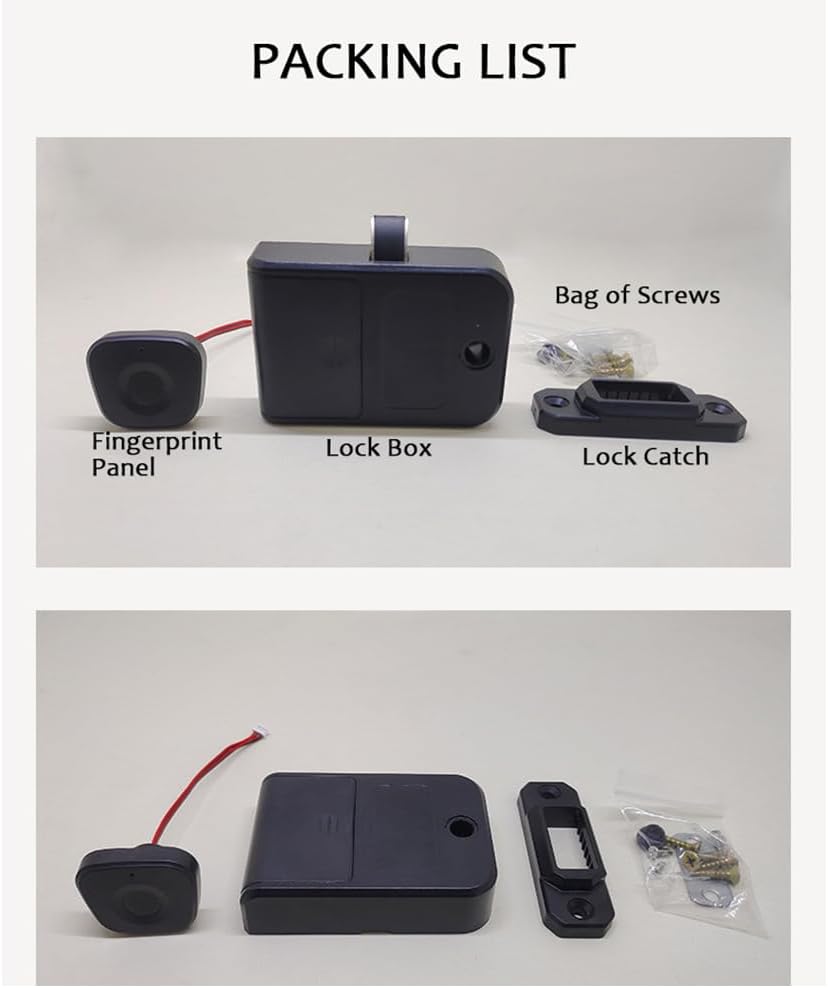
Figure 3.1: Package contents of the Docooler Smart Biometric Fingerprint Cabinet Lock.
4. Spezifikationen
| Besonderheit | Beschreibung |
|---|---|
| Marke | Docooler |
| Besonderheit | Fingerabdruck |
| Sperrtyp | Biometrische |
| Material | Acrylnitril-Butadien-Styrol, Edelstahl |
| Empfohlene Verwendung | Cabinets, Drawers, Wardrobes, Storage Boxes, Furniture |
| Stil | Modern |
| Farbe | Schwarz |
| Controllertyp | Anwendung |
| Kontrollmethode | App, Berühren |
| Konnektivitätsprotokoll | Bluetooth |
| Artikelgewicht | 4.2 Unzen |
| Verpackungsabmessungen | 4.45 x 3.78 x 2.56 Zoll |

Abbildung 4.1: Produktabmessungen und -parameter.
5. Installation
The Docooler Smart Biometric Fingerprint Cabinet Lock is designed for easy installation on various wooden furniture. A screwdriver is typically the only tool required.
Installationsschritte:
- Bereiten Sie die Oberfläche vor: Ensure the installation surface on your cabinet or drawer is clean and dry.
- Position the Fingerprint Panel: Determine the desired location for the fingerprint panel on the exterior of your furniture. Mark the screw holes and the cable entry point.
- Install the Fingerprint Panel: Secure the fingerprint panel using the provided screws. Route the connecting wires through the pre-drilled hole to the interior of the furniture.
- Mount the Lock Box: On the interior of the furniture, align the lock box with the fingerprint panel's wires. Secure the lock box with screws.
- Attach the Lock Catch: Install the lock catch on the frame of the furniture, ensuring it aligns properly with the lock box mechanism when the door/drawer is closed.
- Kabel anschließen: Connect the fingerprint panel wires to the lock box.
- Batterien installieren: Open the battery cover on the lock box and insert 3 AAA batteries (not included), observing correct polarity.
- Testfunktionalität: Close the door/drawer and test the lock's operation.

Figure 5.1: Simple installation process diagram.

Abbildung 5.2: Installation Bspamples for drawers and single-door cabinets.

Figure 5.3: Internal lock box placement within a drawer.
6. Einrichtung
6.1. Initial Setup and Administrator Fingerprint Enrollment
- After installing the batteries, the lock will be in initial setup mode.
- Legen Sie Ihren Finger auf den Fingerabdrucksensor. Die Kontrollleuchte blinkt.
- Lift and place your finger repeatedly (typically 5-8 times) until the indicator light turns solid green, indicating successful enrollment of the administrator fingerprint.
- The first enrolled fingerprint will automatically be designated as the administrator.
6.2. Adding User Fingerprints
- Verwenden Sie den Administrator-Fingerabdruck, um das Gerät zu entsperren.
- While the lock is open, place the administrator finger on the sensor and hold it until the indicator light flashes blue.
- Then, have the new user place their finger on the sensor repeatedly until the light turns solid green.
- Repeat for additional user fingerprints. The lock can store up to 20 fingerprints.
6.3. Bluetooth App Connection and Control
The lock supports control via a dedicated mobile application (e.g., Tuya Smart app).
- Laden Sie die App herunter: Suchen nach and download the recommended smart home app (e.g., Tuya Smart) from your device's app store.
- Registrieren/Anmelden: Erstellen Sie ein Konto oder melden Sie sich bei der App an.
- Gerät hinzufügen: Ensure your phone's Bluetooth is enabled. In the app, select 'Add Device' or the '+' icon. The app should automatically detect the lock. If not, you may need to manually select 'Lock' or 'Security Sensor' and follow the in-app instructions.
- Paarung: Follow the app's prompts to pair your lock. This may involve pressing a button on the lock or performing an action with the administrator fingerprint.
- App-Funktionen: Sobald die Verbindung hergestellt ist, können Sie die App für Folgendes nutzen:
- Unlock the cabinet remotely.
- Add or delete fingerprints.
- View unlock records (who unlocked and when).
- Monitor the current battery level.

Figure 6.1: Tuya App interface for lock control.

Figure 6.2: Fingerprint and Bluetooth app unlock methods.
7. Bedienung
7.1. Entsperren mit Fingerabdruck
Place your enrolled finger on the fingerprint sensor. The indicator light will flash green, and the lock will disengage, allowing you to open the cabinet or drawer. The lock will automatically re-engage when the door/drawer is closed.

Figure 7.1: Unlocking the cabinet with a registered fingerprint.
7.2. Unlocking with Bluetooth App
Open the connected mobile app on your smartphone. Tap the unlock icon within the app interface. The lock will disengage, and you can open the cabinet or drawer.
7.3. Automatische Verriegelung
After successfully unlocking and opening the cabinet/drawer, the lock mechanism will automatically retract. When you close the cabinet/drawer, the lock will automatically extend and secure the furniture.
8. Wartung
8.1. Batteriewechsel
The lock is powered by 3 AAA batteries (not included). When the battery level is low, the indicator light will flash red 3 times continuously during operation. Replace the batteries promptly to ensure continuous functionality.
- Locate the battery compartment on the lock box (interior of the furniture).
- Entfernen Sie die Batterieabdeckung.
- Replace the old AAA batteries with new ones, ensuring correct polarity (+/-).
- Schließen Sie die Batterieabdeckung sicher.

Figure 8.1: Low power warning indicator.

Figure 8.2: Battery compartment and emergency USB power supply.
8.2. Notstromversorgung
If the batteries completely run out and you cannot unlock the device, you can connect an external power bank via the Type-C USB port on the fingerprint panel for temporary emergency power. This will allow you to unlock the device and replace the internal batteries.
8.3. Reinigung
Wipe the fingerprint sensor and the lock's exterior with a soft, dry cloth. Avoid using abrasive cleaners or solvents, as these can damage the surface or electronic components.
9. Fehlerbehebung
- Lock does not respond to fingerprint:
- Stellen Sie sicher, dass Ihr Finger sauber und trocken ist.
- Try different angles or positions of your finger on the sensor.
- Verify that the fingerprint is correctly enrolled. If not, re-enroll it.
- Batteriestand prüfen. Batterien bei niedrigem Batteriestand austauschen.
- Cannot connect to Bluetooth app:
- Stellen Sie sicher, dass Bluetooth auf Ihrem Smartphone aktiviert ist.
- Make sure the lock is within Bluetooth range.
- Starten Sie die App neu und versuchen Sie es erneut mit der Kopplung.
- Check battery level of the lock.
- Lock is completely unresponsive:
- The batteries may be completely depleted. Use the emergency USB power supply to temporarily power the lock and then replace the internal batteries.
- Stellen Sie sicher, dass alle Kabelverbindungen sicher sind.
- Lock mechanism is stuck:
- Check for any obstructions preventing the lock from engaging or disengaging.
- Ensure the lock catch is properly aligned with the lock box.
10. Produktvideodemonstration
Watch this video for a visual demonstration of the Docooler Smart Biometric Fingerprint Cabinet Lock's features and operation.
Video 10.1: Fingerprint Lock Product Display. This video demonstrates the installation and usage of the Docooler Smart Biometric Fingerprint Cabinet Lock, including fingerprint and app unlocking methods.
11. Garantie und Support
Docooler products are designed for reliability and performance. For specific warranty information, please refer to the warranty card included with your purchase or contact Docooler customer support directly. If you encounter any issues not covered in this manual, please reach out to our support team for assistance.
Kontaktinformationen: Please refer to the product packaging or the official Docooler webHier finden Sie die aktuellsten Kontaktdaten des Kundensupports.