
1. Einleitung
The Dosilkc Dual Lens Indoor Camera is an advanced home security solution designed to provide comprehensive surveillance with its innovative dual-camera system. Featuring two 1080P cameras, it offers a unique 2-in-1 dual screen display, allowing for both a wide monitoring area and detailed tracking of human motion. This camera supports both 5G and 2.4G WiFi connectivity, ensuring stable and flexible placement. Key features include 360-degree pan/tilt linkage, full-color night vision with multiple modes, two-way audio communication, and smart motion detection with real-time alerts. It offers versatile storage options including local Micro SD card support (up to 128GB) and cloud service, making it an ideal choice for monitoring pets, children, or general home security.
2. Lieferumfang
- Überwachungskamera mit zwei Objektiven
- Klammer
- 5V Netzteil
- Typ-C-Kabel
- Bedienungsanleitung
3. Installationsanleitung
3.1 Auspacken und erste Inbetriebnahme
Carefully remove all components from the packaging. Connect the provided Type-C cable to the camera's power port and plug the 5V power adapter into a standard electrical outlet. The camera will power on and initiate its self-check sequence.

Figure 1: Dosilkc Dual Lens Indoor Camera and its accompanying mobile application interface.
3.2 App-Download und Kontoregistrierung
Download the official Dosilkc security camera app from your mobile phone's app store (available for Android and iOS). Follow the on-screen instructions to register a new account or log in if you already have one.
3.3 Gerätekopplung
Within the app, select 'Add Device' and follow the prompts to connect your camera to your home Wi-Fi network. Ensure your phone is connected to the same 2.4GHz or 5GHz Wi-Fi network during the pairing process. The app will guide you through scanning a QR code with the camera or other pairing methods.
3.4 Montage der Kamera
The camera comes with an adjustable angle wall mount bracket for flexible installation. Choose a location that provides the desired viewing angle and coverage. Secure the bracket using screws and then attach the camera to the bracket. Ensure the camera is positioned to capture the intended monitoring area effectively.

Figure 2: The camera's adjustable wall mount bracket allows for versatile placement to achieve a full 360-degree view.
4. Bedienungsanleitung
4.1 Dual Lens & 360° View
The Dosilkc camera features two integrated 1080P lenses: a fixed bullet camera and a pan/tilt dome camera. The bullet camera provides a constant live view of a designated monitoring area, while the pan/tilt dome camera can track human motion within that area, offering a comprehensive 360-degree view. Sie können zwischen wechseln views or utilize the Picture-in-Picture (PIP) live view feature within the app.

Figure 3: The camera's pan (355°) and tilt (90°) functionality, controlled via the mobile app.
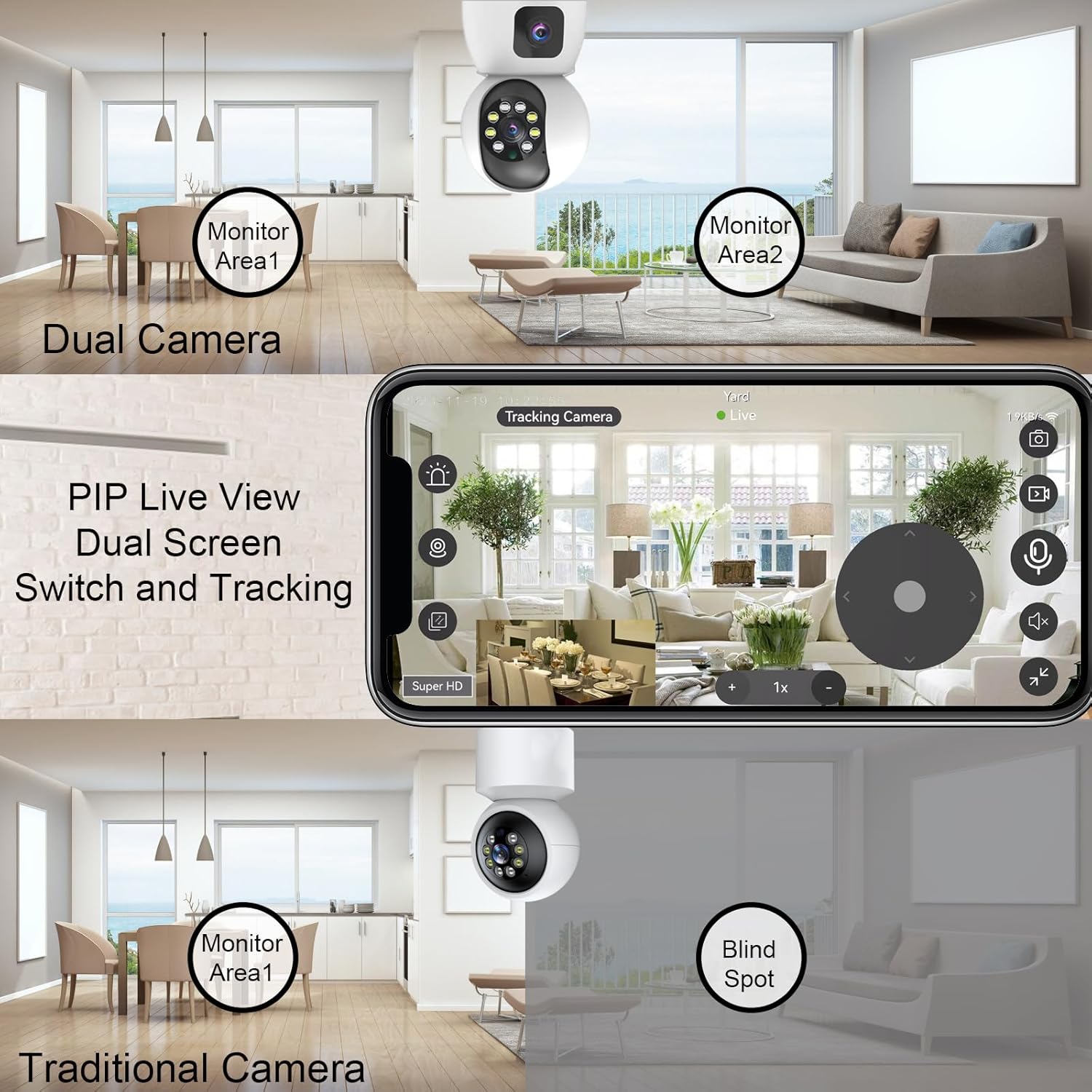
Figure 4: Illustrates the advantage of Dual Camera PIP Live View over traditional cameras, eliminating blind spots.
4.2 Intelligente Bewegungserkennung
The camera is equipped with smart motion detection capabilities. When suspicious motion is detected, the camera will push alarm notifications to your mobile app, often accompanied by pictures, video clips, alarm lighting, or an alarm voice. This feature helps in real-time monitoring and immediate response to potential security events.

Figure 5: The camera's human detection smart alarm system, providing app push notifications, siren, and starlight color light vision.
4.3 Vollfarb-Nachtsicht
The camera features 8 infrared LEDs and 4 high-power white lights, offering three night vision modes:
- Low Environmental Illumination: Automatic full color or infrared at night via the IR-Cut sensor.
- Automatic Full Color: When motion is detected.
- APP-Fernbedienung: Switch between modes via the app.

Figure 6: Visual representation of the three night vision modes: Full-Color, Infrared, and Smart (full color when motion detected).
4.4 Zwei-Wege-Audio
With a built-in microphone and speaker, the camera supports two-way audio communication. You can listen to the environment through the app and also speak through the camera to interact with individuals or pets in the monitored area.

Figure 7: Demonstrates the two-way communication feature, allowing interaction through the camera.
4.5 Multi-Storage Options
The camera offers flexible video storage solutions:
- Micro SD Karte: Supports up to 128GB (not included) for 24/7 continuous recording.
- Cloud-Dienst: Provides 30 days of free storage for motion-detected video clips.
5. Wartung
- Reinigung: Gently wipe the camera lens and body with a soft, dry cloth to remove dust and smudges. Do not use harsh chemicals or abrasive materials.
- Firmware-Updates: Regularly check the mobile app for available firmware updates. Keeping your camera's firmware up-to-date ensures optimal performance, new features, and enhanced security.
- Sichere Platzierung: Ensure the camera is securely mounted and its cables are not easily accessible or tripped over.
- Netzwerkstabilität: Stellen Sie eine stabile WLAN-Verbindung sicher, um eine unterbrechungsfreie Überwachung und Aufzeichnung zu gewährleisten.
6. Fehlerbehebung
| Ausgabe | Mögliche Ursache | Lösung |
|---|---|---|
| Kamera stellt keine Verbindung zum WLAN her | Incorrect Wi-Fi password; Camera too far from router; Router not supporting 2.4G/5G; Network interference. | Double-check Wi-Fi password. Move camera closer to router. Ensure router supports both 2.4G and 5G, and select the correct band. Reduce interference from other devices. |
| Schlechte Bildqualität | Insufficient lighting; Dirty lens; Weak Wi-Fi signal; App resolution settings. | Ensure adequate lighting or enable night vision. Clean the camera lens. Improve Wi-Fi signal strength. Adjust video quality settings in the app to 'Super HD' or 'HD'. |
| Bewegungserkennung funktioniert nicht | Motion detection disabled in app; Sensitivity too low; Incorrect detection zone setup. | Enable motion detection in the app settings. Increase sensitivity. Adjust the detection zone to cover the desired area. |
| Keine Zwei-Wege-Audio-Funktion | Mikrofon/Lautsprecher in der App stummgeschaltet; Lautstärke zu niedrig; Netzwerkprobleme. | Check and unmute microphone/speaker icons in the app. Increase device volume. Ensure stable network connection. |
| SD-Karte zeichnet nicht auf | SD-Karte voll oder beschädigt; falsche Aufnahmeeinstellungen; SD-Karte nicht richtig eingesetzt. | Format or replace the SD card. Check recording settings in the app (e.g., continuous recording, event recording). Reinsert the SD card properly. |
7. Spezifikationen
| Besonderheit | Detail |
|---|---|
| Marke | Dosilkc |
| Modellnummer | DS-K122W |
| Verwendung im Innen- und Außenbereich | Innenbereich |
| Konnektivitätstechnologie | Wi-Fi (2.4 GHz & 5 GHz) |
| Auflösung der Videoaufnahme | 1080p (Dual 1080P cameras) |
| Besondere Merkmale | Local Recording, Easy to Install, 2-Way Audio, Night Vision, PTZ Technology, Motion Detection |
| Montagetyp | Wandhalterung |
| Stromquelle | Kabelgebunden (5V Gleichstrom) |
| Nachtsichtbereich | 8 Meter |
| Viewing-Winkel | 130 Grad |
| Lagerung | Micro SD Card (up to 128G), Cloud Service |
| Farbe | Weiß |
| Material | Plastik |
| Artikelabmessungen (L x B x H) | 2.75 x 2.75 x 5.5 Zoll |
| Artikelgewicht | 13.4 Unzen |
| Im Lieferumfang enthaltene Komponenten | Bracket, User Manual, 5V Power Adapter, Dual Lens Security Camera, Type-C Cable |
8. Garantie und Support
This Dosilkc product is covered by a standard manufacturer's warranty. For specific warranty terms and conditions, please refer to the warranty card included in your product packaging or visit the official Dosilkc webWebsite.
For technical support, troubleshooting assistance, or any product-related inquiries, please contact Dosilkc customer service through the contact information provided on the official webWebsite oder innerhalb der mobilen Anwendung.