
Einführung
This manual provides detailed instructions for the setup, operation, maintenance, and troubleshooting of your Tera P161 Android 11 Barcode Scanner PDA. The P161 is a robust portable data terminal designed for various industrial and retail environments, featuring a Qualcomm processor, Android 11 operating system, and a high-performance Zebra SE4710 scan engine.
Zu den Hauptmerkmalen gehören:
- Betriebssystem: Android 11 for enhanced data protection and application compatibility.
- Prozessor: Qualcomm Octa-Core 2.0GHz for robust performance and stable connectivity.
- Scanner: Integrated Zebra SE4710 1D/2D/QR scan engine for fast and accurate barcode capture.
- Batterie: 6700mAh hot-swappable battery with a 100mAh backup for continuous operation.
- Tastenfeld: 37-key numeric keypad for easy operation, even with gloves.
- Haltbarkeit: IP65 rated for water, dust, and drop resistance (up to 1.5 meters).
- Konnektivität: Dual-band Wi-Fi (2.4G/5G), Bluetooth 5.0, GPS, and NFC.
Packungsinhalt
Bitte überprüfen Sie beim Auspacken, ob alle unten aufgeführten Artikel vorhanden und in gutem Zustand sind:
- 1 x Tera P161 Android 11 Barcode Scanner PDA
- 1 x Pistol Grip
- 1 x Ladestation
- 1 x Handschlaufe
- 1 x Ladeadapter
- 1 x QC Adapter
- 1 x Displayschutzfolie.
- 1 x SIM-Karten-Auswurfwerkzeug
- 1 x USB-Kabel
- 1 x Benutzerhandbuch (dieses Dokument)
- 1 x SDK (Software Development Kit)

Image: The Tera P161 PDA shown with its included pistol grip and charging cradle, illustrating the main components of the package.
Aufstellen
1. Einbau und Aufladen der Batterie
The Tera P161 is equipped with a 6700mAh removable battery and a 100mAh backup battery for hot-swapping. Before first use, fully charge the device.
- Locate the battery compartment on the back of the PDA.
- Insert the 6700mAh battery, ensuring proper alignment of the contacts.
- Place the PDA into the charging cradle or connect the USB cable directly to the device using the provided charging adapter.
- Die Ladeanzeige leuchtet auf. Eine vollständige Ladung dauert in der Regel etwa 3.5 Stunden.

Image: The Tera P161 PDA securely placed in its charging cradle, indicating the charging process.
2. SIM Card and MicroSD Card Installation (Optional)
If you plan to use cellular data or expand storage, install a SIM card or MicroSD card.
- Schalten Sie das Gerät aus.
- Use the SIM ejector tool to open the SIM/MicroSD card tray.
- Insert the SIM card and/or MicroSD card into the tray with the contacts facing down.
- Setzen Sie das Fach vorsichtig wieder in das Gerät ein.
3. Attaching the Pistol Grip and Hand Strap (Optional)
The pistol grip provides ergonomic handling for extended scanning tasks, and the hand strap offers additional security.
- To attach the pistol grip: Align the connectors on the grip with the corresponding ports on the bottom of the PDA and secure it firmly.
- To attach the hand strap: Thread the strap through the designated loops on the PDA.
Bedienungsanleitung
1. Ein-/Ausschalten
- Einschalten: Halten Sie den Ein-/Ausschalter an der Seite des Geräts gedrückt, bis der Bildschirm aufleuchtet.
- Ausschalten: Halten Sie die Ein-/Aus-Taste gedrückt und wählen Sie dann in den angezeigten Optionen „Ausschalten“ aus.
- Neustart: Halten Sie die Ein-/Aus-Taste gedrückt und wählen Sie dann in den Optionen „Neustart“ aus.
2. Barcode-Scanning
The Tera P161 features a Zebra SE4710 2D scan engine for efficient barcode reading.
- Open a scanning application or a field that requires barcode input.
- Richten Sie das Scannerfenster auf den Barcode.
- Press the scan button (typically located on the side or the pistol grip) to activate the scanner.
- Ensure the red aiming beam covers the entire barcode for optimal reading.
- A successful scan will usually be indicated by an audible beep and/or a visual confirmation on the screen.
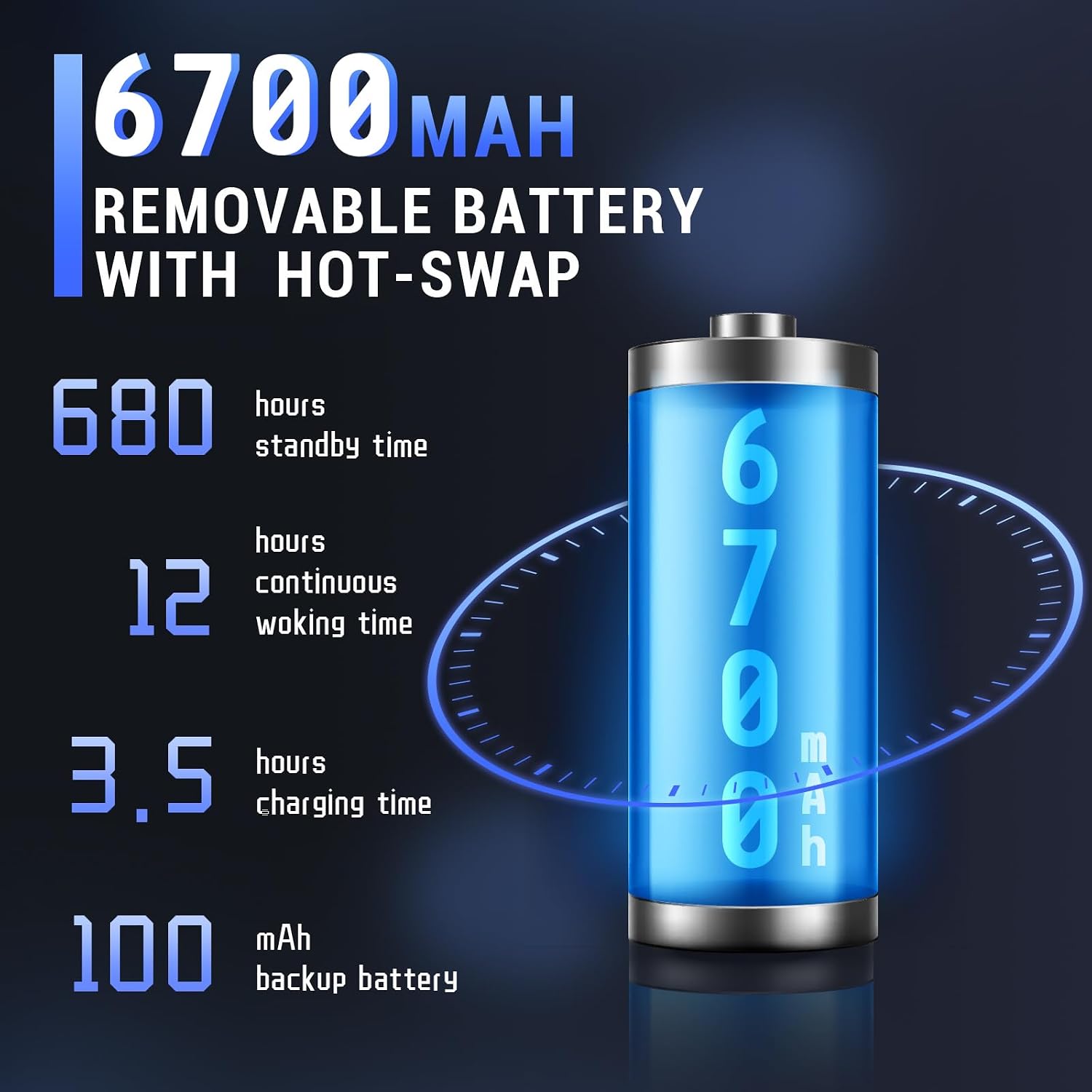
Image: The Tera P161 PDA actively scanning a barcode, demonstrating its primary function.
3. Keypad and Touchscreen Usage
The device combines a 4-inch touchscreen with a physical 37-key numeric keypad.
- Touch-Screen: Navigate the Android interface by tapping, swiping, and pinching.
- Tastenfeld: Use the physical keys for data entry, navigation, and quick access functions. The keypad is designed for use even with gloves.

Bild: Eine detaillierte view of the Tera P161 PDA's 37-key physical keypad, highlighting its layout and design.
4. Konnektivität
- W-lan: Connect to available Wi-Fi networks via the Android settings menu. Supports 2.4G and 5G bands.
- Bluetooth: Pair with Bluetooth devices (e.g., headphones, printers) through the Bluetooth settings. The device uses Bluetooth 5.0 for faster data transfer.
- Geographisches Positionierungs System: The integrated GPS module allows for location-based services and tracking.
- NFC: For Near Field Communication, ensure the pistol grip is removed for optimal performance. Access NFC settings in the Android menu.
Wartung
1. Reinigen des Geräts
Um optimale Leistung und Hygiene zu gewährleisten:
- Wischen Sie Bildschirm und Gehäuse mit einem weichen, fusselfreien Tuch ab.
- Bei hartnäckigen Verschmutzungen leicht dampReinigen Sie das Tuch mit Wasser oder einem milden, nicht scheuernden Reinigungsmittel.
- Verwenden Sie keine aggressiven Chemikalien, Lösungsmittel oder Scheuermittel.
- Achten Sie darauf, dass keine Flüssigkeit in die Anschlüsse oder Öffnungen eindringt.
2. Batteriepflege
The 6700mAh battery is designed for long operational periods. The 100mAh backup battery allows for hot-swapping the main battery without losing data.
- Vermeiden Sie häufiges vollständiges Entladen des Akkus.
- Bewahren Sie das Gerät an einem kühlen, trockenen Ort auf, wenn es längere Zeit nicht benutzt wird.
- If replacing the main battery, ensure the device is powered on and the backup battery is charged to facilitate a hot-swap.
3. Umweltaspekte
The Tera P161 has an IP65 rating, indicating resistance to dust and water jets, and can withstand drops up to 1.5 meters.
- While robust, avoid intentional exposure to extreme conditions.
- Um die Wasser- und Staubbeständigkeit zu gewährleisten, stellen Sie sicher, dass alle Anschlussabdeckungen fest verschlossen sind.
- Tauchen Sie das Gerät nicht in Wasser.

Image: The Tera P161 PDA being shown to withstand drops and splashes, illustrating its IP65 durability rating.
Fehlerbehebung
If you encounter issues with your Tera P161, refer to the following common problems and solutions:
| Problem | Mögliche Ursache | Lösung |
|---|---|---|
| Gerät lässt sich nicht einschalten. | Niedriger oder leerer Akku. | Connect the device to the charger and allow it to charge for at least 30 minutes before attempting to power on. |
| Barcode-Scanner liest nicht. | Barcode damaged, scanner window dirty, incorrect symbology settings, or scanner application not active. | Clean the scanner window. Ensure the barcode is clear and undamaged. Check scanner settings in the application. Verify the scanning application is open and active. |
| Probleme mit der WLAN- oder Bluetooth-Verbindung. | Out of range, incorrect password, or interference. | Move closer to the Wi-Fi router or Bluetooth device. Re-enter the password. Restart the device and try again. |
| Das Gerät reagiert langsam oder gar nicht. | Too many applications running, low memory, or software glitch. | Close unnecessary applications. Restart the device. Clear cache if possible. |
| Forgotten PIN or password. | Security lock activated. | If you have forgotten your device PIN or password, you may need to perform a factory reset. Warning: A factory reset will erase all data on the device. Consult the online support resources or contact customer service for guidance before proceeding. |
If the problem persists after trying these solutions, please contact Tera customer support.
Technische Daten
| Besonderheit | Detail |
|---|---|
| Modellnummer | FUN-PDA-P161-EU |
| Betriebssystem | Android 11 |
| Prozessor | Qualcomm Octa-Core 2.0GHz |
| Scanner Engine | Zebra SE4710 (1D/2D/QR) |
| Anzeige | 4-Zoll-Touchscreen |
| Erinnerung | 3GB RAM, 32GB ROM |
| Hauptakku | 6700mAh (Removable, Hot-swappable) |
| Pufferbatterie | 100 mAh |
| Ladezeit | Ca. 3.5 Stunden |
| Tastenfeld | 37-key Numeric Keypad |
| Konnektivität | Wi-Fi (2.4G/5G), Bluetooth 5.0, GPS, NFC |
| Haltbarkeitsbewertung | IP65 (Water, Dust, 1.5m Drop Resistance) |
| Stromquelle | Stromkabel |
Garantie und Support
Tera is committed to providing high-quality products and excellent customer service.
- Kundendienst: 24/7 customer support is available for any inquiries or assistance.
- Technische Unterstützung: Comprehensive technical support is provided to help with setup, operation, and troubleshooting.
- SDK and Customization: SDKs are provided, and customization services are available to meet specific business needs.
- Kontaktinformationen: For support, please refer to the contact details provided with your product documentation or visit the official Tera webWebsite.
For more information about Tera products and services, you can visit the Tera Brand Store.