
1. Einleitung
Thank you for choosing the JSAUX USB C Docking Station Stand. This 5-in-1 multiport hub is designed to enhance your mobile device experience by providing expanded connectivity, including video output, high-speed data transfer, and power delivery, all while serving as a stable phone stand. This manual provides detailed instructions for setup, operation, and maintenance to ensure optimal performance.
2. Produktüberschreitungview
The JSAUX 5-Port Docking Station Stand integrates multiple essential ports into a compact design, allowing you to connect various peripherals to your USB-C enabled smartphone or tablet.
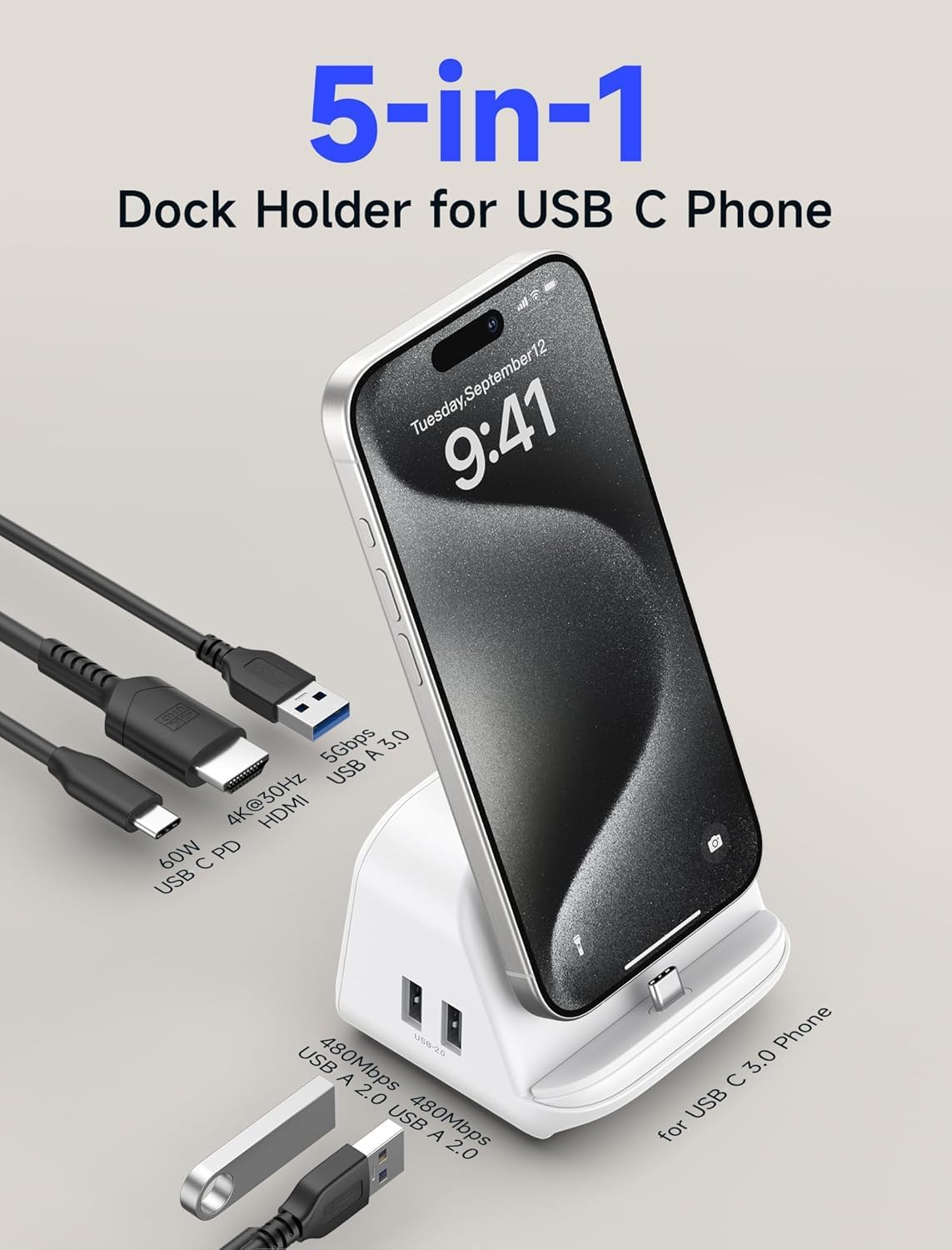
Abbildung 1: Vorder- und Rückseite view of the JSAUX 5-in-1 USB C Docking Station Stand, highlighting its various ports including USB-C PD, HDMI, USB 3.0, and USB 2.0.
Hauptmerkmale:
- 5-in-1-Konnektivität: Combines essential ports for versatile use.
- 4K HDMI-Ausgang: Supports video output up to 4K@30Hz for external displays.
- USB 3.0-Datenübertragung: One USB-A 3.0 port for high-speed data transfer up to 5Gbps.
- USB 2.0-Datenübertragung: Two USB-A 2.0 ports for standard data transfer up to 480Mbps, ideal for peripherals.
- 60W Leistungsabgabe (PD): USB-C PD port for fast charging your device while in use.
- Integrierter Handyhalter: Provides a stable and convenient viewEinstellwinkel für Ihr Gerät.
- SD/TF-Kartensteckplätze: For direct access to memory cards.
3. Packungsinhalt
- JSAUX USB C Docking Station Stand (5-Port)
- USB-C-auf-USB-C-Kabel
- Power Adapter (Charging Brick)
- Adjustable Pads (for phone case thickness)
- Bedienungsanleitung (dieses Dokument)
4. Einrichtung
Befolgen Sie diese Schritte, um Ihre Dockingstation einzurichten:
- Strom anschließen: Plug the provided USB-C to USB-C cable into the USB-C PD port on the docking station and connect the other end to the power adapter. Plug the power adapter into a wall outlet. Ensure the power adapter is rated over 30W for 60W fast charging support.
- Prepare Phone Stand: The docking station includes adjustable pads to accommodate different phone case thicknesses. Refer to the guide on the dock for proper pad placement:

Image 2: The phone stand section of the dock, illustrating how to place the included pads for bare phones (3mm pad) and phones with cases (1mm pad) to ensure stability. Note: Only supports phone cases with a thickness of 3mm or less.
- Telefonnummer einfügen: Carefully place your USB-C enabled phone onto the stand, aligning its USB-C port with the connector on the dock. Ensure a secure connection. A blue indicator light on the dock will illuminate to confirm a proper connection.

Image 3: Close-up of the dock's base, showing a blue light indicating a proper connection and the absence of light for an incorrect connection.
5. Bedienungsanleitung
5.1. Connecting to a Display (HDMI)
Connect an HDMI cable (not included) from the HDMI port on the docking station to your monitor, TV, or projector. The dock supports 4K@30Hz video output, allowing you to mirror or extend your phone's display to a larger screen for presentations, video streaming, or gaming.

Image 4: A smartphone docked and connected to an external monitor via the HDMI port, showcasing 4K video output.
5.2. Data Transfer (USB & Card Slots)
- USB 3.0-Anschluss: Use the blue USB-A 3.0 port for connecting external storage devices like hard drives or USB flash drives. This port offers data transfer speeds up to 5Gbps, ideal for quickly moving large files.

Image 5: A smartphone docked, with a USB drive connected to the USB A 3.0 port, illustrating 5Gbps data transfer speeds.
- USB 2.0 Ports: The two black USB-A 2.0 ports are suitable for connecting peripherals such as keyboards, mice, or game controllers. These ports provide data transfer speeds up to 480Mbps.

Image 6: A smartphone docked and connected to a monitor, with a gamepad connected to a USB A 2.0 port for gaming.
- SD/TF-Kartensteckplätze: Insert your SD or TF (MicroSD) cards into the corresponding slots for direct access to files on your phone or computer.
5.3. Charging (60W PD)
The USB-C PD port allows you to charge your connected device at up to 60W while simultaneously using other functions of the docking station. This ensures your device remains powered during extended use.

Image 7: A smartphone docked and charging via the 60W Power Delivery port, with the charging status visible on the phone screen.
5.4. Hinweise zur Kompatibilität
- iPhone 15 Plus: When an HDMI connection is active, the USB 3.0 port may not function.
- Samsung S21 / Samsung Note20 Ultra: A USB drive must be connected to the dock before connecting the phone. Additionally, the USB drive and Power Delivery (PD) cannot be used simultaneously.
- Phone Case Thickness: For optimal stability and connection, the dock only supports phone cases with a thickness of 3mm or less.

Image 8: Visual representation of compatible phone models, including iPhone 15 series, Google Pixel, Samsung Galaxy S23/S22/S21/S20 series, OnePlus 9/8 series, Xiaomi Mi 10 series, Huawei P40 series, and Huawei Mate 40 series.
6. Wartung
Um die Langlebigkeit und einwandfreie Funktion Ihrer Dockingstation zu gewährleisten, beachten Sie bitte folgende Wartungsrichtlinien:
- Reinigung: Use a soft, dry cloth to wipe the surface of the docking station. Avoid using harsh chemicals or abrasive cleaners.
- Portpflege: Keep all ports free of dust and debris. Use compressed air if necessary to clear any blockages.
- Lagerung: Bewahren Sie die Dockingstation bei Nichtgebrauch an einem kühlen, trockenen Ort fern von direkter Sonneneinstrahlung und extremen Temperaturen auf.
- Handhabung: Vermeiden Sie es, das Gerät fallen zu lassen oder starken Stößen auszusetzen, da dies zu Schäden an den internen Bauteilen führen kann.
7. Fehlerbehebung
If you encounter issues with your JSAUX USB C Docking Station Stand, please refer to the following common solutions:
- Kein Strom/Ladevorgang:
- Ensure the power adapter is securely plugged into both the wall outlet and the dock's USB-C PD port.
- Verify that the power adapter is functioning correctly and provides sufficient wattage (over 30W for 60W PD).
- Check the connection between your phone and the dock's USB-C connector. The blue indicator light should be on.
- Kein Videoausgang über HDMI:
- Ensure the HDMI cable is securely connected to both the dock and the display.
- Verify the display input source is set to the correct HDMI port.
- For iPhone 15 Plus users, note that the USB 3.0 port may not work when HDMI is active. Try disconnecting any USB 3.0 devices.
- Testen Sie es nach Möglichkeit mit einem anderen HDMI-Kabel oder Display.
- USB-Geräte werden nicht erkannt:
- Ensure USB devices are properly inserted into the correct USB-A ports.
- For Samsung S21/Note20 Ultra, connect the USB drive before docking the phone. Also, avoid using USB drive and PD simultaneously.
- Some high-power USB devices may require external power or may not be fully supported.
- Phone Not Stable on Stand:
- Ensure the correct adjustable pads are used based on your phone's case thickness (or lack thereof).
- The dock supports phone cases with a maximum thickness of 3mm. Thicker cases may prevent a stable connection.
If the issue persists, please contact JSAUX customer support for further assistance.
8. Spezifikationen
| Besonderheit | Spezifikation |
|---|---|
| Modell | 5-Port |
| Steckertyp | HDMI, USB-C, USB-A, SD, TF |
| HDMI-Ausgang | 4K bei 30 Hz |
| USB-A 3.0 Datenübertragungsgeschwindigkeit | Bis zu 5 Gbit/s |
| USB-A 2.0 Datenübertragungsgeschwindigkeit | Bis zu 480 Mbit/s |
| USB-C-Stromversorgung | Bis zu 60 W |
| Kompatible Geräte | Cellular Phones (USB-C enabled) |
| Kompatible Telefonmodelle | iPhone 15 Series, Google Pixel, Samsung S24/23/21/20, OnePlus 9/8, Xiaomi Mi 10, Huawei P40/Mate 40 series |
| Material | Plastik |
| Artikelgewicht | 10.5 Unzen (297.67 Gramm) |
| Verpackungsabmessungen | 5.87 x 4.8 x 3.23 Zoll |
| Stromquelle | Kabelgebundene Elektrik |
9. Garantie und Support
JSAUX products are designed and manufactured to the highest quality standards. For specific warranty information, please refer to the warranty card included with your purchase or visit the official JSAUX website. If you require technical support, have questions about product functionality, or need assistance with troubleshooting, please contact JSAUX customer service through their official channels. Please have your product model and purchase details ready when contacting support.