
1. Einleitung
This manual provides detailed instructions for the installation, operation, and maintenance of your ASUS Prime B850M-K Gaming Motherboard. Please read this manual thoroughly before proceeding with installation to ensure proper setup and to maximize the performance and longevity of your system.

Image 1.1: The ASUS Prime B850M-K Motherboard alongside its retail packaging.
2. Hauptmerkmale
The ASUS Prime B850M-K motherboard is engineered with advanced technologies to support high-performance computing. Key features include:
- Ready for advanced AI PCs: Designed for the future of AI computing, with the power and connectivity needed for demanding AI applications.
- AMD AM5 Sockel: Compatible with AMD Socket AM5 for AMD Ryzen 9000, 8000, and 7000 Series Desktop Processors.
- Upgraded Power Solution: Features an 8+2+1 phase power supply design, 6-layer PCB, alloy chokes, and durable capacitors for stable power delivery.
- Ultra-fast connectivity: Includes a PCIe 5.0 x16 slot, PCIe 5.0 M.2 slot, Realtek 2.5Gb Ethernet, USB 10Gbps Type-A on the back, and USB 5Gbps Type-C support on the front.
- Umfassende Kühlung: Equipped with VRM and M.2 heatsinks, a PCH heatsink, hybrid fan headers, and Fan Xpert 2+ for efficient thermal management.
3. Produktüberschreitungview
Familiarize yourself with the layout and components of the ASUS Prime B850M-K motherboard.
3.1 Motherboard-Layout
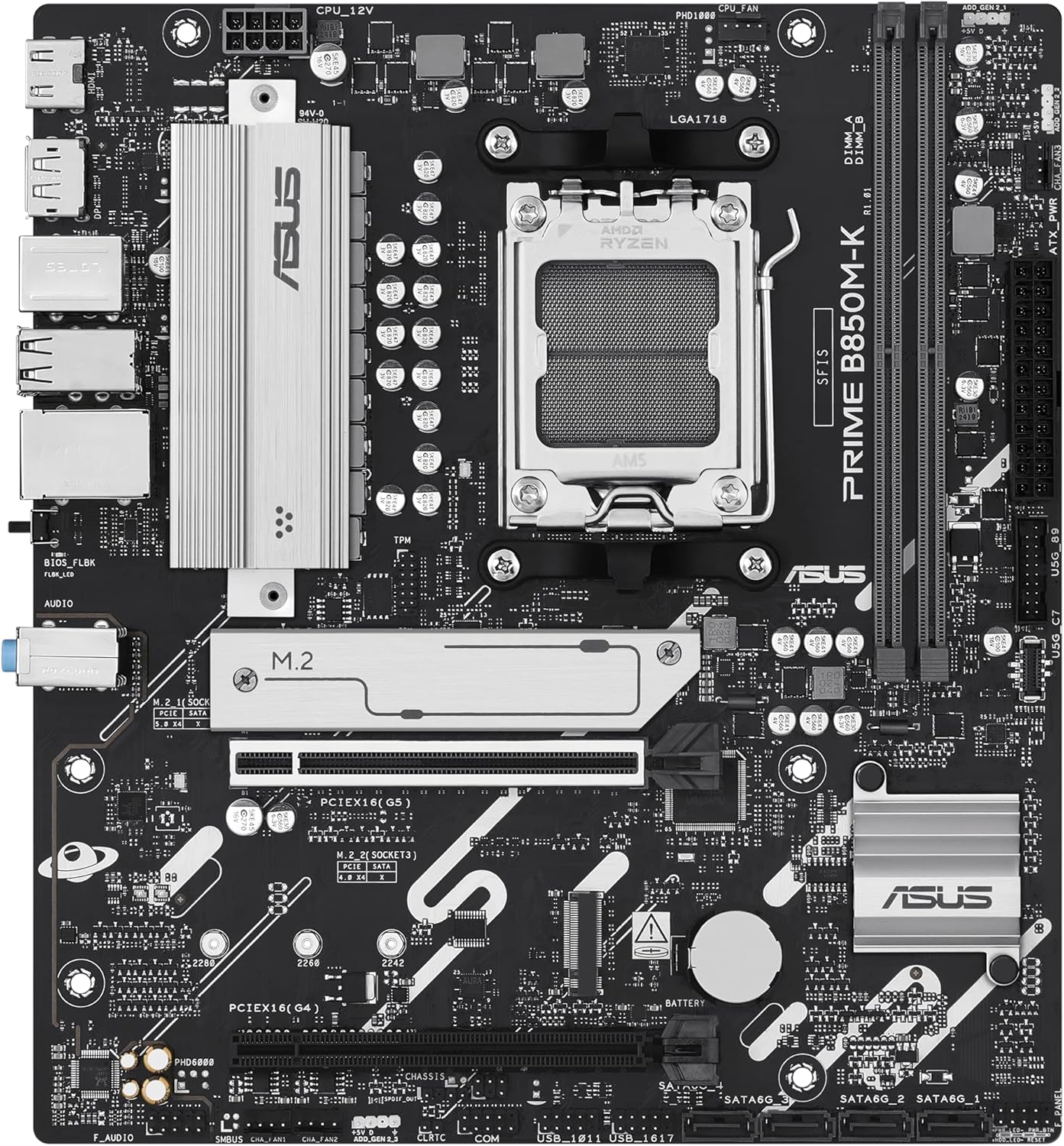
Abbildung 3.1: Draufsicht view of the motherboard, highlighting the CPU socket, DIMM slots, PCIe slots, and M.2 slots.
Dieses Bild bietet einen umfassenden Überblick. view of the motherboard's key areas, including the AMD AM5 CPU socket, DDR5 DIMM slots, PCIe 5.0 x16 slot, and M.2 slots for storage devices. Understanding these locations is crucial for component installation.
3.2 E/A-Anschlüsse an der Rückseite

Image 3.2: The rear input/output panel of the motherboard, showing various ports for external devices.
The rear I/O panel offers a range of connectivity options for your peripherals. It includes USB ports, Ethernet, audio jacks, and video outputs. Refer to the diagram below for specific port identification.

Image 3.3: A labeled diagram of the rear I/O panel, indicating the function of each port.
4. Einrichtung und Installation
This section guides you through the process of installing your motherboard and its components.
4.1 Packungsinhalt
Überprüfen Sie, ob alle Teile in Ihrer Motherboard-Verpackung vorhanden sind:
- ASUS Prime B850M-K Motherboard
- I/O-Panel-Abschirmung auf der Rückseite
- SATA Data Cables (2x)
- M.2 Schraubenpaket
- M.2 Rubber Stand-off
- Kurzanleitung

Image 4.1: The complete contents of the ASUS Prime B850M-K motherboard package.
4.2 Checkliste vor der Installation
- Stellen Sie sicher, dass Ihr Netzteil kompatibel ist und ausreichend Leistung liefert.tage.
- Benötigte Werkzeuge bereithalten: Kreuzschlitzschraubendreher, Antistatik-Armband.
- Prepare your computer case for motherboard installation.
4.3 Motherboard-Installation
- Installieren Sie die I/O-Blende in die hintere Öffnung Ihres Computergehäuses.
- Carefully align the motherboard with the standoffs in your case.
- Befestigen Sie das Motherboard mit Schrauben und achten Sie darauf, dass es fest sitzt.
4.4 Komponenteninstallation
- CPU: Open the CPU socket lever, align the CPU with the triangle marker, gently place it into the socket, and close the lever.
- CPU-Kühler: Installieren Sie den CPU-Kühler gemäß den Anweisungen des Herstellers.
- RAM (DDR5): Open the DIMM slot clips, align the memory modules, and press down firmly until the clips lock into place.
- M.2 Storage: Insert the M.2 drive into the M.2 slot, secure it with the provided screw or rubber stand-off.
- Grafikkarte (GPU): Insert the graphics card into the PCIe 5.0 x16 slot and secure it with the case latch and screw.
- SATA-Geräte: Connect SATA data cables from the motherboard to your storage drives (HDDs/SSDs) and power cables from the PSU.
4.5 Connecting Power and Peripherals
- Verbinden Sie den 24-poligen ATX-Stromanschluss und den 8-poligen CPU-Stromanschluss Ihres Netzteils mit dem Motherboard.
- Connect front panel headers (power button, reset button, USB, audio) to their respective pins on the motherboard. Refer to the motherboard manual for exact pin layouts.
- Connect external peripherals (monitor, keyboard, mouse) to the rear I/O panel.
5. Bedienungsanleitung
After successful installation, follow these steps for initial operation.
5.1 Erster Start
- Ensure all connections are secure and the power supply is switched on.
- Drücken Sie den Netzschalter an Ihrem Computergehäuse.
- The system should power on and display the ASUS logo or BIOS/UEFI screen.
5.2 BIOS/UEFI-Konfiguration
Um das BIOS/UEFI-Setup-Dienstprogramm aufzurufen, drücken Sie die Taste Löschen or F2 key during the Power-On Self-Test (POST). Here you can configure system settings, boot order, and enable features like XMP/EXPO for memory.
5.3 Treiberinstallation
After installing your operating system, install the latest drivers for your motherboard chipset, audio, LAN, and other integrated components. These can typically be found on the ASUS support webWebsite für Ihr spezifisches Motherboard-Modell.
6. Wartung
Regular maintenance helps ensure the stability and longevity of your motherboard.
6.1 Reinigung
- Periodically clean dust from the motherboard and components using compressed air.
- Vor der Reinigung sicherstellen, dass das System ausgeschaltet und vom Stromnetz getrennt ist.
6.2 BIOS-Updates
Überprüfen Sie den ASUS-Support. website for BIOS/UEFI updates. Updates can improve system stability, add support for new hardware, or fix bugs. Follow the instructions provided by ASUS carefully when performing a BIOS update.
7. Fehlerbehebung
In diesem Abschnitt werden häufig auftretende Probleme behandelt.
- Kein Strom: Check all power connections (24-pin ATX, 8-pin CPU, GPU power). Ensure PSU is switched on.
- Kein Bildschirm: Verify monitor connection, ensure graphics card is properly seated and powered. Try reseating RAM modules.
- Systeminstabilität/Abstürze: Check CPU and GPU temperatures. Ensure RAM is correctly installed and compatible. Update drivers and BIOS.
- Startgerät nicht gefunden: Check SATA/M.2 connections. Verify boot order in BIOS/UEFI.
- BIOS Flashback Issues: Ensure the USB drive is formatted correctly (FAT32) and the BIOS file is renamed as specified by ASUS.
8. Technische Daten
Detailed specifications for the ASUS Prime B850M-K Motherboard.
| Besonderheit | Spezifikation |
|---|---|
| Marke | ASUS |
| Modellname | 90MB1LV0-M0EAY0 |
| CPU-Sockel | Sockel AM5 |
| Kompatible Prozessoren | AMD Ryzen 9000, AMD Ryzen 8000, AMD Ryzen 7000 Series |
| RAM-Speichertechnologie | DDR5 |
| Speichergeschwindigkeit | Bis zu 8000 MHz (OC) |
| Chipsatztyp | AMD B850 |
| PCIe-Steckplätze | 1x PCIe 5.0 x16, additional PCIe slots |
| M.2-Steckplätze | 2x M.2 slots (PCIe 5.0 support) |
| Ethernet | Realtek 2.5-Gb-Ethernet |
| USB-Konnektivität | USB 10Gbps Type-A (rear), USB 5Gbps Type-C (front header) |
| Plattform | Windows-10, Windows 11 |
| Artikelgewicht | 1.52 Pfund |
9. Garantie und Support
ASUS products are manufactured to the highest quality standards. For specific warranty terms and conditions, please refer to the warranty card included with your product or visit the official ASUS webWebsite.
9.1 Support kontaktieren
Für technische Unterstützung, Treiber-Downloads oder weitere Informationen besuchen Sie bitte die offizielle ASUS-Supportseite. webWebsite:


