Einführung
Welcome to the user manual for your BOYI GMK104 Barebones Mechanical Keyboard Kit. This guide provides detailed instructions for setting up, operating, and maintaining your keyboard. The GMK104 is a full-size, QMK/VIA programmable, tri-mode (Bluetooth 5.0, 2.4GHz, Type-C wired) keyboard kit featuring a gasket-mounted, hot-swappable PCB, RGB backlighting, and an integrated screen with a multi-functional knob.
Lieferumfang
- Tastenkappenabzieher
- USB-Kabel
- 2.4G Empfänger
- 104 Keyboard Kit
Video demonstrating the unboxing of the GMK104 barebones keyboard kit, showcasing its components.
Aufstellen
1. Installation von Schaltern und Tastenkappen
The GMK104 is a barebones kit, meaning switches and keycaps are not pre-installed. You will need to install your preferred mechanical switches and keycaps.
- Align the pins of your desired mechanical switches with the hot-swap sockets on the PCB.
- Gently press each switch until it clicks into place. Ensure pins are straight to avoid bending.
- Place your chosen keycaps onto the installed switches, pressing firmly until they are seated.

Image shows the GMK104 barebones keyboard kit with hot-swap sockets and RGB lighting, ready for switch and keycap installation.
2. Anschließen der Tastatur
The GMK104 supports three connection modes: wired, 2.4GHz wireless, and Bluetooth 5.0 wireless.
Kabelgebundener Anschluss (Typ C)
Connect the provided USB Type-C cable to the keyboard's Type-C port and to your computer's USB port. The keyboard will automatically switch to wired mode and begin charging.
2.4GHz-Funkverbindung
Suchen Sie den 2.4-GHz-USB-Empfänger, der sich normalerweise in einem Fach an der Unterseite der Tastatur befindet.
Schließen Sie den 2.4-GHz-Empfänger an einen freien USB-Anschluss Ihres Computers an.
On the keyboard, switch the mode selector to 2.4GHz mode. The keyboard should connect automatically.

Image showing the underside of the GMK104 keyboard, highlighting the storage slot for the 2.4G USB receiver.
Drahtlose Bluetooth 5.0-Verbindung
On the keyboard, switch the mode selector to Bluetooth mode.
Drücken FN+Q, Fn + W, oder FN+E to select one of three available Bluetooth channels. The corresponding key will flash, indicating pairing mode.
On your device (computer, tablet, smartphone), enable Bluetooth and search for "GMK104".
Select "GMK104" to pair. The flashing key will become solid once connected.
Um zwischen gekoppelten Bluetooth-Geräten zu wechseln, drücken Sie FN + Q/W/E für den gewünschten Kanal.

Image illustrating the GMK104 keyboard connected to a laptop, tablet, and smartphone, demonstrating its tri-mode connectivity.
Bedienungsanleitung
Smart Display and Knob Functions
The keyboard features a smart display and a multi-functional knob.
The display shows time, date, connection status, and battery level.
The knob controls volume by default. Pressing the knob can mute/unmute.
Two buttons next to the screen control backlight and screen display settings.
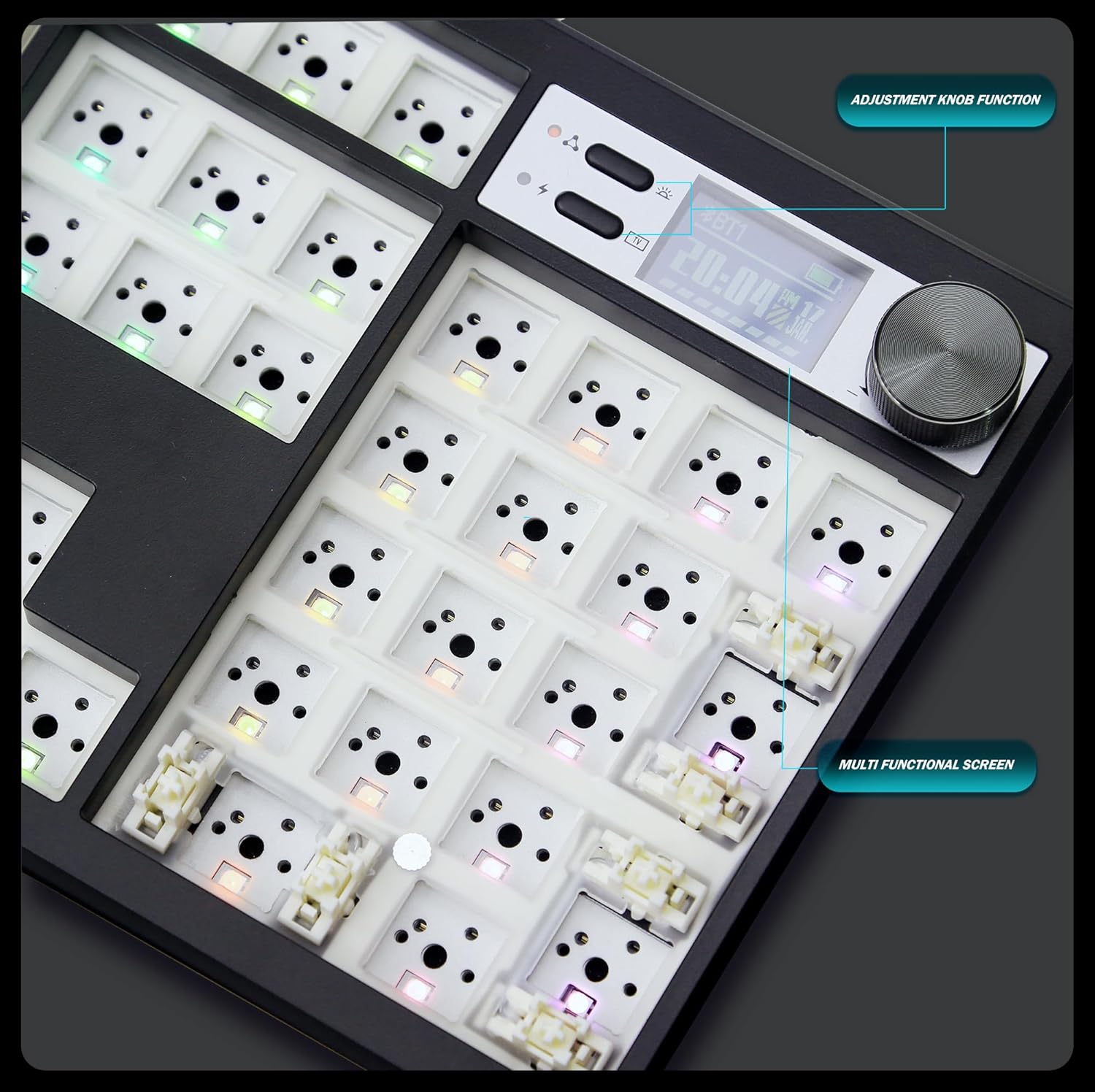
Close-up image of the GMK104 keyboard's smart display and multi-functional knob, showing the screen displaying time and battery status, and the two control buttons.
Video demonstrating the customization options for the smart display on the GMK104 keyboard, including changing images.
RGB-Hintergrundbeleuchtung
The keyboard features south-facing RGB backlighting with multiple effects.
Verwenden FN + | to cycle through different RGB lighting modes.
Adjust brightness and speed using dedicated function key combinations (refer to the quick guide or VIA software for specific commands).

Bild zeigtasing the vibrant RGB backlighting of the GMK104 keyboard with various color patterns.
QMK/VIA Programmability
The GMK104 is fully programmable using QMK/VIA software. This allows for key remapping, macro creation, and advanced lighting customization.
To use VIA, connect the keyboard via USB-C. Download the VIA software from the official webWebsite.
The software will automatically detect the keyboard, allowing you to customize key assignments and lighting layers.

Screenshot of the VIA software interface, demonstrating how to remap keys and customize keyboard functions.
Video illustrating the VIA programmability of the GMK104 keyboard kit, showing how users can customize key functions and layouts.
Wartung
Reinigung
Vor der Reinigung die Tastatur von allen Geräten trennen.
Use a soft, lint-free cloth to wipe the surface. For deeper cleaning, remove keycaps and switches.
Verwenden Sie Druckluft, um Staub und Schmutz zwischen den Tasten zu entfernen.
Batteriepflege
Die Tastatur verfügt über einen eingebauten, wiederaufladbaren 4000-mAh-Akku.
Charge the keyboard using the provided USB Type-C cable.
Um die Lebensdauer der Batterie zu verlängern, sollte eine häufige vollständige Entladung vermieden werden.
Fehlerbehebung
Tastatur reagiert nicht
- Ensure the keyboard is properly connected (wired, 2.4GHz receiver, or Bluetooth paired).
- Prüfen Sie den Akkustand. Laden Sie den Akku gegebenenfalls auf.
- Try switching between connection modes.
- Starten Sie Ihren Computer/Ihr Gerät neu.
RGB-Beleuchtung funktioniert nicht
- Stellen Sie sicher, dass die Tastatur eingeschaltet ist.
- Durchschalten der RGB-Modi mit FN + |.
- Check VIA software for lighting settings.
Schlüssel werden nicht registriert
- For hot-swappable switches, ensure they are fully seated in the PCB sockets.
- Check for bent switch pins.
- Test with different switches if available.
Screen Not Displaying Correctly
- Stellen Sie sicher, dass die Tastatur eingeschaltet ist.
- Use the screen control buttons next to the display to adjust settings or reset.
- If using custom GIFs, ensure the software is correctly installed and the files sind kompatibel.
Technische Daten
| Besonderheit | Detail |
|---|---|
| Modell | GMK104 |
| Konnektivität | Bluetooth 5.0 / 2.4GHz Wireless / USB Type-C Wired |
| Layout | Full Size (104 keys) |
| Montageart | Dichtung montiert |
| Hot-Swapable | Ja (3-polige/5-polige Schalter) |
| Hintergrundbeleuchtung | Nach Süden ausgerichtetes RGB |
| Programmierbarkeit | QMK/VIA |
| Batteriekapazität | 4000 mAh |
| Kompatibilität | Windows, macOS |
| Maße | 10 x 4 x 1 Zoll |
| Artikelgewicht | 1.5 Pfund |
Garantie und Support
For warranty information and technical support, please contact BOYI customer service.
E-Mail: boyiservice2020@163.com
You can also visit the official BOYI store on Amazon for additional resources and contact options.

Image showing customer service representatives, indicating available support channels.