
ASUS M603 FALCHION RX LP/RLRD
ASUS ROG Falchion RX Low Profile Bedienungsanleitung für die kabellose Gaming-Tastatur
Model: M603 FALCHION RX LP/RLRD
1. Produktüberschreitungview
The ASUS ROG Falchion RX Low Profile is a compact 65% gaming keyboard designed for performance and portability. It features pre-lubed ROG RX Low-Profile Optical Switches, dual silicone dampening layers for improved acoustics, and durable UV-coated ROG ABS keycaps. This keyboard offers versatile tri-mode connectivity, an intuitive touch panel, and includes a protective cover that doubles as a tray mount.

Image 1.1: The ASUS ROG Falchion RX Low Profile Wireless Gaming Keyboard.
2. Lieferumfang
Prüfen Sie, ob alle Komponenten in der Verpackung vorhanden sind:
- M603 FALCHION RX LP/RLRD Gaming Keyboard
- Tastaturabdeckung
- USB-Dongle
- USB-Extender
- USB-Kabel
3. Einrichtung
3.1 Konnektivitätsoptionen
The ROG Falchion RX Low Profile keyboard supports three connection modes:
- 2.4 GHz RF Mode (ROG SpeedNova Wireless Technology): Provides ultra-low latency wireless performance. Ideal for gaming.
- Bluetooth-Modus: Connects to up to three devices simultaneously. Suitable for general use and multi-device switching.
- Kabelgebundener USB-Modus: Zum direkten Anschluss und Laden.
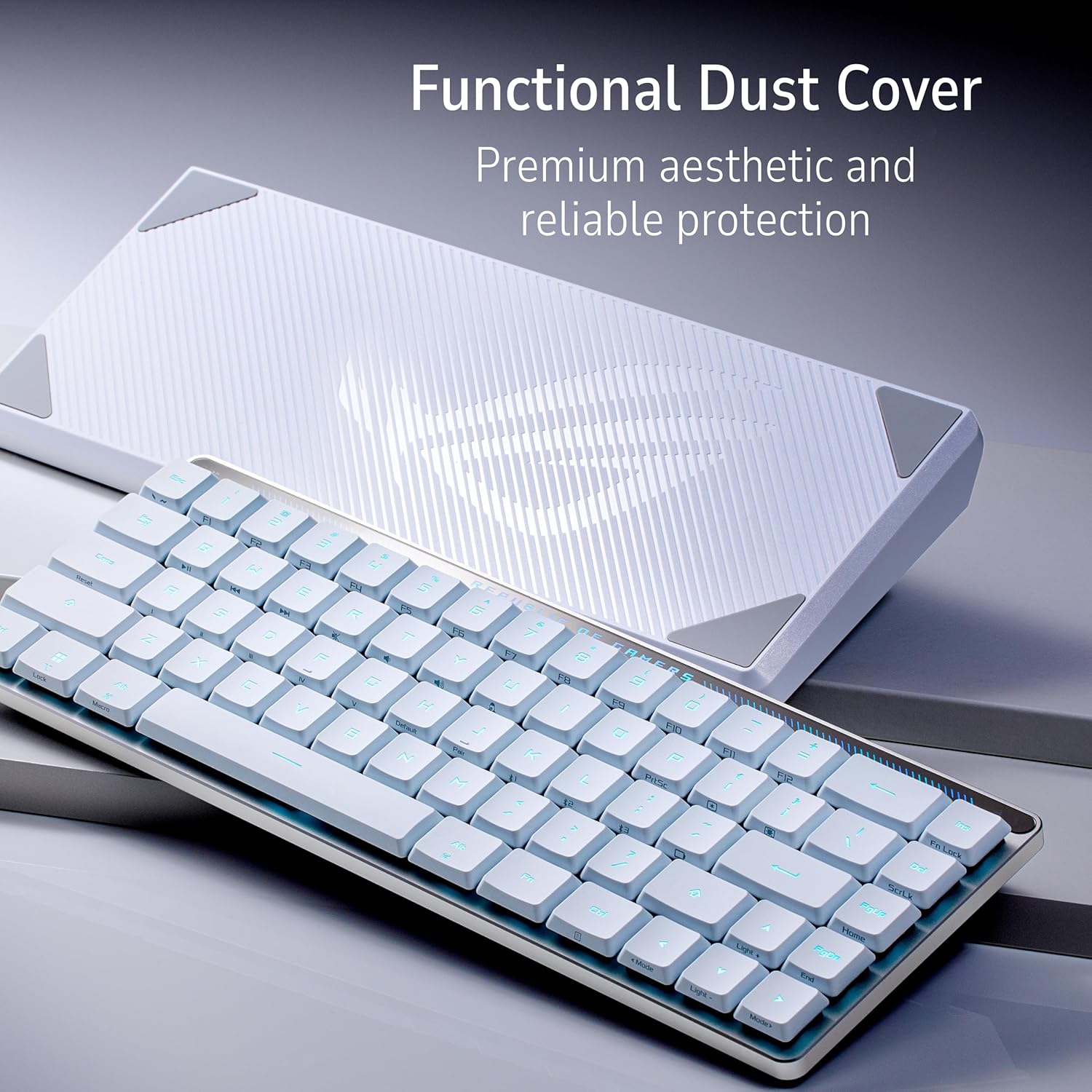
Image 3.1: The keyboard features Tri-Mode Connection and an Omni Receiver.
3.2 Erstverbindung
- Kabelverbindung: Connect the provided USB cable from the keyboard to an available USB port on your computer. The keyboard will function and charge simultaneously.
- 2.4 GHz RF Connection: Insert the USB dongle into your computer. Ensure the keyboard's mode switch is set to 2.4 GHz RF. The keyboard should automatically connect.
- Bluetooth Verbindung: Set the keyboard's mode switch to Bluetooth. On your device, search for Bluetooth devices and select the ROG Falchion RX Low Profile. Follow any on-screen pairing instructions.
3.3 ROG Omni Receiver
The ROG Omni Receiver allows a single USB receiver to connect to both a compatible keyboard and a compatible mouse, optimizing USB port usage without compromising performance.

Image 3.2: The ROG Omni Receiver simplifies wireless connections for multiple devices.
3.4 Softwareinstallation
For advanced customization, including RGB lighting effects, key remapping, and macro recording, download and install the ASUS Armoury Crate software from the official ASUS support webWebsite.
4. Bedienungsanleitung
4.1 Grundlegende Tastaturfunktionen
The keyboard operates like a standard 65% layout keyboard. Refer to the keycap legends for primary and secondary functions. Secondary functions are typically accessed using the Fn Schlüssel in Kombination mit anderen Schlüsseln.
4.2 Intuitive Touch Panel
The interactive touch panel allows for quick adjustments:
- Medienkontrolle: Play/pause media playback.
- Lautstärkeregelung: Erhöhen oder verringern Sie die Lautstärke.
- Tastaturbeleuchtung: Adjust RGB lighting brightness or effects.

Image 4.1: The keyboard features an intuitive touch panel for quick controls.
4.3 Mac Support
Easily toggle between Windows and macOS modes to ensure full compatibility with your operating system. This allows for proper key mapping and functionality on both PC and Apple devices.
5. Hauptmerkmale
5.1 Compact and Slim Design
The keyboard features a 65% Tenkeyless (TKL) layout within a 60% frame, maximizing desk space for mouse movement and enhancing ergonomics. Its ultrathin 26.5 mm profile contributes to its portability.

Image 5.1: The compact and slim design of the keyboard.
5.2 ROG RX Low-Profile Optische Schalter
Equipped with pre-lubed ROG RX Red Optical Switches, this keyboard offers a swift, smooth, and linear feel. These switches feature a 1.0 mm actuation point, an initial actuation force of 40gf, and a total force of 55gf, providing consistent, wobble-free keystrokes with near-zero debounce delay.
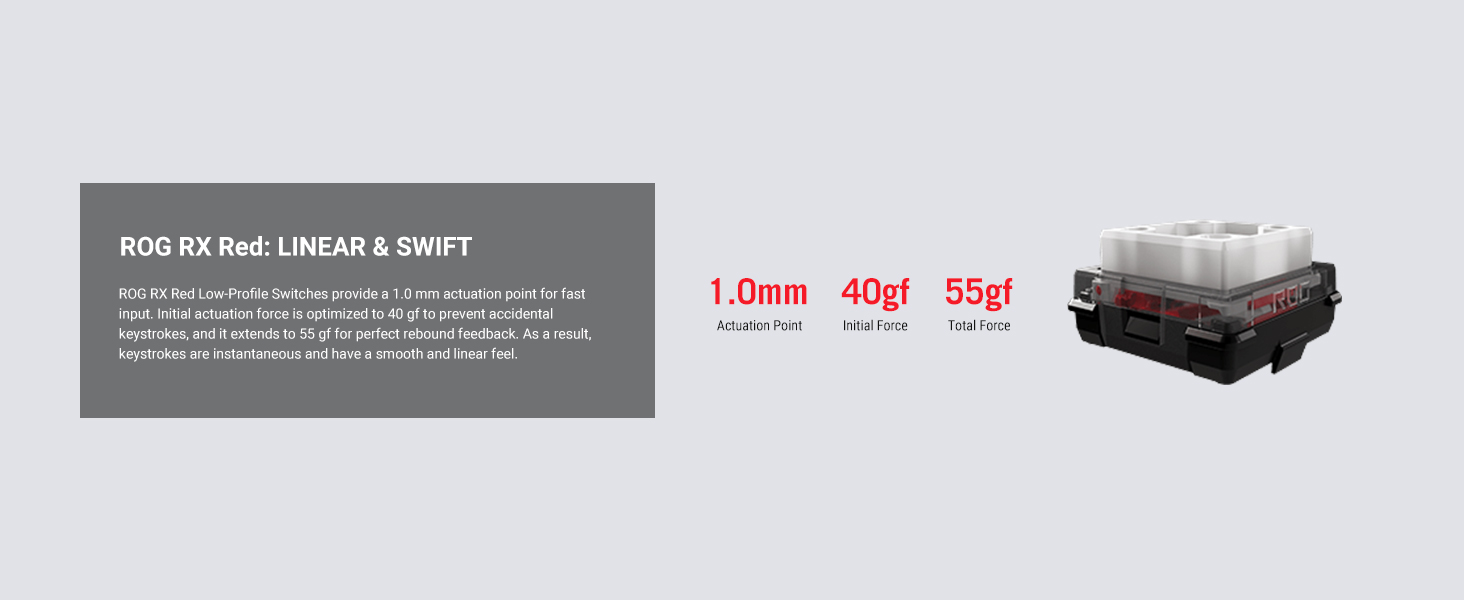
Image 5.2: Detailed specifications of the ROG RX Red Low-Profile Optical Switches.

Image 5.3: Close-up of the ROG RX Low-Profile Optical Switches.
5.3 Enhanced Typing Experience
Two layers of integrated silicone foam are incorporated to eliminate echoes and switch pinging, resulting in quieter and more satisfying typing acoustics.

Image 5.4: Internal structure with sound dampening foam for an enhanced typing experience.
5.4 Schutzhülle
The included protective cover safeguards the keyboard from dust and scratches during transport or storage. It also functions as a tray mount, providing an elevated typing angle when placed underneath the keyboard.

Image 5.5: The keyboard with its functional dust cover.
6. Wartung
6.1 Reinigung
- Use a soft, lint-free cloth to wipe down the keyboard surface.
- For deeper cleaning, gently remove keycaps and use compressed air to clear debris from beneath the switches.
- Avoid using harsh chemicals or abrasive materials, as these can damage the finish or keycap legends.
6.2 Speicherung
When not in use, store the keyboard in a dry, cool place. Utilize the provided protective cover to prevent dust accumulation and accidental damage.
6.3 Batteriepflege
To prolong battery life, avoid fully discharging the keyboard frequently. Charge the keyboard using the provided USB cable when the battery indicator is low.
7. Fehlerbehebung
7.1 Verbindungsprobleme
- Wireless (2.4 GHz RF/Bluetooth): Ensure the keyboard is sufficiently charged. Verify the mode switch is set correctly. For 2.4 GHz RF, ensure the USB dongle is securely inserted. For Bluetooth, re-pair the device if necessary.
- Verdrahtet: Check the USB cable connection at both the keyboard and the computer. Try a different USB port or cable.
7.2 Tasten reagieren nicht
- Stellen Sie sicher, dass die Tastatur eingeschaltet und angeschlossen ist.
- Prüfen Sie, ob sich unter den Tastenkappen physische Hindernisse oder Ablagerungen befinden.
- If using Armoury Crate, ensure no key remapping conflicts are present.
7.3 RGB Lighting Malfunctions
- Verify that the keyboard is connected and powered.
- Check the lighting settings via the touch panel or Armoury Crate software.
- Ensure Armoury Crate is updated to the latest version.
8. Spezifikationen
| Besonderheit | Spezifikation |
|---|---|
| Marke | ASUS |
| Modellnummer | M603 FALCHION RX LP/RLRD |
| Konnektivitätstechnologie | Bluetooth, Wired USB, 2.4 GHz RF |
| Tastaturbeschreibung | Spiele |
| Schaltertyp | ROG RX Red Low-Profile Optische Schalter |
| Betätigungsstelle | 1.0 mm |
| Anfangskraft | 40gf |
| Total Force | 55gf |
| Tastatur Hintergrundbeleuchtung | RGB |
| Betriebssystemunterstützung | Mac OS, Windows |
| Artikelgewicht | 2.33 Pfund |
| Produktabmessungen (L x B x H) | 12.05 x 4.33 x 1.04 Zoll |
| Stromquelle | Batteriebetrieben |
| Batterien | 1 Lithium-Ionen-Akku (im Lieferumfang enthalten) |
| Besondere Merkmale | Backlit, Integrated silicone dampening foam, Protective cover, Tri-mode connection, Interactive touch panel |
9. Garantie und Support
For warranty information, technical support, or service inquiries, please contact ASUS customer support directly or visit the official ASUS webBewahren Sie Ihren Kaufbeleg für Garantieansprüche auf.