
symcode 1D Laser Yellow
Symcode USB 1D Barcode Scanner User Manual
Model: 1D Laser Yellow
Einführung
Thank you for choosing the Symcode USB 1D Barcode Scanner. This manual provides comprehensive instructions for setting up, operating, and maintaining your new barcode scanner. Please read this manual thoroughly before use to ensure optimal performance and longevity of the device.
Sicherheitshinweise
Bitte beachten Sie die folgenden Sicherheitshinweise, um Verletzungen oder Schäden am Gerät zu vermeiden:
- Do not stare directly into the laser beam. The laser light is visible and can cause eye damage.
- Um Stromschläge oder Beschädigungen zu vermeiden, halten Sie das Gerät von Wasser und anderen Flüssigkeiten fern.
- Versuchen Sie nicht, den Scanner selbst zu zerlegen oder zu reparieren. Überlassen Sie alle Wartungsarbeiten qualifiziertem Fachpersonal.
- Use the scanner within the specified operating temperature and humidity ranges.
- Avoid dropping the scanner from excessive heights, although it is designed for durability, extreme impacts can cause damage.
Packungsinhalt
Überprüfen Sie, ob alle Artikel im Paket vorhanden sind:
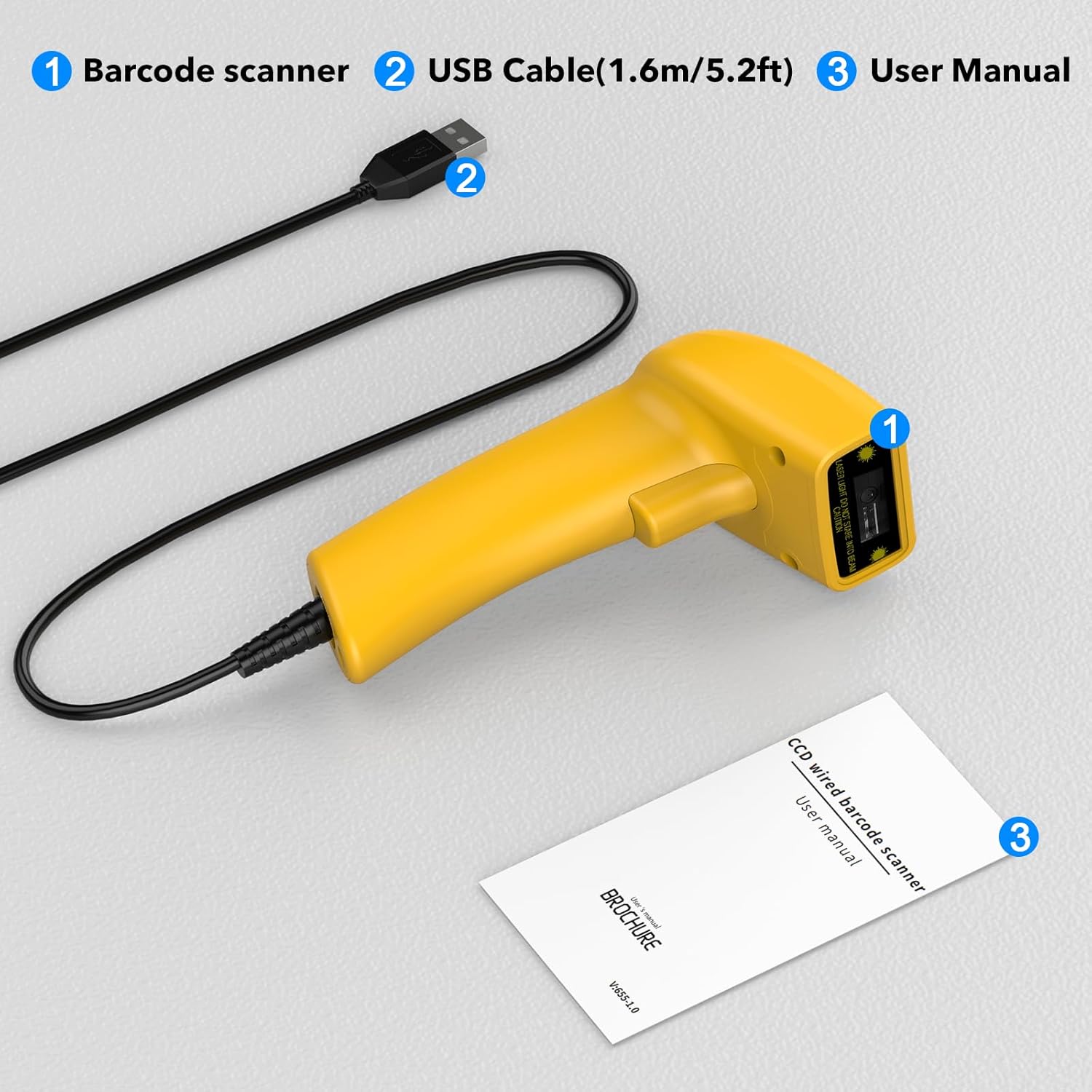
Image showing the Symcode 1D Barcode Scanner, its USB cable, and the included user manual, indicating the complete package contents.
- 1 x Symcode CCD Barcode Scanner
- 1 x USB Cable (1.6m / 5.2ft)
- 1 x Benutzerhandbuch
Produkt überview
The Symcode 1D Barcode Scanner features a compact and ergonomic design for comfortable handheld use. It is equipped with a CCD sensor for efficient barcode reading.
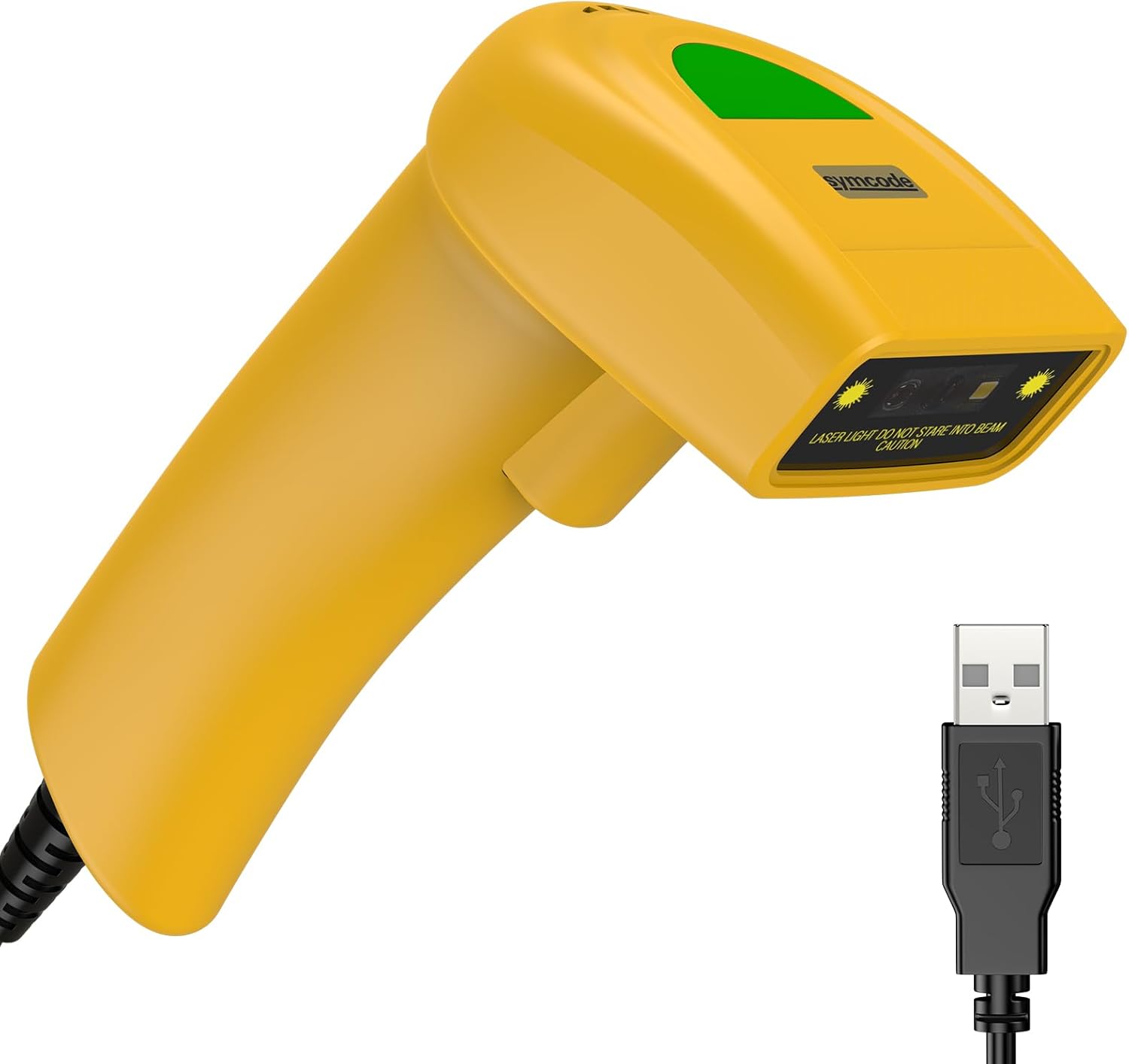
Eine detaillierte view of the Symcode 1D Barcode Scanner in yellow, highlighting its ergonomic shape and the attached USB cable for connectivity.
Installationsanweisungen
The Symcode barcode scanner is designed for simple plug-and-play operation.
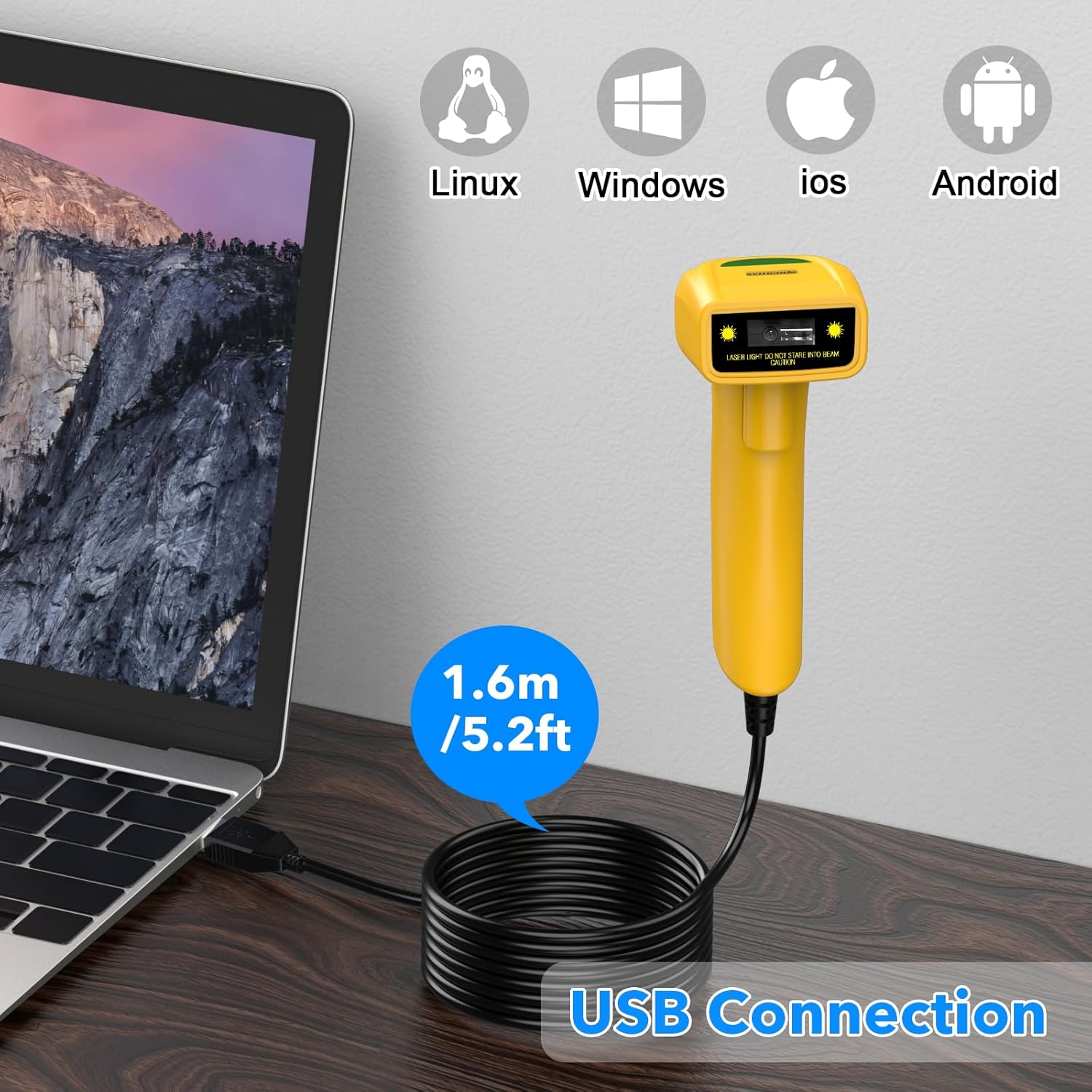
The Symcode barcode scanner connected to a laptop via its USB cable, illustrating its compatibility with Linux, Windows, iOS, and Android operating systems.
- Connect the USB cable from the scanner to an available USB port on your computer (Laptop or Desktop).
- The scanner is compatible with various operating systems including Linux, Windows, iOS, and Android. No additional drivers are typically required.
- Once connected, the scanner will be recognized as a keyboard input device. You can open any text editor, spreadsheet, or POS application and scan a barcode to test. The scanned data will appear as if typed by a keyboard.
Betriebsarten
The scanner supports three primary scanning modes to suit different operational needs:
- Tastentriggermodus: Press the trigger button to activate the scan beam and read a barcode. The beam will turn off when the button is released.
- Auto-Induction Mode: The scanner automatically detects a barcode within its scanning range and activates the beam to read it without requiring a trigger press.
- Kontinuierlicher Modus: The scan beam remains continuously active, allowing for rapid scanning of multiple barcodes without individual trigger presses.
Refer to the included user manual (physical copy) for specific barcode configurations to switch between these modes.
Erweiterte Funktionen
Prefix and Suffix Customization
The scanner allows for customization of prefixes and suffixes to be added to the scanned data, providing flexibility for various applications.
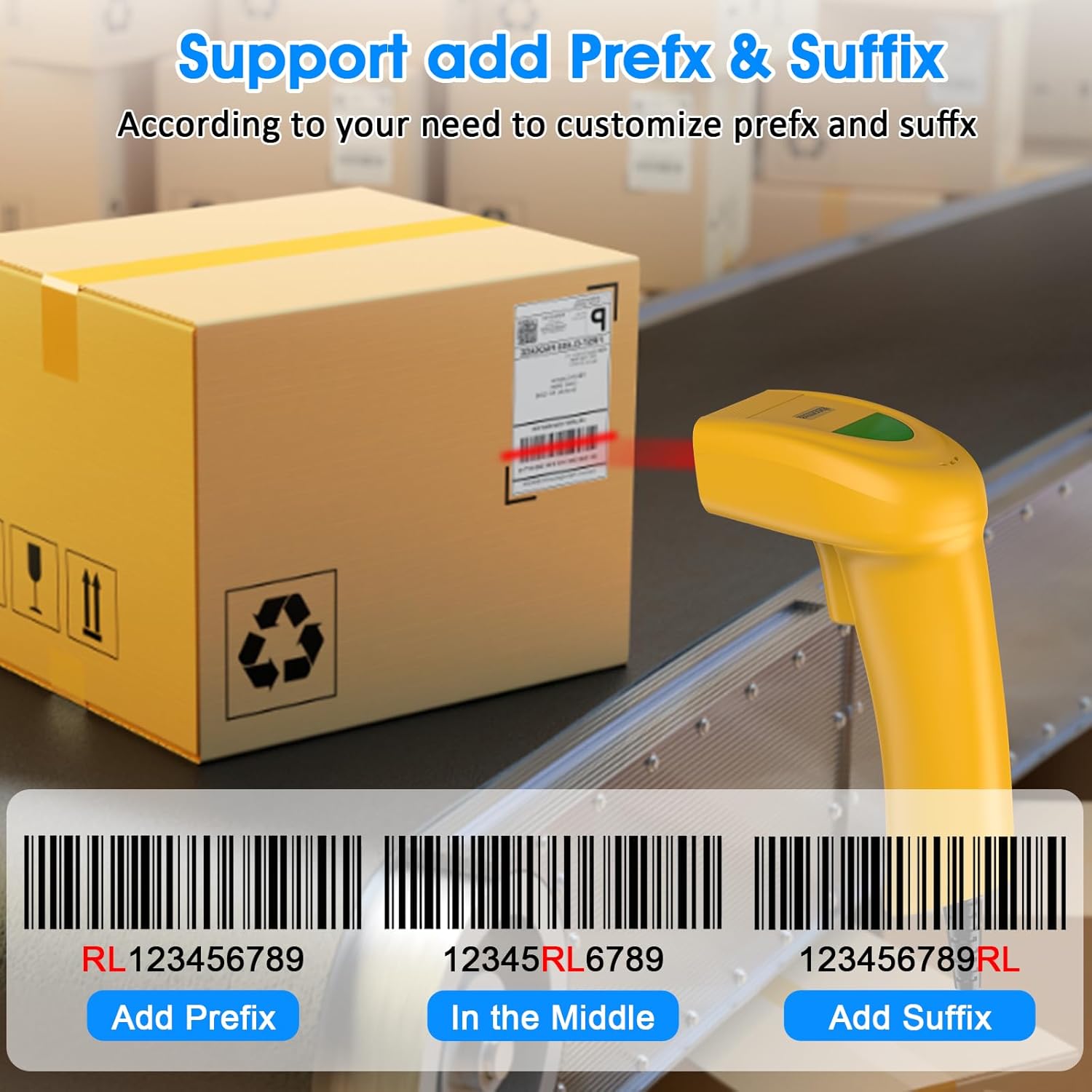
An illustration demonstrating how the Symcode barcode scanner can add custom prefixes (e.g., RL123456789), suffixes (e.g., 123456789RL), or insert characters in the middle (e.g., 12345RL6789) of scanned barcode data.
This feature is useful for integrating scanned data into specific software systems or for data organization. Consult the physical user manual for programming barcodes to configure these options.
Toneinstellungen
The scanner provides audible feedback upon successful scans. The sound can be turned on or off according to your preference and working environment.
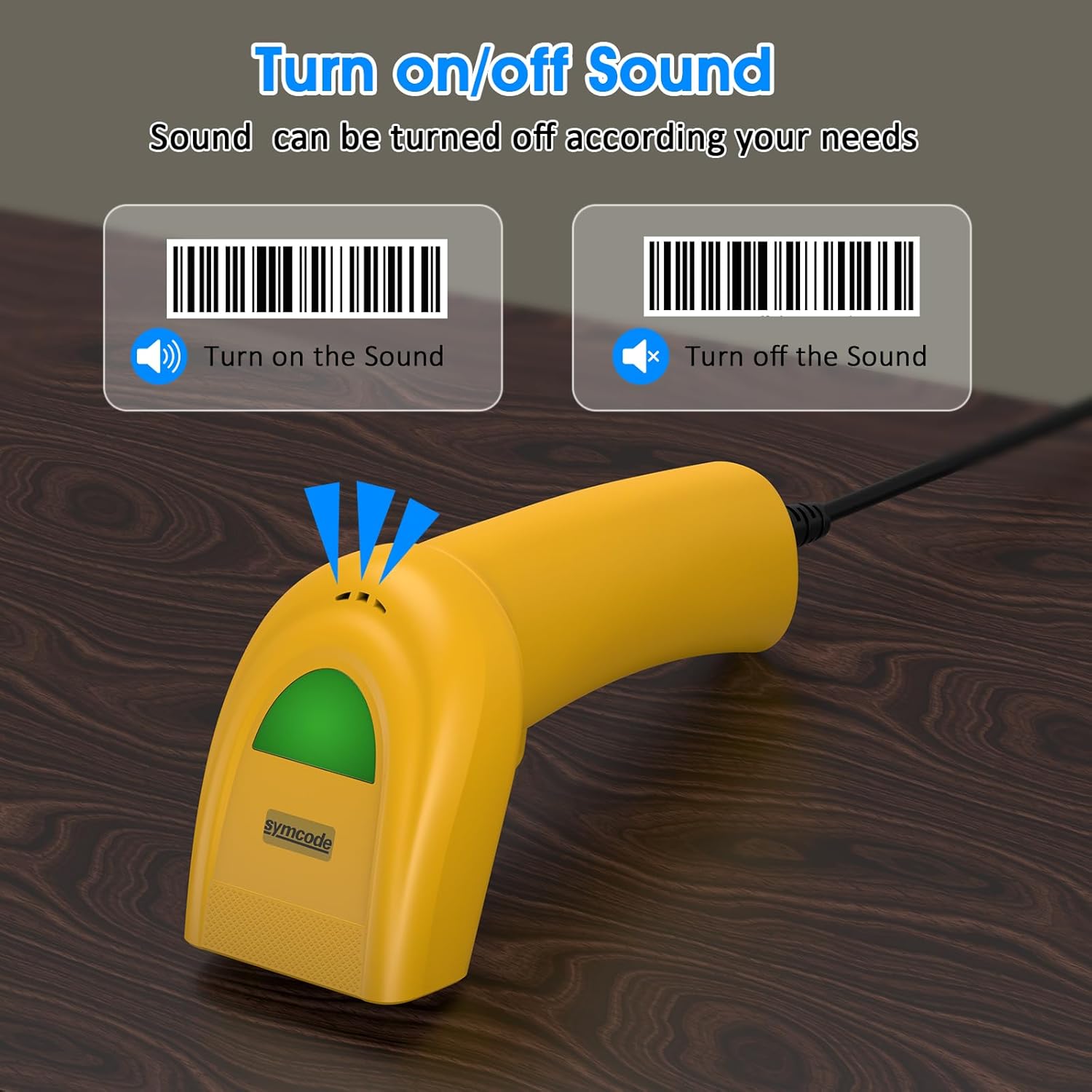
An image illustrating the option to turn the scanner's sound on or off, with visual cues for both states, allowing users to customize audible feedback.
Scan the appropriate configuration barcode from the user manual to toggle the sound feature.
Unterstützte Barcodes
The Symcode 1D Barcode Scanner is equipped with advanced CCD sensor technology, enabling it to accurately read a wide range of 1D barcodes from both paper and digital screens. It can even decode smudged, damaged, fuzzy, or reflective barcodes.
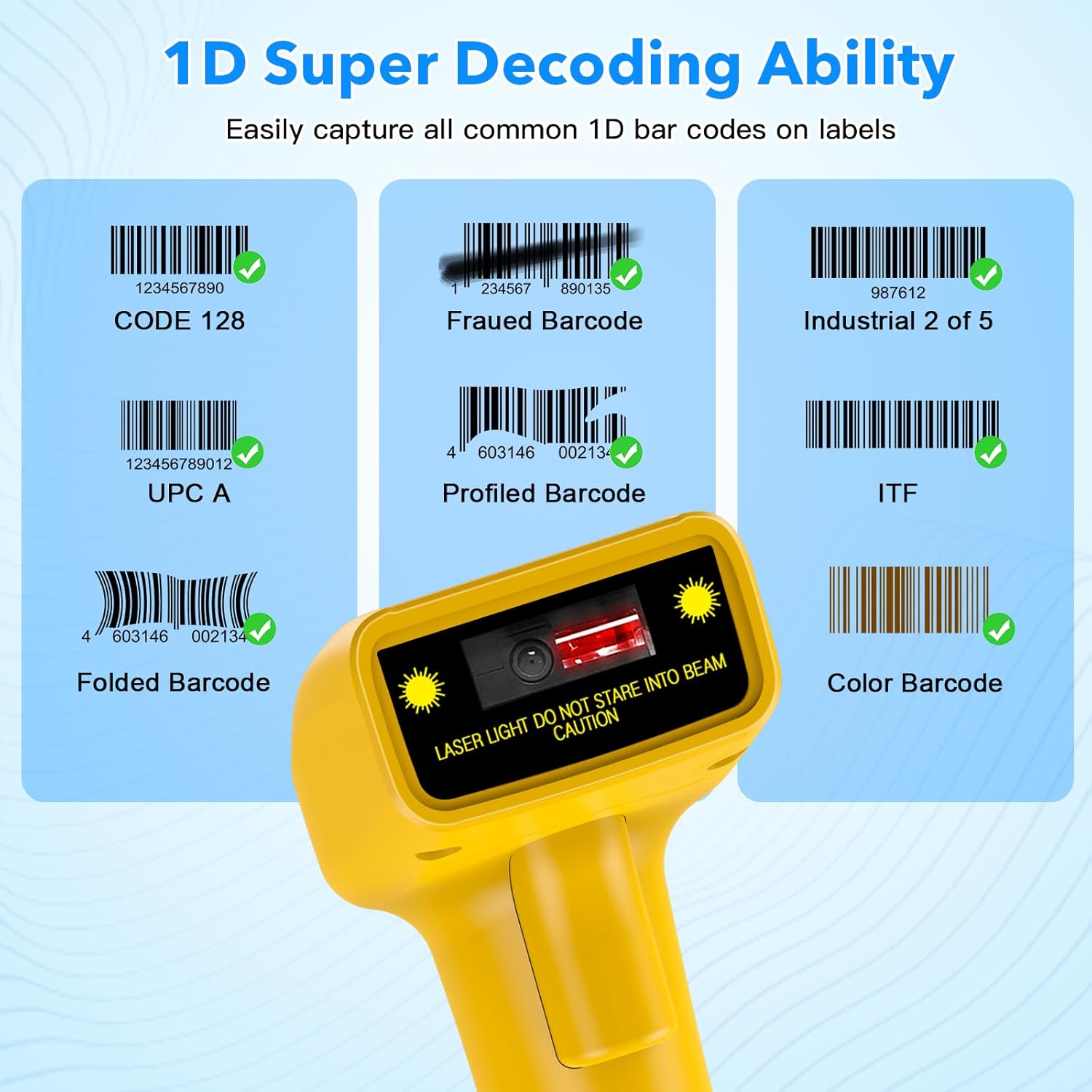
Visuelle Übungamples of various 1D barcodes that the Symcode scanner can decode, including CODE 128, Frauded Barcode (e.g., 1234567890135), Industrial 2 of 5, UPC A (e.g., 0123456789012), Profiled Barcode (e.g., 4603146002134), ITF, Folded Barcode (e.g., 6234567890178), and Color Barcode, demonstrating its super decoding ability.
Supported 1D Barcode Symbologies include:
- EAN-8 / EAN-13
- UPC-A / UPC-E
- Code 39 / Code 93 / Code 128
- EAN-128
- Codabar
- Industrie 2 von 5
- 2 von 5 verschachteln
- Matrix 2 von 5
- MSI
- Nummer 11
- RSS variants
- Chinesisch 2 von 5
The scanner also supports 180 configurable options for prefix, suffix, and termination strings.
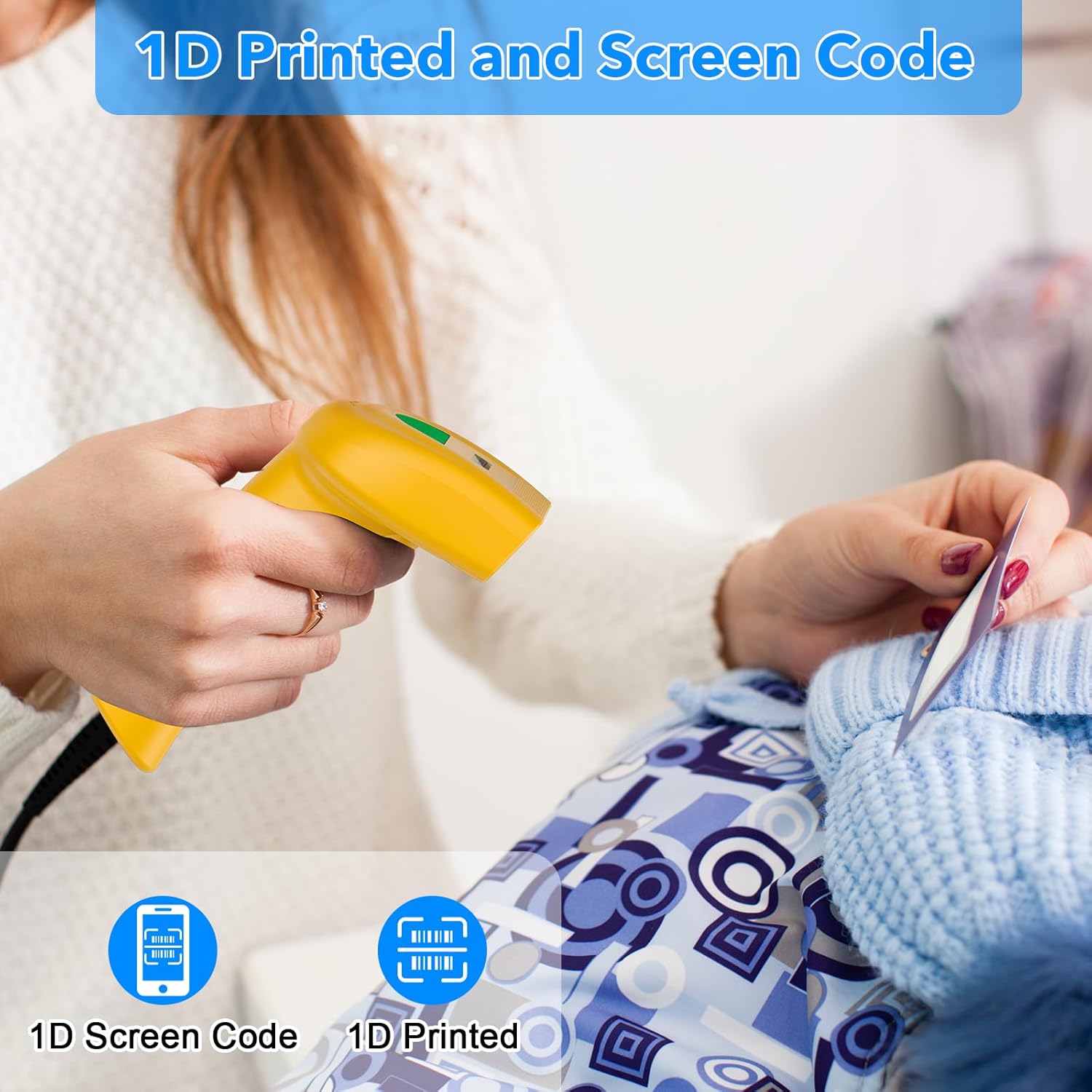
The Symcode barcode scanner in use, demonstrating its capability to scan both 1D printed barcodes and 1D barcodes displayed on screens, highlighting its versatility.
Wartung
Durch sachgemäße Wartung wird die Langlebigkeit und optimale Leistung Ihres Barcode-Scanners sichergestellt.
- Reinigung: Use a soft, dry cloth to clean the scanner's exterior. For the scanning window, use a lens cleaning cloth or a soft cloth lightly dampened with a non-abrasive cleaner. Do not use harsh chemicals or abrasive materials.
- Lagerung: Bewahren Sie den Scanner an einem kühlen, trockenen Ort fern von direkter Sonneneinstrahlung und extremen Temperaturen auf.
- Kabelpflege: Vermeiden Sie es, das USB-Kabel übermäßig zu biegen oder zu verdrehen, da dies die internen Drähte beschädigen kann.
Fehlerbehebung
If you encounter issues with your scanner, refer to the table below for common problems and solutions.
| Problem | Mögliche Ursache | Lösung |
|---|---|---|
| Der Scanner lässt sich nicht einschalten. | USB-Kabel nicht richtig angeschlossen oder USB-Anschluss defekt. | Stellen Sie sicher, dass das USB-Kabel sowohl am Scanner als auch am Computer fest angeschlossen ist. Versuchen Sie es mit einem anderen USB-Anschluss. |
| Der Scanner liest keine Barcodes. | Incorrect scanning mode, barcode type not supported, or damaged barcode. | Check the scanning mode (trigger, auto-induction, continuous). Ensure the barcode symbology is supported. Try scanning a known good barcode. Clean the scanning window. |
| Die gescannten Daten werden fehlerhaft angezeigt. | Keyboard language settings mismatch or incorrect prefix/suffix settings. | Ensure your computer's keyboard language matches the scanner's default. Reset prefix/suffix settings if recently changed. |
| No sound feedback. | Sound feature is turned off. | Scan the 'Turn on Sound' configuration barcode from the user manual. |
Technische Spezifikationen
| Besonderheit | Spezifikation |
|---|---|
| Maße | 165 x 63 x 87 mm |
| Gewicht | 156 g (6.4 Unzen) |
| Lichtquelle | 650nm~670nm visible laser |
| Scan-Geschwindigkeit | 100 Scans/Sek. |
| Read Preciseness | 0.1 mm (4 mil) |
| Druckkontrast | 30% mindestens |
| Schärfentiefe | 0~600mm (0.33mm, PCS 90%) |
| Scan Scope | 10 mm ~ 250 mm |
| Leseabstand | 2.5~600mm (100% UPC/EAN) |
| Bitfehlerrate | 1 / 5 Millionen |
| Aktuell | 85mA (working), 36mA (storage) |
| Schnittstelle | USB |
| Betriebstemperatur | 0 ~45 (32 ~113 ) |
| Lagertemperatur | -20 ~60 (-4 ~140 ) |
| Luftfeuchtigkeit | 5 % – 95 % nicht kondensierend |
| Material | ABS+PC |
| Konnektivitätstechnologie | USB-Kabel |
| Kompatible Geräte | Laptop, Schreibtisch |
| Stromquelle | Kabelgebundene Elektrik |
Garantie und Support
Symcode products are manufactured to high-quality standards. For warranty information and technical support, please refer to the documentation included with your purchase or visit the official Symcode store.
For further assistance, you may contact Symcode support directly through their official store page: Symcode Official Store
Ask a question about this manual
Ask about setup, troubleshooting, compatibility, parts, safety, or missing instructions. Manuals+ will review the question and use this page’s manual context to help answer it.