
1. Einleitung
This manual provides detailed instructions for the setup, operation, and maintenance of your Nitho Hexagon Wireless Gaming Controller. Please read this manual thoroughly before using the product to ensure optimal performance and longevity.
Hauptmerkmale:
- Kompatibilität mehrerer Plattformen: Supports Nintendo Switch, Switch Lite, Switch OLED, Windows PC, Android, and iOS devices.
- Accurate Motion Control: Integrated 6-axis gyroscope for responsive motion sensing.
- Einstellbare RGB-Beleuchtung: Features 8 selectable colors and 4 lighting modes with adjustable brightness.
- Austauschbare Komponenten: Includes replaceable mini joysticks and D-Pads for personalized control.
- Lange Akkulaufzeit: Built-in rechargeable battery provides up to 9 hours of playtime.
- Detachable Phone Clamp: For mobile gaming convenience.
- Programmierbare Zurück-Tasten: M1 and M2 buttons for custom functions or macros.
2. Packungsinhalt
Bitte überprüfen Sie, ob alle unten aufgeführten Artikel in Ihrem Paket enthalten sind:
- Nitho Hexagon Wireless Gaming Controller
- USB-Ladekabel
- 2x Detachable Trigger Extensions
- 2x Interchangeable D-Pads
- 6x Interchangeable Mini-Stick Caps (3 pairs of different heights/shapes)
- Detachable Phone Clamp

Image: Nitho Hexagon Wireless Gaming Controller with all included accessories, such as the phone clamp, interchangeable D-pads, and joystick caps.
3. Controller-Layout
Familiarize yourself with the buttons and features of your Nitho Hexagon controller.

Bild: Vorderseite view of the Nitho Hexagon Wireless Gaming Controller, showing the joysticks, D-pad, action buttons (A, B, X, Y), N button, Turbo, Options, Share, and Capture buttons.

Image: Diagram highlighting key features of the controller, including the Phone Holder (1), M1 & M2 Back Programmable Buttons (2), RGB LED Lights (3), and USB Port (4).
4. Aufladen des Controllers
Before first use, fully charge the controller. A full charge provides up to 9 hours of gameplay.
- Connect the supplied USB charging cable to the controller's USB port.
- Verbinden Sie das andere Ende des Kabels mit einer USB-Stromquelle (z. B. PC, USB-Netzteil).
- The LED indicators on the controller will show charging status. They will typically stop blinking or change color when fully charged.

Image: A Nitho Hexagon controller with a phone attached, displaying a battery indicator showing high capacity and 9 hours of battery life.
5. Einrichtung und Verbindung
The Nitho Hexagon controller supports multiple connection modes. The specific pairing method depends on the platform you are connecting to.
General Pairing Instructions:
To enter pairing mode, typically press and hold a combination of buttons (e.g., 'N' button + 'X' for Xbox/PC, 'N' button + 'A' for Switch, 'N' button + 'B' for Android, 'N' button + 'Y' for iOS) until the indicator lights begin to flash rapidly. Then, search for the controller on your device's Bluetooth settings and select it to pair.
Platform-Specific Connection:
- Nintendo-Schalter: Navigate to 'Controllers' > 'Change Grip/Order' on your Switch console. Press and hold the designated pairing button combination on the controller until it connects.
- Windows-PC: For wired connection, simply plug the USB cable into your PC. For Bluetooth, ensure your PC has Bluetooth enabled. The controller may register as an Xbox controller (XInput) or a DualShock controller (DInput) depending on the pairing mode. Some users report that for Bluetooth connectivity on Windows 11, installing and running DS4Windows may be necessary to ensure proper functionality, especially if it detects as a DualShock controller.
- Android/iOS: Enable Bluetooth on your mobile device. Press and hold the appropriate pairing button combination on the controller. Select the controller from the list of available Bluetooth devices to connect.

Image: The Nitho Hexagon controller with icons indicating its multi-standard compatibility across PC, iOS, Android, and Nintendo Switch platforms.
Video: An official Nitho video demonstrating the Hexagon Controller's features and compatibility with Switch, Switch Lite, OLED, and PC.
6. Anpassung
The Nitho Hexagon controller offers several customization options to enhance your gaming experience.
Austauschbare Komponenten:
The controller comes with 3 replaceable mini joysticks and 2 D-Pads. To change them, gently pull the existing component upwards to remove it, then align and push down the desired component until it clicks into place.

Image: An exploded diagram illustrating the various customizable components of the Nitho Hexagon controller, including different joystick caps, D-pads, and trigger extensions.
Detachable Phone Clamp:
Bringen Sie den Telefonhalter anamp to the designated slot on the controller to securely hold your smartphone for mobile gaming. Ensure the clamp is firmly attached before placing your device.
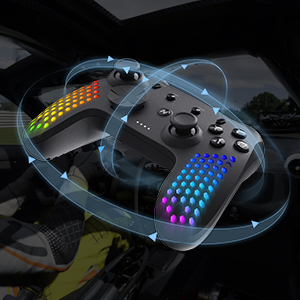
Image: A close-up of the detachable phone holder accessory, designed to integrate with the Nitho Hexagon controller for mobile gaming.
7. Erweiterte Funktionen
Einstellbare RGB-Beleuchtung:
The controller features RGB LED lights with 8 selectable colors and 4 lighting modes. Use the dedicated button (refer to controller layout) to cycle through colors and modes. Brightness can also be adjusted to suit your preference.

Image: Three Nitho Hexagon controllers showcasing various RGB lighting effects on their grips, illustrating the multiple light options.
6-Achsen-Bewegungssensor:
The built-in 6-axis gyroscope and accelerometer detect motion, tilt, and rotation, providing responsive motion control for compatible games.

Image: A Nitho Hexagon controller depicted with circular arrows, symbolizing its 6-axis motion sensor capabilities for detecting movement and orientation.
Vibration Module:
The ultra-lightweight HD vibrating motors deliver realistic in-game feedback, enhancing immersion.

Image: A Nitho Hexagon controller with visual effects suggesting vibration, indicating the presence of a vibration module for haptic feedback.
Programmierbare Zurück-Tasten (M1 & M2):
The M1 and M2 buttons on the back of the controller can be programmed for various functions, including rudimentary macro recording. This allows for simultaneous or sequential inputs, though joystick movements and time modulations may not be precisely recorded.
Turbo-Funktionalität:
The controller supports two turbo modes: on-press turbo (button rapidly repeats while held) and autoclicker turbo (button rapidly repeats without needing to be held). Consult the full online manual for specific button combinations to activate and configure these modes.
8. Wartung und Pflege
To ensure the longevity of your Nitho Hexagon controller, follow these care guidelines:
- Reinigung: Reinigen Sie den Controller mit einem weichen, trockenen Tuch. Bei hartnäckigem Schmutz kann ein leicht feuchtes Tuch hilfreich sein.amp Ein Tuch kann verwendet werden, achten Sie aber darauf, dass keine Feuchtigkeit in die Öffnungen eindringt. Vermeiden Sie scharfe Chemikalien oder Scheuermittel.
- Lagerung: Bewahren Sie den Controller an einem kühlen, trockenen Ort fern von direkter Sonneneinstrahlung und extremen Temperaturen auf.
- Batteriepflege: Setzen Sie den Akku keinen hohen Temperaturen aus und versuchen Sie nicht, ihn zu öffnen. Laden Sie den Controller regelmäßig auf, auch wenn er nicht benutzt wird, um die Akkuleistung zu erhalten.
- Vermeiden Sie Tropfen: Schützen Sie den Controller vor Stürzen und Stößen, da diese die internen Komponenten beschädigen können.
9. Fehlerbehebung
If you encounter issues with your Nitho Hexagon controller, refer to the following common solutions:
- Controller schaltet sich nicht ein: Ensure the controller is sufficiently charged. Connect it to a power source using the USB cable and allow it to charge for at least 30 minutes before attempting to power it on again.
- Verbindungsprobleme:
- Verify that the correct pairing mode is selected for your device (PC, Switch, Android, iOS).
- Ensure Bluetooth is enabled on your device and the controller is within range.
- Remove any previous pairings of the controller from your device's Bluetooth list and attempt to pair again.
- For PC Bluetooth connectivity, especially on Windows 11, if the controller is detected as a DualShock, consider installing and running DS4Windows to ensure proper driver recognition.
- If wireless connection fails, try connecting the controller via USB cable to confirm basic functionality.
- Tasten/Joysticks reagieren nicht:
- Stellen Sie sicher, dass der Controller ordnungsgemäß angeschlossen und geladen ist.
- Test the controller on another device or game to determine if the issue is specific to one setup.
- Perform a factory reset if available (consult the full online manual for specific instructions).
- RGB-Lichter funktionieren nicht: Check if the lighting feature is enabled and adjust brightness settings. Ensure the controller is charged.
If problems persist, please contact Nitho customer support or refer to the official Nitho webWebsite für weitere Unterstützung.
10. Spezifikationen
| Besonderheit | Spezifikation |
|---|---|
| Modellnummer | MLT-EXPC-K |
| Maße | 167 x 62 x 116 mm (6.57 x 2.44 x 4.57 Zoll) |
| Gewicht | ~165g (~0.463lb) / 10.2 ounces |
| Batteriekapazität | 900 mAh Lithium-Ionen-Akku (im Lieferumfang enthalten) |
| Betriebstemperatur | 5 °C - 35 °C |
| Sendeleistung | ≤20 dBm (EIRP) |
| Aktuell und Voltage | DC 5 V – 350 mA |
| Hersteller | NiTHO |
| Erstes verfügbares Datum | 30. April 2024 |

Image: A visual representation of the Nitho Hexagon controller's dimensions and a table summarizing its key specifications.
11. Garantie und Support
The Nitho Hexagon Wireless Gaming Controller is covered by a manufacturer's warranty. For specific warranty terms, duration, and to register your product, please refer to the official Nitho webBesuchen Sie die Website oder kontaktieren Sie direkt deren Kundendienst.
Für weitere Unterstützung, Produktregistrierung oder um view the most up-to-date information, please visit the official Nitho webWebsite: Nitho Official Store