Einführung
This manual provides comprehensive instructions for the setup, operation, and maintenance of your 7KEYS Retro Typewriter Mechanical Gaming Keyboard (Model TW1868). Designed with a vintage aesthetic and modern functionality, this keyboard offers multiple connection options and customizable RGB backlighting for an enhanced user experience.

Image: The 7KEYS Retro Typewriter Mechanical Gaming Keyboard, showcasing its unique design with round keycaps, RGB backlighting, and an included wrist rest.
Packungsinhalt
Bitte überprüfen Sie, ob alle unten aufgeführten Artikel in Ihrem Paket enthalten sind:
- 1 x TW1868 Retro Bluetooth Mechanical Keyboard
- 1 x 1.5m USB-C to USB-A Coiled Cable
- 1 x US User Manual
- 2 x Outemu Blue Switches (extra)
- 1 x Schalterabzieher
- 1 x 2.4-GHz-Funkempfänger
- 1 x Ergonomic Leather Wrist Rest
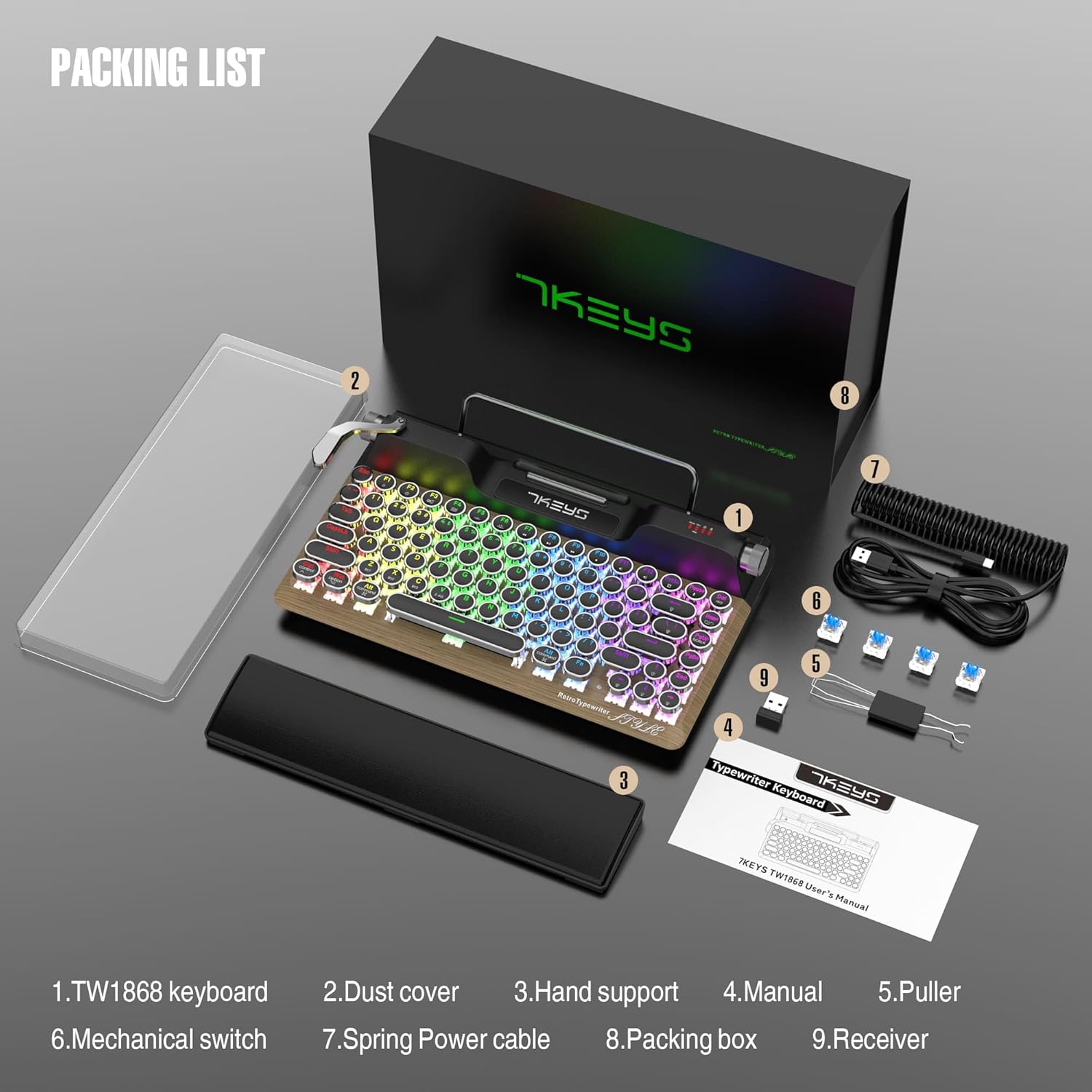
Image: All components included in the 7KEYS keyboard package, neatly arranged.
Aufstellen
Systemkompatibilitätsschalter
The keyboard supports both Windows and Mac operating systems. Locate the "Mode Win / Mac" switch on the top right side of the keyboard. Toggle the switch to select your desired operating system. A green light indicates Mac mode, while no green light indicates Windows mode.
Kabelverbindung
- Ensure the toggle switch at the bottom of the keyboard is set to "TypeC".
- Connect the USB-A end of the provided coiled cable to an available USB port on your computer.
- Plug the Type-C end of the cable into the Type-C port on the keyboard. The keyboard will automatically be recognized and ready for use.
2.4G Wireless-Verbindung
- Flip the toggle switch at the bottom of the keyboard to the "2.4G" position.
- Insert the 2.4G wireless receiver into an available USB port on your computer. The keyboard should connect automatically.
Bluetooth-Verbindung
Die Tastatur unterstützt bis zu drei Bluetooth-Geräte (BT1, BT2, BT3).
- Flip the toggle switch at the bottom of the keyboard to the "BT" position.
- To pair with a device, long press the FN+Z (für BT1), FN+X (für BT2) oder FN+C (for BT3) keys until the white light above the corresponding key blinks quickly. This indicates pairing mode.
- On your device (PC, laptop, tablet, or phone), enable Bluetooth and search for available devices. Select "7KEYS TW1868" from the list to connect.
- Once paired successfully, the Bluetooth indicator light will stop flashing and remain solid, indicating a stable connection.
- Zum Umschalten zwischen gekoppelten Bluetooth-Geräten kurz drücken FN+Z, FN+X, oder FN+C.
Video: A demonstration of wired, 2.4G wireless, and Bluetooth connection methods for the 7KEYS TW1868 keyboard, including pairing steps for various devices.
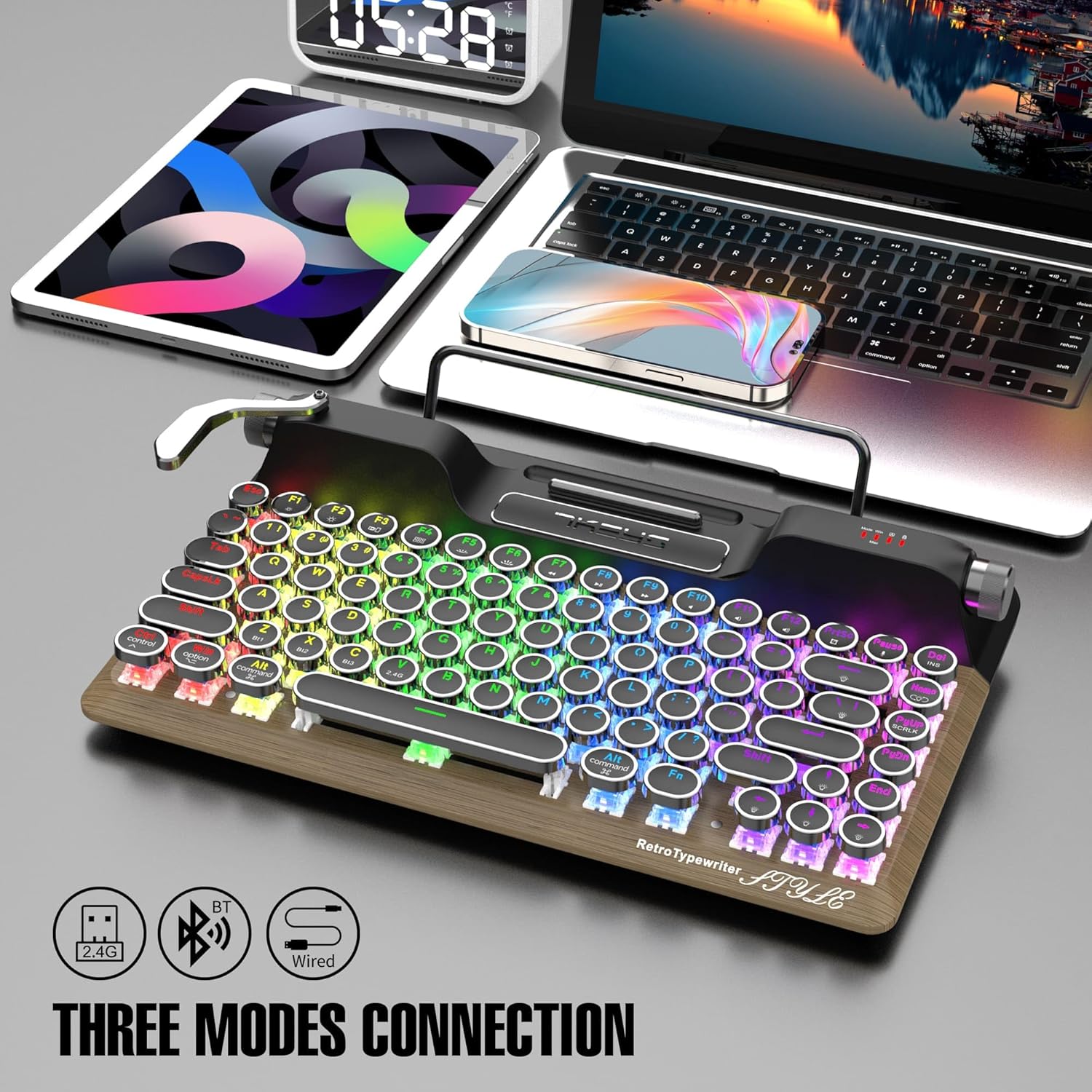
Image: The keyboard highlighting its versatile connectivity options: 2.4G wireless, Bluetooth, and wired USB-C.
Bedienungsanleitung
RGB-Hintergrundbeleuchtungssteuerung
The keyboard features true RGB backlighting with over 14 modes. The unique "pull rod" lever on the left side of the keyboard functions as a backlight mode switcher.
- To cycle through different RGB lighting effects, gently pull the lever to the right.
- To adjust the brightness of the backlight, rotate the knob located on the top right side of the keyboard.
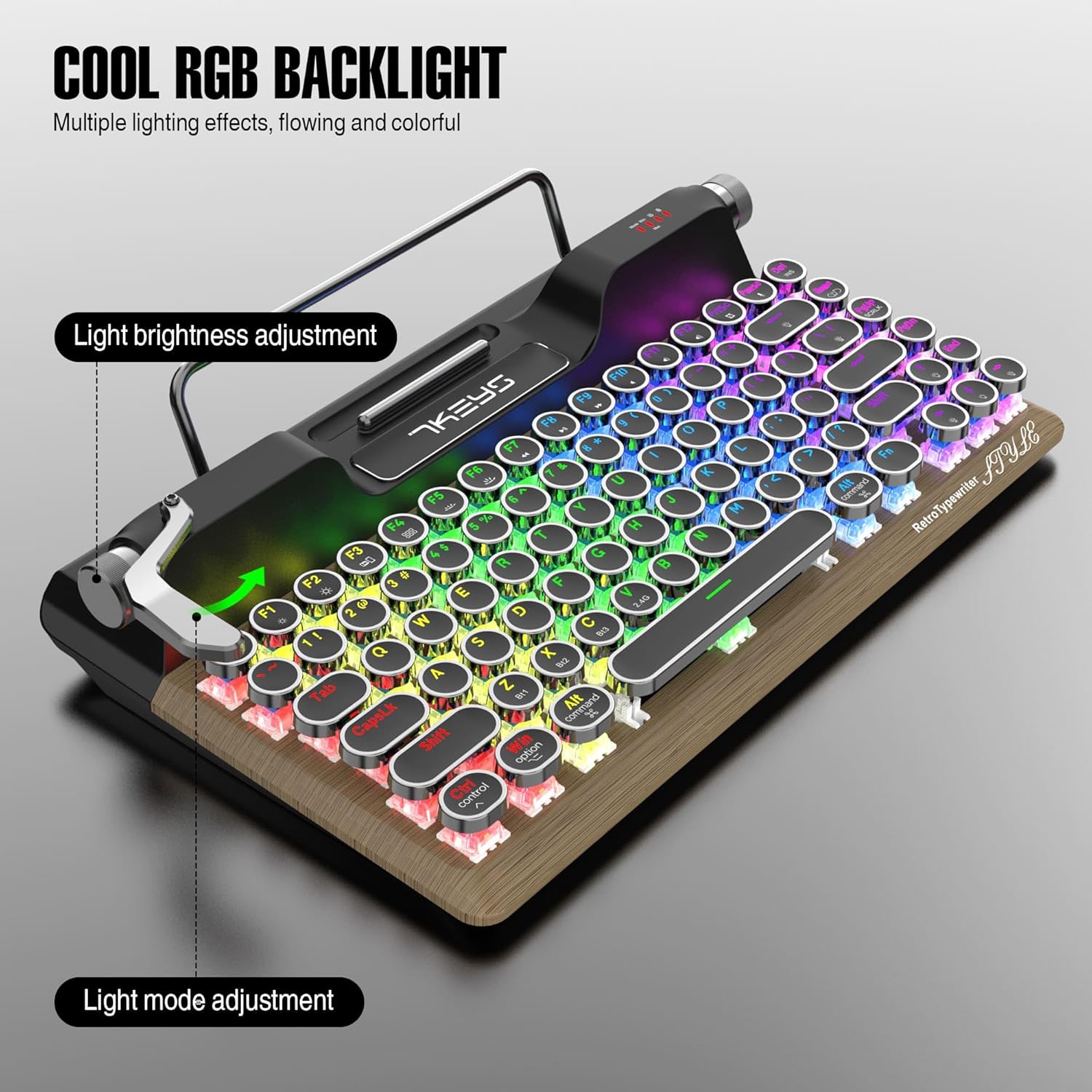
Image: Close-up of the keyboard illustrating the light brightness adjustment knob and the light mode adjustment lever.
Lautstärkeregelung
The metal scroll wheel on the top right of the keyboard allows for easy volume control.
- Rotate the scroll wheel clockwise to increase volume.
- Rotate the scroll wheel counter-clockwise to decrease volume.
Tablet-/Handyhalterung
The integrated stand at the top of the keyboard is designed to securely hold your tablet or smartphone, transforming your setup into a compact workstation. This feature is particularly convenient for mobile productivity.
Video: A demonstration of the TW1868 keyboard's features, including the tablet/phone holder, RGB lighting effects, and the satisfying clicky sound of the mechanical switches.
Wartung
Reinigung
Um das Aussehen und die Funktionalität der Tastatur zu erhalten:
- Use a soft, dry cloth to wipe down the keyboard surface and keycaps.
- Für eine gründlichere Reinigung verwenden Sie eine Dose Druckluft, um Staub und Schmutz zwischen den Tastenkappen zu entfernen.
- Vermeiden Sie die Verwendung scharfer Chemikalien oder scheuernder Materialien, da diese die Oberfläche beschädigen können.
Schalteraustausch (Hot-Swap-fähig)
The 7KEYS TW1868 keyboard features hot-swappable OUTEMU blue switches, allowing you to easily replace them without soldering. This is useful for customization or replacing a faulty switch.
- Gently pull the keycap off the switch using the provided keycap puller.
- Insert the switch puller around the switch, ensuring it grips both sides.
- Ziehen Sie den Schalter gerade nach oben, um ihn von der Platine zu entfernen.
- Richten Sie die Pins des neuen Schalters an den Löchern auf der Leiterplatte aus.
- Press the new switch firmly into place until it clicks. Ensure it is seated properly to avoid bent pins.
- Tauschen Sie die Tastenkappe aus.

Bild: Detailliert view of the keyboard's pluggable mechanical switches, demonstrating their easy removal and replacement.
Fehlerbehebung
| Problem | Mögliche Ursache | Lösung |
|---|---|---|
| Tastatur reagiert nicht (drahtlos) | Low battery; Incorrect connection mode; Receiver not plugged in; Device Bluetooth off. | Charge the keyboard; Ensure switch is on 2.4G or BT; Plug in receiver; Enable Bluetooth on device. |
| Tasten werden nicht registriert oder es werden doppelte Eingaben gemacht | Staub/Schmutz unter der Tastenkappe; defekter Schalter. | Clean under keycap with compressed air; Replace the switch using the switch puller. |
| RGB-Hintergrundbeleuchtung funktioniert nicht | Hintergrundbeleuchtung ausgeschaltet; schwacher Akku. | Use the pull rod to cycle through modes or adjust brightness; Charge the keyboard. |
| Verbindung über Bluetooth nicht möglich | Not in pairing mode; Device already connected to another channel; Interference. | Long press FN+Z/X/C to enter pairing mode; Ensure previous connection is disconnected; Move closer to device. |
Technische Daten
| Besonderheit | Detail |
|---|---|
| Modellnummer | TW1868 |
| Konnektivitätstechnologie | USB-C (kabelgebunden), 2.4-GHz-Funkverbindung, Bluetooth 5.0 |
| Kompatible Geräte | Laptop, PC, Tablet, Smartphone (Mac, iOS, Windows, Android) |
| Tastaturtyp | Mechanisch, Hot-Swap-fähig |
| Schaltertyp | OUTEMU Blue Switches (Clicky) |
| Tastenkappen | Round, Retro Punk Style |
| Anzahl der Schlüssel | 83 |
| Hintergrundbeleuchtung | True RGB (14+ modes) |
| Batterie | 3000 mAh Lithium-Ionen-Akku (im Lieferumfang enthalten) |
| Technische Daten | 13 x 6 x 2 Zoll |
| Artikelgewicht | 4.84 Pfund |
| Besondere Merkmale | Ergonomic, Wrist Rest, Rechargeable, Hot-Swappable, Integrated Tablet/Phone Holder, Volume Knob, RGB Light Control Lever |
| Farbe | Wood+Palm Rest |
Garantie und Support
7KEYS provides a limited warranty for this product. For detailed warranty information, technical support, or service inquiries, please refer to the official 7KEYS webBesuchen Sie die Website oder kontaktieren Sie direkt den Kundenservice. Bitte bewahren Sie Ihren Kaufbeleg für Garantieansprüche auf.