
VIMTAG 847
VIMTAG Benutzerhandbuch für die Glühbirnen-Sicherheitskamera Modell 847
Ausführliche Anweisungen für Installation, Betrieb und Wartung.
1. Einleitung
Vielen Dank, dass Sie sich für den VIM entschieden haben.TAG Light Bulb Security Camera Model 847. This device is designed to provide reliable surveillance for your home, offering 2.5K/4MP high-definition video, pan/tilt functionality, night vision, two-way audio, and smart detection features. This manual will guide you through the setup, operation, and maintenance of your camera to ensure optimal performance.
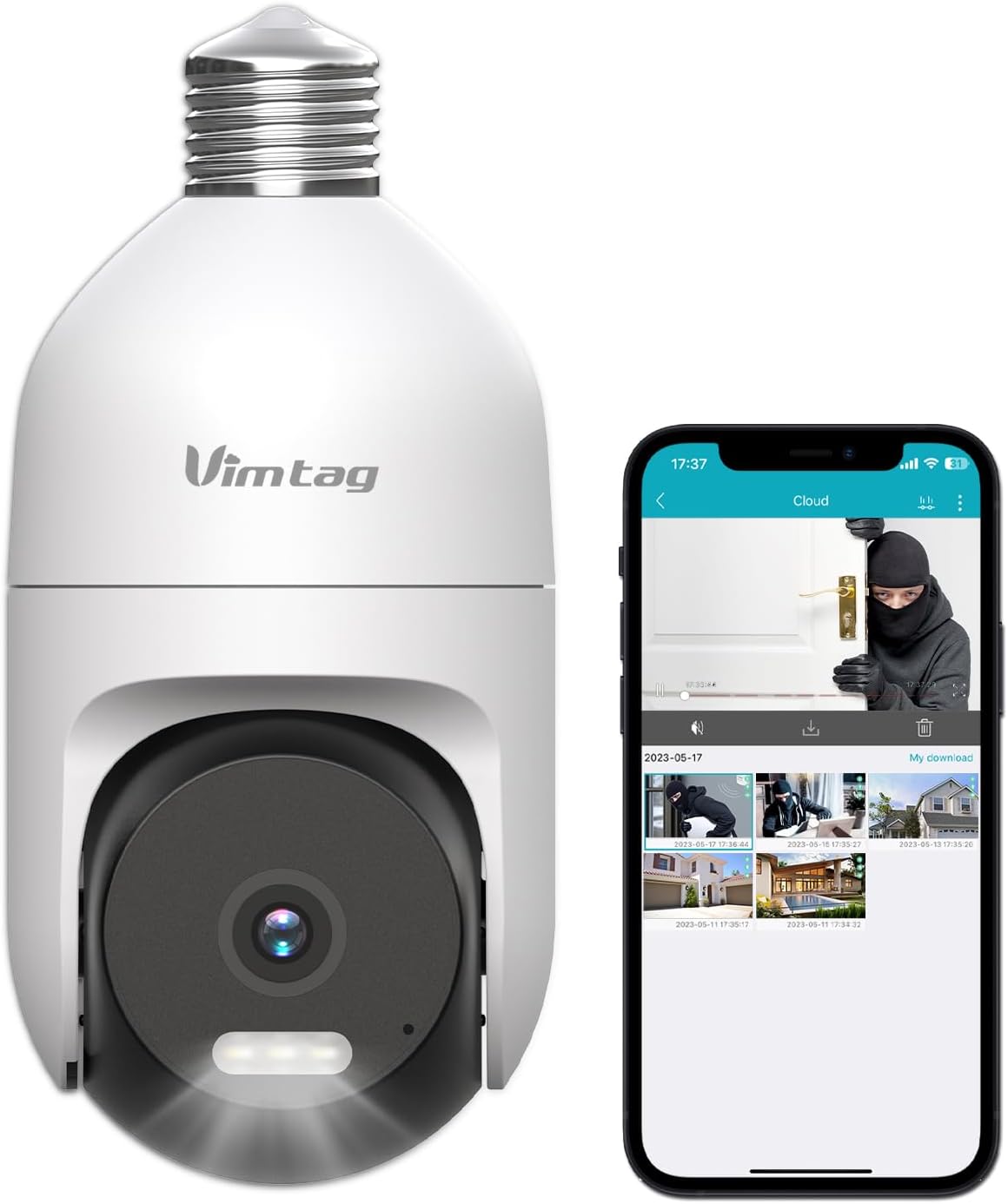
Image: The VIMTAG Light Bulb Security Camera Model 847, shown alongside a smartphone displaying its live feed.
2. Sicherheitshinweise
- Ensure the power is off before installing or removing the camera from a light socket.
- Install the camera in a standard E27/E26 light bulb socket.
- Setzen Sie die Kamera keinen extremen Temperaturen oder Luftfeuchtigkeiten außerhalb ihres Betriebsbereichs aus.
- Halten Sie die Kamera von starken Magnetfeldern fern.
- Versuchen Sie nicht, die Kamera selbst zu zerlegen oder zu reparieren. Wenden Sie sich an den Kundendienst.
- This camera is rated IP66 for weather resistance, suitable for outdoor use, but avoid submerging it in water.
3. Packungsinhalt
Der VIMTAG Light Bulb Security Camera package includes:
- VIMTAG Light Bulb Security Camera (Model 847)
- Bedienungsanleitung (dieses Dokument)
Note: An SD card for local storage is not included and must be purchased separately if desired.
4. Produktüberschreitungview
Der VIMTAG Light Bulb Security Camera features a compact design that fits into a standard light bulb socket. Key components include:
- Kameraobjektiv: Captures 2.5K/4MP video.
- Infrarot-LEDs (IR-LEDs): Für Schwarzweiß-Nachtsicht.
- Scheinwerfer: Provides color night vision and acts as a deterrent.
- Mikrofon: For audio input during two-way talk and sound detection.
- Lautsprecher: For audio output during two-way talk and siren alarms.
- Micro-SD-Kartensteckplatz: Für die lokale Videospeicherung (unterstützt bis zu 512 GB).
- Reset-Taste: Used for factory reset (usually a small pinhole).
- E27/E26 Base: Standard light bulb screw-in base for power and mounting.
5. Einrichtung
5.1 Physische Installation
- Ausschalten: Ensure the power to the light socket is turned off at the circuit breaker before installation.
- Einschrauben: Carefully screw the VIMTAG Light Bulb Camera into a standard E27/E26 light bulb socket. Ensure it is securely fastened.
- Einschalten: Die Stromversorgung der Lampenfassung wird wiederhergestellt. Die Kamera schaltet sich ein und startet ihren Startvorgang.

Image: Illustration of screwing the camera into a light bulb socket.
5.2 App-Download und Kontoerstellung
- Lade App herunter: Suchen nach "Vimtag" in your smartphone's app store (iOS App Store or Google Play Store) and download the official VIMTAG App.
- Account registrieren: Open the app and follow the on-screen instructions to register a new account using your email address or phone number.

Image: A smartphone screen showing the VIMTAG app icon, indicating the app download step.
5.3 Kamerakopplung und WLAN-Verbindung
- Gerät hinzufügen: In the VIMTAG app, tap the "+" icon (usually in the top right or center) to add a new device.
- Kameratyp auswählen: Choose "Light Bulb Camera" from the list of device types.
- Folgen Sie den Anweisungen in der App: The app will guide you through connecting the camera to your 2.4GHz Wi-Fi network. This typically involves scanning a QR code generated by the app with the camera lens or listening for an audio prompt.
- Verbindungsbestätigung: Once connected, the camera will indicate successful pairing (e.g., a voice prompt or LED indicator change), and its live feed will appear in the app.

Image: A smartphone screen showing the process of adding a new device, specifically selecting the light bulb camera.

Image: A smartphone displaying the live video feed from the VIMTAG camera after successful setup.
6. Bedienung der Kamera
6.1 Live View und Schwenk-/Neigesteuerung
Once connected, open the VIMTAG app and select your camera to view the live feed. Use the on-screen controls to pan (horizontal 355°) and tilt (vertical 100°) the camera lens to adjust the viewing angle. The camera offers 8x digital zoom for closer inspection.

Image: Multiple devices (phone, tablet, laptop, desktop) displaying the live feed from the VIMTAG camera, illustrating multi-terminal viewing.
6.2 Zwei-Wege-Audio
The camera features a built-in microphone and speaker. Tap the microphone icon in the app to speak through the camera, and listen to audio from the camera's location. This allows for real-time communication with visitors or to deter intruders.

Image: A person speaking into a phone to communicate with a delivery person at the door via the VIMTAG camera's two-way audio.
6.3 Nachtsichtmodi
Die Kamera unterstützt zwei Nachtsichtmodi:
- IR Nachtsicht: Defaults to black and white infrared vision in low light conditions.
- Color Night Vision with Spotlight: When the spotlight mode is activated (manually or via motion detection settings), the camera will switch to full-color night vision.
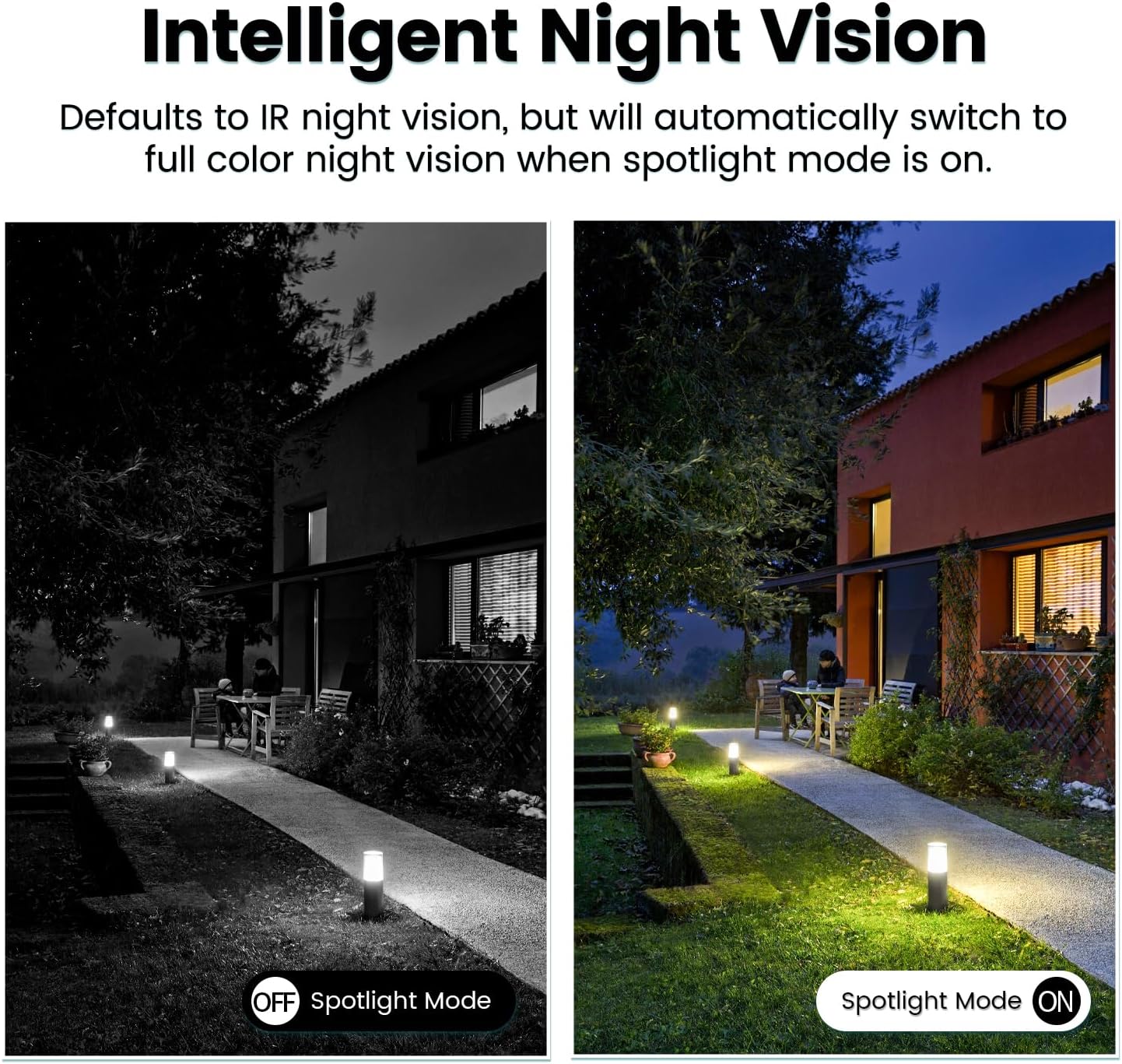
Image: Comparison of IR night vision (black and white, spotlight off) and color night vision (full color, spotlight on) from the VIMTAG Kamera.
6.4 AI Human/Motion/Sound Detection and Alarms
Configure detection settings in the VIMTAG app. The camera can detect human shapes, general motion, and sounds. Upon detection, you will receive notifications on your phone, and the camera can trigger a siren alarm or activate its spotlight to deter unwanted activity.

Image: An illustration of the VIMTAG camera detecting an intruder, triggering a spotlight and sending an alert to a smartphone.

Image: A smartphone displaying a "Motion Detection Alert" notification from the VIMTAG App.
6.5 Videoaufzeichnung und -speicherung
Die Kamera unterstützt zwei Speicheroptionen:
- Lokaler Speicher: Insert a Micro SD card (up to 512GB, not included) into the camera's SD card slot for continuous 24/7 recording. Recorded footage can be accessed and managed through the VIMTAG App.
- Cloud-Speicher: An optional cloud storage service is available through the VIMTAG app for secure, encrypted video storage. Subscription details can be found within the app.
6.6 Alexa-Integration
Der VIMTAG camera is compatible with Amazon Alexa. To integrate:
- Enable the VIMTAG skill in the Alexa app.
- Link your VIMTAG Konto.
- Entdecken Sie Geräte.
You can then use voice commands such as, "Alexa, show me the [camera name]" to view the live feed on compatible Alexa-enabled devices with screens (e.g., Echo Show).

Image: A person interacting with an Amazon Echo Show to view the VIMTAG camera feed using voice commands.
7. Wartung
- Reinigung: Reinigen Sie Objektiv und Gehäuse der Kamera vorsichtig mit einem weichen, trockenen Tuch. Verwenden Sie keine scharfen Chemikalien oder Scheuermittel.
- Firmware-Updates: Überprüfen Sie regelmäßig den VIM.TAG app for available firmware updates. Keeping your camera's firmware updated ensures optimal performance, security, and access to new features.
- SD-Kartenverwaltung: Bei Verwendung einer SD-Karte sollten Sie diese regelmäßig neu laden.view und wichtige Lebensmittel sicherntage. Format the SD card through the app if you experience recording issues or to clear old data.
8. Fehlerbehebung
| Problem | Mögliche Ursache | Lösung |
|---|---|---|
| Camera fails to power on. | Die Lampenfassung hat keinen Strom; die Kamera ist nicht richtig angeschraubt. | Check the light socket's power supply; ensure the camera is securely screwed in. |
| Es kann keine Verbindung zum WLAN hergestellt werden. | Incorrect Wi-Fi password; camera too far from router; 5GHz Wi-Fi network used. | Verify Wi-Fi password; move camera closer to router; ensure you are connecting to a 2.4GHz Wi-Fi network. |
| Schlechte Videoqualität. | Schwaches WLAN-Signal; verschmutzte Linse. | Improve Wi-Fi signal strength; clean the camera lens. |
| Bewegungserkennung funktioniert nicht. | Detection settings disabled or sensitivity too low; camera positioned incorrectly. | Check and adjust motion detection settings in the app; ensure camera has a clear view des Gebiets. |
| SD-Karte zeichnet nicht auf. | SD-Karte voll oder beschädigt; falsche Aufnahmeeinstellungen. | Format the SD card via the app; check recording schedule and settings. Replace SD card if necessary. |
9. Spezifikationen
| Besonderheit | Detail |
|---|---|
| Modellname | 847 |
| Videoauflösung | 2.5K / 4MP (1440p) |
| Schwenk-/Neigebereich | 355 ° Horizontal, 100 ° Vertikal |
| Digital Zoom | 8x |
| Nachtsicht | IR Night Vision & Color Night Vision with LED Spotlight |
| Zwei-Wege-Audio | Ja (Eingebautes Mikrofon und Lautsprecher) |
| Erkennung | AI Human, Motion, Sound Detection |
| Konnektivität | 2.4-GHz-WLAN (IEEE 802.11b/g/n) |
| Speicheroptionen | Micro SD Card (up to 512GB), Cloud Storage (optional subscription) |
| Stromquelle | Corded Electric (E27/E26 Light Bulb Socket) |
| Innen-/Außenbereich | Ja (IP66 wetterfest) |
| Kompatible Geräte | iOS, Android, Mac, iPad, Windows, Amazon Alexa |
| Abmessungen (L x B x H) | 3.07 x 3.07 x 5.31 Zoll |
| Artikelgewicht | 9.1 Unzen |
| Bildfrequenz | 25 Bilder pro Sekunde |
| Videokodierung | H.264/H.265 |
10. Garantie und Support
VIMTAG products come with a standard manufacturer's warranty. For specific warranty terms and conditions, please refer to the warranty card included with your product or visit the official VIMTAG website. For technical support, troubleshooting assistance, or any product-related inquiries, please contact VIMTAG customer service through the VIMTAG app or their official webWebsite.
Online-Ressourcen:
- VIMTAG Offiziell WebWebsite: Visit the VIMTAG Bei Amazon kaufen
- In-App Support: Access support features directly within the VIMTAG mobile Anwendung.
Ask a question about this manual
Ask about setup, troubleshooting, compatibility, parts, safety, or missing instructions. Manuals+ will review the question and use this page’s manual context to help answer it.