
1. Einleitung
Thank you for choosing the GEEKOM Mechanical Keyboard and Mouse Set. This manual provides detailed instructions for setting up, operating, and maintaining your new peripheral devices. Please read this manual thoroughly before use to ensure optimal performance and longevity of your product.
2. Packungsinhalt
Please check the package contents upon unboxing. If any items are missing or damaged, please contact GEEKOM customer support.
- GEEKOM Mechanical Keyboard
- GEEKOM Mouse
- USB Receiver (for wireless connection, if applicable)
- USB-C Charging Cable (for keyboard/mouse, if rechargeable)
- Benutzerhandbuch (dieses Dokument)
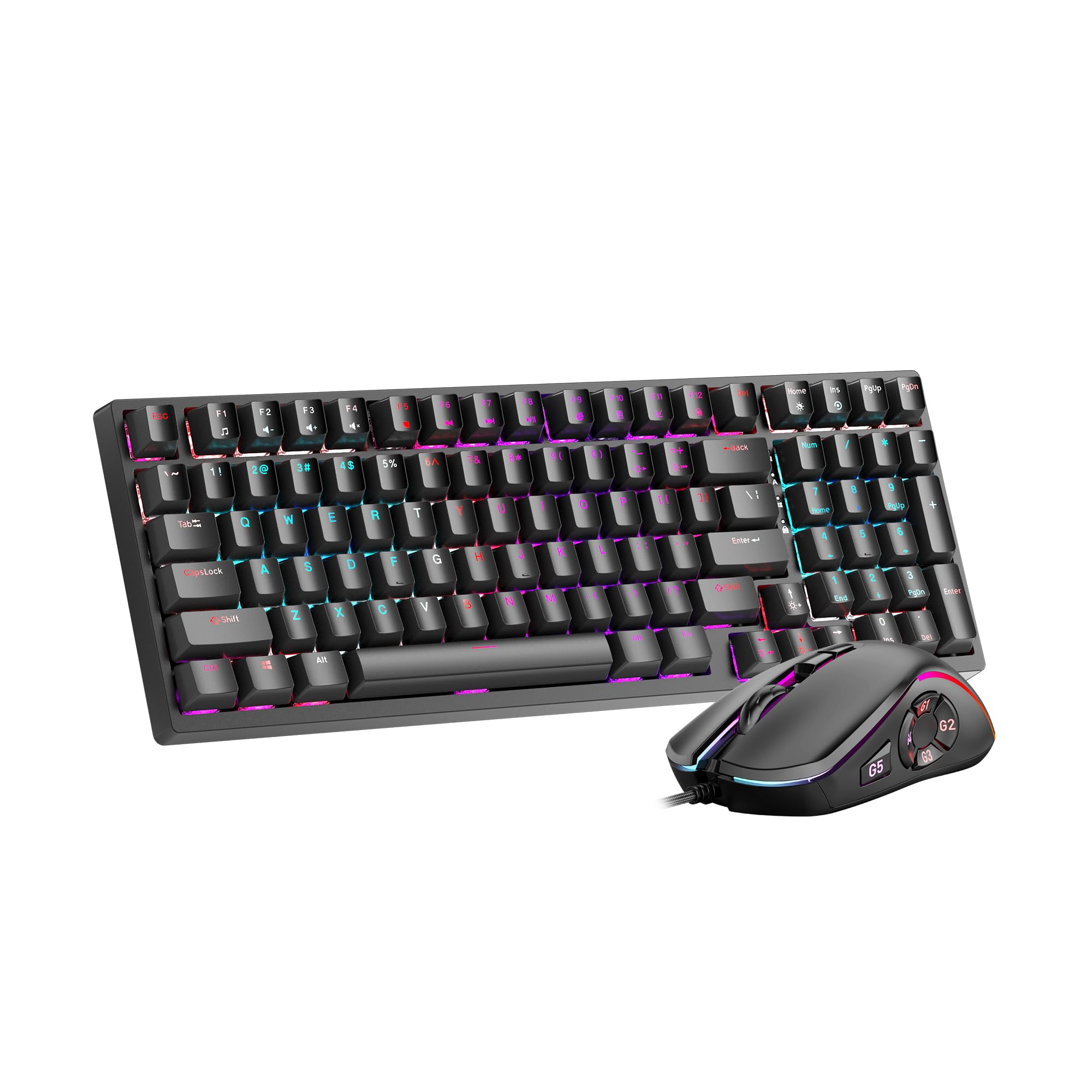
Image 1: GEEKOM Mechanical Keyboard and Mouse Set components.
3. Einrichtung
3.1 Anschließen von Tastatur und Maus
The GEEKOM Mechanical Keyboard and Mouse Set can be connected via a 2.4GHz wireless USB receiver or a wired USB connection, depending on the model variant. Please refer to your specific product's connection type.
3.1.1 Wireless Connection (2.4GHz USB Receiver)
- Locate the USB receiver, usually stored in a compartment on the mouse or keyboard.
- Stecken Sie den USB-Empfänger in einen freien USB-Port Ihres Computers.
- Schalten Sie Tastatur und Maus über die jeweiligen Netzschalter ein. Die Geräte sollten sich automatisch mit dem Empfänger verbinden.
- If connection fails, press the pairing button (if available) on the keyboard/mouse and the receiver simultaneously.
3.1.2 Wired Connection (USB Cable)
- Verbinden Sie das USB-C-Ende des mitgelieferten Kabels mit der Tastatur/Maus.
- Verbinden Sie das USB-A-Ende des Kabels mit einem freien USB-Anschluss an Ihrem Computer.
- The devices will be recognized by your operating system automatically.
3.2 Treiberinstallation
The GEEKOM Mechanical Keyboard and Mouse Set is typically plug-and-play, requiring no additional driver installation for basic functionality. For advanced features or customization, please visit the official GEEKOM website to download any optional software or drivers.
4. Bedienungsanleitung
4.1 Tastaturfunktionen
The mechanical keyboard offers a responsive typing experience. Specific functions may vary by model, but common features include:
- Standardtasten: All standard alphanumeric and symbol keys.
- Funktionstasten (F1-F12): Often combined with the Fn key for multimedia controls (volume, play/pause, etc.) or system shortcuts. Refer to the keycap legends for specific functions.
- Hintergrundbeleuchtung: Many mechanical keyboards feature adjustable backlighting. Use Fn + [Taste] combinations (e.g., Fn + Arrow keys, Fn + Ins/Del/Home/End) to change brightness, mode, or color.
- N-Key-Rollover (NKRO): Allows multiple key presses to be registered simultaneously, crucial for fast typing and gaming.
4.2 Mausfunktionen
The mouse provides precise tracking and comfortable use. Key features typically include:
- Links-/Rechtsklick: Standard primary and secondary click functions.
- Scrollrad: For vertical scrolling and often acts as a middle click button.
- DPI-Taste: (Dots Per Inch) Allows adjustment of mouse sensitivity on the fly. Press to cycle through different DPI settings.
- Seitentasten: Often programmable for forward/backward navigation in web browsers or custom functions in software.
5. Wartung
Proper maintenance ensures the longevity and performance of your GEEKOM Mechanical Keyboard and Mouse Set.
5.1 Reinigung
- Tastatur:
- Trennen Sie die Tastatur vom Computer.
- Verwenden Sie eine Dose Druckluft, um Staub und Schmutz zwischen den Tastenkappen auszublasen.
- Wischen Sie die Tastenkappen und die Oberfläche mit einem weichen, leicht feuchten Tuch ab.amp, fusselfreies Tuch. Übermäßige Feuchtigkeit vermeiden.
- For deeper cleaning, keycaps can often be carefully removed using a keycap puller (not included) and cleaned separately. Ensure they are completely dry before reattaching.
- Maus:
- Trennen Sie die Maus von Ihrem Computer.
- Wischen Sie die Oberfläche mit einem weichen, leichtamp, fusselfreies Tuch.
- Clean the optical sensor on the underside with a dry cotton swab to ensure accurate tracking.
5.2 Speicherung
When not in use for extended periods, store the keyboard and mouse in a dry, cool place away from direct sunlight and extreme temperatures.
6. Fehlerbehebung
If you encounter issues with your GEEKOM Mechanical Keyboard and Mouse Set, please refer to the following common solutions:
| Problem | Mögliche Ursache | Lösung |
|---|---|---|
| Keyboard/Mouse not responding (Wireless) | Low battery; USB receiver not connected; Pairing issue. | Charge devices; Ensure receiver is firmly plugged in; Re-pair devices (refer to Section 3.1.1). |
| Keyboard/Mouse not responding (Wired) | Loose cable connection; Faulty USB port. | Ensure cable is firmly connected; Try a different USB port; Test with a different cable if possible. |
| Tasten werden nicht registriert oder es werden doppelte Eingaben gemacht | Dust/debris under keycap; Switch malfunction. | Clean under keycaps with compressed air (refer to Section 5.1); If issue persists, contact support. |
| Der Mauszeiger bewegt sich unregelmäßig oder gar nicht. | Verschmutzter optischer Sensor; Ungeeignete Oberfläche; Niedriger Batteriestand. | Clean optical sensor (refer to Section 5.1); Use on a clean, opaque mouse pad; Charge mouse. |
| Hintergrundbeleuchtung funktioniert nicht | Backlight turned off; Software issue. | Adjust backlight settings using Fn key combinations; Check for software updates. |
7. Spezifikationen
The following are general specifications for the GEEKOM Mechanical Keyboard and Mouse Set. Specific details may vary slightly by production batch.
- Marke: GEEKOM
- Modell: Mechanisches Tastatur- und Mausset
- Konnektivität: 2.4GHz Wireless (via USB Receiver) / Wired USB
- Tastaturtyp: Mechanisch
- Maussensor: Optisch
- DPI Settings (Mouse): Adjustable (e.g., 800/1200/1600/2400 DPI)
- Batterie: Rechargeable Lithium-ion (for wireless models)
- Betriebssystemkompatibilität: Windows, macOS, Linux (basic functionality)
- Paketabmessungen: 50 x 15 x 5 cm
- Paketgewicht: 1 kg
- ASIN: B0CTSVD82J
- UPC/GTIN: 850055043657
8. Garantie und Support
GEEKOM products are designed for reliability and performance. This product comes with a standard manufacturer's warranty. For detailed warranty terms and conditions, please refer to the warranty card included in your package or visit the official GEEKOM webWebsite.
For technical support, troubleshooting assistance, or warranty claims, please contact GEEKOM customer service through their official webWebsite oder die in Ihrer Produktdokumentation angegebenen Kontaktinformationen.
Official GEEKOM WebWebsite: www.geekom.nl (Hinweis: Dies ist ein Platzhalter. URLBitte entnehmen Sie die korrekte Unterstützung der Verpackung Ihres Produkts. webWebsite.)