
1. Einleitung
Thank you for choosing the PNI Voyager S2600 WiFi 4K Ultra HD Car DVR Camera. This device is designed to record high-quality video footage of your journeys, providing security and evidence in case of incidents. It features 4K Ultra HD recording, Wi-Fi connectivity for smartphone control, parking monitoring, and a G-sensor for automatic incident detection.

Image 1.1: PNI Voyager S2600 Dash Cam installed in a vehicle, showcasing its key features: 4K Ultra HD recording, Wi-Fi connectivity, and Parking Monitoring.
2. Sicherheitshinweise
Bitte lesen und befolgen Sie diese Sicherheitsrichtlinien, um einen ordnungsgemäßen Betrieb zu gewährleisten und Schäden am Gerät oder Verletzungen zu vermeiden.
- Setzen Sie das Gerät keinen extremen Temperaturen, direkter Sonneneinstrahlung über längere Zeiträume oder hoher Luftfeuchtigkeit aus.
- Stellen Sie sicher, dass das Gerät sicher befestigt ist und die Sicht des Fahrers nicht behindert. view oder die Fahrzeugsteuerung beeinträchtigen.
- Use only the provided power cable and accessories. Using unauthorized accessories may damage the device and void the warranty.
- Versuchen Sie nicht, das Gerät selbst zu zerlegen oder zu reparieren. Wenden Sie sich an autorisiertes Servicepersonal.
- Um klare Videoaufnahmen zu gewährleisten, halten Sie die Linse sauber.
- Always format the microSD card regularly to maintain optimal recording performance.
3. Packungsinhalt
Überprüfen Sie, ob alle Artikel im Paket vorhanden sind:
- PNI Voyager S2600 Car DVR Camera
- Power cord with cigarette lighter plug (12V/24V compatible)
- Windschutzscheibenhalterung
- Bedienungsanleitung

Image 3.1: The PNI Voyager S2600 dash cam, its magnetic mount, and the power cable with a cigarette lighter adapter.
4. Produktüberschreitungview
Familiarize yourself with the components of your PNI Voyager S2600 dash cam.
4.1. Gerätelayout
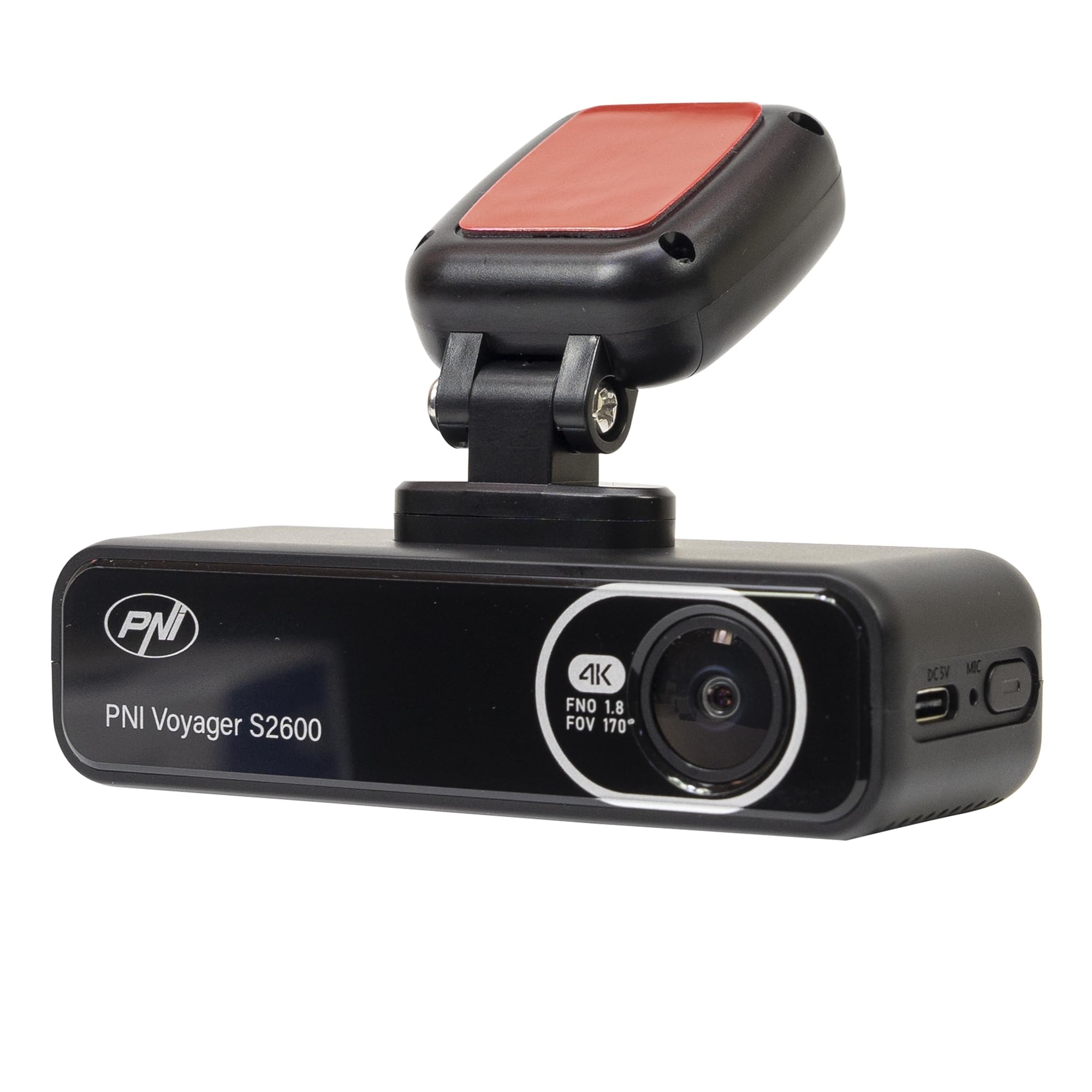
Bild 4.1: Vorderseite view of the PNI Voyager S2600, displaying the camera lens with 4K FNO 1.8 FOV 170° markings, the PNI brand logo, and the model name.

Abbildung 4.2: Detailansicht view of the side of the dash cam, highlighting the USB-C power input (DC 5V) and the microphone opening.
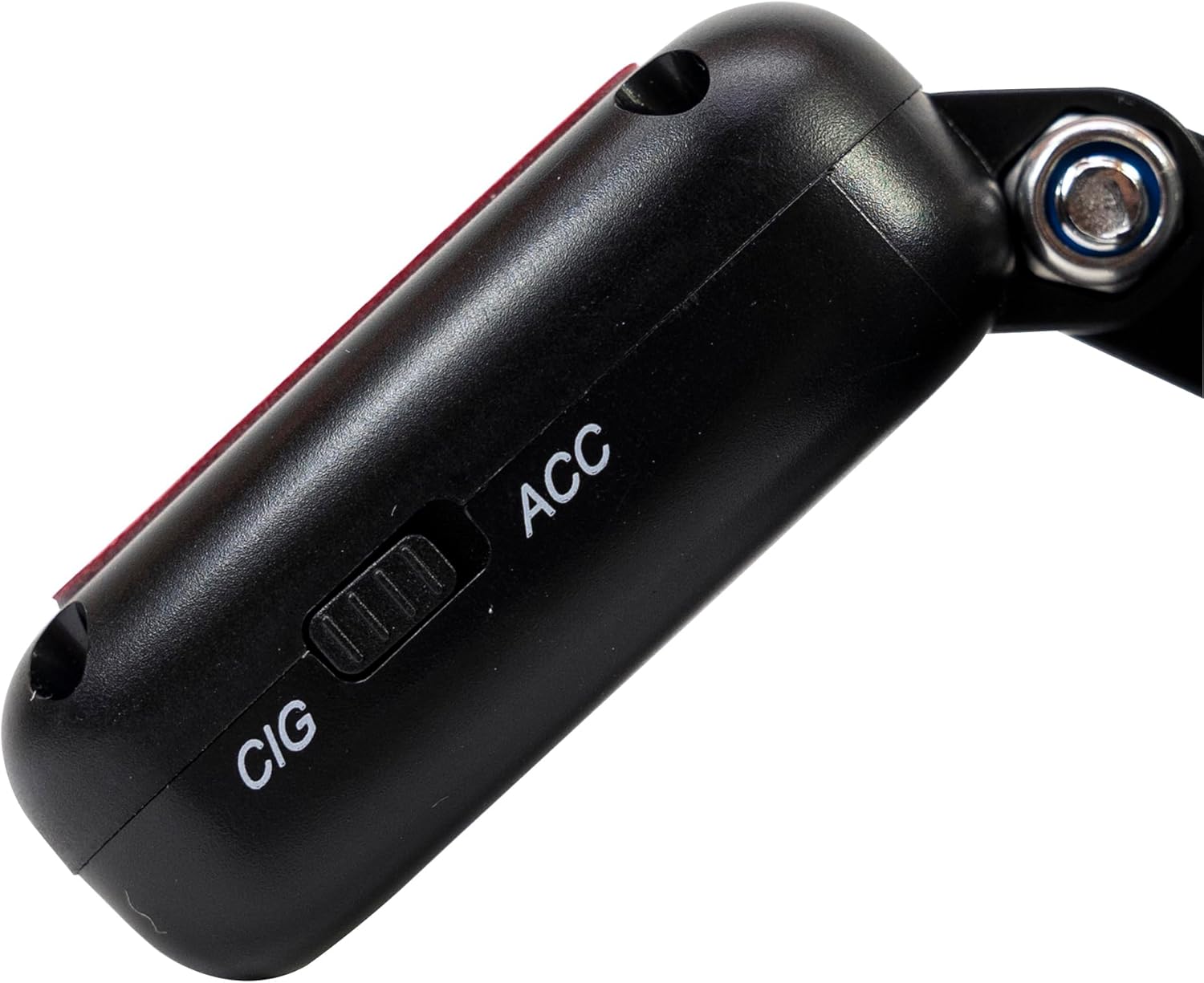
Abbildung 4.3: Seite view of the magnetic mount, featuring a switch to select between 'CIG' (cigarette lighter power) and 'ACC' (accessory power) modes.
4.2. Hauptmerkmale
- 4K Ultra HD-Videoaufnahme: Captures video at 3840x2160 resolution at 30FPS, or 2560x1440 at 30FPS, and 1920x1080 at 60FPS/30FPS.
- Wi-Fi-Konnektivität: Connects to your smartphone via the Viidure-Dashcam Viewer app for live view, Video-Download und Einstellungsanpassung.
- Parküberwachung: Activates the camera to record when vibration or movement is detected while the vehicle is parked.
- G-Sensor: Automatically locks the current video file in case of a collision to prevent overwriting.
- Weitwinkelobjektiv: 170 Grad vieweinen weiten Blickwinkel wählen, um eine breite Perspektive auf die Straße zu erfassen.
- Loop-Aufnahme: Überschreibt das älteste Lebensmitteltage, wenn die Speicherkarte voll ist, um eine kontinuierliche Aufnahme zu gewährleisten.
- Integriertes GPS: Records speed and coordinates, which can be displayed on recorded videos.
5. Einrichtung
5.1. Einlegen der microSD-Karte
- Stellen Sie sicher, dass die Dashcam ausgeschaltet ist.
- Suchen Sie den microSD-Kartensteckplatz am Gerät.
- Insert a high-speed (Class 10 or higher) microSD card (up to 512GB) into the slot until it clicks into place.
- To remove, gently push the card in until it clicks, then release. The card will eject.
Wichtig: Format the microSD card within the app or on a computer before first use and periodically thereafter to ensure stable recording.
5.2. Installation und Stromanschluss
- Reinigen Sie den Bereich an Ihrer Windschutzscheibe, an dem Sie die Dashcam anbringen möchten. Stellen Sie sicher, dass sie Ihre Sicht nicht behindert. view.
- Attach the windshield mount to the dash cam. The mount is magnetic for easy attachment.
- Peel off the protective film from the adhesive pad on the mount and firmly press it onto the chosen spot on your windshield for at least 30 seconds.
- Connect the power cable to the USB-C port on the mount.
- Route the power cable neatly along the windshield and dashboard to the vehicle's cigarette lighter socket.
- Plug the cigarette lighter adapter into the vehicle's 12V/24V power outlet.
- Select the appropriate power mode on the mount's switch: 'CIG' for continuous power from the cigarette lighter, or 'ACC' for power only when the vehicle's ignition is on.

Image 5.1: The PNI Voyager S2600 dash cam detached from its magnetic mount, illustrating the contact points for secure attachment.
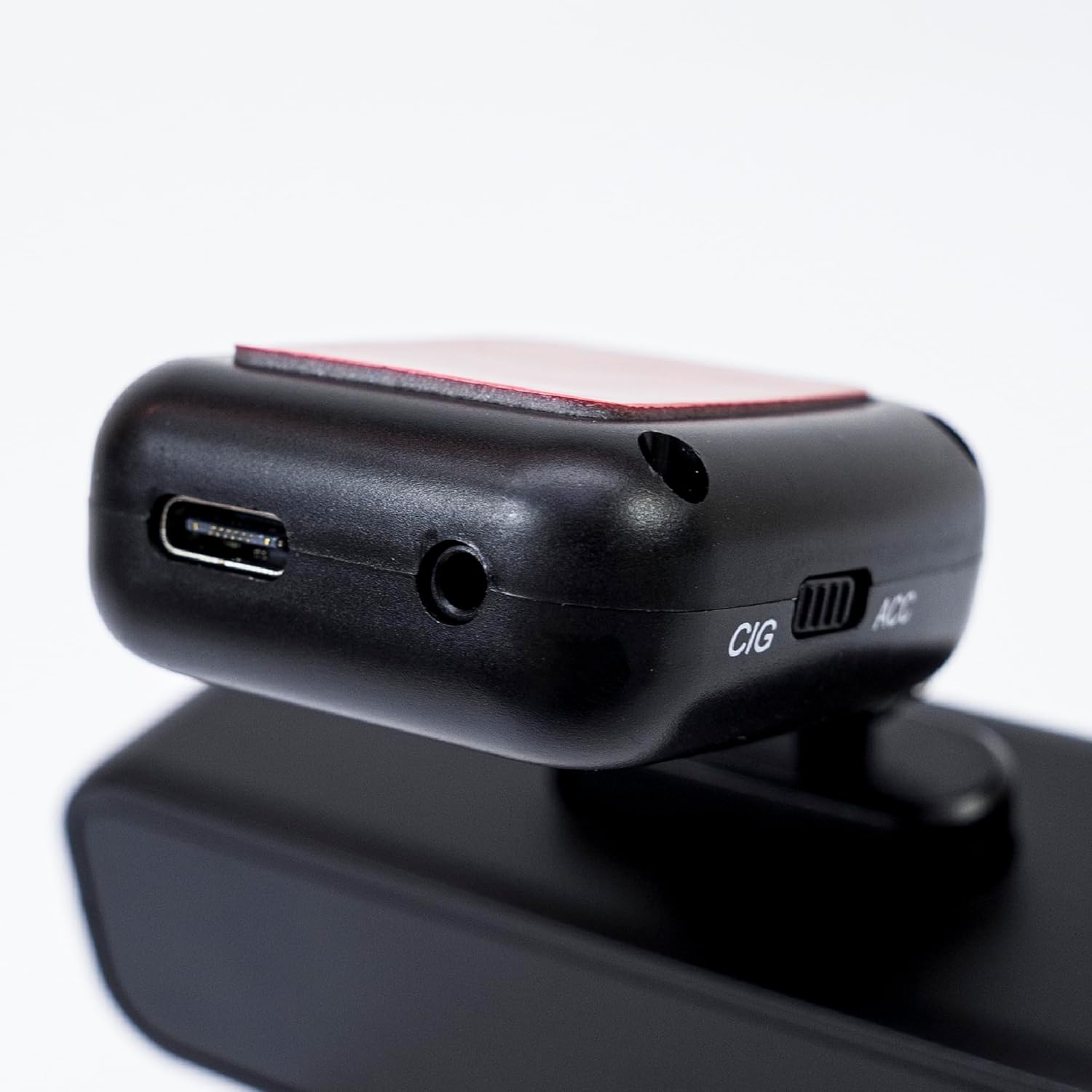
Image 5.2: The top of the dash cam mount, featuring the USB-C port for power input and the CIG/ACC switch for power mode selection.
5.3. App-Installation und WLAN-Verbindung
- Laden Sie die Viidure-Dashcam Viewer App aus dem App Store (iOS) oder Google Play Store (Android).
- Die Dashcam einschalten.
- On your smartphone, go to Wi-Fi settings and connect to the dash cam's Wi-Fi network. The network name (SSID) and password can usually be found in the dash cam's settings (if it has a screen) or in the manual.
- Open the Viidure-Dashcam Viewer app. The app should automatically detect and connect to the dash cam.
- Über die App können Sie view lebe footage, adjust settings, download recorded videos, and format the microSD card.

Image 5.3: A smartphone showing the Viidure-Dashcam Viewer application, demonstrating the wireless connection and control over the PNI Voyager S2600 dash cam.
6. Bedienungsanleitung
6.1. Automatische Aufnahme
Once powered on and with a valid microSD card inserted, the PNI Voyager S2600 will automatically begin loop recording. Video files are saved in segments (e.g., 1, 3, or 5 minutes) to the microSD card.
6.2. G-Sensor (Notfallaufzeichnung)
The built-in G-sensor detects sudden impacts or rapid acceleration/deceleration. When triggered, it automatically locks the current video segment, preventing it from being overwritten by loop recording. These emergency files are stored in a separate folder on the microSD card.
6.3. Parküberwachung
When the vehicle is parked and the dash cam is powered (either continuously via CIG mode or with a hardwire kit), the parking monitor function activates. If the G-sensor detects a collision or motion detection is enabled and detects movement, the dash cam will automatically power on and record a short video segment. This feature helps protect your vehicle when unattended.

Image 6.1: Visual representation of the Parking Monitor feature, showing the dash cam detecting an impact while the car is parked.
6.4. WLAN- und App-Nutzung
The Viidure-Dashcam Viewer app allows you to:
- Live View: See what the camera is recording in real-time on your smartphone.
- Video-Wiedergabe: Review recorded videos directly from the microSD card.
- Download Videos: Transfer important video files from the dash cam to your smartphone.
- Einstellungsanpassung: Configure various dash cam settings, such as video resolution, G-sensor sensitivity, loop recording duration, and parking monitor options.
- SD-Karte formatieren: Erase all data on the microSD card.
6.5. GPS-Funktionalität
The integrated GPS receiver records your vehicle's speed and location data. This information can be overlaid on the video footage during playback via the app or compatible desktop software, providing additional context for your recordings.
7. Wartung
7.1. Reinigen des Geräts
Use a soft, dry cloth to clean the dash cam body. For the lens, use a specialized lens cleaning cloth to avoid scratches. Do not use chemical cleaners or abrasive materials.
7.2. MicroSD Card Formatting
It is recommended to format the microSD card every 2-4 weeks to prevent data corruption and ensure optimal recording performance. This can be done through the Viidure-Dashcam Viewer App.
7.3. Firmware-Updates
Periodically check the PNI website or the Viidure-Dashcam Viewer app for available firmware updates. Firmware updates can improve performance, add new features, or fix bugs. Follow the instructions provided with the update carefully.
8. Fehlerbehebung
If you encounter issues with your PNI Voyager S2600, refer to the following common problems and solutions:
| Problem | Mögliche Ursache | Lösung |
|---|---|---|
| Die Dashcam lässt sich nicht einschalten. | No power supply; faulty cable; incorrect power mode. | Check power cable connection; ensure cigarette lighter socket is active; verify CIG/ACC switch setting. |
| Die Aufnahme stoppt oder friert ein. | MicroSD card error; card full; low-speed card. | Format microSD card; replace with a high-speed (Class 10 U3) card; ensure sufficient storage. |
| Die WLAN-Verbindung ist instabil oder bricht ab. | Störungen; falsches Passwort; App-Problem. | Ensure dash cam Wi-Fi is enabled; re-enter password; restart app and dash cam; try connecting in a different location. |
| Schlechte Videoqualität. | Verschmutzte Linse; falsche Auflösungseinstellung. | Clean the camera lens; check video resolution settings in the app. |
| Parküberwachung funktioniert nicht. | Incorrect power mode; feature disabled. | Ensure dash cam is receiving continuous power (CIG mode or hardwire kit); enable parking monitor in app settings. |
If the problem persists, please contact PNI customer support.
9. Spezifikationen
Detailed technical specifications for the PNI Voyager S2600 Car DVR Camera:
| Besonderheit | Beschreibung |
|---|---|
| Modellnummer | PNI-S2600 |
| Videoauflösung | 4K (3840x2160@30FPS), 2K (2560x1440@30FPS), FHD (1920x1080@60FPS/30FPS) |
| Bildsensor | SONY335 (5MP, 2592x1944px) |
| Viewing-Winkel | 170 Grad |
| Videoformat | MP4, H.264 |
| Fotoformat | JPEG |
| Maximale Fotoauflösung | 8 MP (3264 x 2448) |
| Lagerung | MicroSD card slot, up to 512GB (Class 10 or higher recommended) |
| Konnektivität | Wi-Fi, GPS (integrated) |
| Besondere Merkmale | G-Sensor, Parking Monitoring, Motion Detection, Loop Recording |
| Stromversorgung | 5V/2A (via 12V/24V car adapter) |
| Batterie | Super capacitor 1.5 UF |
| Betriebstemperatur | -26°C ~ +80°C |
| Abmessungen (L x B x H) | 105 mm x 35 mm x 27 mm |
| Gewicht | 88 Gramm |
| USB-Typ | Typ C |
10. Garantie und Support
10.1. Garantieinformationen
The PNI Voyager S2600 Car DVR Camera comes with a 24 Monate Garantie from the date of purchase. This warranty covers manufacturing defects under normal use. It does not cover damage caused by misuse, accidents, unauthorized modifications, or improper installation. Please retain your proof of purchase for warranty claims.
10.2. Kundendienst
For technical assistance, troubleshooting, or warranty inquiries, please contact PNI customer support. You can find more information and support resources on the official PNI webWebsite:
Hersteller: ONLINESHOP SRL
Address: Olteniei 26A, Piatra Neamt, Neamt, 610206, Romania