
1. Einleitung
This manual provides essential information for the safe and efficient use of your ASUS M3702WFAK-WPE007W 27-inch All-in-One PC. Please read these instructions thoroughly before operating the device and retain them for future reference. This document covers setup, operation, maintenance, and troubleshooting.
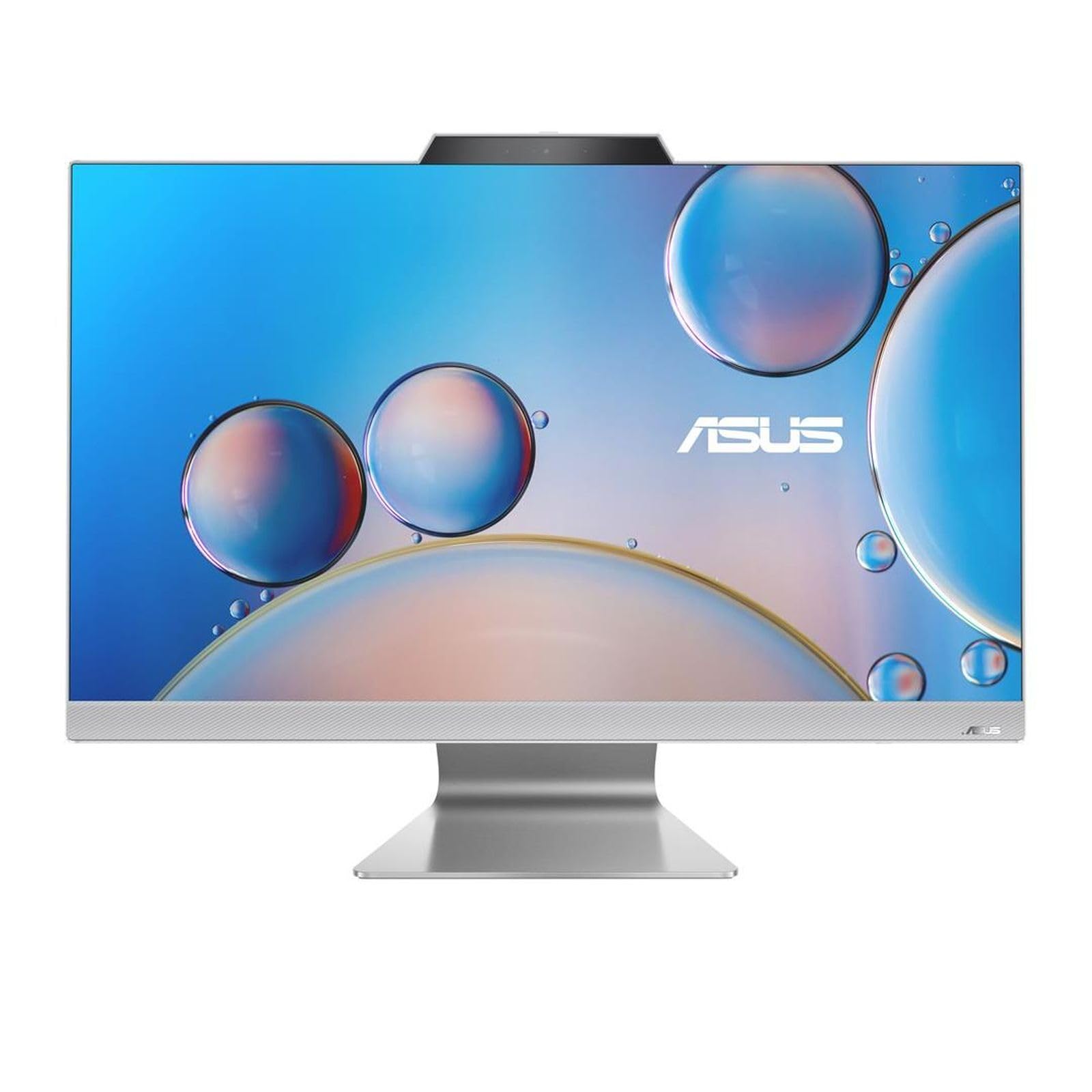
Abbildung 1: Vorderseite view of the ASUS M3702WFAK-WPE007W All-in-One PC, showcasing sein 27-Zoll-Display und sein integriertes Design.
2. Einrichtung
2.1 Auspacken
Carefully remove the All-in-One PC and all accessories from the packaging. Ensure all components listed in the packing list are present. Retain the packaging for future transport or service needs.
2.2 Anschließen von Peripheriegeräten
- Stromanschluss: Connect the power adapter to the DC-in port on the rear of the PC, then plug the power cord into an electrical outlet.
- Tastatur und Maus: Connect your USB keyboard and mouse to the available USB ports on the rear or side of the PC. Wireless peripherals may require a USB dongle.
- Netzwerkverbindung (optional): For a wired network connection, connect an Ethernet cable from your router or modem to the LAN port on the rear of the PC.
- Externes Display (optional): If connecting an external monitor, use an HDMI cable to connect the external display to the HDMI-out port on the PC.

Abbildung 2: Rechte Seite view of the ASUS All-in-One PC, illustrating accessible USB and audio ports for peripheral connections.

Abbildung 3: Rückseite view of the ASUS All-in-One PC, highlighting the power input, HDMI output, and Ethernet port for essential connections.
2.3 Erste Inbetriebnahme und Einrichtung des Betriebssystems
- Press the power button, usually located on the side or bottom bezel of the display.
- Follow the on-screen instructions to complete the Windows 11 operating system setup. This includes selecting language, region, accepting terms, and creating a user account.
- Connect to a Wi-Fi network during setup if a wired connection is not used.
3. Betrieb
3.1 Energieverwaltung
- Einschalten: Drücken Sie die Einschalttaste.
- Abschalten: Klicken Sie in Windows auf die Schaltfläche „Start“ und wählen Sie dann „Ein/Aus“ > „Herunterfahren“.
- Neustart: Klicken Sie in Windows auf die Schaltfläche „Start“ und wählen Sie dann „Ein/Aus“ > „Neustart“.
- Schlafmodus: Click the Start button in Windows, then select Power > Sleep. The system will enter a low-power state.
3.2 Anzeige und Audio
- Anpassen der Helligkeit: Use the function keys on your keyboard (if available) or Windows display settings to adjust screen brightness.
- Lautstärkeregelung: Use the volume keys on your keyboard or the volume icon in the Windows taskbar to adjust audio output.
- Connecting Headphones/Microphone: Use the audio jack(s) on the side of the PC for headphones or an external microphone.
3.3 Netzwerkverbindungen
- W-lan: To connect to a wireless network, click the Wi-Fi icon in the Windows taskbar, select your desired network, and enter the password if prompted.
- Ethernet: If an Ethernet cable is connected, the PC will automatically establish a wired network connection.
4. Wartung
4.1 Reinigung
- Bildschirm: Mit einem weichen, fusselfreien Tuch leichtampMit Wasser oder einem nicht scheuernden Bildschirmreiniger abspülen. Flüssigkeit nicht direkt auf den Bildschirm sprühen.
- Fahrwerk: Wipe the exterior surfaces with a soft, dry cloth. Avoid using harsh chemicals or abrasive materials.
- Belüftung: Um eine Überhitzung zu vermeiden, muss sichergestellt werden, dass die Lüftungsöffnungen frei von Staub und Verstopfungen sind.
4.2 Softwareaktualisierungen
Regularly check for and install operating system updates (Windows Update) and driver updates (via ASUS support website or MyASUS application) to ensure optimal performance and security.
4.3 Datensicherung
It is recommended to regularly back up your important data to an external drive or cloud storage to prevent data loss.
5. Fehlerbehebung
- Kein Strom:
- Ensure the power adapter is securely connected to both the PC and the electrical outlet.
- Überprüfen Sie die Funktionsfähigkeit der Steckdose, indem Sie ein anderes Gerät anschließen.
- Kein Bildschirm:
- Check if the PC is powered on.
- If an external monitor is connected, ensure it is powered on and set to the correct input source.
- Keine Internetverbindung:
- Stellen Sie bei WLAN sicher, dass WLAN aktiviert ist und Sie mit dem richtigen Netzwerk und dem richtigen Passwort verbunden sind.
- For Ethernet, ensure the cable is securely connected and your router/modem is working correctly.
- Restart your router/modem and the PC.
- Systemverlangsamung:
- Schließen Sie nicht benötigte Anwendungen.
- Prüfen Sie, ob Windows-Updates ausstehen, und installieren Sie diese gegebenenfalls.
- Run a disk cleanup or defragmentation (for HDD, not SSD).
6. Spezifikationen
| Besonderheit | Spezifikation |
|---|---|
| Marke | ASUS |
| Modellnummer (Artikel) | 90PT03M1-M00CA0 |
| Anzahl der Kerne | 4 |
| RAM | 16 GB |
| Festplattenschnittstelle | Ethernet |
| Bildschirmgröße | 27 Zoll |
| Art der drahtlosen Technologie | 802.11ac |
| Hardware-Schnittstelle | HDMI |
| Verfügbarkeit von Ersatzteilen | Informationen nicht verfügbar |
| Software-Updates garantiert bis | Informationen nicht verfügbar |
| ASIN | B0CTWR22BG |
| Datum der ersten Verfügbarkeit | 20. April 2024 |
| Hersteller | ASUS |
| Cache-Größe | 4 MB |
| Speicherkapazität | 512 GB |
| Modelljahr | 2021 |
| Eingabe der menschlichen Schnittstelle | Schaltflächen |
7. Garantie und Support
Detaillierte Garantieinformationen finden Sie auf der Ihrem Produkt beiliegenden Garantiekarte oder auf der offiziellen ASUS-Supportseite. website. The ASUS support website also provides drivers, FAQs, and contact information for technical assistance.
You can typically find support resources by visiting www.asus.com/support and searching for your specific model number (M3702WFAK-WPE007W or 90PT03M1-M00CA0).