
1. Produktüberschreitungview
The ASUS ROG Ally is a powerful portable gaming handheld designed to deliver a console-like experience with the versatility of a Windows 11 PC. It features a 7-inch 120Hz touchscreen IPS display, an AMD Ryzen Z2 A processor, 16GB of LPDDR5X RAM, and a 512GB SSD, making it suitable for a wide range of PC games on the go.
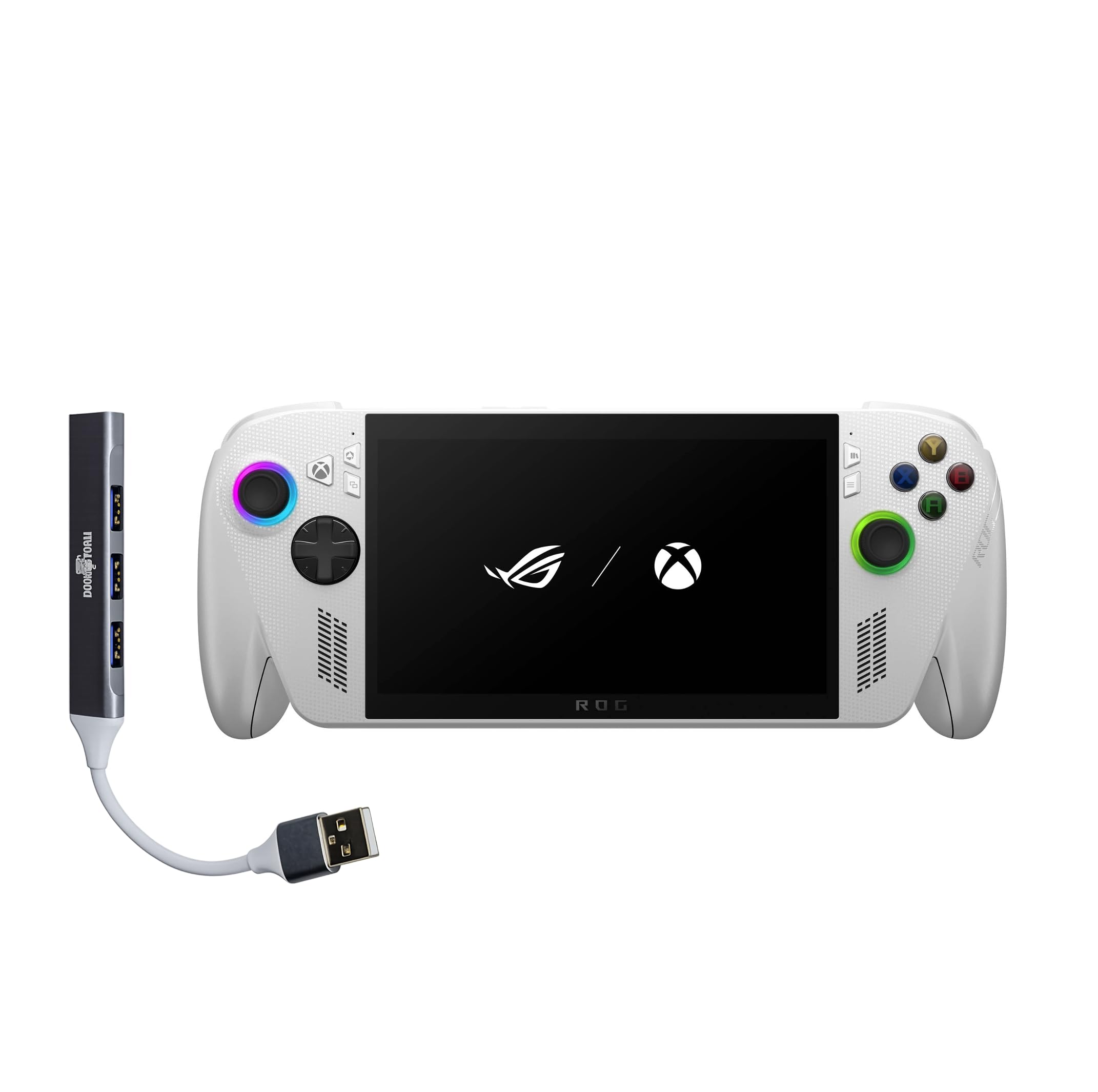
Figure 1: ASUS ROG Ally Gaming Handheld.
2. Lieferumfang
Upon unboxing your ASUS ROG Ally, ensure all components are present:
- ASUS ROG Ally Gaming-Handheld
- Netzteil
- Dokumentation (Schnellstartanleitung, Garantiekarte)

Figure 2: Included items in the ROG Ally package.
3. Geräteaufbau und Bedienelemente
Familiarize yourself with the physical layout and controls of your ROG Ally for optimal gaming and navigation.
Front View
- 7-inch IPS Touchscreen Display: Main interface for visuals and touch input.
- Linker Joystick: Zur Fortbewegung und Navigation.
- Steuerkreuz: Richtungseingang.
- Xbox-Taste: Accesses Xbox Game Bar and other Xbox features.
- Rechter Joystick: For camera control and navigation.
- A/B/X/Y-Tasten: Standard-Aktionsschaltflächen.
- Frontlautsprecher: Stereo-Audioausgang.

Abbildung 3: Vorderseite view of the ROG Ally, highlighting the display and primary controls.
Spitze View
- Power Button/Fingerprint Scanner: Powers the device on/off and provides secure login.
- 3.5-mm-Audiobuchse: Zum Anschließen von Kopfhörern oder externen Audiogeräten.
- MicroSD-Kartensteckplatz: Für erweiterbaren Speicher.
- Wärmeabzüge: For cooling the internal components.
- Lautstärketasten: Regelt die Lautstärke.
- LED-Anzeige: Displays device status (e.g., charging, power on).
- USB-C-Anschlüsse (x2): For charging, data transfer, and external device connectivity (one supports Thunderbolt).
- R1/R2/L1/L2 Buttons: Shoulder and trigger buttons for gaming.

Abbildung 4: Oben view of the ROG Ally, showing various ports and buttons.
Hinteren View
- Rear Grips: Contoured for comfortable handling during extended play sessions.
- Rear Vents: Additional ventilation for cooling.

Abbildung 5: Rückseite view of the ROG Ally, highlighting ergonomic grips.
4. Einrichtung
Initial Power On and Windows 11 Setup
- Connect the power adapter to the ROG Ally and a power outlet.
- Halten Sie die Netzschalter bis das Gerät eingeschaltet wird.
- Folgen Sie den Anweisungen auf dem Bildschirm, um die Einrichtung von Windows 11 Home abzuschließen, einschließlich der Einstellungen für Sprache, Region und Netzwerk.
- Set up your Microsoft account and create a user profile.
Mit WLAN verbinden
During the initial Windows setup, you will be prompted to connect to a Wi-Fi network. If you need to connect later:
- Tippen Sie auf das Netzwerksymbol in der Taskleiste.
- Wählen Sie das gewünschte WLAN-Netzwerk aus der Liste aus.
- Geben Sie bei Aufforderung das Netzwerkpasswort ein und tippen Sie auf Verbinden.
Einrichtung des Fingerabdrucksensors
For secure and quick login, set up the integrated fingerprint sensor:
- Gehe zu Einstellungen > Konten > Anmeldeoptionen.
- Wählen Fingerabdruckerkennung (Windows Hello) Folgen Sie den Anweisungen auf dem Bildschirm, um Ihren Fingerabdruck zu registrieren.
5. Operating Your ROG Ally
Spielerlebnis
The ROG Ally provides a versatile gaming experience, allowing access to various platforms.
- Xbox Game Bar Integration: Launch Game Bar with a tap of the Xbox button to access game-related features, social interactions, and performance monitoring.
- Game Libraries: Play titles natively from platforms like Xbox Game Pass, Steam, Epic Games, and other Windows game stores.
- Anzeigefunktionen: The 7-inch 120Hz display with FreeSync Premium variable refresh rate ensures smooth gameplay and reduces screen tearing. With 500 nits of brightness, the display offers vivid and immersive visuals.

Figure 6: The 7-inch 1080p 120Hz display provides ultra-smooth graphics.
Leistungsmodi
The ROG Ally is powered by an ultra-efficient AMD Ryzen Z2 A processor, offering console-caliber performance. You can adjust performance modes through the Armoury Crate SE software to balance power consumption and gaming fidelity.

Figure 7: The AMD Ryzen Z2 A processor ensures powerful performance.
Batteriemanagement
The device features a 60Whrs battery for extended gaming sessions. It supports fast charging, allowing you to reach 50% charge from 0% in approximately 30 minutes.

Figure 8: The 60Wh battery provides longer playtime.
6. Spezifikationen
| Besonderheit | Detail |
|---|---|
| Plattform | Windows 11 Home |
| Prozessor | AMD Ryzen Z2 A |
| Grafik | AMD RDNA 2 Graphics |
| Anzeige | 7" 120Hz Touchscreen IPS Display, 1080p, 500 nits, Gorilla Glass |
| Erinnerung | 16GB LPDDR5X 6400MHz RAM |
| Lagerung | 512GB PCIe Gen4 M.2 2280 SSD (Upgradable) |
| Kabellose Konnektivität | Wi-Fi 6E MT7922, Bluetooth 5.4 |
| Eingabegerät | Gamepad, Fingerprint Sensor |
| Batterie | 60Whrs |
| Farbe | Weiß |
| Artikelgewicht | 1.47 lbs (approx. 2 Pounds) |
7. Wartung
Allgemeine Pflege und Reinigung
- Verwenden Sie ein weiches, trockenes Tuch, um die Außenseite des Geräts zu reinigen.
- For the screen, use a microfiber cloth specifically designed for electronics. Avoid harsh chemicals.
- Keep the device away from liquids, excessive dust, and extreme temperatures.
Software-Updates
Regularly check for and install Windows 11 updates to ensure optimal performance, security, and compatibility with the latest games and applications.
- Gehe zu Einstellungen > Windows Update.
- Klicken Nach Updates suchen und installieren Sie alle verfügbaren Updates.
8. Fehlerbehebung
Häufige Probleme und Lösungen
- Überhitzung des Geräts: Ensure the device's air vents are not blocked. Avoid placing it on soft surfaces like blankets during use. Consider adjusting performance modes to a lower setting if prolonged high-intensity gaming causes excessive heat.
- Kurze Akkulaufzeit: Battery life can vary significantly based on game intensity and performance settings. For longer sessions, keep the device plugged into the power adapter. Adjusting screen brightness and performance modes can also extend battery life.
- Game Compatibility/Performance: Ensure your Windows 11 and graphics drivers are up to date. Adjust in-game graphics settings to match the device's capabilities for optimal performance.
- Steuerelemente reagieren nicht: Restart the device. Check for any software conflicts or driver issues.
9. Produktvideos
ROG Xbox Ally X Review
Video 1: Eine detaillierte Review of the ROG Xbox Ally X, showcasing its features, design, and performance. This video provides an in-depth look at the device's capabilities and user experience.
Amazingly Powerful Mobile Device
Video 2: A user's perspective on the ROG Ally, highlighting its portability, power, and suitability for various gaming titles, including PC games and emulators.
10. Garantie und Support
For warranty information, technical support, or service inquiries, please refer to the official ASUS support channels. The product typically includes a manufacturer's warranty, details of which can be found in the documentation provided with your device or on the official ASUS webWebsite.
- Online-Hilfe: Besuchen Sie den offiziellen ASUS-Support website for FAQs, driver downloads, and troubleshooting guides.
- Kontaktieren Sie den Support: Refer to your product documentation for regional contact numbers for technical assistance.