
Einführung
This manual provides essential information for the safe and efficient use of your HP 15 Professional Slim High-Performance Laptop. Please read these instructions carefully before using your device. Keep this manual for future reference.
1. Ersteinrichtung
1.1 Unboxing and Connecting Power
Carefully remove the laptop and all accessories from the packaging. Connect the provided AC adapter to the laptop's power port and then to a power outlet. It is recommended to fully charge the battery before first use.

Image: The HP 15 laptop shown from the front, with the power adapter connected to the side. This illustrates the initial connection for charging.
1.2 Erster Start und Einrichtung des Betriebssystems
Press the power button to turn on the laptop. Follow the on-screen instructions to complete the Windows 11 Home operating system setup. This includes selecting your region, connecting to a Wi-Fi network, and creating a user account.

Image: The HP 15 laptop open, displaying the Windows 11 desktop interface, indicating successful operating system initialization.
2. Bedienung Ihres Laptops
2.1 Ein-/Ausschalten und Schlafmodus
- Einschalten: Drücken Sie den Netzschalter auf der Tastatur.
- Ausschalten: Klicken Sie auf die Schaltfläche „Start“, dann auf „Ein/Aus“ und wählen Sie „Herunterfahren“.
- Schlafmodus: Schließen Sie den Deckel oder drücken Sie die Starttaste, dann die Ein-/Aus-Taste und wählen Sie „Ruhezustand“.
2.2 Tastatur und Touchpad
The laptop features a full-size island-style QWERTY keyboard and a multi-touch touchpad. Use the touchpad for navigation and gestures. Refer to Windows 11 settings for touchpad customization.
2.3 Konnektivität
Your HP 15 laptop offers various connectivity options:
- W-lan: Supports Realtek Killer Wi-Fi 6 (802.11ax) for high-speed wireless internet access.
- Bluetooth: Integrated Bluetooth 5.3 for connecting wireless peripherals like headphones and mice.
- USB-Anschlüsse:
- Two (2) USB 3.2 Gen 1.0 Type-A ports (5 Gbps signaling rate).
- One (1) USB 3.2 Gen 1.0 Type-C port (5 Gbps signaling rate, data transfer only; charging or external monitors not supported).
- HDMI: One (1) HDMI v1.4b output port for connecting to external displays.
- Audiobuchse: One (1) headphone/microphone combo port.
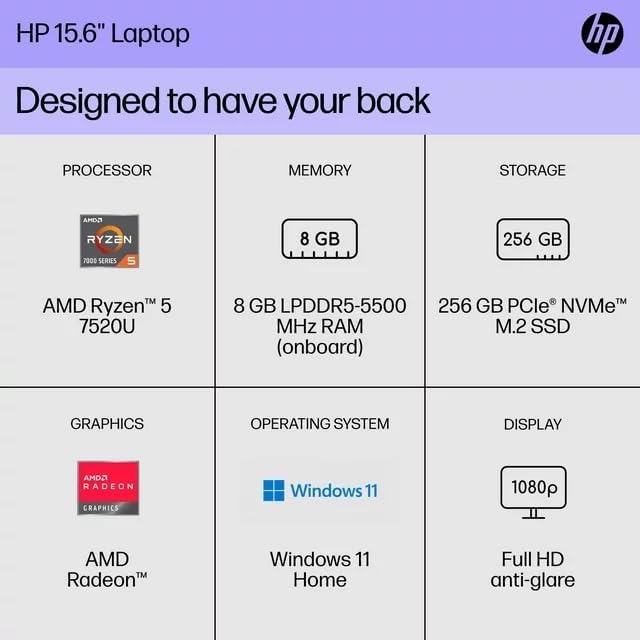
Abbildung: Seite A view of the HP 15 laptop, highlighting the various input/output ports for external device connectivity.
2.4 Audio und Kamera
- Audio: Equipped with dual speakers for audio output and HD Audio support.
- Kamera: Features an HP True Vision 720p HD camera with integrated dual array digital microphones, suitable for video calls and online meetings.

Image: The HP 15 laptop displaying a video conference call, demonstrating the use of the integrated camera and microphone.
3. Wartung und Pflege
3.1 Reinigung Ihres Laptops
- Bildschirm: Benutzen Sie ein weiches, fusselfreies Tuch, dampMit Wasser oder einem Bildschirmreiniger abspülen. Flüssigkeit nicht direkt auf den Bildschirm sprühen.
- Tastatur und Gehäuse: Verwenden Sie ein weiches, trockenes Tuch. Bei hartnäckigem Schmutz ein leicht dämpfendes Tuch verwenden.amp Man kann ein Tuch verwenden, um sicherzustellen, dass keine Feuchtigkeit in die Öffnungen eindringt.
- Vents: Periodically check and gently clean the ventilation openings to prevent dust buildup, which can affect cooling.
3.2 Batteriepflege
To maximize battery lifespan, avoid extreme temperatures and prolonged full discharge or full charge states. For long-term storage, charge the battery to approximately 50%.
3.3 Softwareaktualisierungen
Regularly check for and install Windows updates and HP driver updates to ensure optimal performance, security, and compatibility. Access Windows Update via Settings > Windows Update.
3.4 Umweltaspekte
This laptop is built with recycled materials, including ocean-bound plastic. Please dispose of the device and its components responsibly at the end of its life cycle, following local regulations for electronic waste.
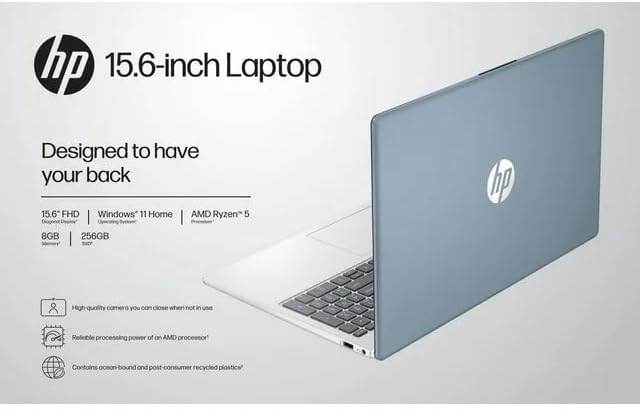
Image: The HP 15 laptop shown from the rear, illustrating its design and potential ventilation areas for maintenance.
4. Fehlerbehebung bei häufigen Problemen
This section addresses common problems you might encounter. For more complex issues, refer to the HP support webWebsite.
4.1 No Power or Laptop Not Turning On
- Stellen Sie sicher, dass das Netzteil sowohl mit dem Laptop als auch mit einer funktionierenden Steckdose fest verbunden ist.
- Überprüfen Sie die Funktionsfähigkeit der Steckdose, indem Sie ein anderes Gerät anschließen.
- Versuchen Sie es mit einer anderen Steckdose.
- Wenn der Akku vollständig entladen ist, lassen Sie ihn mindestens 30 Minuten lang aufladen, bevor Sie versuchen, das Gerät einzuschalten.
4.2 Anzeigeprobleme
- Leerer Bildschirm: Connect an external monitor via HDMI to check if the issue is with the laptop's display or the graphics output.
- Anzeige dimmen: Adjust screen brightness using the function keys (usually F2/F3 or similar icons) or through Windows display settings.
- Falsche Auflösung: Adjust the display resolution in Windows Settings > System > Display.
4.3 Probleme mit der WLAN- oder Bluetooth-Verbindung
- Ensure Wi-Fi and Bluetooth are enabled in Windows Settings > Network & internet or Devices > Bluetooth & devices.
- Starten Sie Ihren Router/Ihr Modem neu, falls es WLAN-Probleme gibt.
- Update wireless drivers through HP Support Assistant or Device Manager.
- Forget and reconnect to the Wi-Fi network or re-pair the Bluetooth device.
4.4 Audio Not Working
- Check volume levels in Windows and ensure speakers are not muted.
- Verify that the correct audio output device is selected in Windows Sound settings.
- Update audio drivers.
- Test with headphones to determine if the issue is with the internal speakers or the audio output.
5. Produktspezifikationen
The following are the technical specifications for the HP 15 Professional Slim High-Performance Laptop (Model 15):
| Besonderheit | Detail |
|---|---|
| Modellname | HP 15 |
| Prozessor | AMD Ryzen 5 7520U (up to 4.3 GHz max boost, 4 cores, 8 threads) |
| Grafik | AMD Radeon Grafik (integriert) |
| Arbeitsspeicher (RAM) | 8 GB DDR4 SDRAM |
| Lagerung | 256 GB PCIe NVMe M.2 SSD |
| Anzeige | 15.6-inch diagonal, Full HD (1920 x 1080), micro-edge, anti-glare, 250 nits, 45% NTSC |
| Betriebssystem | Windows 11 Home |
| Kabellose Konnektivität | Realtek Killer Wi-Fi 6 (2x2), Bluetooth 5.3 |
| Häfen |
|
| Kamera | HP True Vision 720p HD-Kamera mit integrierten Dual-Array-Digitalmikrofonen |
| Audio | Dual speakers, HD Audio |
| Tastatur | Full-size island-style QWERTY keyboard |
| Stromversorgungsgerät | Netzteil |
| UPC | 196337455771 |
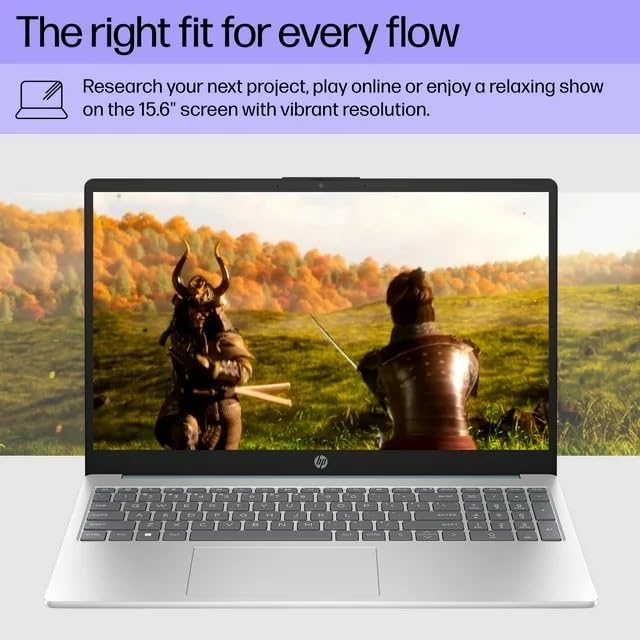
Image: A visual representation of the HP 15 laptop, complementing the detailed specifications listed.
6. Garantieinformationen
This HP 15 laptop is a renewed product and comes with a 90 Tage eingeschränkte Garantie. This warranty covers defects in materials and workmanship under normal use. For specific terms and conditions, please refer to the warranty documentation included with your product or contact HP support.
7. Kundendienst
For further assistance, technical support, or to download updated drivers and software, please visit the official HP support website. You can typically find support resources by searching for "HP Support" and your specific model number (HP 15) on their webWebsite.
Online-Ressourcen: https://support.hp.com