
1. Einleitung
Thank you for choosing the Mecer 23.8 Inch Full HD LED Monitor. This manual provides essential information for setting up, operating, and maintaining your monitor. Please read it thoroughly before use to ensure proper functionality and longevity of your device.
This monitor features a 23.8-inch Full HD (1920 x 1080) display, offering crisp and clear visuals. It incorporates TFT LED panel technology for energy efficiency and vibrant colors, with a 16:9 aspect ratio suitable for widescreen viewing. Connectivity options include VGA and HDMI, making it compatible with various devices. Built-in speakers provide basic audio, and wide 178° viewing angles ensure comfortable use. With a 2ms response time, it is suitable for general computing and multimedia consumption.
2. Sicherheitshinweise
- Energiequelle: Verwenden Sie ausschließlich das mit dem Monitor gelieferte Netzteil. Stellen Sie sicher, dass die Steckdose ordnungsgemäß geerdet ist.
- Belüftung: Blockieren Sie keine Lüftungsöffnungen. Sorgen Sie für ausreichend Platz um den Monitor herum, um eine ordnungsgemäße Luftzirkulation zu gewährleisten und eine Überhitzung zu vermeiden.
- Platzierung: Place the monitor on a stable, flat surface. Avoid placing it in direct sunlight, near heat sources, or in environments with excessive dust or humidity.
- Reinigung: Disconnect the power cord before cleaning. Use a soft, dry cloth for the screen and a slightly damp cloth for the casing. Vermeiden Sie die Verwendung von scheuernden Reinigungs- oder Lösungsmitteln.
- Flüssigkeitsexposition: Keep liquids away from the monitor. If liquid enters the monitor, disconnect power immediately and contact qualified service personnel.
- Demontage: Versuchen Sie nicht, den Monitor selbst zu zerlegen oder zu reparieren. Überlassen Sie alle Wartungsarbeiten qualifiziertem Fachpersonal.
3. Packungsinhalt
Bitte überprüfen Sie den Packungsinhalt, um sicherzustellen, dass alle Artikel vorhanden sind:
- Mecer 23.8 Inch LED Monitor
- Monitorständer (Fuß und Hals)
- Netzteil und Kabel
- HDMI-Kabel
- VGA-Kabel
- Benutzerhandbuch (dieses Dokument)
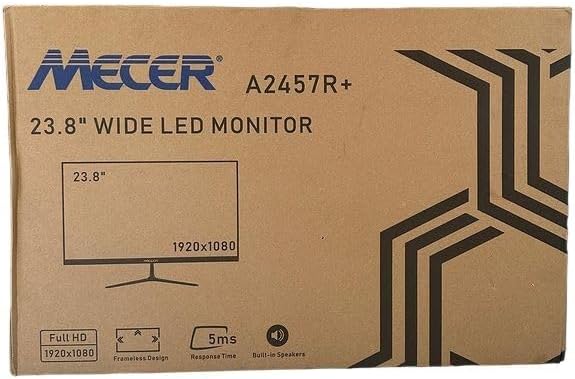
Bild 3.1: The monitor packaging box, indicating the model A2457R+ and key features like 23.8" display, Full HD 1920x1080 resolution, frameless design, 5ms response time, and built-in speakers.
4. Einrichtung
4.1. Zusammenbau des Monitorständers
- Nehmen Sie die Monitor- und Standfußkomponenten vorsichtig aus der Verpackung.
- Befestigen Sie den Ständerhals am Monitorpanel, indem Sie die Laschen ausrichten und fest drücken, bis er einrastet.
- Attach the stand base to the stand neck, securing it with the provided screw (usually hand-tightened).
- Stellen Sie den zusammengebauten Monitor auf eine stabile, ebene Fläche.

Bild 4.1: Front view of the Mecer 23.8 Inch LED Monitor with its stand assembled, ready for connection.
4.2. Anschließen an einen Computer
Der Monitor unterstützt sowohl HDMI- als auch VGA-Anschlüsse. Wählen Sie das passende Kabel für Ihren Computer.
- HDMI-Verbindung: Connect one end of the HDMI cable to the HDMI port on your computer's graphics card and the other end to the HDMI port on the monitor. HDMI transmits both video and audio signals.
- VGA-Anschluss: Connect one end of the VGA cable to the VGA port on your computer's graphics card and the other end to the VGA port on the monitor. VGA transmits only video signals.

Bild 4.2: Hinteren view of the Mecer 23.8 Inch LED Monitor, showing the input ports including HDMI and VGA, as well as the power input.
4.3. Stromanschluss
- Connect the power adapter cable to the DC IN port on the back of the monitor.
- Stecken Sie das Netzteil in eine Wandsteckdose.
5. Bedienungsanleitung
5.1. Ein-/Ausschalten
Press the power button, typically located on the bottom right side or rear of the monitor, to turn the monitor on or off. The power indicator light will illuminate when the monitor is on.
5.2. Auswahl der Eingangsquelle
If you have multiple devices connected, you may need to manually select the input source. Use the monitor's control buttons (usually located near the power button) to navigate to the input selection menu and choose between HDMI or VGA.
5.3. Bildschirmmenü (OSD)
The OSD menu allows you to adjust various display settings. Use the monitor's control buttons to:
- Greifen Sie auf das OSD-Menü zu.
- Navigate through menu options (e.g., Brightness, Contrast, Color Settings, Input Source).
- Werte anpassen oder Optionen auswählen.
- Verlassen Sie das OSD-Menü.
Zu den üblicherweise einstellbaren Parametern gehören:
- Helligkeit Kontrast: Passen Sie die Gesamthelligkeit und den Unterschied zwischen hellen und dunklen Bereichen an.
- Farbeinstellungen: Adjust color temperature, RGB values, or select preset color modes.
- Seitenverhältnis: Change between 16:9, 4:3, or other available options.
- Audio: Stellen Sie die Lautstärke der eingebauten Lautsprecher ein.
5.4. Eingebaute Lautsprecher
The monitor includes built-in speakers for basic audio output. If using an HDMI connection, audio will be transmitted automatically. For VGA connections, ensure your computer's audio output is configured correctly. Adjust the volume through the OSD menu or your computer's operating system.
6. Wartung
6.1. Monitor reinigen
- Vor der Reinigung immer den Netzstecker des Monitors ziehen.
- Bildschirm: Wischen Sie den Bildschirm vorsichtig mit einem weichen, fusselfreien Tuch ab. Bei hartnäckigen Flecken leicht andrücken.ampen the cloth with water or a specialized screen cleaner (ensure it's alcohol-free and ammonia-free) and wipe carefully. Do not spray liquid directly onto the screen.
- Casing: Verwenden Sie ein weiches, trockenes Tuch, um den Monitor abzuwischen.asing. Falls erforderlich, ein leichtes damp Man kann ein Tuch verwenden und anschließend mit einem trockenen Tuch nachwischen.
6.2. Speicherung
Wenn Sie den Monitor über einen längeren Zeitraum lagern, trennen Sie alle Kabel, verpacken Sie ihn in seiner Originalverpackung (sofern vorhanden) und lagern Sie ihn an einem kühlen, trockenen Ort fern von direkter Sonneneinstrahlung und extremen Temperaturen.
7. Fehlerbehebung
Sollten Sie Probleme mit Ihrem Monitor haben, beachten Sie bitte die folgenden häufig auftretenden Probleme und Lösungen:
- Kein Strom:
- Stellen Sie sicher, dass das Netzkabel fest mit dem Monitor und der Wandsteckdose verbunden ist.
- Überprüfen Sie, ob die Steckdose funktioniert, indem Sie ein anderes Gerät anschließen.
- Prüfen Sie, ob das Netzteil ordnungsgemäß funktioniert.
- Kein Signal:
- Ensure the video cable (HDMI or VGA) is securely connected to both the monitor and the computer.
- Verify that the correct input source is selected on the monitor (via the OSD menu).
- Check if your computer is powered on and outputting a video signal.
- Versuchen Sie gegebenenfalls ein anderes Videokabel.
- Das Bild ist unscharf oder verzerrt:
- Ensure the monitor's resolution is set to its native resolution (1920 x 1080) in your computer's display settings.
- Adjust the monitor's OSD settings for brightness, contrast, and sharpness.
- For VGA connections, use the 'Auto Adjust' function in the OSD menu if available.
- Kein Ton aus den eingebauten Lautsprechern:
- Stellen Sie sicher, dass die Lautstärke des Monitors im OSD-Menü nicht stummgeschaltet oder zu niedrig eingestellt ist.
- Überprüfen Sie die Audioausgabeeinstellungen Ihres Computers, um sicherzustellen, dass der Monitor als Wiedergabegerät ausgewählt ist.
- If using VGA, ensure your computer's audio is routed to an external speaker system, as VGA does not carry audio.
8. Spezifikationen
| Besonderheit | Spezifikation |
|---|---|
| Marke | Mecer |
| Modellnummer | A2457R+ |
| Anzeigegröße | 23.8 Zoll |
| Auflösung | 1920 x 1080 Pixel (Full HD) |
| Anzeigetyp | LED (TFT LED Panel) |
| Seitenverhältnis | 16:9 |
| Ansprechzeit | 2 Millisekunden |
| Bildwiederholrate | 75 Hz |
| ViewWinkel | 178° horizontal / 178° vertikal |
| Konnektivität | 1x HDMI, 1x VGA |
| Eingebaute Lautsprecher | Ja |
| Farbe | Schwarz |
| Produktabmessungen (T x B x H) | 560D x 42W x 410H millimetres |
| Besondere Merkmale | High performance intelligent multi-frequency scanning, Micro Computer digital technology control, no radiation, no glare, Comply with VESA DPMS international power saving regulation, Support DDC 1/2B and Windows PNP Plug and Play |
9. Garantie und Support
This Mecer monitor comes with a 1 Jahre eingeschränkte Garantie ab Kaufdatum. Bitte bewahren Sie Ihren Kaufbeleg für Garantieansprüche auf.
For technical support, service, or warranty inquiries, please contact your retailer or the authorized Mecer service center in your region. Do not attempt to repair the product yourself, as this may void your warranty.