
Einführung
Thank you for choosing the Thunderobot K87 Wired Mechanical Keyboard. This manual provides essential information for the proper setup, operation, maintenance, and troubleshooting of your new keyboard. Please read this manual thoroughly before using the product to ensure optimal performance and longevity.

Abbildung 1: Schräg view of the Thunderobot K87 Mechanical Keyboard.
Aufstellen
Packungsinhalt
Bevor Sie fortfahren, überprüfen Sie bitte, ob Ihr Paket die folgenden Artikel enthält:
- Thunderobot K87 Kabelgebundene mechanische Tastatur
- USB-Kabel
- Benutzerhandbuch (dieses Dokument)
Anschließen der Tastatur
- Unpack the Thunderobot K87 keyboard and the included USB cable.
- Connect the USB-C end of the cable to the port located on the keyboard.
- Verbinden Sie das USB-A-Ende des Kabels mit einem freien USB-Anschluss an Ihrem Computer.
- Die Tastatur wird von Ihrem Betriebssystem automatisch erkannt. Für die grundlegende Funktionalität sind in der Regel keine zusätzlichen Treiber erforderlich.

Abbildung 2: Unten view of the keyboard, illustrating adjustable feet and cable management options.
Bedienungsanleitung
Grundfunktionen
The Thunderobot K87 is a standard 87-key (TKL) layout mechanical keyboard. Simply plug it into your computer, and it is ready for typing. The keyboard features Red mechanical switches, known for their linear feel and quiet operation, making them suitable for both typing and gaming.
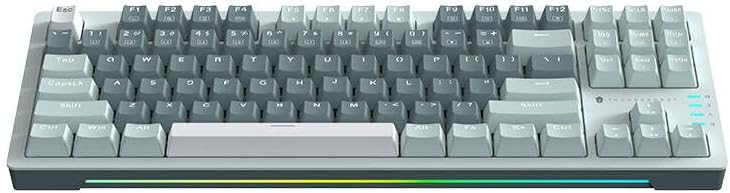
Abbildung 3: Draufsicht view of the Thunderobot K87 keyboard layout.
Multimedia- und Funktionstasten
The keyboard includes a Function (Fn) key, typically located near the right Alt key. This key, when pressed in combination with the F1-F12 keys, activates various multimedia and system functions. Refer to the keycap legends for specific functions.
- Fn + F1-F12: Typically control media playback, volume, and other system shortcuts.
- Fn + Windows-Taste: Sperrt/entsperrt die Windows-Taste, um versehentliches Drücken während des Spielens zu verhindern.
Hintergrundbeleuchtungssteuerung
The Thunderobot K87 keyboard features customizable RGB backlighting. Specific key combinations allow you to change lighting modes, brightness, and speed. Consult the keyboard's keycap legends or the manufacturer's website for detailed instructions on lighting customization.

Abbildung 4: Vorderseite view showing the RGB lighting strip.

Abbildung 5: Seitenansichtfile view demonstrating keycap height and keyboard angle.
Wartung
Reinigung der Tastatur
Regelmäßige Reinigung trägt dazu bei, das Aussehen und die Funktionalität der Tastatur zu erhalten.
- Trennen: Trennen Sie die Tastatur vor der Reinigung immer vom Computer.
- Staubentfernung: Verwenden Sie eine Dose Druckluft, um Staub und Schmutz zwischen den Tastenkappen wegzublasen.
- Oberflächenreinigung: Gently wipe the keycaps and keyboard surface with a soft, lint-free cloth lightly dampMit Wasser oder einer milden, nicht scheuernden Reinigungslösung abspülen. Übermäßige Feuchtigkeit vermeiden.
- Vermeiden: Do not use harsh chemicals, solvents, or abrasive materials, as these can damage the keyboard's finish or keycap legends.
Lagerung
When not in use for extended periods, store the keyboard in a dry, cool place away from direct sunlight and extreme temperatures. Consider covering it to prevent dust accumulation.
Fehlerbehebung
If you encounter issues with your Thunderobot K87 keyboard, please refer to the following common solutions:
| Problem | Mögliche Ursache | Lösung |
|---|---|---|
| Tastatur reagiert nicht | Wackelkontakt am USB-Anschluss, defekter USB-Anschluss, Treiberproblem. | Ensure USB cable is securely connected. Try a different USB port on your computer. Restart your computer. |
| Bestimmte Tasten funktionieren nicht | Verunreinigungen unter der Tastenkappe, Schalterfunktionsstörung. | Use compressed air to clear debris. If the issue persists, contact customer support. |
| Die Hintergrundbeleuchtung funktioniert nicht oder ist fehlerhaft | Lighting mode disabled, software conflict. | Check keyboard's lighting control key combinations (Fn + specific keys). Ensure no conflicting software is running. |
| Eingabeverzögerung der Tastatur | USB port issues, system performance. | Try a different USB port. Close unnecessary background applications. |
If the problem persists after trying these solutions, please contact Thunderobot customer support for further assistance.
Technische Daten
| Besonderheit | Detail |
|---|---|
| Modellnummer | JM03NQ002 |
| Marke | Thunderobot |
| Konnektivität | Kabelgebunden (USB) |
| Schaltertyp | Rote mechanische Schalter |
| Layout | 87 Tasten (Tenkeyless) |
| Hintergrundbeleuchtung | RGB |
| Hersteller | Thunderobot |
| ASIN | B0CWS77B83 |
| Garantie | 2 Jahre Herstellergarantie |
Garantieinformationen
The Thunderobot K87 Wired Mechanical Keyboard (Model JM03NQ002) comes with a 2 Jahr Herstellergarantie from the date of purchase. This warranty covers defects in materials and workmanship under normal use. It does not cover damage caused by accident, misuse, abuse, neglect, unauthorized modification, or improper installation.
To claim warranty service, please retain your proof of purchase. For detailed warranty terms and conditions, or to initiate a warranty claim, please contact Thunderobot customer support.
Unterstützung
For technical assistance, product inquiries, or warranty claims, please visit the official Thunderobot website or contact their customer support team. Please have your product model number (JM03NQ002) and proof of purchase ready when seeking support.
Official Thunderobot WebWebsite: www.thunderobot.com (Bitte beachten Sie: Dies ist ein Platzhalter) URL da keine spezifische Unterstützung URL was provided in the product data. Refer to your product packaging or official Thunderobot documentation for the correct support contact information.)