
MEIZE D106
MEIZE Android 14 Tablet D106 User Manual
Comprehensive Guide for Your MEIZE 10-inch Octa-Core Tablet
Einführung
Welcome to the user manual for your new MEIZE Android 14 Tablet D106. This guide provides detailed instructions on setting up, operating, maintaining, and troubleshooting your device. Please read this manual thoroughly to ensure optimal performance and longevity of your tablet.

Bild: Vorderseite view of the MEIZE Android 14 Tablet D106, displaying its vibrant screen with various application icons and a dynamic wallpaper. The tablet features a sleek design with a dark gray finish.
Lieferumfang
Upon unboxing your MEIZE Tablet, please verify that all the following items are included:
- MEIZE Android 14 Tablet D106
- USB-Ladekabel
- Netzteil
- Benutzerhandbuch (dieses Dokument)
- SIM-Auswurfwerkzeug (falls zutreffend)
Installationshandbuch
1. Erstes Aufladen
Before first use, it is recommended to fully charge your tablet. Connect the provided USB charging cable to the tablet's charging port and the power adapter, then plug the adapter into a wall outlet. The battery indicator on the screen will show charging progress.
2. Ein-/Ausschalten
- So schalten Sie das Gerät ein: Press and hold the Power button (usually located on the side) until the MEIZE logo appears on the screen.
- So schalten Sie das Gerät aus: Press and hold the Power button until a power options menu appears. Select "Power Off" and confirm.
- Neustarten: Wählen Sie im Menü „Energieoptionen“ die Option „Neustart“ und bestätigen Sie.
3. Installation der SIM- und SD-Karte
Your tablet supports dual 4G cellular connectivity and expandable storage via a microSD card.
- Suchen Sie das SIM-/SD-Kartenfach an der Seite des Tablets.
- Führen Sie das SIM-Auswurfwerkzeug in die kleine Öffnung neben dem Fach ein und drücken Sie vorsichtig, bis das Fach herausspringt.
- Carefully place your Nano SIM card(s) and/or microSD card into the designated slots on the tray, ensuring correct orientation.
- Drücken Sie die Schale vorsichtig wieder in das Tablet, bis sie einrastet.
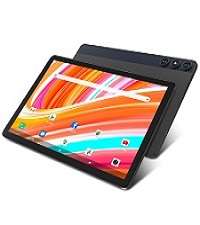
Image: Close-up of a SIM and SD card tray, showing the slots for Nano SIM cards and a microSD card, along with a SIM ejector tool.
4. Ersteinrichtungsassistent
Beim ersten Einschalten Ihres Tablets werden Sie durch einen Ersteinrichtungsprozess geführt. Folgen Sie den Anweisungen auf dem Bildschirm, um:
- Wählen Sie Ihre Sprache.
- Stellen Sie eine Verbindung zu einem Wi-Fi-Netzwerk her.
- Melden Sie sich mit Ihrem Google-Konto an oder erstellen Sie ein neues.
- Bildschirmsperre einrichten (PIN, Muster, Passwort).
- Review und die Allgemeinen Geschäftsbedingungen akzeptieren.
Bedienung Ihres Tablets
1. Grundlegende Navigation
Your MEIZE tablet uses a capacitive touchscreen for interaction:
- Klopfen: Um ein Element auszuwählen oder eine App zu öffnen.
- Tippen und halten: Um auf Kontextmenüs zuzugreifen oder Symbole zu verschieben.
- Wischen: Zum Durchblättern von Seiten oder Listen.
- Pinch-to-Zoom: Um Bilder zu vergrößern oder zu verkleinern web Seiten.
2. Verbinden mit Wi-Fi
To connect to the internet via Wi-Fi:
- Gehe zu Einstellungen > Netzwerk & Internet > W-lan.
- Schalten Sie WLAN ein.
- Wählen Sie das gewünschte Netzwerk aus der Liste aus.
- Geben Sie gegebenenfalls das Passwort ein und tippen Sie auf Verbinden.

Image: Visual representation of the tablet's connectivity features, including 5G/2.4G WiFi, Bluetooth 5.0, Octa-Core Processor, and Dual 4G Cellular capabilities.
3. Bluetooth-Kopplung
So verbinden Sie Bluetooth-Geräte (z. B. Kopfhörer, Lautsprecher):
- Gehe zu Einstellungen > Verbundene Geräte > Bluetooth.
- Schalten Sie Bluetooth ein.
- Stellen Sie sicher, dass sich Ihr Bluetooth-Gerät im Kopplungsmodus befindet.
- Select the device from the "Available devices" list and follow any on-screen prompts to complete pairing.
4. Verwenden der Kameras
Your tablet is equipped with a 13MP rear camera and an 8MP front camera for photos and videos.
- Öffnen Sie die Kamera App.
- Tippen Sie auf den Auslöser, um ein Foto aufzunehmen.
- Wechseln Sie je nach Bedarf zwischen Foto- und Videomodus.
- Tippen Sie auf das Kamerasymbol, um zwischen Vorder- und Rückkamera umzuschalten.

Image: Depiction of the tablet's dual camera system, highlighting the 13MP HD rear camera and 8MP HD front camera, with a visual of the tablet displaying a vibrant image of a surfer.
5. Speicherverwaltung
The tablet comes with 128GB of internal storage and supports up to 512GB additional expansion via microSD card. To manage your storage:
- Gehe zu Einstellungen > Lagerung Zu view Speichernutzung.
- You can free up space by uninstalling unused apps, deleting old photos/videos, or moving files auf die SD-Karte.

Image: A graphic illustrating the tablet's memory capabilities, including 128GB of large memory, 14(8+6)GB of running memory, and support for 512GB of additional expansion. Multiple tablets are shown displaying diverse content, emphasizing storage capacity.
6. Batteriemanagement
Your tablet features an 8000mAh lithium polymer battery. To optimize battery life:
- Bildschirmhelligkeit anpassen.
- Schließen Sie nicht verwendete Apps, die im Hintergrund ausgeführt werden.
- Schalten Sie WLAN, Bluetooth oder GPS aus, wenn Sie diese nicht benötigen.
- Aktivieren Sie den Batteriesparmodus in den Einstellungen.
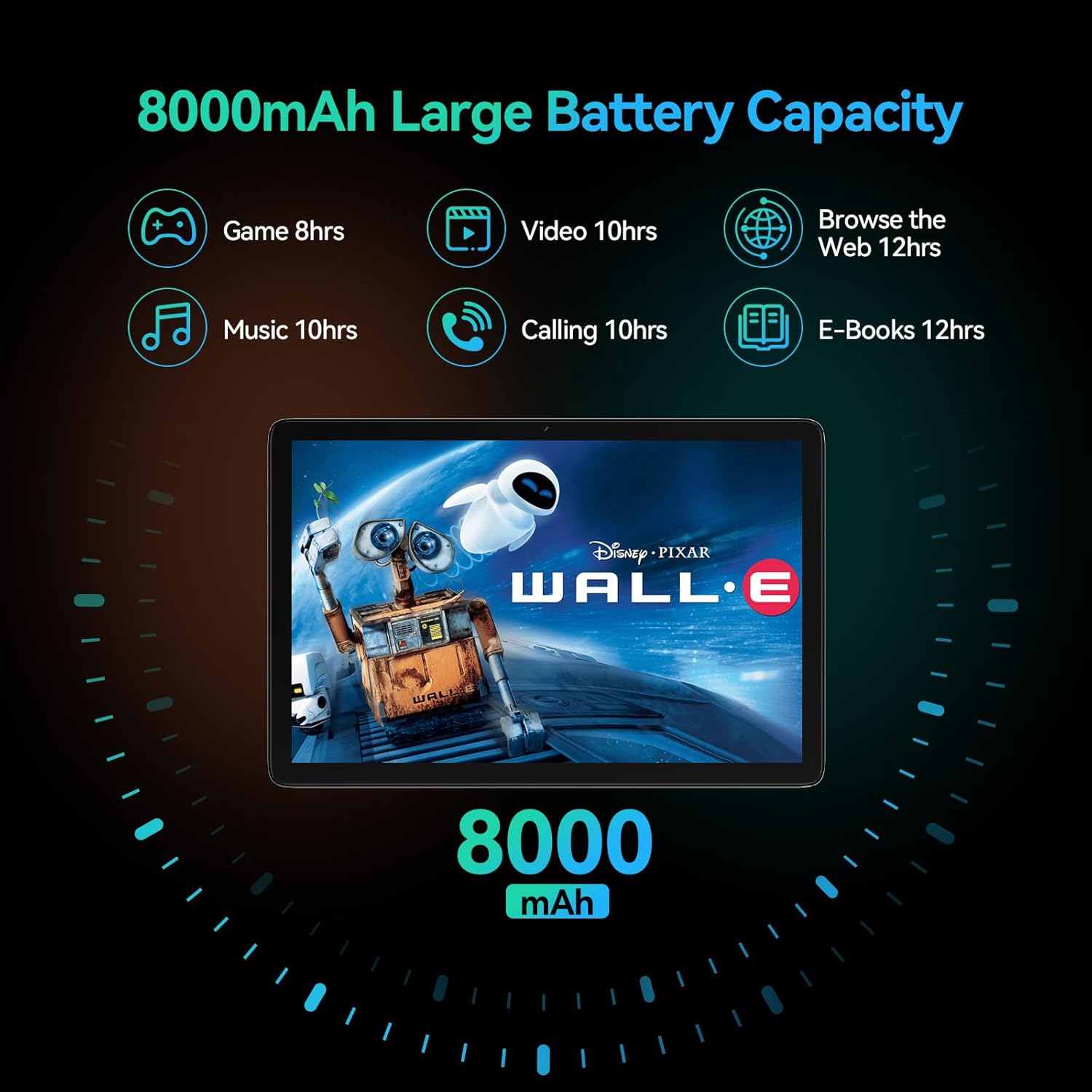
Image: A visual representation of the tablet's 8000mAh battery capacity, detailing estimated usage times for various activities such as gaming (8 hours), video playback (10 hours), music (10 hours), calling (10 hours), e-books (12 hours), and web browsing (12 hours).
7. 4G Cellular Function
With a compatible Nano SIM card, your tablet supports 4G calls and mobile data. Ensure your SIM card is properly installed and activated by your service provider. The tablet supports 2G GSM full band, WCDMA: B1\B2\B4\B5\B8, and 4G full frequency band: B1\B2\B3\B4\B5\B7\B8\B12\B17\B19\B20\B28A\B28B\B66\B38\B39\B40\B41.
Wartung
1. Reinigen des Geräts
Damit Ihr Tablet sauber und in gutem Zustand bleibt:
- Wischen Sie Bildschirm und Gehäuse mit einem weichen, fusselfreien Tuch ab.
- Bei hartnäckigen Flecken leicht dampBefeuchten Sie das Tuch mit Wasser oder einem Bildschirmreiniger.
- Vermeiden Sie die Verwendung von aggressiven Chemikalien, scheuernden Materialien oder übermäßiger Feuchtigkeit.
2. Software-Updates
Prüfen Sie regelmäßig, ob Software-Updates verfügbar sind, und installieren Sie diese, um sicherzustellen, dass Ihr Tablet über die neuesten Funktionen, Sicherheitspatches und Leistungsverbesserungen verfügt.
- Gehe zu Einstellungen > System > Systemaktualisierung.
- Folgen Sie den Anweisungen auf dem Bildschirm, um verfügbare Updates herunterzuladen und zu installieren.
3. Speicherverwaltung
In regelmäßigen Abständenview your tablet's storage to prevent it from becoming full, which can affect performance. Delete unnecessary files, clear app caches, and uninstall apps you no longer use.
Fehlerbehebung
| Problem | Mögliche Lösung |
|---|---|
| Das Tablet lässt sich nicht einschalten. | Ensure the battery is charged. Connect to the charger for at least 30 minutes. Try holding the Power button for 10-15 seconds to force a restart. |
| Der Bildschirm reagiert nicht oder ist eingefroren. | Force restart the tablet by holding the Power button for 10-15 seconds. If the issue persists, try a factory reset (data will be lost). |
| Probleme mit der WLAN- oder Bluetooth-Verbindung. | Toggle Wi-Fi/Bluetooth off and on. Restart your router/Bluetooth device. Forget the network/device and reconnect. |
| Apps stürzen ab oder laufen langsam. | Clear app cache (Settings > Apps > [App Name] > Storage & cache > Clear cache). Update apps. Free up storage space. Restart the tablet. |
| Tablet is not charging. | Prüfen Sie Ladekabel und Netzteil auf Beschädigungen. Versuchen Sie es mit einer anderen Steckdose. Stellen Sie sicher, dass der Ladeanschluss sauber und frei von Schmutz ist. |
| Schlechte Kameraqualität. | Ensure the camera lens is clean. Check lighting conditions. Update camera app or system software. |
Zurücksetzen auf Werkseinstellungen (letzter Ausweg)
If you encounter persistent issues that cannot be resolved by other troubleshooting steps, a factory reset may be necessary. Warnung: Dadurch werden alle Daten auf Ihrem Tablet gelöscht. Sichern Sie wichtige Daten, bevor Sie fortfahren.
- Gehe zu Einstellungen > System > Optionen zurücksetzen.
- Wählen Alle Daten löschen (Werksreset).
- Bestätigen Sie Ihre Entscheidung und geben Sie gegebenenfalls Ihre PIN/Ihr Entsperrmuster/Ihr Passwort ein.
- Das Tablet wird neu gestartet und der Reset-Vorgang beginnt.
Technische Daten
Key technical specifications for the MEIZE Android 14 Tablet D106:

Image: An infographic highlighting the core specifications of the MEIZE tablet, including Android 14, 128GB storage, 14(8+6)GB RAM, 8000mAh battery, 13MP+8MP cameras, 10.1-inch display, GPS, and an Octa-core processor.
| Besonderheit | Detail |
|---|---|
| Modellname | T106 - Die wunderbare Welt der Träume |
| Betriebssystem | Android 14 |
| Prozessor | Achtkernprozessor, 1.6 GHz |
| RAM | 14 GB (8 GB + 6 GB Erweiterung) |
| Interner Speicher | 128 GB ROM |
| Erweiterbarer Speicher | Bis zu 512 GB über microSD |
| Bildschirmgröße | 10.1 Zoll |
| Bildschirmauflösung | 1920 x 1200 pixels (HD Display) |
| Rückfahrkamera | 13 Megapixel |
| Frontkamera | 8 Megapixel |
| Batteriekapazität | 8000 mAh Lithium-Polymer |
| Konnektivität | Dual 4G Cellular, 5G WiFi, Bluetooth 5.0, GPS |
| Abmessungen (LxBxH) | 10 x 7 x 0.3 Zoll |
| Artikelgewicht | 2.09 Pfund |
| Farbe | Grau |
Garantie und Support
MEIZE is committed to providing high-quality products and excellent customer service. Your MEIZE Tablet D106 comes with a standard manufacturer's warranty. Please refer to the warranty card included in your product packaging for specific terms and conditions, including warranty period and coverage details.
For technical support, troubleshooting assistance, or warranty claims, please contact MEIZE customer service through the following channels:
- E-Mail: Refer to your product packaging or the official MEIZE webDie aktuellste Support-E-Mail-Adresse finden Sie auf der entsprechenden Webseite.
- Online-Hilfe: Visit the official MEIZE webWebsite mit häufig gestellten Fragen, Hilfestellungen und Kontaktformularen.
- Amazon Store: You can also reach out through the MEIZE store page on Amazon for product-related inquiries: MEIZE Amazon Store
When contacting support, please have your tablet's model number (D106) and purchase information readily available.
Ask a question about this manual
Ask about setup, troubleshooting, compatibility, parts, safety, or missing instructions. Manuals+ will review the question and use this page’s manual context to help answer it.