
Dosilkc DS-QS29
Dosilkc 1080P PTZ Outdoor Security Camera User Manual
Model: DS-QS29
1. Einleitung
The Dosilkc 1080P PTZ Outdoor Security Camera is designed to provide comprehensive surveillance for your home or business. Featuring dual lenses, pan-tilt-zoom capabilities, AI human detection, and color night vision, this camera offers advanced monitoring and communication features. This manual provides detailed instructions for setting up, operating, and maintaining your security camera.

Image: The Dosilkc 1080P PTZ Outdoor Security Camera, showcasing its dual lens design and two antennas, alongside a smartphone displaying the camera's app interface with live views.
2. Lieferumfang
Please check the package contents carefully upon opening to ensure all items are present and in good condition.
- 1080P Dual Lens Outdoor Security Camera
- 1m DC 12V Power Adapter
- Benutzerhandbuch (dieses Dokument)
- Network Cable Waterproof Cover
- Screw Bag (for mounting)
3. Produktmerkmale
The Dosilkc security camera is equipped with a range of features to enhance your surveillance experience:
- Dual Lens Dual Screen PTZ: Features two 2.8mm lenses, one fixed and one with 355° horizontal and 90° vertical rotation, providing a 360° view with minimal blind spots. Supports dual screen view zur umfassenden Überwachung.
- 1080P HD Color Night Vision: Delivers 4MP (2MP+2MP 1920*1080P) full HD images and video. Equipped with white and infrared lamps for automatic day/night mode switching, offering clear night vision up to 98ft, including color night vision.
- KI-gestützte Personenerkennung und -verfolgung: Utilizes an AI algorithm to reduce false alarms. Automatically tracks detected persons and sends real-time video/snapshots to your mobile phone. Supports setting 5 pre-positions for quick monitoring and cruise functions.
- Zweiwege-Audio: Das eingebaute Mikrofon und der Lautsprecher ermöglichen die Echtzeitkommunikation über die Kamera.
- Flexible Speicheroptionen: Supports H.265/H.264 compression. Features an SD card slot for local storage (up to 256GB, card not included) and cloud storage options.
- Easy Installation & Remote Access: Can be mounted on walls or ceilings. Supports 2.4G WiFi or wired LAN connection. Remote access is available via a dedicated phone application. Compatible with ONVIF protocol for integration with NVRs (Hikvision/Dahua) and third-party software (iSpy/Blue Iris/LMS). Also pairs with Amazon Alexa.
- IP66 Wasserdicht: Designed for outdoor use, capable of withstanding various weather conditions including rain, snow, and hot days.

Bild: Ein überview of the camera's key features, including HD resolution, dual lens, audible alarm, two-way audio, IP66 waterproof rating, 2.4GHz WiFi, human detection & tracking, cloud storage, and pan/tilt capabilities.
4. Produktspezifikationen
| Spezifikation | Detail |
|---|---|
| Modellname | Dual Lens Outdoor Security Camera |
| Modellnummer | DS-QS29 |
| Auflösung der Videoaufnahme | 1080p (2MP+2MP) |
| Konnektivitätstechnologie | Wireless (2.4G Wi-Fi), Wired (Ethernet) |
| Schwenk-/Neigebereich | Pan 355 °, Neigung 90 ° |
| Nachtsichtbereich | Bis zu 30 Meter (98 Fuß) |
| Lagerung | Micro SD Card (Max 256GB, not included), Cloud Storage |
| Zwei-Wege-Audio | Ja, eingebautes Mikrofon und Lautsprecher |
| Wetterbeständigkeit | IP66 Wasserdicht |
| Stromquelle | Kabelgebundenes Elektrogerät (Gleichstrom 12V) |
| Abmessungen (L x B x H) | 3 x 4 x 6.5 Zoll |
| Artikelgewicht | 1.17 Pfund |
| Kompatible Geräte | Smartphone (Android), Digital Video Recorder (ONVIF) |
| Kontrollmethode | App, Amazon Alexa |

Image: The camera shown in various weather conditions (sunny, snowy, thundery), illustrating its IP66 waterproof and weatherproof capabilities for outdoor use.
5. Installationsanleitung
5.1 Kamerakomponenten im Überblickview

Image: A diagram labeling the various components of the camera, including antennas, rotating bracket, white lights, HD lenses, pickup, infrared lamp, speaker, reset button, and SD card slot.
5.2 Installationsschritte
- Wählen Sie einen Standort: Select a suitable outdoor or indoor location for mounting. Ensure the camera has a clear line of sight to the area you wish to monitor and is within range of your 2.4G WiFi network or can be connected via an Ethernet cable.
- Montieren Sie die Kamera: Use the provided screw bag to securely mount the camera to a wall or ceiling. The mounting base is designed for easy detachment and installation.
- Stromanschluss: Connect the provided 1m DC 12V power adapter to the camera's power input. Plug the adapter into a standard electrical outlet. Consider using an extension cable if the camera is far from a power source.
- Netzwerkverbindung:
- 2.4-GHz-WLAN-Verbindung: Ensure your smartphone is connected to a 2.4GHz WiFi network. Open the camera's dedicated app (e.g., O-KAM Pro, if applicable) and follow the in-app instructions to add the device. This typically involves scanning a QR code on the camera or entering network details.
- LAN-Kabelanschluss: For a wired connection, connect an Ethernet cable from your router to the camera's Ethernet port. Use the provided network cable waterproof cover to protect the connection if installed outdoors. The camera should automatically connect to the network.
- App-Setup: Download and install the recommended mobile application (e.g., O-KAM Pro) from your device's app store. Register an account and add your camera by following the on-screen prompts.

Image: A visual guide demonstrating the three network connection methods: 2.4G WiFi connection, general WiFi connection, and LAN cable connection, showing the camera and associated devices.
6. Bedienungsanleitung
6.1 Live View und Dual-Bildschirm
Once connected, open the mobile app to access the live view. The dual-lens design allows for a dual-screen preview, showing both the fixed lens view and the PTZ lens view simultaneously. You can zoom in on details while maintaining an overall situational awareness.
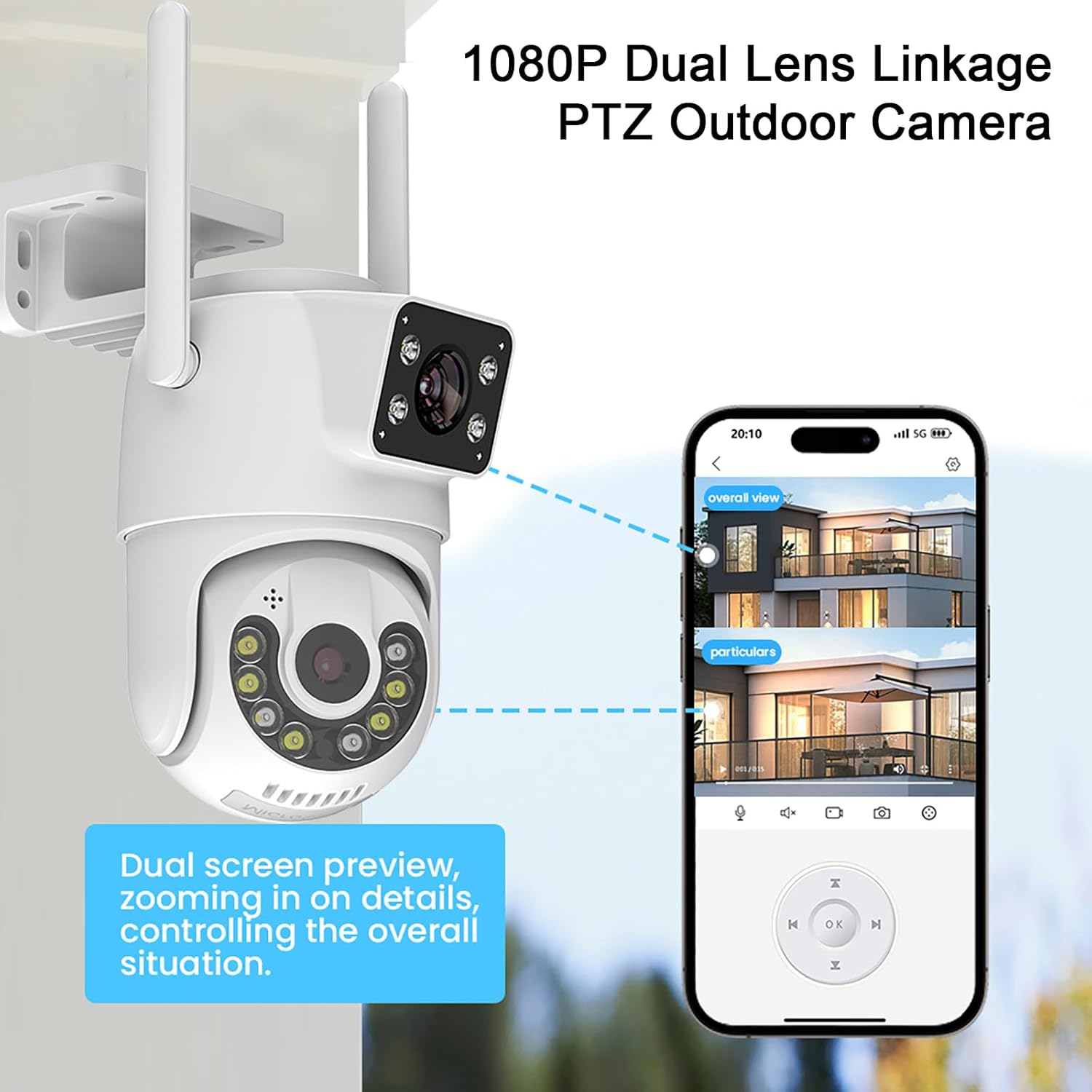
Image: The camera shown with a smartphone displaying the dual-screen preview, highlighting how one screen shows an overall view and the other zooms into particulars, enabling comprehensive monitoring.
6.2 Schwenk-, Neige- und Zoomsteuerung (PTZ)
Control the camera's movement directly from the app. The PTZ function allows for 355° horizontal pan and 90° vertical tilt. You can manually control the camera or enable automatic tracking.
- Manuelle Kontrolle: Use the directional controls within the app to move the camera's view.
- Automatische Nachverfolgung: Enable AI Human Detection to allow the camera to automatically track detected human figures within its field of view.
- Pre-positions and Cruise: Set up to 5 pre-defined monitoring positions. The camera can then cruise between these positions, returning to a guard position after completing a cruise cycle.
- Digitalzoom: Utilize the 4X digital zoom feature to magnify specific areas of interest.

Image: The camera with arrows indicating its 355° pan and 90° tilt capabilities, alongside a smartphone screen showing the PTZ control interface within the app.
6.3 Nachtsichtmodi
Die Kamera bietet drei Nachtsichtmodi für optimale Sicht bei schwachen Lichtverhältnissen:
- Tageslicht: Standardfarbe view während der Tagesstunden.
- Farbnachtsicht: Activates white lamps to provide full-color video even in darkness.
- IR Nachtsicht: Uses infrared lamps for black-and-white video in complete darkness, maintaining clear visibility up to 98ft.

Image: A comparison showing the camera's three night vision modes: Day Vision (full color), Color Night Vision (illuminated color), and IR Night Vision (black and white infrared).
6.4 Zwei-Wege-Audio
Use the two-way audio feature to communicate with individuals near the camera. This is useful for greeting visitors, deterring intruders, or interacting with family members.
- Activate the microphone icon in the app to speak through the camera's speaker.
- The built-in microphone captures audio from the camera's surroundings.

Image: A scenario demonstrating the two-way talk feature, showing a person speaking through the camera to a delivery person and another person responding via the app.
6.5 AI Human Detection & Tracking
The camera's advanced AI algorithm can distinguish human shapes from other moving objects, reducing false alarms. When a human is detected, the camera can automatically track their movement.
- Erkennungsbereich: Adjust the detection area and sensitivity settings within the app to customize monitoring zones.
- Benachrichtigungen: Receive real-time notifications, videos, or snapshots on your mobile phone when human motion is detected.
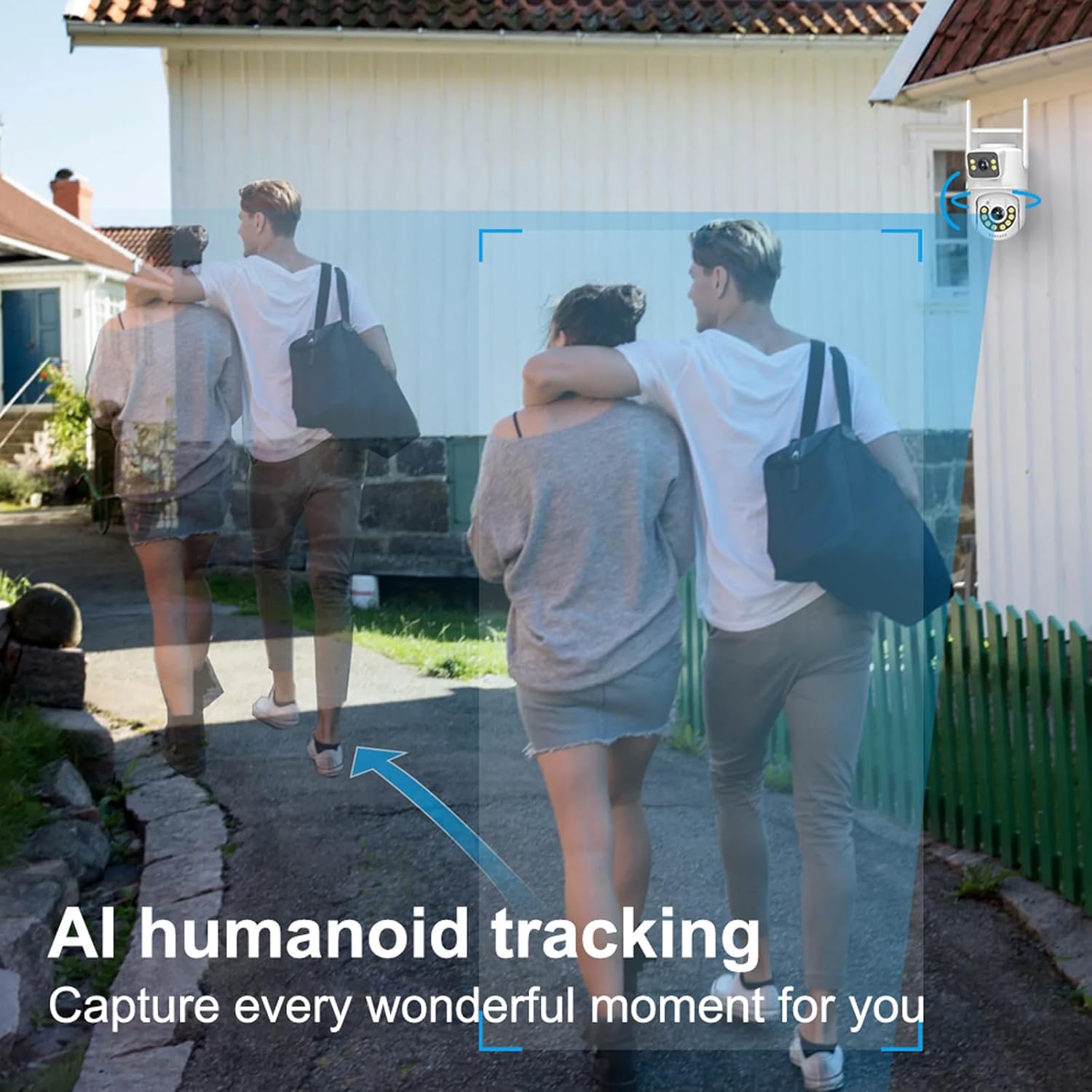
Image: A visual representation of the AI humanoid tracking feature, showing the camera detecting and following human movement within a defined area.
6.6 Speicherverwaltung
Die Kamera unterstützt sowohl lokale als auch Cloud-Speicheroptionen für aufgezeichnete Lebensmittel.tage.
- Micro SD Karte: Insert a Micro SD card (up to 256GB, not included) into the camera's SD card slot for continuous or event-based recording. Ensure the card is formatted correctly via the app.
- Cloud-Speicher: Optional cloud storage services may be available through the app for secure, off-site storage of your video recordings. Refer to the app for subscription details.

Image: The camera with icons representing Micro SD card storage (up to 256GB) and cloud storage, along with a smartphone displaying playback options from various recorded events.
7. Wartung
Regular maintenance helps ensure the longevity and optimal performance of your Dosilkc security camera.
- Reinigung: Wischen Sie die Kameralinse und das Kameragehäuse vorsichtig mit einem weichen, fusselfreien Tuch ab.amp cloth. Avoid using harsh chemicals or abrasive materials that could scratch the lens or damage the casing.
- Firmware-Updates: Periodically check the mobile application for available firmware updates. Keeping the firmware updated ensures you have the latest features, security patches, and performance improvements.
- Stromversorgung: Ensure the power adapter and cable are not damaged or exposed to excessive strain.
- Netzwerkverbindung: Verify that your WiFi signal is strong and stable, or that your Ethernet cable connection is secure, to prevent interruptions in monitoring.
- Speicherverwaltung: Bei Verwendung einer SD-Karte sollten Sie diese regelmäßig neu laden.view und gespeicherte Lebensmittel verwaltentage to ensure sufficient space. Back up important recordings as needed.
8. Fehlerbehebung
Sollten Sie Probleme mit Ihrer Kamera haben, beachten Sie bitte die folgenden häufigen Probleme und Lösungen:
| Problem | Mögliche Ursache/Lösung |
|---|---|
| Camera offline / Cannot connect to network |
|
| Schlechte Bildqualität / Unscharfes Video |
|
| Fehlalarme der Bewegungserkennung |
|
| Zwei-Wege-Audio funktioniert nicht |
|
| SD-Karte wird nicht erkannt / wird nicht erkannt |
|
9. Garantie und Support
For warranty information and technical support, please refer to the official Dosilkc webBesuchen Sie die Website oder kontaktieren Sie direkt den Kundenservice. Bewahren Sie Ihren Kaufbeleg als Kaufnachweis für Garantieansprüche auf.
Dosilkc Customer Support:
- Besuchen Sie die Dosilkc Store on Amazon für Produktinformationen und Supportressourcen.
- Refer to the contact information provided in the product packaging or on the official Dosilkc webWebsite für direkten Kundenservice.
Ask a question about this manual
Ask about setup, troubleshooting, compatibility, parts, safety, or missing instructions. Manuals+ will review the question and use this page’s manual context to help answer it.