
1. Einleitung
The Yesido TV12 Gaming TV Box is a versatile device designed to transform your television into a smart entertainment hub. It combines 4K media streaming capabilities with extensive gaming emulation, offering a comprehensive entertainment experience. This manual provides essential information for setting up, operating, maintaining, and troubleshooting your device.
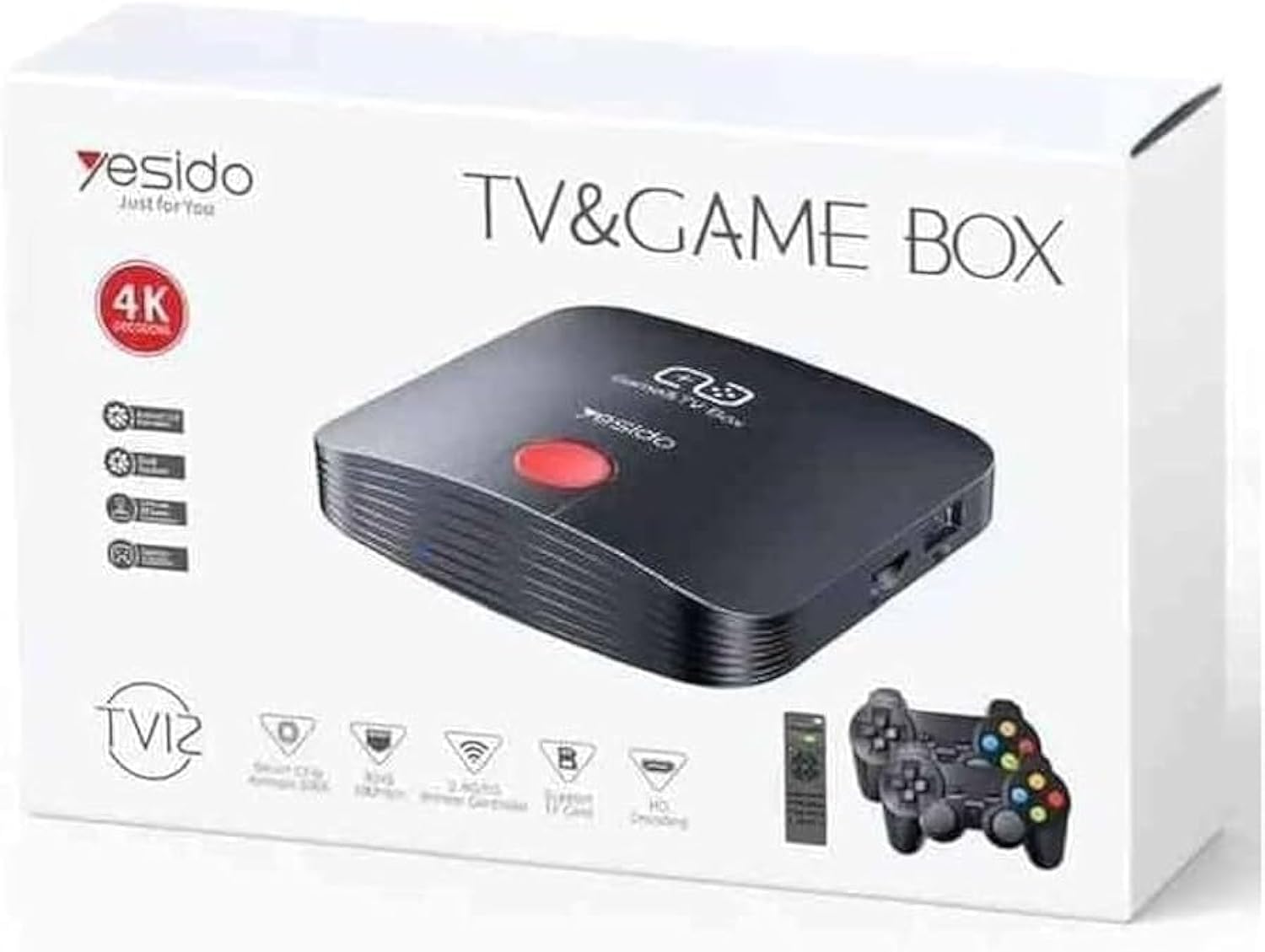
Image 1.1: The Yesido TV12 Gaming TV Box and included game controllers.
2. Produktüberschreitungview
The Yesido TV12 is a high-tech smart TV box that supports high-definition 4K resolution, allowing you to enjoy movies and TV shows with stunning clarity. It features an Amlogic S905 smart chip and runs on an Android 12.0 dual system. The device is equipped with 2GB RAM and 16GB internal storage, facilitating multitasking and storage of your favorite media and games. A powerful Mali-G31 MP2 GPU ensures smooth performance for demanding games.
Hauptmerkmale:
- 4K HD Resolution Support (1080P to 4K)
- Android 12.0 Dual System
- Amlogic S905 Smart Chip
- Mali-G31 MP2 GPU
- 2 GB RAM und 16 GB Speicher
- Supports over 10,000 game emulations (14 types)
- Integrated 2.4G/5G Wi-Fi and 100Mbps RJ45 Ethernet
- Compatible with popular streaming services (Netflix, Hulu, Amazon Prime Video, Disney+)
- Voice-controlled remote for easy navigation
- Compatible with two game controllers
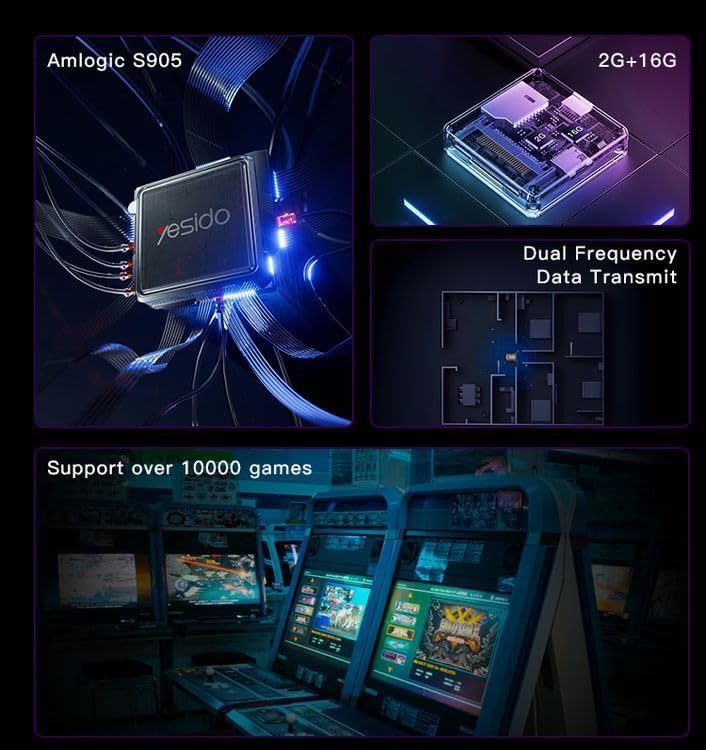
Image 2.1: Internal architecture highlighting the Amlogic S905 chip, memory, and data transmission capabilities.
3. Installationsanleitung
3.1 Auspacken und Komponenten
Nehmen Sie alle Teile vorsichtig aus der Verpackung. Stellen Sie sicher, dass folgende Komponenten vorhanden sind:
- Yesido TV12 Gaming TV Box
- Netzteil
- HDMI-Kabel
- Fernbedienung
- Game Controllers (quantity may vary)
- Benutzerhandbuch (dieses Dokument)
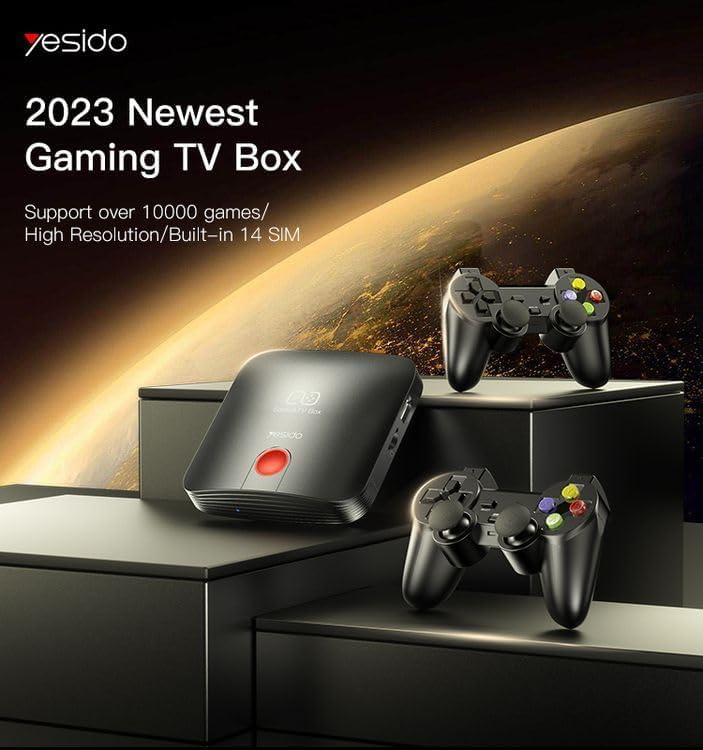
Image 3.1: The TV Box and game controllers, ready for setup.
3.2 Anschluss an Ihren Fernseher
- Connect one end of the HDMI cable to the HDMI port on the Yesido TV12.
- Verbinden Sie das andere Ende des HDMI-Kabels mit einem freien HDMI-Eingang Ihres Fernsehers. Notieren Sie sich die Nummer des HDMI-Eingangs (z. B. HDMI 1, HDMI 2).
3.3 Einschalten
- Schließen Sie das Netzteil an den DC IN-Anschluss der TV-Box an.
- Stecken Sie das Netzteil in eine Wandsteckdose.
- Schalten Sie Ihren Fernseher ein und wählen Sie mit Ihrer Fernbedienung den entsprechenden HDMI-Eingang aus.
- The TV Box will automatically power on and display the boot-up screen.
3.4 Netzwerkverbindung
For internet access, you can connect via Wi-Fi or Ethernet.
- W-lan: Navigate to Settings > Network > Wi-Fi. Select your network from the list, enter the password, and connect.
- Ethernet: Connect an Ethernet cable from your router to the RJ45 port on the TV Box. The connection should be established automatically.
3.5 Remote Control and Gamepad Pairing
The included remote control is typically pre-paired. If not, or if pairing gamepads:
- Ensure batteries are inserted correctly into the remote/gamepad.
- For Bluetooth gamepads, go to Settings > Connected Devices > Pair new device and follow the on-screen instructions.
4. Bedienungsanleitung
4.1 Navigation auf der Benutzeroberfläche
Use the remote control to navigate the Android 12.0 interface. The directional buttons move the cursor, the OK button selects, and the Back button returns to the previous screen. The Home button returns to the main launcher screen.
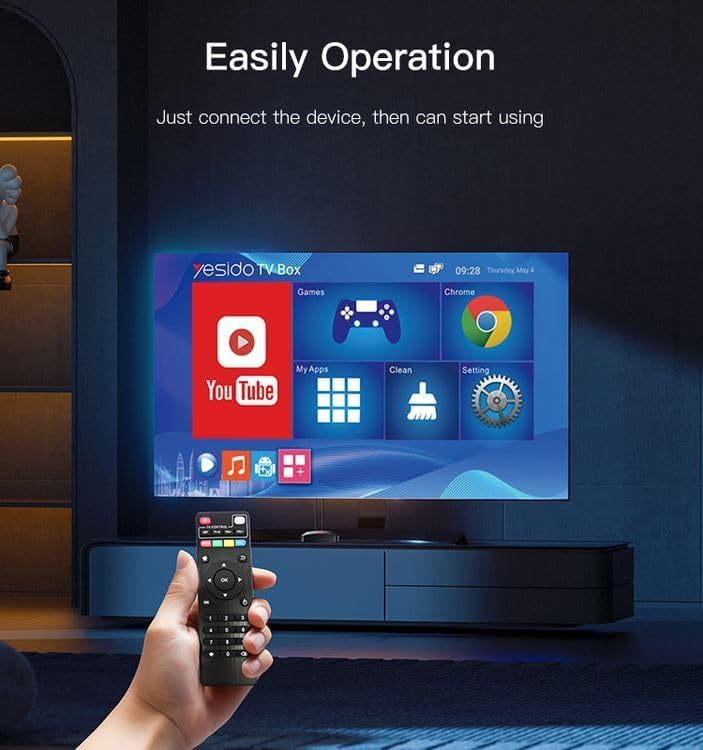
Image 4.1: Navigating the Yesido TV Box interface with the remote control.
4.2 Streaming-Medien
The TV Box supports various streaming applications. Pre-installed apps like YouTube are available, and you can download more from the app store (e.g., Netflix, Hulu, Amazon Prime Video, Disney+).
- Select the desired streaming app from the home screen or 'My Apps' section.
- Melden Sie sich mit Ihren Kontoanmeldeinformationen an.
- Browse and select content to watch.
4.3 Spielen
The Yesido TV12 is designed for gaming, supporting over 10,000 game emulations. Connect your game controllers as described in Section 3.5.
- Access the 'Games' or 'Emulator' section from the home screen.
- Select your desired game or emulator.
- Use the connected game controllers for an immersive gaming experience.

Image 4.2: The wireless gamepads compatible with the TV Box.
4.4 Sprachsteuerung
If your remote control supports voice input, press the voice button and speak your commands or search queries. This allows for hands-free content search and device control.
5. Wartung
5.1 Gerät reinigen
To maintain optimal performance and appearance, regularly clean the TV Box:
- Trennen Sie das Gerät vor der Reinigung vom Stromnetz.
- Verwenden Sie ein weiches, trockenes Tuch, um die Außenflächen abzuwischen.
- Do not use liquid cleaners, aerosols, or abrasive materials, as they may damage the device.
5.2 Softwareaktualisierungen
Keep your device's software updated to ensure the best performance and access to new features:
- Connect the TV Box to the internet.
- Navigate to Settings > About > System Update.
- Follow the on-screen prompts to check for and install any available updates.
5.3 Speicherverwaltung
With 16GB of internal storage, managing your space is important:
- Gehen Sie zu Einstellungen > Speicher view Speichernutzung.
- Uninstall unused applications or delete unnecessary files, um Speicherplatz freizugeben.
- The device supports TF cards for expandable storage.
6. Fehlerbehebung
6.1 Kein Strom
- Stellen Sie sicher, dass das Netzteil fest mit der TV-Box und einer funktionierenden Steckdose verbunden ist.
- Versuchen Sie es mit einer anderen Steckdose.
6.2 No Signal / No Display
- Vergewissern Sie sich, dass das HDMI-Kabel sowohl an die TV-Box als auch an den Fernseher fest angeschlossen ist.
- Stellen Sie sicher, dass Ihr Fernseher auf die richtige HDMI-Eingangsquelle eingestellt ist.
- Versuchen Sie es mit einem anderen HDMI-Kabel oder einem anderen HDMI-Anschluss an Ihrem Fernseher.
6.3 Netzwerkverbindungsprobleme
- W-lan: Check if your Wi-Fi router is working correctly. Re-enter the Wi-Fi password in Settings > Network.
- Ethernet: Ensure the Ethernet cable is properly connected to both the TV Box and the router.
- Starten Sie Ihren Router und die TV-Box neu.
6.4 Fernbedienung reagiert nicht
- Überprüfen und ersetzen Sie die Batterien in der Fernbedienung.
- Stellen Sie sicher, dass sich keine Hindernisse zwischen der Fernbedienung und der TV-Box befinden.
- Re-pair the remote control if necessary (refer to Section 3.5).
6.5 Game Performance Issues
- Close any background applications to free up RAM.
- Stellen Sie sicher, dass ausreichend Stauraum vorhanden ist.
- For online games, check your internet connection stability.
7. Spezifikationen
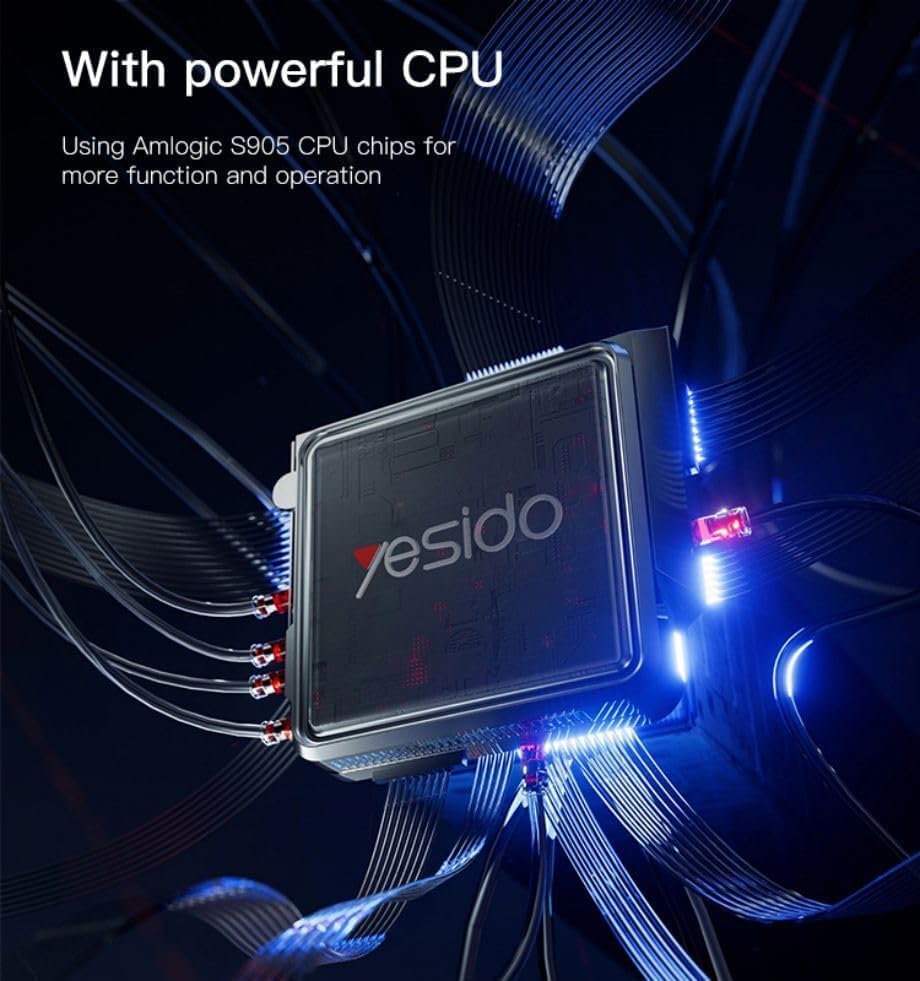
Image 7.1: The powerful Amlogic S905 CPU at the core of the TV Box.
| Besonderheit | Beschreibung |
|---|---|
| Markenname | Yesido |
| Modellname | TV12 |
| Betriebssystem | Android 12.0 Dual System |
| CPU | Amlogic S905 |
| Grafikkarte | Mali-G31 MP2 |
| Installierter RAM | 2 GB |
| Speicherkapazität | 16 GB |
| Videoausgabeauflösung | 1080P to 4K |
| Konnektivitätstechnologie | HDMI, Wi-Fi (2.4G/5G), RJ45 (100Mbps) |
| Steckertyp | HDMI |
| Unterstützte Internetdienste | Netflix, Hulu, Amazon Prime Video, Disney+ |
| Kompatible Geräte | Fernsehen |
| Im Lieferumfang enthaltene Komponenten | TV Box, Controllers |
| Farbe | Schwarz |
| Artikelgewicht | 1200 Gramm |
| Produktabmessungen (L x B x H) | 20 x 5 x 10 cm |
8. Garantie und Support
8.1 Garantieinformationen
The Yesido TV12 Gaming TV Box comes with a standard manufacturer's warranty. Please refer to the warranty card included in your product packaging for specific terms, conditions, and duration. Keep your proof of purchase for warranty claims.
8.2 Kundendienst
If you encounter any issues not covered in this manual or require further assistance, please contact Yesido customer support. Contact details can typically be found on the product packaging, the official Yesido webWebsite oder die Supportseite Ihres Händlers.