
1. Einleitung
This manual provides instructions for the Akozon HBVW202012HD 1MP HD USB Camera Module. This module is designed for various applications requiring high-definition imaging and broad operating system compatibility.
Hauptmerkmale:
- 1MP High-Definition Imaging: Equipped with a 1-megapixel lens, providing clear images with a 50° field of view.
- OV9726 Chip: Utilizes the OV9726 photosensitive chip for consistent performance.
- Universelle Kompatibilität: Supports Windows XP, Windows 10, OS X, and Linux operating systems.
- OTG & UVC Protocol Support: Features a USB 2.0 interface for plug-and-play functionality without requiring additional drivers.
- Vielseitige Anwendungen: Suitable for consumer electronics, security systems, industrial applications, QR scanning, and face recognition.

Abbildung 1: Vorderseite view of the Akozon HBVW202012HD 1MP HD USB Camera Module, showing the lens and circuit board.
2. Einrichtung
Follow these steps to set up your camera module:
- Schließen Sie das USB-Kabel an: Attach the provided USB cable to the camera module's connector. Ensure a secure connection.
- Verbindung zum Hostgerät herstellen: Plug the USB connector into an available USB 2.0 port on your computer or compatible host device.
- Treiberinstallation: The module supports the UVC protocol, enabling plug-and-play functionality on most compatible operating systems (Windows XP, Windows 10, OS X, Linux). No manual driver installation is typically required. The system should automatically detect and configure the device.
- Verbindung überprüfen: After connecting, check your device manager or system settings to confirm that the camera module is recognized as a USB camera device.

Figure 2: The camera module connected to its USB cable, ready for integration.
3. Bedienungsanleitung
Once the camera module is successfully connected and recognized by your system, you can begin using it with compatible software applications.
Grundlegende Bedienung:
- Software-Kompatibilität: Use any standard webcam or camera application compatible with your operating system to access the video feed from the module.
- Funktionseinführung: The module supports functions such as QR code scanning and face recognition, depending on the capabilities of the software application used.
- Manueller Fokus: The lens features manual adjustment for focusing. Rotate the lens barrel to achieve optimal image clarity for your specific application distance.

Abbildung 3: Bspamples of diverse applications for the HBVW202012HD camera module.
4. Wartung
Durch sachgemäße Wartung wird die Langlebigkeit und optimale Leistung Ihres Kameramoduls sichergestellt.
- Reinigung: Use a soft, dry cloth to gently clean the lens and module surface. Avoid abrasive materials or harsh chemicals. For stubborn smudges on the lens, a lens cleaning solution designed for optical surfaces can be applied to a microfiber cloth.
- Lagerung: Store the module in a cool, dry place away from direct sunlight and extreme temperatures. Protect it from dust and moisture when not in use.
- Handhabung: Handle the module by its edges to avoid touching the lens or electronic components. Avoid dropping or subjecting the module to strong impacts.
5. Fehlerbehebung
Sollten Sie Probleme mit Ihrem Kameramodul haben, beachten Sie bitte die folgenden häufig auftretenden Probleme und Lösungen:
Häufige Probleme und Lösungen:
- Kamera nicht erkannt:
- Stellen Sie sicher, dass das USB-Kabel sowohl mit dem Modul als auch mit dem Host-Gerät fest verbunden ist.
- Versuchen Sie, Ihr Gerät an einen anderen USB-Anschluss anzuschließen.
- Starten Sie Ihren Computer oder Ihr Host-Gerät neu.
- Verify that the operating system recognizes the device in Device Manager (Windows) or System Information (OS X/Linux).
- Schlechte Bildqualität:
- Adjust the manual focus of the lens by rotating the lens barrel until the image is clear.
- Sorgen Sie für ausreichende Beleuchtung in der Umgebung.
- Clean the lens surface if it appears dirty or smudged.
- Check the resolution settings in your camera application; ensure it is set to 1280x720 for optimal quality.
- Kein Videostream:
- Confirm that the camera application you are using is correctly configured to select the Akozon HBVW202012HD module as the video source.
- Close any other applications that might be using the camera.
- Update your operating system and USB drivers if available.
6. Spezifikationen
Detailed technical specifications for the Akozon HBVW202012HD 1MP HD USB Camera Module:
| Besonderheit | Spezifikation |
|---|---|
| Produktmodell | HBV-W202012HD |
| Auflösung | 1 MP (1280 x 720) |
| Lichtempfindlicher Chip | OV9726 (1/6 inch) |
| Fachgebiet View (Sichtfeld) | 50° |
| Brennweite | 3.2 mm |
| Ausgabeformat | MJPG / YUY2 |
| Fokus-Modus | Manual (Adjustable Lens) |
| Ausgabeschnittstelle | USB 2.0 |
| Unterstützte Systeme | Windows XP, Windows 10, OS X, Linux |
| Kabellänge | Ca. 50 cm |
| Arbeitstemperatur | -30℃ bis 70℃ |
| Modulabmessungen | Ca. 30 x 25 x 14 mm / 1.2 x 1 x 0.6 Zoll |
| Zusätzliche Merkmale | Supports external LED infrared fill light connection |
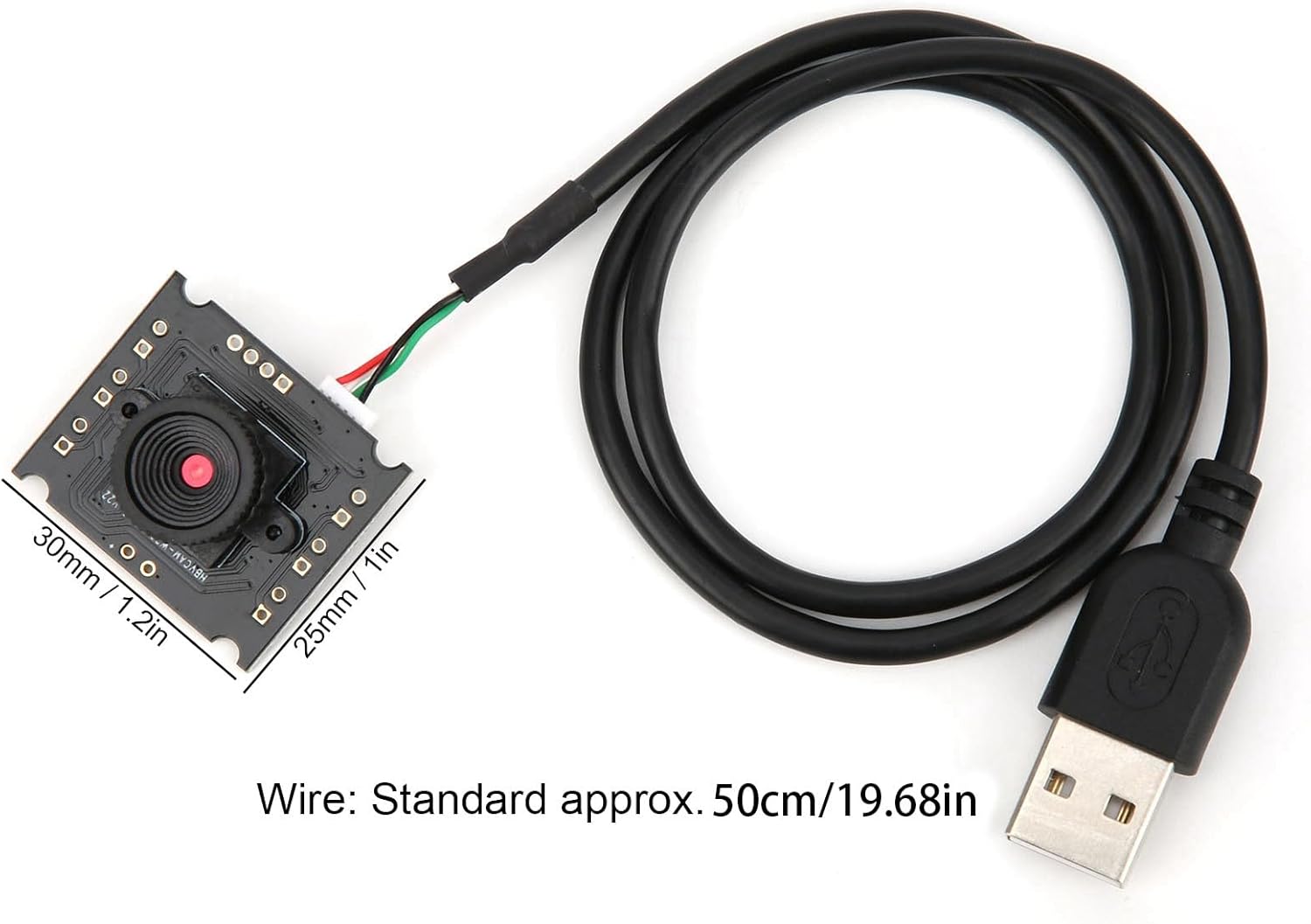
Figure 4: Dimensions of the camera module and standard cable length.

Figure 5: Visual comparison of normal pixel versus 1 megapixel high definition image clarity.
7. Garantie und Support
For warranty information, technical support, or service inquiries, please refer to the documentation provided with your purchase or contact Akozon customer service through their official channels. Keep your purchase receipt as proof of purchase.