
1. Einführung und Endeview
Thank you for choosing the SENGBIRCH Keyboard Case for your Lenovo Tab P12 12.7" tablet. This product combines a protective case with a detachable Bluetooth keyboard, enhancing your tablet's functionality for typing, work, and entertainment. This manual provides detailed instructions for setup, operation, maintenance, and troubleshooting to ensure optimal use of your new accessory.
Hauptmerkmale:
- Detachable Bluetooth 5.0 keyboard for stable and fast connection.
- Durable protective case with precise cutouts.
- Einstellbar viewing Winkel für bequeme Nutzung.
- Integrated stylus holder.
- Langlebiger Akku.
Kompatibilität: Diese Tastaturhülle wurde speziell für die Lenovo Tab P12 12.7" (2023) model TB370FU. Please verify your tablet's model number before use to ensure proper fit and functionality.

Image 1.1: Compatibility guide for the keyboard case. Ensure your tablet is the Lenovo Tab P12 12.7" (TB370FU).
2. Einrichtungsanweisungen
2.1 Aufladen der Tastatur
Before first use, fully charge the keyboard. Connect the provided USB-C charging cable to the keyboard's charging port and a USB power adapter (not included). The charging indicator light will illuminate during charging and turn off when fully charged.
- Ladezeit: ca. 2–3 Stunden.
- Continuous Use: Up to 48 hours.
- Standby-Zeit: Über 2 Monate.

Image 2.1: Keyboard charging port (Type-C) and battery indicators.
2.2 Einsetzen des Tablets in die Hülle
- Gently align your Lenovo Tab P12 12.7" tablet with the case's frame.
- Press the tablet firmly into the soft inner shell, ensuring all edges are securely seated and cutouts align with ports and buttons.
2.3 Koppeln der Bluetooth-Tastatur
- Turn on the keyboard by sliding the 'ON/OFF' switch to the 'ON' position. The power indicator light will briefly illuminate.
- Drücken Sie die Taste „Verbinden“ auf der Tastatur. Die Bluetooth-Anzeigeleuchte beginnt zu blinken und signalisiert damit den Kopplungsmodus.
- On your Lenovo Tab P12, go to Einstellungen > Bluetooth.
- Schalten Sie Bluetooth ein und suchen Sie nach verfügbaren Geräten.
- Select "Bluetooth Keyboard" (or a similar name) from the list of devices.
- Folgen Sie den Anweisungen auf dem Bildschirm, um den Kopplungsvorgang abzuschließen. Die Bluetooth-Anzeigeleuchte an der Tastatur hört auf zu blinken, sobald die Kopplung erfolgreich war.
3. Bedienungsanleitung
3.1 Anbringen und Abnehmen der Tastatur
The keyboard is magnetically attached to the case. To attach, simply place the keyboard onto the designated area within the case. To detach, gently pull the keyboard away from the magnetic surface.

Image 3.1: The keyboard can be magnetically detached from the case.
3.2 Einstellen ViewWinkel
The case features an adjustable stand that supports three different viewing angles (130°, 125°, 120°). Simply fold the case cover to create a stable triangular stand and adjust it to your preferred angle for typing, viewing oder Zeichnung.

Image 3.2: Adjustable stand angles for versatile use.
3.3 Tastaturfunktionen
- Betriebssystemwechsel: The keyboard supports different operating systems. Use Fn + Q für iOS Fn + W für Android und Fn + E für Windows.
- Einstellung der Hintergrundbeleuchtung: Drücken Fn + Glühbirnensymbol to cycle through 3 backlight brightness levels. Press Fn + RGB icon to change between 7 backlight colors.
- Sonderzeichen: Verwenden Sie die Fn key in combination with other keys to access special characters, such as the Euro symbol (€) or accent marks (ñ).
- Automatischer Schlafmodus: To conserve battery, the keyboard will automatically enter sleep mode after approximately 8 minutes of inactivity. Press any key to wake it up.
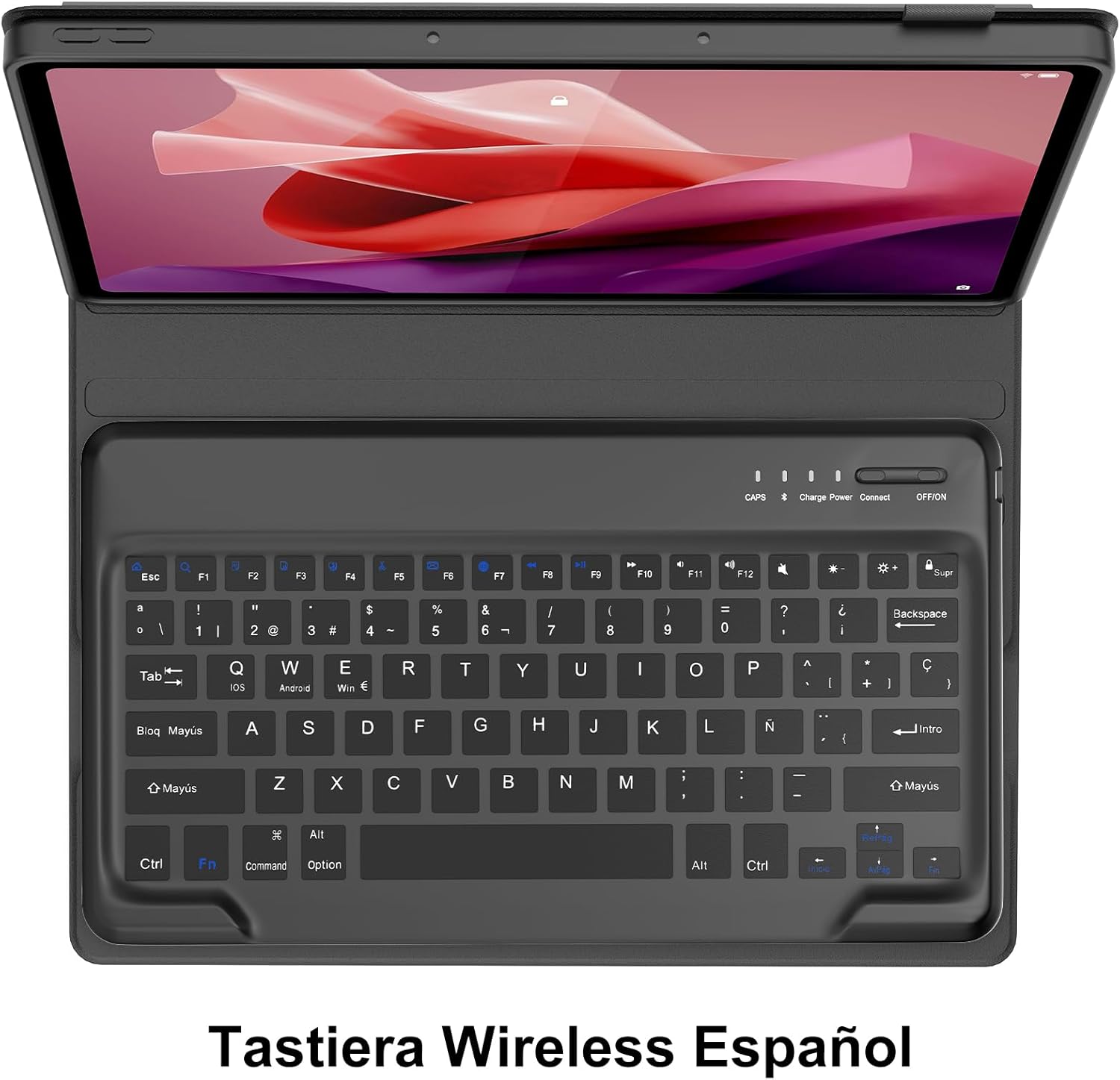
Image 3.3: Keyboard layout with function key combinations for various settings.
3.4 Stifthalter
The case includes a dedicated slot for your stylus, ensuring it is securely stored and easily accessible.

Image 3.4: Integrated stylus holder for convenience.
4. Wartung
4.1 Reinigung des Gehäuses und der Tastatur
- Wischen Sie die Außenseite des Gehäuses mit einem weichen, fusselfreien Tuch ab.amp Tuch. Vermeiden Sie aggressive Chemikalien oder Scheuermittel.
- For the keyboard, use a soft, dry cloth or a can of compressed air to remove dust and debris from between the keys.
- Stellen Sie sicher, dass die Tastatur vor der Reinigung ausgeschaltet ist.
4.2 Batteriepflege
- Recharge the keyboard when the low battery indicator appears or when performance degrades.
- Um die Lebensdauer der Batterie zu verlängern, sollte eine häufige vollständige Entladung vermieden werden.
- Wenn Sie die Tastatur über einen längeren Zeitraum lagern, laden Sie sie auf etwa 50 % auf und bewahren Sie sie an einem kühlen, trockenen Ort auf.
5. Fehlerbehebung
If you encounter issues with your SENGBIRCH Keyboard Case, please refer to the following troubleshooting steps:
5.1 Keyboard Not Connecting/Frequent Disconnections
- Batterie prüfen: Ensure the keyboard is sufficiently charged. Low battery can cause connection issues.
- Tastatur neu koppeln: Delete the "Bluetooth Keyboard" from your tablet's Bluetooth device list and repeat the pairing steps (Section 2.3).
- Geräte neu starten: Schalten Sie sowohl Ihr Tablet als auch die Tastatur aus und wieder ein.
- Interferenz: Entfernen Sie sich von anderen drahtlosen Geräten, die Störungen verursachen könnten.
5.2 Keys Not Responding or Sticky Keys
- Batterie prüfen: Stellen Sie sicher, dass die Tastatur ausreichend mit Strom versorgt wird.
- Clean Keyboard: Dust or debris under the keys can cause them to stick. Refer to Section 4.1 for cleaning instructions.
- Tastatur neu starten: Schalten Sie die Tastatur aus und dann wieder ein.
5.3 Tablet Not Fitting Correctly
- Modell überprüfen: Double-check that your tablet is indeed the Lenovo Tab P12 12.7" (2023) model TB370FU. This case is not compatible with other models.
- Richtiges Einfügen: Ensure the tablet is aligned correctly and gently pressed into all corners of the soft inner shell.
6. Spezifikationen
| Marke | SENGBIRCH |
| Compatible Tablet Model | Lenovo Tab P12 12.7" (2023) TB370FU |
| Konnektivitätstechnologie | Bluetooth 5.0 |
| Tastaturlayout | Spanisch (QWERTY) |
| Akku-Typ | Wiederaufladbares Lithium-Polymer |
| Ladezeit | 2-3 Stunden |
| Dauergebrauchszeit | Bis zu 48 Stunden |
| Standby-Zeit | Über 2 Monate |
| Material | Plastic (keyboard), Faux Leather (case exterior) |
| Farbe | Schwarz |
| Abmessungen (Paket) | 31.2 x 25.1 x 4.1 cm |
| Gewicht (Produkt) | 970 g |
7. Garantie und Support
SENGBIRCH products are designed for reliability and performance. For any questions, technical support, or warranty claims, please contact SENGBIRCH customer service through the retailer where you purchased the product or visit the official SENGBIRCH webWebsite für Kontaktinformationen.
Bitte bewahren Sie Ihren Kaufbeleg für Garantiezwecke auf.