
1. Einleitung
This manual provides detailed instructions for the installation, operation, and maintenance of your MZZYG Tuya 7-Inch Wired Video Doorbell System. Please read this manual thoroughly before using the product to ensure proper function and safety. Keep this manual for future reference.
2. Produktüberschreitungview und Packungsinhalt
The MZZYG Tuya Video Doorbell System is designed to enhance your home security with a 1080P camera, a 7-inch touchscreen monitor, and Wi-Fi connectivity. It supports remote unlocking, two-way communication, and motion detection.
2.1 Packungsinhalt
Überprüfen Sie, ob alle Artikel in Ihrem Paket vorhanden sind:
- Outdoor Doorbell Unit (1080P Camera)
- Indoor Monitor Unit (7-inch TFT-LCD Touchscreen)
- Netzteil für Indoor-Monitor
- Montagehalterung und Schrauben
- Verdrahtungskabel
- RFID Key Fobs (Quantity may vary)
- Benutzerhandbuch (dieses Dokument)

Abbildung 2.1: Main components of the MZZYG Tuya Video Doorbell System, including the outdoor doorbell unit, the indoor 7-inch monitor, and several RFID key fobs for access control.
3. Spezifikationen
3.1 Innenmonitor
- Bildschirm: 7-inch TFT-LCD Touchscreen
- Auflösung: 1024 x 680
- Klingeltöne: 7-chord melodic rings
- Verbindungsmodus: 4-wire, Tuya Wi-Fi solution
- Plattenmaterial: Acryl / ABS
3.2 Außentürklingel
- Kamera: 1080P
- Linse: 3.2mm wide-angle, 160-degree view
- Nachtsicht: Unterstützt
- Wasserdichtigkeit: IP65
- Casing Material: Aluminiumlegierung
- Merkmale: Remote unlock, monitoring, two-way communication, video recording, motion detection
4. Installation und Einrichtung
Proper installation is crucial for optimal performance. It is recommended to consult a qualified electrician for wiring if you are unfamiliar with electrical installations.
4.1 Montage des Außengeräts
- Choose a suitable location near your entrance, ensuring the camera has a clear, unobstructed view of visitors. The recommended height is approximately 1.5 meters (5 feet) from the ground.
- Verwenden Sie die Montagehalterung als Schablone, um die Bohrpunkte an der Wand zu markieren.
- Löcher bohren und Dübel einsetzen.
- Befestigen Sie die Montagehalterung mit den mitgelieferten Schrauben an der Wand.
- Connect the wiring from your home to the outdoor unit. Ensure correct polarity for power and signal wires.
- Attach the outdoor unit to the mounting bracket.
4.2 Montage des Innenmonitors
- Wählen Sie einen geeigneten Standort in Innenräumen, z. B. einen Flur oder ein Wohnzimmer, wo der Monitor leicht zugänglich ist.
- Mount the indoor monitor's bracket to the wall using screws.
- Verbinden Sie das 4-adrige Kabel von der Außeneinheit mit dem Innenmonitor.
- Schließen Sie den Netzadapter an den Innenmonitor an und stecken Sie ihn in eine Steckdose.
- Attach the indoor monitor to its wall bracket.

Abbildung 4.1: Illustratives Beispielamples of the outdoor doorbell unit mounted next to a door and the indoor monitor installed on a wall inside a home.
4.3 Initial Power-On and Wi-Fi Configuration
- Once both units are mounted and wired, power on the indoor monitor.
- Follow the on-screen prompts to configure the date, time, and language settings.
- Navigate to the Wi-Fi settings menu on the indoor monitor.
- Select your home Wi-Fi network and enter the password. The monitor will connect to the internet, enabling Tuya app integration.
5. Bedienung
5.1 Einen Anruf annehmen
- When a visitor presses the doorbell button, the indoor monitor will ring and display the visitor's image.
- To answer, tap the "Answer" icon on the touchscreen. This initiates two-way audio communication.
- To end the call, tap the "End Call" icon.
5.2 Fernentriegelung
If connected to an electronic lock (sold separately), you can unlock the door remotely:
- During a call or while monitoring, tap the "Unlock" icon on the indoor monitor or in the Tuya app.
- Confirm the unlock action if prompted.
5.3 Überwachung
Du kannst view jederzeit den Livestream der Außenkamera ansehen:
- On the indoor monitor, tap the "Monitor" icon to view die Live-Übertragung vom Außengerät.
- In the Tuya app, select your doorbell device to access the live view.
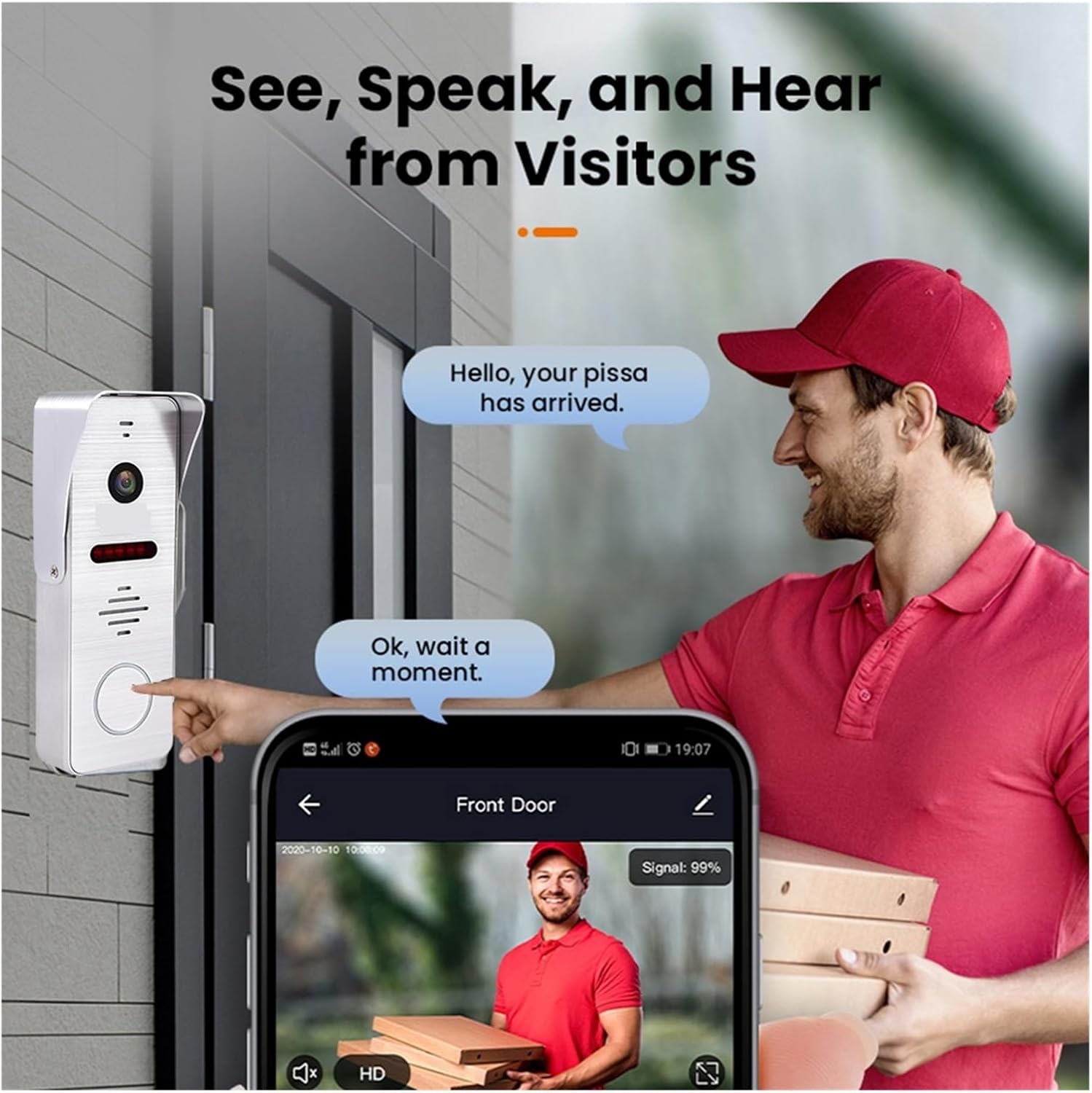
Abbildung 5.1: A visitor at the door pressing the doorbell, with a smartphone displaying the live video feed and communication options through the mobile application.
6. Tuya Smart App Integration
The system integrates with the Tuya Smart app for remote access and control.
6.1 Downloading and Registering the App
- Download the "Tuya Smart" app from your smartphone's app store (Google Play Store for Android, Apple App Store for iOS).
- Öffne die App und registriere dich für ein neues Konto oder melde dich an, falls du bereits eines hast.
6.2 Adding the Doorbell Device
- In the Tuya Smart app, tap the "+" icon to add a new device.
- Select "Video Surveillance" or "Doorbell" from the device categories.
- Follow the in-app instructions to pair your doorbell system. This typically involves scanning a QR code displayed on the indoor monitor or entering Wi-Fi credentials.
6.3 App-Funktionen
- Fernüberwachung: View Live-Video von der Außeneinheit.
- Zweiwege-Audio: Communicate with visitors from anywhere.
- Fernentsperrung: Open the door remotely (requires compatible electronic lock).
- Video Recording & Snapshots: Capture video and images of visitors or events.
- Bewegungserkennungswarnungen: Receive notifications when motion is detected.

Abbildung 6.1: A smartphone screen showing a list of motion detection events recorded by the doorbell camera, with timestamps und vorview Bilder.
7. Bewegungserkennung und Nachtsicht
The system is equipped with motion detection and night vision capabilities for enhanced security.
7.1 Bewegungserkennung
- The outdoor unit can detect motion in its field of view.
- Upon detection, the system can automatically record video or take snapshots.
- You will receive push notifications on your smartphone via the Tuya Smart app when motion is detected.
- Sensitivity settings for motion detection can be adjusted in the indoor monitor's menu or the Tuya app.
7.2 Nachtsicht
- The outdoor unit features infrared night vision, allowing clear visibility even in low-light or complete darkness.
- Die Nachtsichtfunktion wird bei schwachem Umgebungslicht automatisch aktiviert.

Abbildung 7.1: An illustration of the doorbell's night vision capability, showing a person in low light conditions as seen on the indoor monitor and a mobile phone screen.
8. Wartung
- Reinigung: Wischen Sie die Kameralinse und den Monitorbildschirm regelmäßig mit einem weichen, fusselfreien Tuch ab.amp Tuch. Scheuermittel vermeiden.
- Firmware-Updates: Check for firmware updates periodically through the indoor monitor's settings or the Tuya Smart app to ensure optimal performance and security.
- Verkabelungsprüfung: Überprüfen Sie regelmäßig alle Kabelverbindungen auf Anzeichen von Verschleiß oder Beschädigung.
9. Fehlerbehebung
| Problem | Mögliche Ursache | Lösung |
|---|---|---|
| Kein Bild auf dem Monitor im Innenbereich. | Power issue, loose wiring, faulty unit. | Check power connection to monitor. Verify all 4-wire connections between outdoor and indoor units. Restart the system. |
| Kein Ton während des Anrufs. | Microphone/speaker issue, volume too low. | Check volume settings on the monitor. Ensure wiring is secure. |
| Die WLAN-Verbindung ist instabil oder unterbrochen. | Schwaches WLAN-Signal, falsches Passwort, Routerproblem. | Ensure monitor is within Wi-Fi range. Re-enter Wi-Fi password. Restart your router. |
| Bewegungserkennung funktioniert nicht. | Motion detection disabled, sensitivity too low, incorrect settings. | Enable motion detection in settings. Adjust sensitivity. Check recording schedule. |
10. Sicherheitshinweise
- Versuchen Sie nicht, das Gerät selbst zu zerlegen oder zu reparieren. Überlassen Sie alle Wartungsarbeiten qualifiziertem Fachpersonal.
- Halten Sie das Gerät von Wasser, Feuchtigkeit und extremen Temperaturen fern.
- Ensure all wiring is correctly installed and insulated to prevent electrical hazards.
- Verwenden Sie nur das mitgelieferte Netzteil.
11. Garantie und Support
Warranty information for this product is not explicitly detailed in the provided specifications. Please refer to your purchase documentation or contact your retailer for specific warranty terms and conditions.
For technical support or inquiries, please contact MZZYG customer service through the contact information provided with your purchase or on the official MZZYG webWebsite.