
T-Wolf GG-G530
T-Wolf RoboCop Competitive Gaming Mouse GG-G530 Benutzerhandbuch
Model: GG-G530
Einführung
This manual provides essential information for the setup, operation, and maintenance of your T-Wolf RoboCop Competitive Gaming Mouse GG-G530. Please read this manual thoroughly before using the product to ensure optimal performance and longevity.
Packungsinhalt
- 1 x T-Wolf RoboCop Competitive Gaming Mouse GG-G530
- 1 x Benutzerhandbuch (dieses Dokument)
Produkteigenschaften
The T-Wolf RoboCop Competitive Gaming Mouse GG-G530 is designed for precision and comfort, suitable for both gaming and office use. Key features include:
- Optical Engine Design: Ensures stable operation and high sensitivity.
- Mechanical Armored Modeling: Distinctive and robust design.
- Symmetrisches DIY-Gegengewicht: Allows for adaptable weight adjustment.
- 7 Tasten: Includes left click, right click, scroll wheel, DPI switcher, and additional programmable buttons.
- Intelligente Konnektivität: Plug-and-play functionality with automatic driver installation.
- Einstellbare DPI: Four levels of sensitivity (1200/2400/3200/6400 DPI) for precise control.
- Ergonomisches Design: Provides comfortable use for extended periods without fatigue.
- Four-Color Light Effect: Dynamic lighting for visual appeal.
- Kabelverbindung: Reliable USB interface with a 150cm cable.
- Systemkompatibilität: Unterstützt Windows- und Mac-Betriebssysteme.
Aufstellen
- Schließen Sie die Maus an: Insert the USB connector of the T-Wolf RoboCop Gaming Mouse into an available USB port on your computer.
- Automatische Treiberinstallation: The operating system will automatically detect the mouse and install the necessary drivers. This process typically takes a few moments. No manual driver installation is required.
- Bereit zum Benutzen: Sobald die Treiber installiert sind, ist die Maus sofort einsatzbereit.
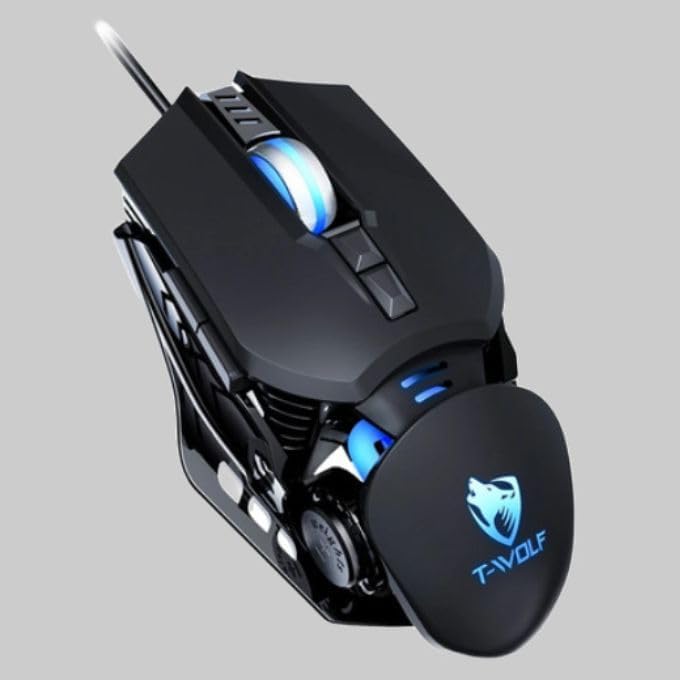
Bedienungsanleitung
The T-Wolf RoboCop Gaming Mouse features 7 buttons for various functions. Familiarize yourself with their basic operations:
- Linksklick-Taste: Primäre Selektion und Interaktion.
- Rechtsklick-Schaltfläche: Accesses contextual menus and secondary functions.
- Scrollrad: Durchblättert Dokumente und web Seiten. Kann auch als mittlere Maustaste fungieren.
- DPI-Umschalttaste: Passt die Mausempfindlichkeit (DPI) an.
- Zusätzliche Schaltflächen: The remaining buttons can be assigned specific functions through your operating system's mouse settings or compatible third-party software (note: no macro programming is natively supported by the mouse hardware).

DPI-Anpassung
The mouse features an adjustable DPI (Dots Per Inch) setting, allowing you to change the cursor sensitivity on the fly. This is particularly useful for different tasks, such as precise aiming in games or fast navigation in general use.
- Suchen Sie die DPI Switcher Button, typically positioned behind the scroll wheel.
- Press the DPI Switcher Button to cycle through the available DPI settings: 1200 DPI, 2400 DPI, 3200 DPI, and 6400 DPI.
- Each press will change the sensitivity, allowing you to find the setting that best suits your current activity.

Wartung
To ensure the longevity and optimal performance of your T-Wolf RoboCop Gaming Mouse, follow these simple maintenance guidelines:
- Reinigung: Verwenden Sie ein weiches, trockenes Tuch, um die Oberfläche der Maus abzuwischen. Bei hartnäckigem Schmutz leicht andrücken.ampBefeuchten Sie das Tuch mit Wasser oder einer milden Reinigungslösung. Vermeiden Sie scharfe Chemikalien oder scheuernde Materialien.
- Optischer Sensor: Periodically clean the optical sensor on the underside of the mouse with a cotton swab to prevent dust buildup, which can affect tracking performance.
- Kabelpflege: Um interne Schäden zu vermeiden, sollte das USB-Kabel nicht abrupt geknickt oder gezogen werden.
- Lagerung: Bewahren Sie die Maus bei Nichtgebrauch an einem sauberen, trockenen Ort fern von extremen Temperaturen auf.
Fehlerbehebung
If you encounter issues with your T-Wolf RoboCop Gaming Mouse, refer to the following common solutions:
- Maus reagiert nicht:
- Stellen Sie sicher, dass das USB-Kabel fest an einen funktionierenden USB-Anschluss Ihres Computers angeschlossen ist.
- Versuchen Sie, die Maus an einen anderen USB-Anschluss anzuschließen.
- Starten Sie Ihren Computer neu.
- Die Cursorbewegung ist unregelmäßig oder sprunghaft:
- Reinigen Sie den optischen Sensor an der Unterseite der Maus.
- Verwenden Sie die Maus auf einer sauberen, nicht reflektierenden und gleichmäßigen Oberfläche. Ein Mauspad wird empfohlen.
- DPI-Anpassung funktioniert nicht:
- Ensure you are pressing the correct DPI switcher button.
- The mouse cycles through fixed DPI settings; there is no visual indicator on the mouse itself for the current DPI level, only the change in cursor speed.
- Tasten funktionieren nicht:
- Check your operating system's mouse settings to ensure buttons are enabled and configured correctly.
- Testen Sie die Maus an einem anderen Computer, um ein Software- oder Systemproblem auszuschließen.
Technische Daten
| Modell | GG-G530 |
| Material | ABS + Electroplating |
| Ortungssystem | Optisch |
| Verbindung | Verdrahtet |
| Kabellänge | 150 cm |
| Schnittstellentyp | USB |
| DPI-Einstellungen | 1200 / 2400 / 3200 / 6400 (einstellbar) |
| Anzahl der Tasten | 7 |
| Lebensdauer | Approximately three years |
| Arbeitsmethode | Fotoelektrisch |
| Lichteffekt | Four-color cycling |
| Artikelgröße | 130 x 80 x 35 mm |
| Artikelgewicht | 160 g |
| Unterstützte Systeme | Windows, Mac |
Garantie und Support
Your T-Wolf RoboCop Competitive Gaming Mouse GG-G530 comes with a 6 Monate Herstellergarantie ab Kaufdatum.
This warranty covers defects in materials and workmanship under normal use. It does not cover damage caused by accident, misuse, abuse, unauthorized modification, or external causes such as liquid damage.
Bei Garantieansprüchen oder technischen Problemen wenden Sie sich bitte an Ihren Händler oder die Verkaufsstelle. Bitte bewahren Sie Ihren Kaufbeleg zur Überprüfung Ihres Garantieanspruchs auf.

Ask a question about this manual
Ask about setup, troubleshooting, compatibility, parts, safety, or missing instructions. Manuals+ will review the question and use this page’s manual context to help answer it.