
1. Einleitung
This manual provides detailed instructions for the installation, operation, and maintenance of your SANPTENT Single DIN Car Stereo. This unit features a 6.9-inch Full HD IPS touchscreen, wireless and wired Apple CarPlay and Android Auto compatibility, Bluetooth 5.0, Mirror Link functionality, GPS navigation support, FM radio, and a backup camera input. Please read this manual thoroughly before use to ensure proper operation and to maximize your experience.
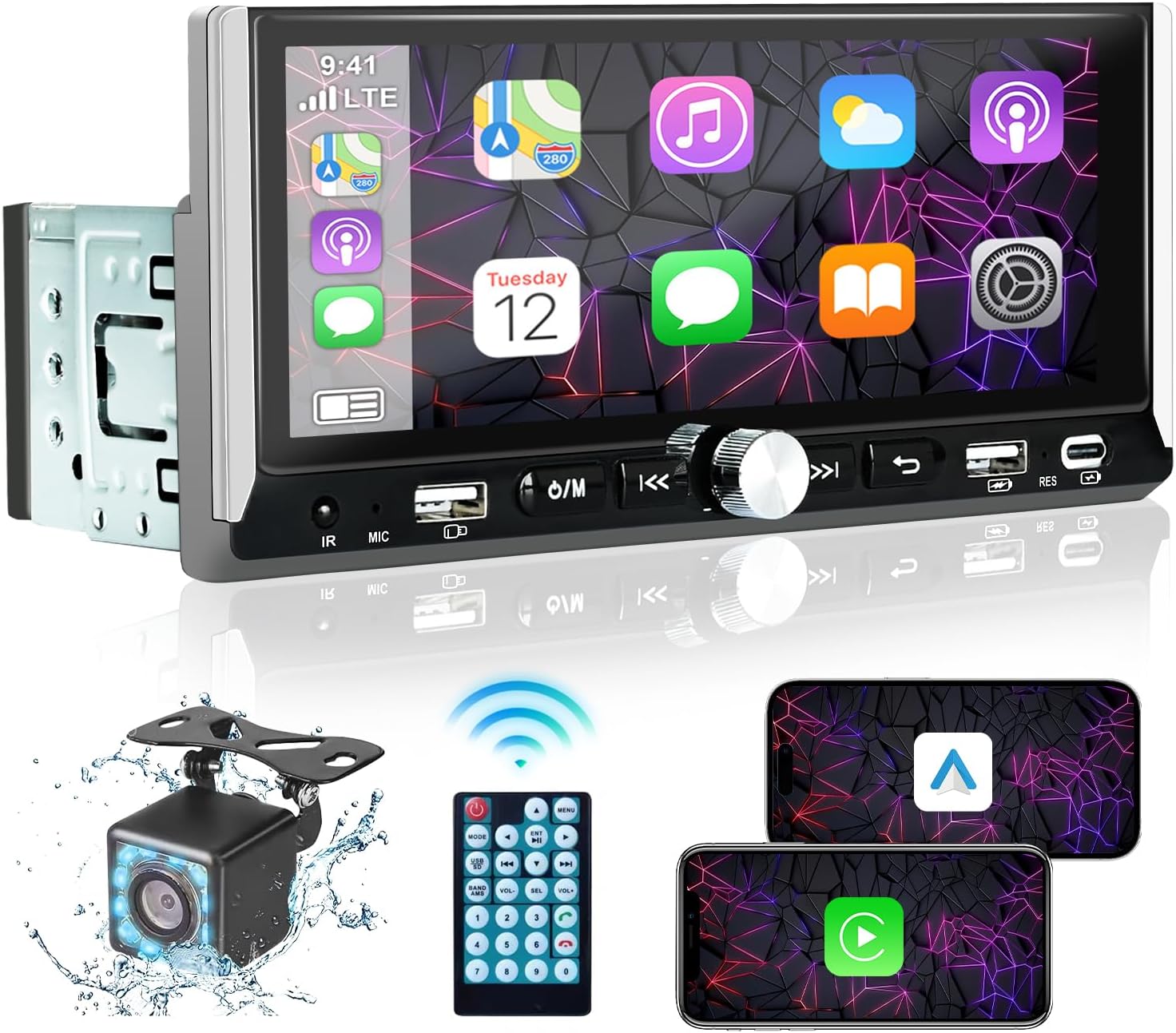
Image 1.1: SANPTENT Single DIN Car Stereo with included accessories.
2. Lieferumfang
- Ein-DIN-Autoradio
- Power Cable Horn Cable
- Fernbedienung
- Rückfahrkamera
- Bedienungsanleitung
3. Einrichtung und Installation
3.1. Sicherheitsvorkehrungen
- Um Kurzschlüsse zu vermeiden, muss vor dem Einbau der Minuspol der Fahrzeugbatterie abgeklemmt werden.
- Ensure all wiring is correctly connected according to the provided wiring diagram to avoid damage to the unit or vehicle.
- Ziehen Sie einen professionellen Installateur zu Rate, wenn Sie sich bei irgendeinem Teil des Installationsprozesses unsicher sind.
3.2. Kabelverbindungen
Connect the power cable, horn cable, and other necessary wires to your vehicle's electrical system. The unit includes standard ISO connectors for ease of installation. Ensure the backup camera is connected to the dedicated 'RCAM' input for automatic display when reversing.
3.3. Montage der Einheit
Install the single DIN unit into your vehicle's dashboard opening. Secure it using the provided mounting hardware. Ensure the touchscreen is positioned for optimal visibility and accessibility without obstructing driving view.
4. Bedienungsanleitung
4.1. Ein-/Ausschalten
Press the power button (usually marked with Ⓘ/M) to turn the unit on or off. The unit will automatically power on with the vehicle's ignition.
4.2. Kabelloses Apple CarPlay & Android Auto
To use wireless CarPlay or Android Auto, first ensure Bluetooth is enabled on your smartphone and the car stereo. Pair your phone with the car stereo via Bluetooth. Once paired, the system will prompt you to enable CarPlay or Android Auto. Follow the on-screen instructions to establish the connection.
4.3. Wired Apple CarPlay & Android Auto
Connect your iPhone or Android phone to the car stereo using a USB data cable. The system will automatically detect the connection and launch CarPlay or Android Auto. Follow any prompts on your phone to trust the device.

Bild 4.1: Überview of wireless and wired connectivity options.
Video 4.1: Demonstration of Bluetooth pairing and CarPlay functionality.
4.4. Bluetooth 5.0
The unit supports Bluetooth 5.0 for high-speed data transfer and stable connections. To pair, navigate to the Bluetooth menu on the stereo and enable Bluetooth on your phone. Select the car stereo's device name (e.g., "CAR-BT-F104") from your phone's Bluetooth settings. Once connected, you can stream audio and make hands-free calls.

Image 4.2: Hands-free Bluetooth functionality for calls and music.
4.5. Mirror-Link-Funktion
Mirror Link allows you to display your smartphone's screen directly on the car stereo. Connect your smartphone via a USB data cable. The stereo will mirror your phone's content, enabling you to view apps, videos, and navigation directly on the larger screen. Note: Compatibility may vary with certain phone models (e.g., some Huawei and Samsung devices).
4.6. GPS-Navigation
When connected via Apple CarPlay or Android Auto, you can use your preferred navigation applications (e.g., Apple Maps, Google Maps, Waze) directly on the car stereo's display. The large touchscreen provides a clear view of routes and directions.

Image 4.3: GPS navigation interface through CarPlay.
4.7. Sprachsteuerung
Utilize Siri or Google Assistant for hands-free control of various functions, including navigation, music playback, and calls. Activate voice control by saying the wake phrase (e.g., "Hey Siri" or "Hey Google") or by pressing the dedicated voice control button on the unit or steering wheel controls (if supported by your vehicle).
4.8. UKW-Radio
Access the FM radio function to listen to local broadcasts. The unit features an automatic channel search and save function, allowing you to quickly find and store your favorite stations. Use the touchscreen or physical buttons to tune and switch between stations.
4.9. EQ-Einstellungen
Customize your audio experience using the built-in Equalizer (EQ) settings. Adjust various frequency bands to tailor the sound output to your preferences. Preset options like Jazz, Classic, Pop, Rock, and Flat are available, along with a custom setting.

Image 4.4: Customizable EQ settings for personalized audio.
4.10. Rückseite View Kamera
The included 12-LED HD backup camera provides a clear view of the area behind your vehicle. When the vehicle is shifted into reverse, the car stereo automatically displays the camera feed with parking assist lines. The camera is waterproof and offers a 170-degree wide-angle view.

Bild 4.5: Hinten view camera display with parking assist lines.
5. Wartung
5.1. Reinigen des Bildschirms
Verwenden Sie ein weiches, fusselfreies Tuch, um den Touchscreen vorsichtig abzuwischen. Bei hartnäckigen Flecken etwas nachhelfen.ampReinigen Sie das Tuch mit Wasser oder einem für Bildschirme geeigneten Reiniger. Vermeiden Sie scheuernde Materialien oder aggressive Chemikalien.
5.2. Allgemeine Pflege
- Setzen Sie das Gerät nicht über längere Zeit extremen Temperaturen oder direkter Sonneneinstrahlung aus.
- Versuchen Sie nicht, das Gerät selbst zu zerlegen oder zu reparieren, da dies zum Erlöschen der Garantie führt.
- Halten Sie das Gerät frei von Staub und Schmutz.
6. Fehlerbehebung
Sollten Sie Probleme mit Ihrem Autoradio haben, beachten Sie bitte die folgenden gängigen Schritte zur Fehlerbehebung:
- Kein Strom: Überprüfen Sie alle Stromanschlüsse und den Sicherungskasten des Fahrzeugs. Stellen Sie sicher, dass das Gerät ordnungsgemäß geerdet ist.
- Kein Ton: Verify speaker connections. Check volume levels on both the stereo and your connected device. Ensure the mute function is not active.
- Bluetooth-/CarPlay-/Android Auto-Verbindungsprobleme: Ensure Bluetooth is enabled on both devices. Try forgetting the device on your phone and re-pairing. For wired connections, try a different USB cable.
- Touchscreen reagiert nicht: Try restarting the unit. If the issue persists, a factory reset may be necessary (refer to the setup menu).
- Rückfahrkamera zeigt kein Bild an: Überprüfen Sie die Strom- und Videoanschlüsse der Kamera. Stellen Sie sicher, dass das Kabel für das Rückwärtsgangsignal korrekt angeschlossen ist.
For persistent issues not resolved by these steps, please contact SANPTENT customer support.
7. Spezifikationen
| Besonderheit | Spezifikation |
|---|---|
| Technische Daten | 3.4"T x 7.3"B x 2"H (8.6 x 18.5 x 5.1 cm) |
| Artikelgewicht | 1.54 Pfund (0.7 kg) |
| Modellnummer | 763932917487 |
| Konnektivitätstechnologie | Bluetooth, Wi-Fi, USB, Type-C, Wireless, Wired, FM, Mirror Link |
| Controllertyp | Apple CarPlay & Android Auto, iOS Siri & Google Assistant, Remote Control, Push Button Knobs, Touchscreen |
| Besondere Merkmale | GPS Navigation, EQ Setting, Rear View Camera Input, Front Backup Camera, Touchscreen, Built-In Bluetooth, Voice Control, Mirror Link, Wired/Wireless Apple CarPlay/Android Auto |
| Kompatible Geräte | Apple iPhone, Android Phone, Smartphone, Amplifier, Tablet, Bluetooth Receiver Box Adapter |
| Steckertyp | USB, Type-C, Speaker & Power Jack, RCA, ANT, Wired/Wireless CarPlay/Android Auto |
| Audioausgabemodus | Stereo |
8. Garantie und Support
This SANPTENT product is covered by a manufacturer's warranty. Please refer to the warranty card included in your package for specific terms and conditions. For technical support, troubleshooting assistance, or warranty claims, please contact SANPTENT customer service through the retailer where the product was purchased or visit the official SANPTENT webWebsite.