
Produkt überview
The JSAUX 12-in-1 RGB Docking Station (Model HB1201S) is designed to expand the connectivity and enhance the gaming experience for portable gaming consoles such as the Steam Deck (OLED), ROG Ally, Legion Go, and MSI Claw. This docking station features multiple ports for video output, data transfer, network connectivity, and power delivery, along with customizable RGB lighting.

Bild: Überview of the JSAUX 12-in-1 RGB Docking Station, highlighting its various ports and features including Gigabit Ethernet, USB C PD (100W), USB A 3.2 (10Gbps), DisplayPort 1.4 (4K@120Hz), HDMI 2.1 (4K@120Hz), SD card slot, TF card slot, USB C 3.2 (10Gbps, no video output), IN: USB C (HOST), Retractable Stand, RGB Touch Switch, 3.5mm audio interface, USB A 2.0 (480Mbps), and RGB Light Strip.
Packungsinhalt
- JSAUX 12-in-1 RGB Docking Station (HB1201S)
- USB-C to USB-C Host Cable
- Bedienungsanleitung

Video: A person unboxes the JSAUX RGB Docking Station, showing the purple transparent dock and the included USB-C to USB-C cable. This video demonstrates the physical contents of the product packaging.
Installationsanweisungen
- Stromanschluss: Connect a 100W Power Delivery (PD) charger (not included) to the USB-C PD port on the docking station.
- Host-Geräte-Verbindung: Use the provided USB-C to USB-C cable to connect your gaming console (Steam Deck, ROG Ally, Legion Go, etc.) to the 'IN: USB C (HOST)' port on the docking station.
- Anzeigeverbindung:
- For single display: Connect your monitor or TV to either the HDMI (4K@120Hz) or DisplayPort (4K@120Hz) output.
- For dual display: Connect two monitors using both the HDMI and DisplayPort outputs. Note that dual-screen support maxes out at 4K@60Hz or 2K@120Hz.

Image: A Steam Deck is shown docked and connected to two external monitors, demonstrating the dual display output capability via HDMI and DisplayPort.
- Ethernet-Verbindung: Für eine stabile kabelgebundene Internetverbindung schließen Sie ein Ethernet-Kabel an den Gigabit-Ethernet-Anschluss der Dockingstation an.
- USB-Peripheriegeräte: Connect your USB devices (keyboard, mouse, external drives, etc.) to the available USB A 3.2 (10Gbps), USB C 3.2 (10Gbps), or USB A 2.0 (480Mbps) ports.
- Audioausgang: Connect headphones or external speakers to the 3.5mm audio jack for audio output.
- Speicherkarten: Insert SD or TF cards into their respective slots for data access. Note: Simultaneous reading of SD and TF cards is not supported.
Bedienungsanleitung
RGB-Beleuchtungsmodi
The docking station features six dynamic RGB lighting modes. You can cycle through these modes or turn the lighting on/off using the top-mounted touch switch. For custom lighting control, connect the USB-C upstream port to a PC and use OpenRGB software.
- Direkt
- Atmung
- Regenbogenwelle
- Spectrum Cycle
- Race Cycle
- Stapeln
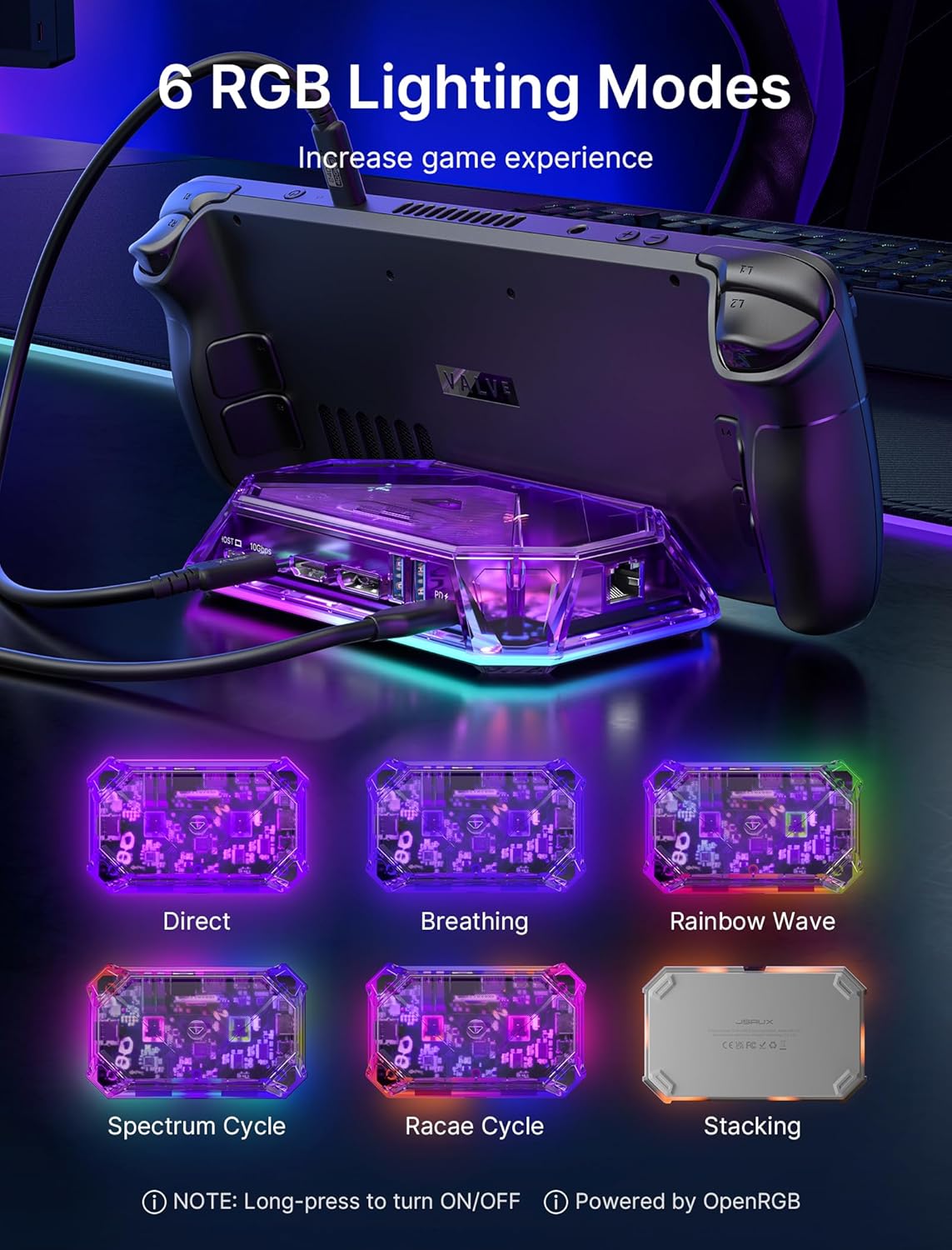
Image: The JSAUX RGB Docking Station is shown with a Steam Deck, illustrating six different RGB lighting modes: Direct, Breathing, Rainbow Wave, Spectrum Cycle, Race Cycle, and Stacking. Instructions for turning on/off and OpenRGB software are also visible.
Advanced Display Features
The HDMI and DisplayPort outputs support 4K@120Hz with advanced features for an enhanced visual experience:
- Variable Bildwiederholfrequenz (VRR): Synchronizes display refresh rate with the console's frame rate to eliminate screen tearing and stuttering.
- Auto-Low-Latency-Modus (ALLM): Automatically switches the display to a low-latency mode for smoother gaming.
- Hoher Dynamikumfang (HDR): Provides a wider range of colors and contrast for more vibrant and realistic images.

Image: A person is shown playing a video game on a large curved monitor, with the JSAUX docking station connected to a handheld console. The image highlights features like VRR (Variable Refresh Rate), ALLM (Auto Low Latency Mode), HDR (High Dynamic Range), and QFT (Quick Frame Transport) for an immersive experience.
Datenübertragung und Abrechnung
The docking station offers high-speed data transfer and efficient power delivery:
- Datenübertragung: USB A 3.2 and USB C 3.2 ports support data transfer speeds up to 10Gbps.
- Stromversorgung: The USB C PD 3.0 port supports up to 100W fast charging for your connected console or other compatible devices.

Image: The JSAUX docking station is shown with multiple USB cables connected, emphasizing the 10Gbps data transfer speed of its USB 3.2 ports.
Wartung
To ensure the longevity and optimal performance of your JSAUX 12-in-1 RGB Docking Station, follow these maintenance guidelines:
- Reinigung: Reinigen Sie die Außenseite der Dockingstation mit einem weichen, trockenen Tuch. Vermeiden Sie die Verwendung von flüssigen Reinigungsmitteln oder Scheuermitteln.
- Lagerung: Bewahren Sie die Dockingstation an einem kühlen, trockenen Ort fern von direkter Sonneneinstrahlung und extremen Temperaturen auf.
- Firmware-Updates: Periodically check the official JSAUX website for any available firmware updates. Keeping the firmware updated can improve compatibility and performance.
- Vorsichtig handhaben: Vermeiden Sie es, das Gerät fallen zu lassen oder starken Stößen auszusetzen.
Fehlerbehebung
Sollten Sie Probleme mit Ihrer Dockingstation haben, beachten Sie bitte die folgenden häufig auftretenden Probleme und Lösungen:
| Problem | Mögliche Ursache | Lösung |
|---|---|---|
| No video output or flickering screen | Loose cable connection, incompatible display settings, power issue. | Ensure all cables (USB-C host, HDMI/DisplayPort, power) are securely connected. Check your console's display settings and the monitor's input source. Verify the power adapter provides sufficient wattage (100W PD recommended). Try a different HDMI/DisplayPort cable. |
| USB-Geräte werden nicht erkannt | Loose connection, device driver issue, power limitation. | Reconnect the USB device. Ensure your console's drivers are up to date. If using multiple high-power USB devices, ensure adequate power is supplied to the dock. |
| Ethernet connection not working | Loose cable, network configuration, driver issue. | Check the Ethernet cable connection. Verify network settings on your console. Ensure the console's network drivers are updated. |
| Das Laden ist langsam oder funktioniert nicht | Insufficient power adapter, faulty cable. | Use a 100W Power Delivery (PD) charger. Ensure the USB-C PD cable is functioning correctly. |
| RGB-Beleuchtung funktioniert nicht | Lighting off, software issue. | Press the top-mounted touch switch to cycle through modes or turn on/off. If using OpenRGB, ensure the software is correctly configured and the dock is connected to a PC. |
| VRR/ALLM/HDR not working | Display incompatibility, console settings. | Ensure your connected display (monitor/TV) supports VRR, ALLM, and HDR. Verify these features are enabled in your console's display settings. |
Technische Daten
| Besonderheit | Detail |
|---|---|
| Modell | HB1201S |
| Maße | 3.62"L x 5.9"B x 1.11"H (9.19 x 14.99 x 2.82 cm) |
| Gewicht | 15.2 Unzen (0.43 kg) |
| Häfen | 12 Gesamt |
| Videoausgang | 1x HDMI 2.1 (4K@120Hz), 1x DisplayPort 1.4 (4K@120Hz) |
| USB-Anschlüsse | 2x USB A 3.2 (10Gbps), 1x USB C 3.2 (10Gbps, no video output), 1x USB A 2.0 (480Mbps) |
| Stromversorgung | 1x USB C PD 3.0 (up to 100W) |
| Ethernet | 1x Gigabit-Ethernet (1 Gbit/s) |
| Audio | 1x 3.5-mm-Audiobuchse |
| Kartenlesegeräte | 1x SD Card Slot (480Mbps), 1x TF Card Slot (480Mbps) |
| Kompatible Geräte | Valve Steam Deck, Steam Deck OLED, ASUS ROG Ally, Lenovo Legion Go, MSI Claw, OneXPlayer, AYANEO Slide, etc. |
| Besondere Merkmale | VRR, ALLM, HDR, 6 RGB Lighting Modes, OpenRGB Software Support |
Garantie und Support
JSAUX products are designed for reliability and performance. For warranty information, technical support, or to inquire about replacement parts, please visit the official JSAUX webWebsite oder wenden Sie sich direkt an den Kundendienst.
Offiziell WebWebsite: www.jsaux.com
Bitte bewahren Sie Ihren Kaufbeleg für eventuelle Garantieansprüche auf.