
Einführung
This manual provides essential information for setting up, operating, and maintaining your VIZIO 40-inch Full HD 1080p Smart TV. Please read these instructions carefully before using your television to ensure proper function and safety. This television offers superior Full HD picture quality with lifelike color, enhanced audio, and smart connectivity features for an immersive entertainment experience.
Lieferumfang
Vergewissern Sie sich vor der Einrichtung, dass alle Komponenten vorhanden sind:
- VIZIO 40-inch Full HD 1080p Smart TV
- Fernbedienung
- Stromkabel
- TV-Ständer (2-teilig)

Abbildung 1: Enthaltene Komponenten und Abmessungen des Fernsehers.
Aufstellen
1. Anbringen des Ständers
- Legen Sie den Fernseher vorsichtig mit dem Bildschirm nach unten auf eine weiche, saubere Oberfläche, um Beschädigungen zu vermeiden.
- Richten Sie die Standfüße an den Schraubenlöchern an der Unterseite des Fernsehers aus.
- Befestigen Sie die Standbeine mit den mitgelieferten Schrauben.
2. Wandmontage (optional)
If wall mounting, ensure you use a VESA-compliant mount (200 x 100 mm) and follow the mount manufacturer's instructions. Disconnect the power cable before mounting.
3. Stromversorgung anschließen
Stecken Sie das Netzkabel in den Stromanschluss des Fernsehers und anschließend in eine Wandsteckdose.
4. Erste Inbetriebnahme und Einrichtung
- Drücken Sie den Ein-/Ausschalter auf der Fernbedienung oder am Fernseher.
- Follow the on-screen prompts to select your language, connect to Wi-Fi, and complete the initial setup of the SmartCast OS.
- You may be prompted to install app updates. Allow the TV to complete this process.

Figure 2: VIZIO Account setup for Smart TV functionality and product updates.
Bedienung des Fernsehers
Fernbedienung
The included remote control allows you to navigate the SmartCast OS, adjust settings, and control connected devices. Ensure AAA batteries are installed correctly.
SmartCast OS
Your VIZIO Smart TV runs on the SmartCast OS, providing instant access to a wide selection of streaming services and apps. New apps are automatically added and updated.
- Startbildschirm: Access your favorite apps, inputs, and trending content.
- WatchFree+: Stream over 275 free channels and 15,000+ movies and shows on demand.
- App-Katalog: Browse and launch pre-installed applications like Disney Plus, Max, Netflix, Prime Video, and YouTube.
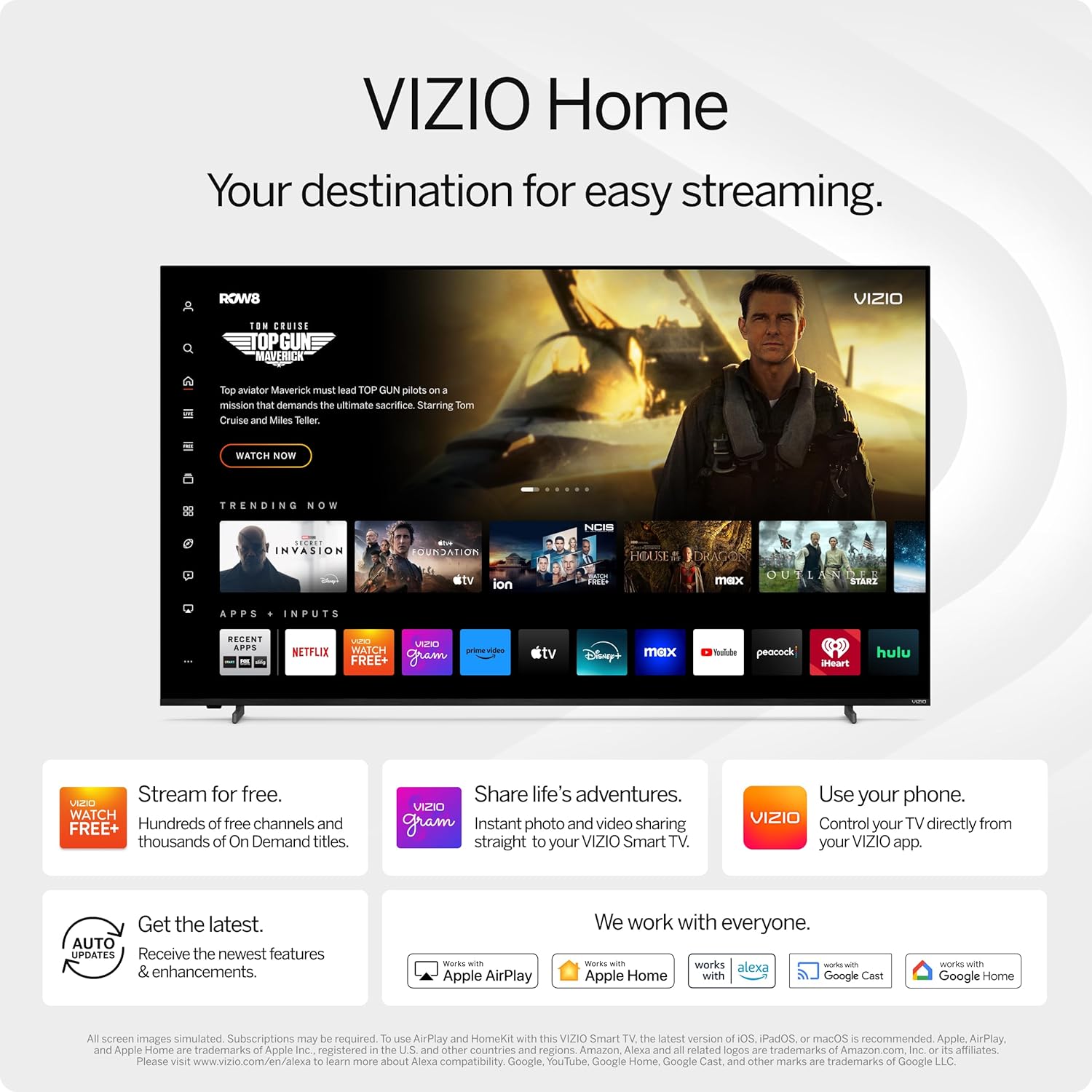
Figure 3: VIZIO Home screen for easy streaming and content access.

Figure 4: Accessing free content via WatchFree+.
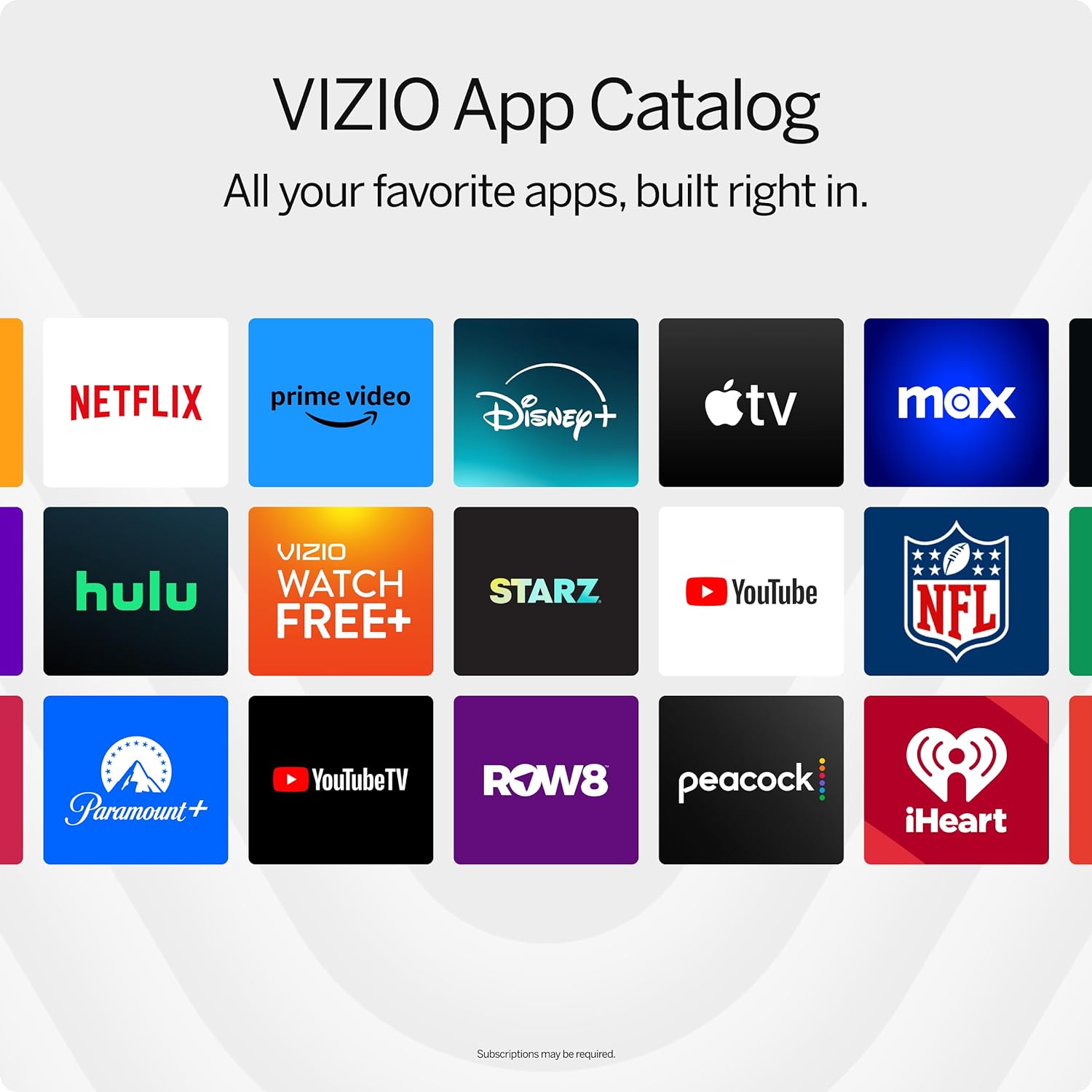
Figure 5: The VIZIO App Catalog with popular streaming services.
Konnektivität
- W-lan: Verbinden Sie sich mit Ihrem Heimnetzwerk für Internetzugang und Streaming.
- Bluetooth: Koppeln Sie Bluetooth-Kopfhörer für ungestörtes Musikhören.
- Chromecast Built-in & Apple AirPlay 2: Stream content directly from your Apple or Android devices to the TV.
- HDMI & USB: Connect external devices such as gaming consoles, Blu-ray players, or USB drives.
- Smart Home Integration: Compatible with Alexa-enabled devices, Google Assistant, and Apple Home for voice control and smart home management.
Hauptmerkmale
Bildqualität
Experience superior Full HD (1080p) picture with lifelike color and clarity. Features like Full Array LED Backlight and Active Pixel Tuning enhance contrast and brightness for a sharp, detailed image.

Abbildung 6: Überview of Full HD benefits including picture quality, smart platform, and Bluetooth audio.
Audio-Erlebnis
The TV features integrated DTS Virtual:X for an enhanced, cinema-inspired audio experience, creating the illusion of sound all around you. Bluetooth headphone capability allows for private listening without disturbing others.

Figure 7: DTS Virtual:X for immersive audio.
Gaming-Funktionen
This TV is game-ready with HDR10 support on HDMI, unlocking striking in-game details. When a console or PC is detected, FHD models automatically enable Auto Low Latency Mode and an integrated gaming menu for optimal performance.

Figure 8: HDR10 support enhances gaming visuals.
Technische Daten
| Besonderheit | Detail |
|---|---|
| Bildschirmgröße | 39.5 Zoll (40-Zoll-Klasse) |
| Auflösung | 1080p Full HD |
| Display-Technologie | LED (Full Array LED Backlight) |
| Bildwiederholrate | 60 Hz |
| HDR-Format unterstützt | HDR10/HLG |
| Audioausgabemodus | Surround (DTS Virtual:X compatible) |
| Betriebssystem | SmartCast OS |
| Konnektivitätstechnologie | Bluetooth 5.0, WLAN |
| Bildschirmspiegelung | AirPlay 2, Google Cast |
| Gesamtzahl der HDMI-Anschlüsse | 2 |
| Anzahl USB-Anschlüsse | 2 |
| Produktabmessungen (T x B x H) | 8.81"T x 35.13"B x 22.26"H |
| Artikelgewicht | 12.26 Pfund |
| VESA-Halterungsstandard | 200 x 100 mm |
| Energieaufnahme | 54 Watt |
| Modellnummer | VFD40M-0810 |
Fehlerbehebung
Kein Strom / Fernseher lässt sich nicht einschalten
- Stellen Sie sicher, dass das Netzkabel sowohl mit dem Fernseher als auch mit einer funktionierenden Steckdose fest verbunden ist.
- Testen Sie die Steckdose mit einem anderen Gerät, um sicherzustellen, dass sie Strom liefert.
- Versuchen Sie, den Ein-/Ausschalter direkt am Fernseher zu drücken, nicht nur auf der Fernbedienung.
Kein Bild / Schwarzer Bildschirm
- Prüfen Sie, ob die richtige Eingangsquelle ausgewählt ist (z. B. HDMI 1, HDMI 2).
- Überprüfen Sie alle Kabelverbindungen zwischen dem Fernseher und den externen Geräten.
- Starten Sie den Fernseher und alle angeschlossenen Geräte neu.
Kein Ton
- Erhöhen Sie die Lautstärke sowohl am Fernseher als auch an allen angeschlossenen Audiogeräten.
- Check the TV's audio settings to ensure the correct audio output is selected.
- Wenn Sie externe Lautsprecher verwenden, vergewissern Sie sich, dass diese ordnungsgemäß angeschlossen und eingeschaltet sind.
WLAN-Verbindungsprobleme
- Stellen Sie sicher, dass Ihr WLAN-Router eingeschaltet und funktionsfähig ist.
- Starten Sie Ihren Router und Ihr Modem neu.
- Rufen Sie die Netzwerkeinstellungen Ihres Fernsehers auf und versuchen Sie, die Verbindung zu Ihrem WLAN-Netzwerk wiederherzustellen.
- Stellen Sie den Fernseher näher an den Router oder ziehen Sie einen WLAN-Repeater in Betracht, falls das Signal schwach ist.
Wartung
Reinigen des Bildschirms
- Always turn off the TV and unplug the power cord before cleaning.
- Verwenden Sie ein weiches, fusselfreies Tuch (Mikrofasertuch wird empfohlen), um den Bildschirm vorsichtig abzuwischen.
- Bei hartnäckigen Flecken leicht andrücken.ampBefeuchten Sie das Tuch mit Wasser oder einem speziellen Bildschirmreiniger. Sprühen Sie den Reiniger niemals direkt auf den Bildschirm.
- Avoid using harsh chemicals, abrasive pads, or paper towels, as these can damage the screen.
Reinigung des Fernsehgehäuses
- Wischen Sie den Rahmen und den Standfuß des Fernsehers mit einem weichen, trockenen Tuch ab.
- Do not use liquid cleaners on the TV body.
Software-Updates
Your VIZIO Smart TV automatically receives software updates. Ensure your TV is connected to the internet to receive the latest features and enhancements.
Garantie und Support
Garantieinformationen
This VIZIO Smart TV comes with a 90 Tage eingeschränkte Garantie. Please refer to the warranty card included with your product for full terms and conditions, or visit the official VIZIO support webWebsite für weitere Details.
Kundenservice
For technical assistance, troubleshooting, or warranty claims, please contact VIZIO Customer Support. You can find contact information and additional resources on the official VIZIO webWebsite.
Online resources are available at www.vizio.com/support.