
1. Einleitung
This manual provides essential instructions for the safe and efficient use of your Meizu Note 21 Pro smartphone. Please read this manual thoroughly before operating the device and retain it for future reference.
2. Lieferumfang
- Meizu Note 21 Pro Smartphone
- Netzteil
- (Other accessories such as USB cable, SIM ejector tool, and documentation may vary by region.)
3. Gerätelayout
Familiarize yourself with the physical components of your Meizu Note 21 Pro.
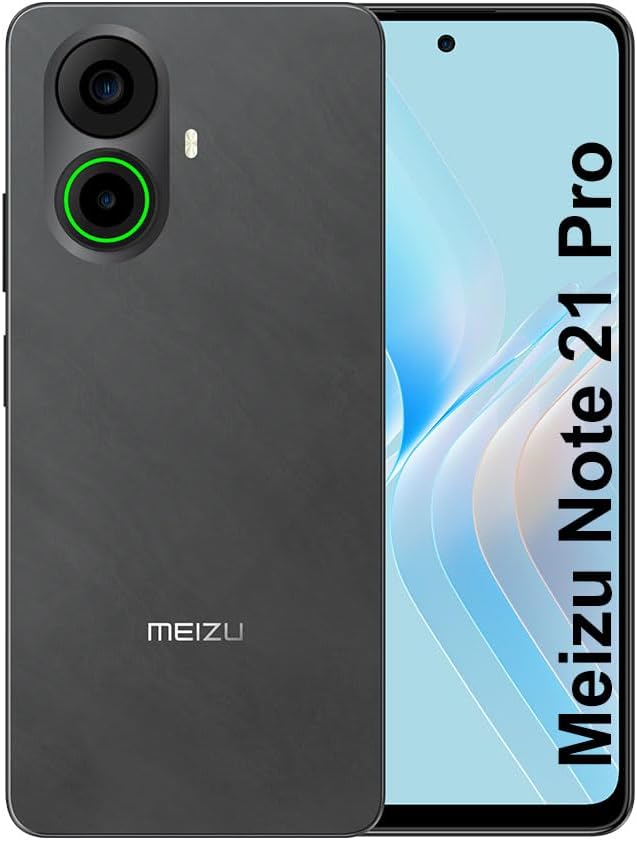
Bild 3.1: Vorne und hinten view of the Meizu Note 21 Pro. The front displays the screen with a punch-hole camera. The rear shows the dual camera module with a green accent ring on one lens, a flash, and the "MEIZU" logo at the bottom.
- Frontdisplay: 6.78-inch FHD+ screen with a 120Hz refresh rate.
- Frontkamera: Befindet sich oben in der Mitte des Displays.
- Rückfahrkameras: Dual camera system, including a 64MP main camera.
- Seitlicher Fingerabdrucksensor: Integrated for secure access.
- USB-Anschluss: Zum Aufladen und zur Datenübertragung.
- 3.5-mm-Audiobuchse: Für Kopfhörer.
- SIM-/MicroSD-Kartenfach: Supports Dual Nano SIM and MicroSD cards.
4. Einrichtung
4.1. Einlegen der SIM- und microSD-Karten
- Suchen Sie den SIM-Karten-Einschub an der Seite Ihres Geräts.
- Führen Sie das SIM-Auswurfwerkzeug in die kleine Öffnung neben dem Fach ein und drücken Sie vorsichtig, bis das Fach herausspringt.
- Legen Sie Ihre Nano-SIM-Karte(n) und/oder Ihre microSD-Karte in die dafür vorgesehenen Schlitze des Kartenfachs ein. Achten Sie darauf, dass die goldenen Kontakte nach unten zeigen.
- Setzen Sie die Ablage vorsichtig wieder in das Gerät ein, bis sie hörbar einrastet.
4.2. Erste Inbetriebnahme und Einrichtung
- Press and hold the Power button until the Meizu logo appears.
- Folgen Sie den Anweisungen auf dem Bildschirm, um Ihre Sprache auszuwählen, eine WLAN-Verbindung herzustellen und Ihr Google-Konto einzurichten.
- During setup, you will be guided to configure security features such as a PIN, pattern, or password.
4.3. Fingerprint Recognition Setup
- Navigieren Sie zu Einstellungen > Sicherheit und Datenschutz > Entsperren per Fingerabdruck.
- Follow the on-screen instructions to register your fingerprint by repeatedly touching the side-mounted sensor.
- Für eine optimale Leistung sollte Ihr Finger während der Registrierung die gesamte Sensorfläche bedecken.
5. Bedienung Ihres Geräts
5.1. Anzeige und Navigation
- The 6.78-inch FHD+ display operates at a 120Hz refresh rate for smooth visuals.
- Navigate the Android 14 operating system using touch gestures: tap, swipe, pinch-to-zoom.
- Die Schnelleinstellungen erreichen Sie durch Wischen vom oberen Bildschirmrand nach unten.
5.2. Kamerafunktionen
- Öffnen Sie die Kamera-App vom Startbildschirm oder aus der App-Übersicht.
- The rear camera system features a 64MP main sensor for high-resolution photos and a 2MP depth-of-field camera for portrait effects.
- The 13MP front-facing camera is suitable for selfies and video calls.
- Tap on the screen to focus, and use the on-screen shutter button to capture images. Explore various modes like Portrait, Night, and Pro within the camera app.
5.3. Leistung und Speicherung
- The MediaTek G99 Octa Core processor ensures efficient performance for applications and multitasking.
- The device comes with 256GB of internal storage and 8GB of RAM.
- Storage can be expanded using a MicroSD card (sold separately).
5.4. Akku und Aufladen
- The Meizu Note 21 Pro is equipped with a 5000mAh battery.
- Use the provided Power Adapter for 30W fast charging.
- To charge, connect the USB cable to the phone's USB port and the power adapter, then plug the adapter into a wall outlet.
5.5. Konnektivität
- 4G LTE: Supports various LTE FDD and TDD bands for cellular data. Note: This international version works on T-Mobile in the USA and globally with other carriers.
- WLAN 5: Stellen Sie eine Verbindung zu drahtlosen Netzwerken her, um auf das Internet zuzugreifen.
- Bluetooth: Kompatibel mit drahtlosem Zubehör wie Kopfhörern und Lautsprechern.
- NFC: Für kontaktloses Bezahlen und schnelles Koppeln mit kompatiblen Geräten.
- Geographisches Positionierungs System: Für Ortungsdienste und Navigation.
6. Wartung
- Reinigung: Reinigen Sie Bildschirm und Gehäuse des Geräts mit einem weichen, fusselfreien Tuch. Vermeiden Sie aggressive Chemikalien oder Scheuermittel.
- Batteriepflege: Avoid extreme temperatures. Do not fully discharge the battery frequently. For optimal battery longevity, keep the charge between 20% and 80%.
- Software-Updates: Prüfen Sie regelmäßig, ob Systemaktualisierungen verfügbar sind, und installieren Sie diese, um optimale Leistung und Sicherheit zu gewährleisten. Gehen Sie zu Einstellungen > System > Systemaktualisierung.
7. Fehlerbehebung
| Ausgabe | Mögliche Lösung |
|---|---|
| Gerät lässt sich nicht einschalten | Ensure the battery is charged. Connect the device to the power adapter and try again. If unresponsive, press and hold the Power button for 10-15 seconds to force a restart. |
| Schlechtes Netzwerksignal | Check if the SIM card is correctly inserted. Move to an area with better network coverage. Restart the device. Verify with your carrier that your plan is active. |
| Apps sind langsam oder stürzen ab | Hintergrundanwendungen schließen. App-Cache leeren (Einstellungen > Apps > App auswählen > Speicher & Cache > Cache leeren). Restart the device. Ensure sufficient storage space. |
| Fingerabdrucksensor funktioniert nicht | Ensure your finger and the sensor are clean and dry. Re-register your fingerprint in settings. |
8. Spezifikationen
- Modell: Meizu Note 21 Pro
- Betriebssystem: Android 14
- Prozessor: MediaTek G99 Octa Core (2.2GHz)
- Anzeige: 6.78 inches FHD+ (1080 x 2160 resolution), 120Hz Refresh Rate
- RAM: 8 GB
- Interner Speicher: 256 GB
- Rückfahrkamera: 64-MP-Hauptkamera + 2-MP-Tiefenkamera
- Frontkamera: 13 Megapixel
- Batterie: 5000 mAh, 30 W Schnellladung
- Konnektivität: 4G LTE (FDD:1,2,3,4,5,7,8,12,17,18,19,20,26,28,66; TDD:38,40,41), 3G WCDMA, 2G Quad Band, Wi-Fi 5, Bluetooth, NFC, GPS
- Audiobuchse: 3.5 mm
- Abmessungen: 6.64 x 2.96 x 0.33 Zoll
- Gewicht: 1.1 Pfund
9. Garantie und Support
For warranty information and technical support, please refer to the warranty card included with your product or visit the official Meizu webBewahren Sie Ihren Kaufbeleg für Garantieansprüche auf.
For further assistance, you may contact Meizu customer service through their official channels.