
1. Einleitung
The TP-Link Deco BE65 Pro WiFi 7 Mesh System is designed to provide a seamless, high-speed wireless network throughout your home. This 3-pack system utilizes cutting-edge WiFi 7 technology, offering tri-band BE9300Mbps speeds, Multi-Link Operation (MLO), and advanced security features like WPA3. With multiple 5Gbps and 2.5Gbps ports, it ensures robust wired and wireless connectivity for all your devices. This manual will guide you through the setup, operation, maintenance, and troubleshooting of your Deco BE65 Pro system.

Figure 1: A single TP-Link Deco BE65 Pro unit in a home environment.
2. Lieferumfang
Your TP-Link Deco BE65 Pro (3-Pack) package should contain the following items:
- 3 x Deco BE65 Pro Units
- 3 x-Netzteile
- 1 x Ethernet-Kabel
- 1 x Schnellinstallationsanleitung

Figure 2: The product packaging, indicating the contents and model information.
3. Produktüberschreitungview
The Deco BE65 Pro units are designed for optimal performance and ease of use. Each unit features multiple high-speed ports and advanced wireless capabilities to create a robust mesh network.
Hauptmerkmale:
- WiFi 7-Standard: Experience the latest generation of Wi-Fi with enhanced speed, lower latency, and increased capacity.
- Tri-Band BE9300Mbps: Delivers combined speeds of up to 9300 Mbps across 6 GHz, 5 GHz, and 2.4 GHz bands.
- Multi-Link-Betrieb (MLO): Simultaneously send and receive data across different bands and channels to boost throughput, reduce latency, and improve reliability.
- Hochgeschwindigkeitsanschlüsse: Each unit includes two 5Gbps ports and one 2.5Gbps port for ultra-fast wired connections.
- Nahtloses Roaming: Move freely throughout your home with a single Wi-Fi name and uninterrupted connectivity.
- TP-Link HomeShield: Provides comprehensive network protection, robust parental controls, and real-time IoT security.
- WPA3-Sicherheit: Enhanced security protocol for a safer network.
- Breite Kompatibilität: Backward compatible with all Wi-Fi generations and works with any Internet Service Provider (ISP) and modem.

Abbildung 3: Überview of the Deco BE65 Pro's key WiFi 7 features.
Anschlüsse und Anzeigen:
Each Deco BE65 Pro unit is equipped with the following ports and indicators:
- LED-Anzeige: Located on the top of the unit, it displays the Deco's status (e.g., solid white for connected, pulsing blue for setup mode, solid red for no internet).
- WAN/LAN-Anschlüsse: Two 5Gbps ports and one 2.5Gbps port. These ports automatically detect WAN or LAN connections.
- USB-Anschluss: Zum Anschluss externer Speichergeräte.
- Stromanschluss: Zum Anschluss des Netzteils.
- Reset-Taste: A small button usually located at the bottom or back, used to reset the unit to factory settings.
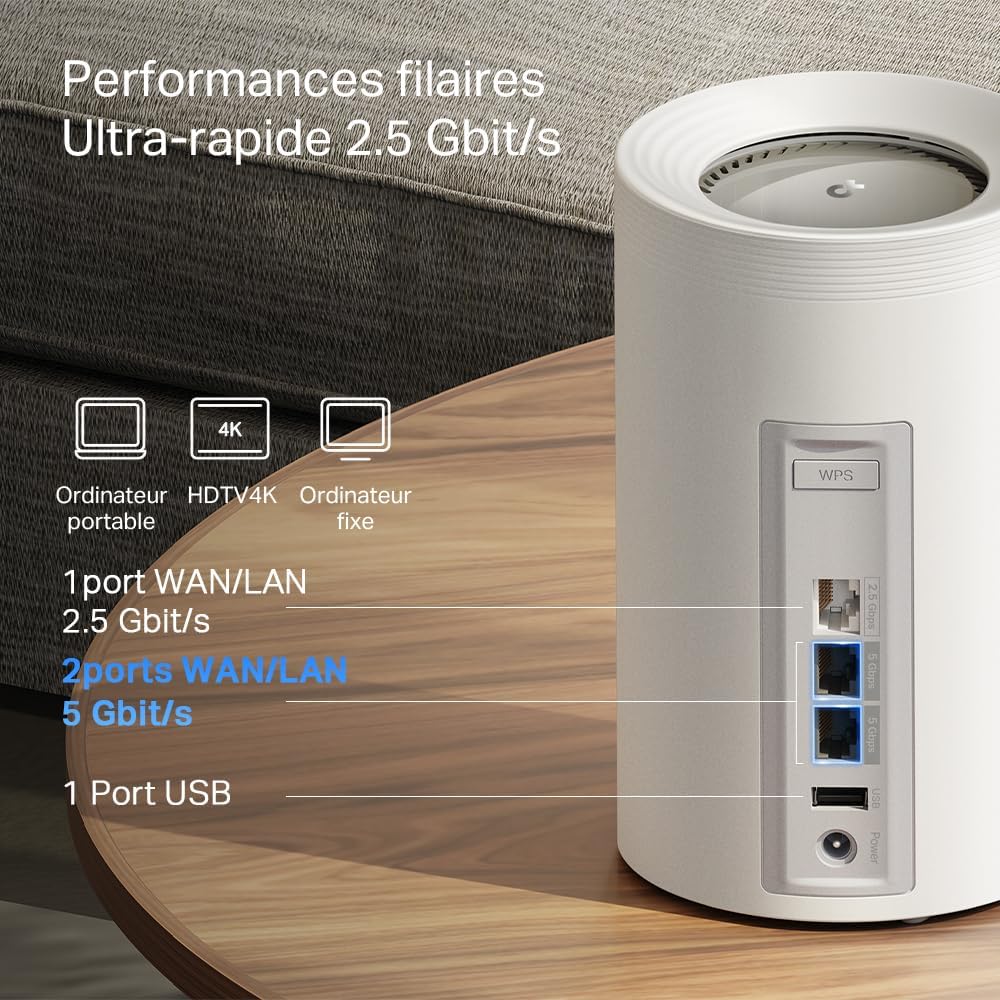
Abbildung 4: Ausführlich view of the high-speed WAN/LAN and USB ports on a Deco BE65 Pro unit.
Backhaul Solution:
The Deco BE65 Pro system utilizes a robust backhaul solution, combining both wired Ethernet and multiple Wi-Fi bands (6 GHz, 5 GHz, 2.4 GHz) to ensure stable and high-speed communication between Deco units. This multi-gigabit mesh backhaul enhances overall network performance and reliability.

Figure 5: Illustration of the combined wired and wireless backhaul connections between Deco units.
4. Einrichtungsanweisungen
Setting up your TP-Link Deco BE65 Pro Mesh System is a straightforward process using the Deco app. Follow these general steps:
- Lade die Deco-App herunter: Suchen nach "TP-Link Deco" in the App Store (iOS) or Google Play Store (Android) and install the app.
- Bereiten Sie Ihr Modem vor: Schalten Sie Ihr Modem aus und entfernen Sie gegebenenfalls den Akku.
- Schließen Sie die Haupt-Dekoeinheit an:
- Connect one Deco unit to your modem using the provided Ethernet cable. Use any of the WAN/LAN ports on the Deco.
- Schalten Sie Ihr Modem ein.
- Plug in the main Deco unit and wait for its LED to pulse blue.
- Set Up via App: Open the Deco app, log in or sign up for a TP-Link ID, and follow the on-screen instructions to set up your main Deco unit.
- Weitere Dekorationselemente hinzufügen: Once the main Deco is set up, the app will guide you to add the remaining Deco units. Place them strategically to ensure optimal coverage. Plug in each additional Deco unit and wait for its LED to pulse blue, then follow the app's instructions to add it to your mesh network.
For detailed, step-by-step instructions, refer to the Quick Installation Guide included in your package or the in-app setup wizard.
5. Bedienungsanleitung
The TP-Link Deco app is your central hub for managing your mesh Wi-Fi network. After successful setup, you can use the app to control various aspects of your network.
Network Management via Deco App:
- Armaturenbrett: View connected devices, network status, and real-time speed.
- Kindersicherung: Profi einrichtenfiles for family members, filter content, set time limits, and pause internet access.
- Dienstqualität (QoS): Prioritize devices or activities (e.g., gaming, streaming) to ensure optimal performance.
- Gast-Netzwerk: Richten Sie ein separates WLAN-Netzwerk für Gäste ein, um Ihr Hauptnetzwerk zu schützen.
- Antivirus & IoT Security: Utilize TP-Link HomeShield features for network protection against malicious threats and to secure your smart home devices.
- Wlan einstellungen: Change your Wi-Fi name (SSID) and password, enable/disable specific bands, and configure advanced settings.
- Nahtloses Roaming: The Deco system automatically connects your devices to the strongest Wi-Fi signal as you move around your home, ensuring a smooth and uninterrupted experience.
6. Wartung
Regular maintenance helps ensure the optimal performance and longevity of your Deco BE65 Pro system.
- Firmware-Updates: The Deco app will notify you of available firmware updates. It is highly recommended to keep your Deco units updated to benefit from the latest features, security enhancements, and performance improvements. Updates can typically be performed directly through the app.
- Reinigung: Gently wipe the exterior of the Deco units with a soft, dry cloth. Do not use liquid cleaners or abrasive materials. Ensure the units are unplugged before cleaning.
- Optimale Platzierung: For best performance, ensure your Deco units are placed in open areas, away from obstructions like large metal objects, thick walls, and other electronic devices that may cause interference. Maintain a clear line of sight between units where possible.
- Neustart: Occasionally, rebooting your Deco units and modem can resolve minor network issues and improve performance. This can be done via the Deco app or by unplugging and replugging the power adapters.
7. Fehlerbehebung
If you encounter issues with your Deco BE65 Pro system, try the following troubleshooting steps:
- Keine Internetverbindung:
- Prüfen Sie, ob Ihr Modem ordnungsgemäß funktioniert.
- Stellen Sie sicher, dass das Ethernet-Kabel zwischen dem Haupt-Deco und dem Modem fest angeschlossen ist.
- Starten Sie Ihr Modem und die Deco-Haupteinheit neu.
- Check the Deco app for diagnostic tools or error messages.
- Langsame WLAN-Geschwindigkeit:
- Ensure your Deco units are optimally placed and not too far apart.
- Überprüfen Sie, ob Störungen durch andere elektronische Geräte auftreten.
- Überprüfen Sie die Geschwindigkeit Ihres Internet-Tarifs bei Ihrem Internetanbieter.
- Verwenden Sie die Deco-App, um eine Netzwerkoptimierung oder einen Geschwindigkeitstest durchzuführen.
- Deco-Einheit verbindet sich nicht:
- Ensure the unit is powered on and its LED is pulsing blue for setup.
- Try moving the unit closer to an existing Deco unit.
- Perform a factory reset on the problematic Deco unit (refer to the Reset Button section in Product Overview) and try adding it again via the app.
- App-Probleme:
- Stellen Sie sicher, dass Ihre Deco-App auf die neueste Version aktualisiert ist.
- Versuchen Sie, die App oder Ihr Mobilgerät neu zu starten.
If these steps do not resolve your issue, please contact TP-Link support for further assistance.
8. Spezifikationen
Below are the technical specifications for the TP-Link Deco BE65 Pro Mesh System:

Figure 6: Illustration of the ultra-fast tri-band Wi-Fi speeds.
| Besonderheit | Spezifikation |
|---|---|
| Marke | TP-Link |
| Modellname | Deco BE65 Pro |
| Wi-Fi-Generierung | WLAN 7 |
| Drahtloser Kommunikationsstandard | 802.11be |
| Frequenzbandklasse | Tri-Band (6 GHz, 5 GHz, 2.4 GHz) |
| Datenübertragungsrate | Up to 9300 Mbps (BE9300) |
| LAN-Port-Bandbreite | 2 x 5000 Mbps, 1 x 2500 Mbps |
| Anzahl der Ports | 3 (WAN/LAN auto-sensing) |
| Security Protocol | WPA3, WPA2-PSK, WPA-PSK |
| Kontrollmethode | Application (TP-Link Deco App) |
| Kompatible Geräte | Surveillance Camera, Personal Computer, Smartphone, Tablet |
| Empfohlene Verwendung | Heim |
| Antennentyp | Fixed (4 antennas per unit) |
| Betriebssystem | TP-Link Archer OS |
| Smart Home Kompatibilität | Kompatibel mit Smart-Home-Geräten |
| Router Firewall Security Level | Hoch |
| Modem Compatible | Ja |
| Abdeckung | Large (with 3 units) |
| Artikelgewicht | 3.51 Kilograms (total for 3 units) |
| Artikelabmessungen L x B x H | 24.1L x 36B x 11.9H Zentimeter |
| Security Updates Received | Ja |
9. Garantie und Support
Garantieinformationen:
The TP-Link Deco BE65 Pro Mesh System comes with a 2 Jahr GarantieBitte bewahren Sie Ihren Kaufbeleg für Garantieansprüche auf.
Technische Unterstützung:
For technical support, product registration, and further information, please visit the official TP-Link website or contact their customer support. You can usually find support resources, FAQs, and contact details on the TP-Link support page for your region.
The TP-Link Deco app also provides in-app support options and access to helpful resources.