
1. Einleitung
This manual provides detailed instructions for setting up, operating, and maintaining your Dekala T2 Pro Smart Tag Tracker. The T2 Pro is designed to help you locate your valuable items using Apple's "Find My" network, offering peace of mind and efficient item recovery.
Bitte lesen Sie diese Bedienungsanleitung sorgfältig durch, bevor Sie das Gerät verwenden, um eine einwandfreie Funktion zu gewährleisten und Ihr Benutzererlebnis zu maximieren.
2. Produktüberschreitungview
The Dekala T2 Pro Smart Tag Tracker is a compact and portable device that integrates seamlessly with the Apple "Find My" network. Key features include:
- Apple "Find My" Network Compatibility: Utilizes the vast network of Apple devices for secure and precise location tracking.
- Ultra-Wideband (UWB) Technology: Enables high-precision tracking for both indoor and outdoor environments.
- Distance-Based "Left Behind" Warning: Notifies you if your tagged item is out of range for more than 4 minutes.
- Akustische Benachrichtigung: Activate a sound from the tracker via Siri or the "Find My" app to help you pinpoint nearby items.
- Lost Mode with Contact Information: Allows finders to access your contact details securely if your item is lost.
- Multi-Device Tracking and Sharing: Track multiple T2 Pro devices and share item locations with other "Find My" users.
- Austauschbare Batterie: Designed for long-term use with an easily replaceable battery.
- Privacy Encrypted: Ensures your location data remains private and secure.

Image: The Dekala T2 Pro Smart Tag Tracker highlighting its compact design, replaceable battery feature, and privacy encryption capabilities.
3. Einrichtungsanweisungen
Follow these steps to set up your Dekala T2 Pro Smart Tag Tracker with your Apple device:
- Bereiten Sie Ihr Gerät vor: Ensure your Apple iPhone, iPad, or iPod touch is running the latest version of iOS and has Bluetooth enabled.
- Open the "Find My" App: On your Apple device, open the pre-installed "Find My" application.
- Bluetooth aktivieren: From your device's Control Center or Settings, ensure Bluetooth is turned on.
- Neuen Eintrag hinzufügen: In the "Find My" app, navigate to the "Items" tab. Tap on the "+" icon, then select "Add Other Item".
- Tracker aktivieren: Press and hold the button on your Dekala T2 Pro Smart Tag Tracker until it emits a sound, indicating it's in pairing mode.
- Verbinden: Your Apple device will detect the T2 Pro. Follow the on-screen prompts to name your tracker and assign an icon.
- Bestätigung: Once connected, the T2 Pro will appear in your "Items" list within the "Find My" app.

Image: Visual guide demonstrating the three main steps for pairing the Dekala T2 Pro Smart Tag Tracker with the Apple "Find My" app.
4. Bedienungsanleitung
4.1 Ihren Artikel finden
To find an item attached to your Dekala T2 Pro:
- Using the "Find My" App: Open the "Find My" app, go to the "Items" tab, and select your T2 Pro. You will see its last known location on a map.
- Einen Ton abspielen: If the item is nearby, tap "Play Sound" in the app. The T2 Pro will emit an audible alert to help you pinpoint its exact location.
- Verwenden von Siri: You can also ask Siri, "Hey Siri, where are my keys?" (or whatever you named your tracker) to play a sound on the T2 Pro.
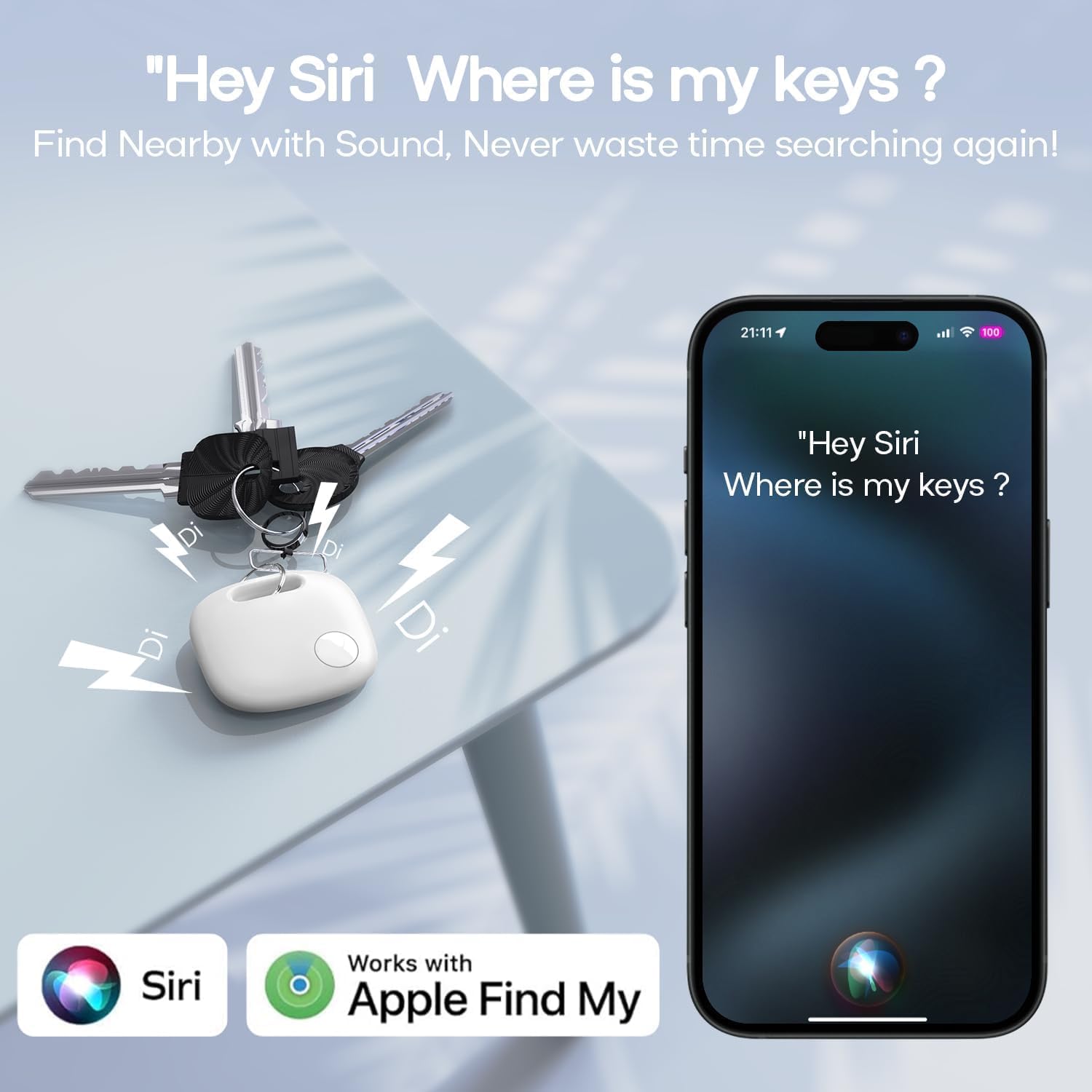
Image: The Dekala T2 Pro Smart Tag Tracker on a set of keys, illustrating how to use Siri to activate an audible alert for nearby item location.
4.2 "Left Behind" Alerts
The T2 Pro can notify you if you leave an item behind. If your tracker is separated from your Apple device for more than 4 minutes, you will receive an alert on your device.
- To manage these alerts, go to the "Find My" app, select your T2 Pro, and adjust the "Notify When Left Behind" settings.

Image: An iPhone displaying a "Smart Tag Left Behind" notification, demonstrating the alert feature when the tracker is separated from the user's device.
4.3 Verloren-Modus
If your item is lost, you can activate Lost Mode:
- In the "Find My" app, select your T2 Pro.
- Scrollen Sie nach unten und aktivieren Sie den „Verloren-Modus“.
- You can enter a phone number or email address where a finder can contact you.
- If someone finds your T2 Pro and scans it with an NFC-enabled smartphone, they will see your contact information.

Image: Illustration of the Lost Mode feature, showing a user navigating to a lost item's location on a map and the contact information displayed on an iPhone in Lost Mode.
4.4 Multi-Device Tracking and Sharing
You can add multiple T2 Pro devices to your "Find My" app to track various items simultaneously. Additionally, you can share the location of your T2 Pro with other "Find My" users, allowing friends or family to help locate items.
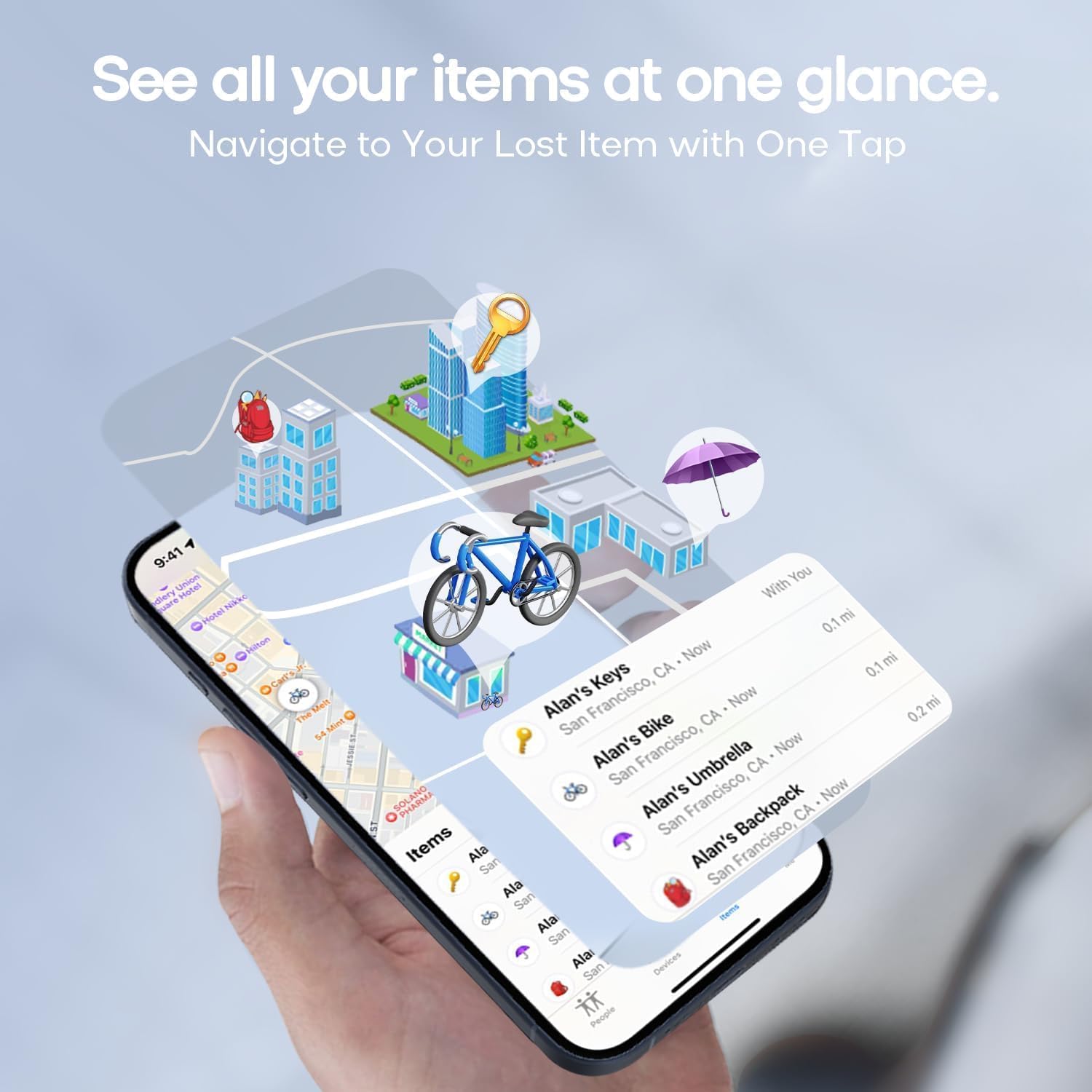
Image: An iPhone displaying the "Find My" app interface, showing multiple items (keys, bike, umbrella, backpack) being tracked simultaneously on a map.
5. Wartung
5.1 Batteriewechsel
The Dekala T2 Pro uses a replaceable coin cell battery (CR2032). The battery is designed to last approximately one year under normal usage. You can check the battery status in the "Find My" app.
- To replace the battery, gently open the tracker casing.
- Entfernen Sie die alte CR2032-Batterie.
- Legen Sie eine neue CR2032-Batterie mit der positiven (+) Seite nach oben ein.
- Close the tracker casing sicher.
Notiz: Entsorgen Sie gebrauchte Batterien verantwortungsvoll gemäß den örtlichen Vorschriften.
5.2 Reinigung
To clean your T2 Pro, wipe it with a soft, dry, lint-free cloth. Avoid using abrasive materials, solvents, or aerosol sprays, as these can damage the device.
6. Fehlerbehebung
6.1 Tracker Not Connecting/Pairing
- Stellen Sie sicher, dass Bluetooth auf Ihrem Apple-Gerät aktiviert ist.
- Make sure the T2 Pro is within range of your Apple device during pairing.
- Check the battery level of the T2 Pro. Replace if necessary.
- Starten Sie Ihr Apple-Gerät neu und versuchen Sie den Kopplungsvorgang erneut.
- Ensure your "Find My" app is updated to the latest version.
6.2 No Sound from Tracker
- Verify that the T2 Pro is connected and within Bluetooth range of your Apple device.
- Check the battery level. A low battery might affect sound output.
- Ensure your device's volume is not muted or too low.
6.3 Ungenaue Standortangabe
- Die Genauigkeit der Standortbestimmung hängt von der Dichte der Apple-Geräte in der Umgebung ab. In Gebieten mit weniger Apple-Geräten können Standortaktualisierungen seltener oder ungenau sein.
- Ensure your Apple device has a stable internet connection (Wi-Fi or cellular data) for the "Find My" app to receive location updates.
- UWB technology provides high precision when close, but overall location relies on the broader "Find My" network.
7. Spezifikationen
| Modellnummer | T2 Pro |
| Marke | Dekala |
| Maße | 25 x 25 x 15 mm (0.98 x 0.98 x 0.59 Zoll) |
| Gewicht | Ungefähr 50 Gramm |
| Material | Acrylnitril-Butadien-Styrol (ABS) |
| Akku-Typ | CR2032 Knopfzelle (austauschbar) |
| Konnektivität | Bluetooth, Apple "Find My" Network |
| Kompatibilität | Nur für iOS-Geräte (iPhone, iPad, iPod touch) |
8. Sicherheitshinweise
- Bewahren Sie das Gerät außerhalb der Reichweite von Kleinkindern und Haustieren auf, um ein versehentliches Verschlucken von Kleinteilen, insbesondere der Batterie, zu verhindern.
- Setzen Sie das Gerät keinen extremen Temperaturen, direkter Sonneneinstrahlung oder Feuchtigkeit aus.
- Versuchen Sie nicht, das Gerät zu zerlegen oder zu verändern, da dies zum Verlust der Garantie und zu Schäden führen kann.
- Dispose of the device and its battery responsibly according to local environmental regulations.
9. Garantie und Support
For warranty information and technical support, please refer to the documentation provided with your purchase or visit the official Dekala website. If you encounter any issues not covered in this manual, please contact Dekala customer service for assistance.