
Imagebon 7''(2+32G)
Imagebon Android Carplay Screen
Bedienungsanleitung
1. Einleitung
Welcome to the user manual for your new Imagebon 7-inch Android Carplay Screen. This device is designed to enhance your in-car entertainment and navigation experience with its powerful Android system, wireless connectivity, and multimedia capabilities. Please read this manual carefully to ensure proper installation, operation, and maintenance of your device.
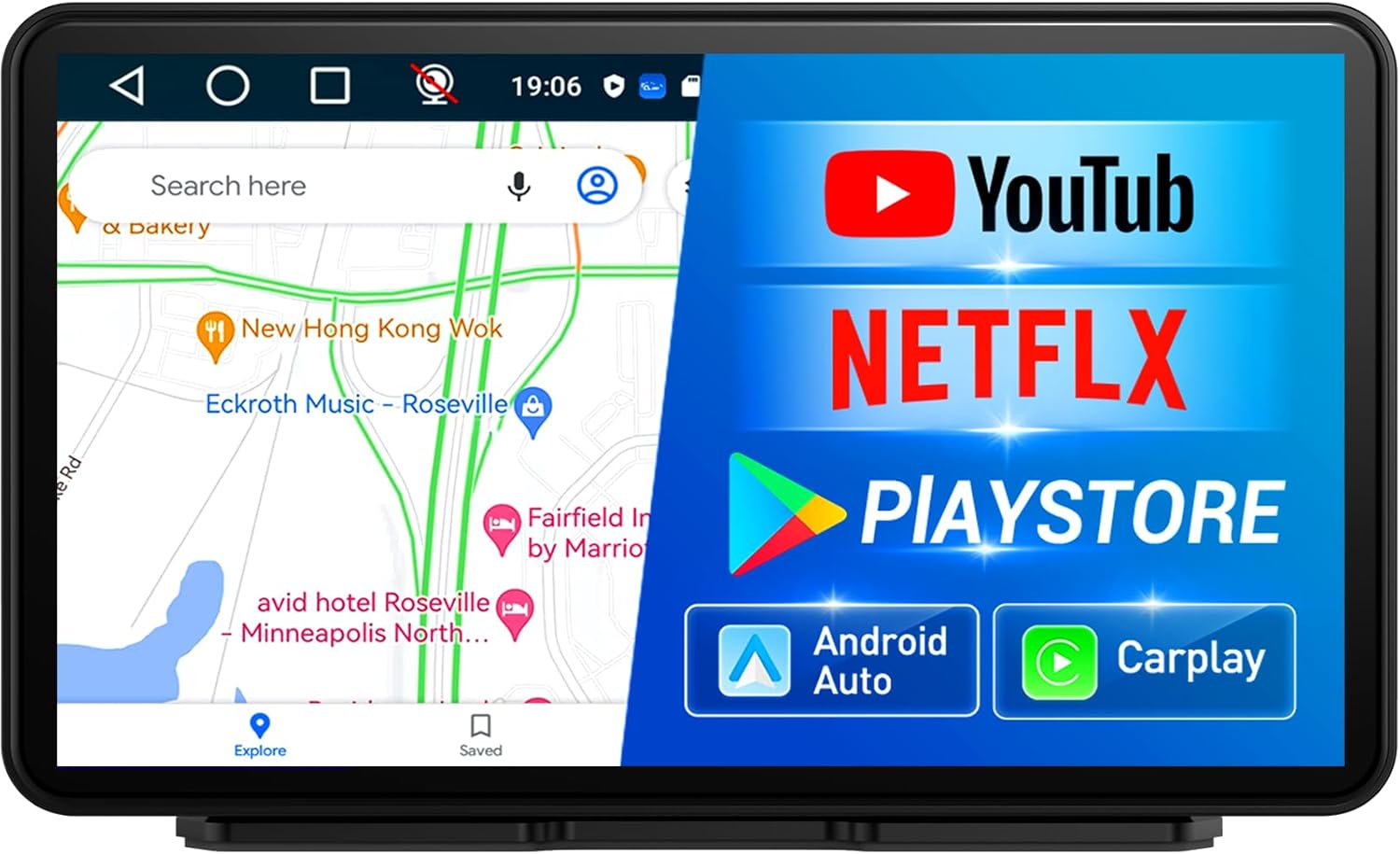
Abbildung 1: Haupt view of the Imagebon Android Carplay Screen.
2. Produktmerkmale
- Portable Display Audio with Android System: Equipped with a 4-Core CPU, 2GB RAM, and 32GB ROM for smooth performance and ample Speicher.
- Leistungsstarkes Android-System: Access online browsing and the Google Play Store for app downloads and content streaming. Supports offline maps for reliable navigation.
- Nahtlose Konnektivität: Supports wireless CarPlay and Android Auto via Bluetooth or Wi-Fi for hands-free calls and app control.
- Customizable and Convenience: Multiple audio outputs (AUX, FM, Bluetooth, built-in speaker) and SD card playback. AirPlay and Miracast support for screen mirroring.
- Enhanced Audio and Display Experience: Superior sound quality with various audio output options including Bluetooth, USB, AUX, FM, and USB flash drives.

Figure 2: The Imagebon model supports a wider range of applications compared to other carplay screens.
3. Einrichtung
3.1 Erstes Einschalten
Before first use, ensure the device is charged for at least 10 minutes or more. Use the original car charger or a charging head that provides at least 5V/3A to ensure stable power supply.

Figure 3: The device powers on, displaying its Android system and memory specifications.
3.2 Netzwerkverbindung
To access online features such as maps, Netflix, and YouTube, connect the device to a Wi-Fi network or your smartphone's hotspot. Navigate to the 'Settings' menu on the device to configure your network connection.
4. Bedienungsanleitung
4.1 Kabelloses CarPlay und Android Auto
The Imagebon Carplay Screen supports both wireless Apple CarPlay and Android Auto. Connect your smartphone via Bluetooth or Wi-Fi to enable seamless integration. This allows for voice calls, hands-free control, and access to your favorite navigation and music apps directly on the screen.
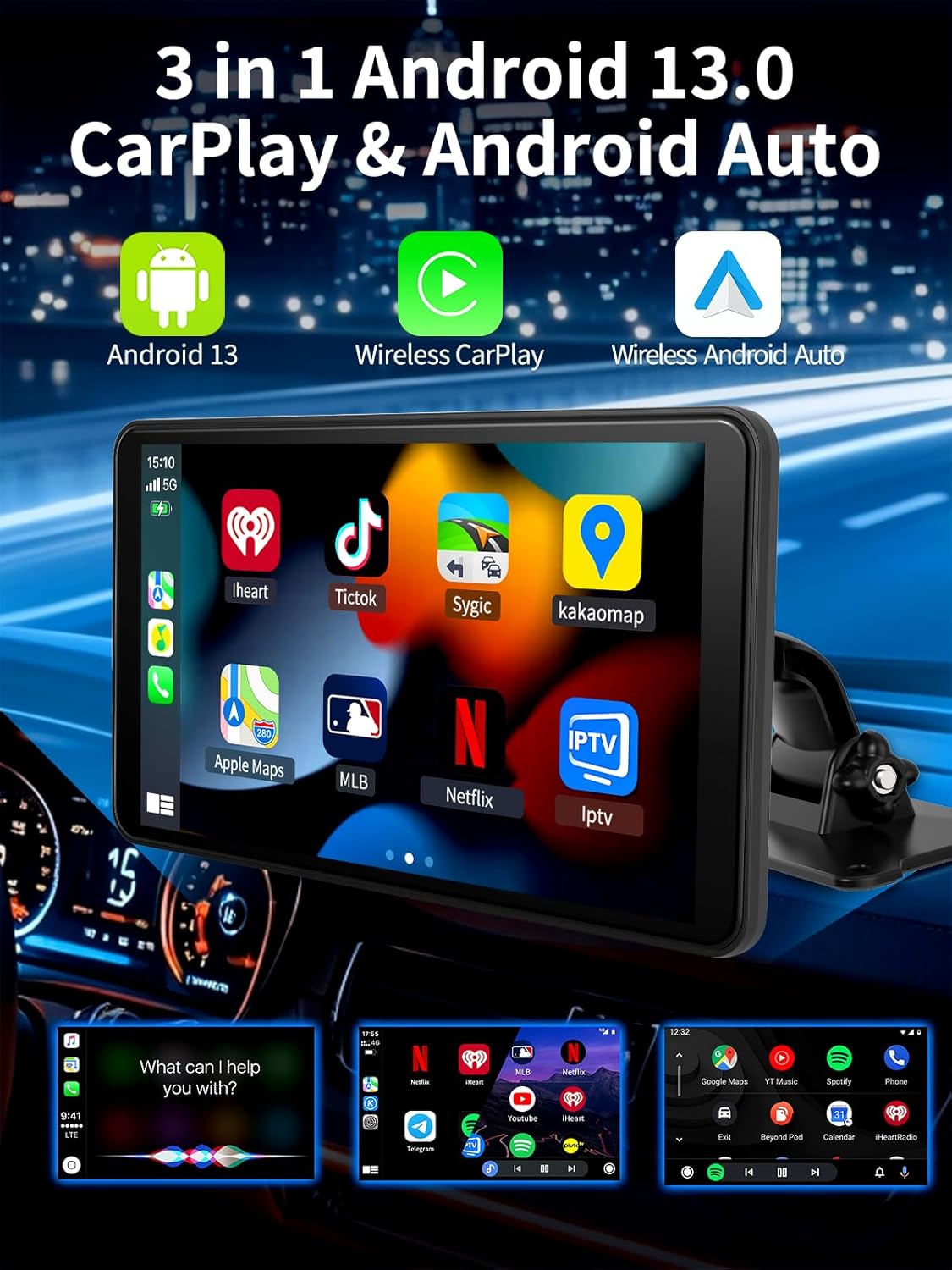
Figure 4: The device supports Android 13, Wireless CarPlay, and Wireless Android Auto for comprehensive smartphone integration.
4.2 GPS-Navigation
The device features built-in GPS navigation. Connect to Wi-Fi or your phone's hotspot to access real-time navigation apps like Google Maps and Waze. It also supports offline map downloads, ensuring navigation even without an internet connection.

Figure 5: The screen provides clear GPS navigation, supporting various mapping applications.
4.3 Multimedia-Wiedergabe
Enjoy a wide range of entertainment options. The powerful Android system allows you to download and stream content from apps like YouTube and Netflix. You can also play music, videos, and images directly from an SD card.

Figure 6: The device supports multiple settings and applications for enhanced user experience.
4.4 Bluetooth-Musik und Anrufe
Connect your phone via Bluetooth to stream music and make/receive calls directly through the Carplay screen. The device offers superior sound quality through various audio output options.

Figure 7: Seamless Bluetooth connectivity for music streaming and hands-free calling.
4.5 Mirror Link (AirPlay & Miracast)
Utilize AirPlay and Miracast features to mirror your device's screen onto the Carplay display. This allows you to easily access maps, YouTube, Netflix videos, and your favorite music from your smartphone.
4.6 KI-Sprachsteuerung
The device supports AI voice control, primarily available when using CarPlay or Android Auto mode. This feature allows for convenient, hands-free operation of various functions.
5. Wartung
To ensure the longevity and optimal performance of your Imagebon Carplay Screen, follow these maintenance guidelines:
- Reinigung: Reinigen Sie den Bildschirm mit einem weichen, fusselfreien Tuch. Bei hartnäckigen Flecken leicht andrücken.ampReinigen Sie das Tuch mit Wasser oder einem für Bildschirme geeigneten Reiniger. Vermeiden Sie aggressive Chemikalien.
- Lagerung: Bei längerer Nichtbenutzung sollte das Gerät an einem kühlen, trockenen Ort, vor direkter Sonneneinstrahlung und extremen Temperaturen geschützt aufbewahrt werden.
- Software-Updates: The device supports Over-The-Air (OTA) upgrades. Regularly check for and install software updates to ensure you have the latest features and performance improvements.

Figure 8: The device supports OTA (Over-The-Air) software upgrades for continuous improvement.
6. Fehlerbehebung
If you encounter issues with your Imagebon Carplay Screen, refer to the table below for common problems and their solutions:
| Problem | Mögliche Ursache | Lösung |
|---|---|---|
| Gerät lässt sich nicht einschalten. | Insufficient power supply or not charged. | Ensure the device is connected to a 5V/3A power source. Charge for at least 10 minutes before attempting to power on. |
| Cannot connect to Wi-Fi/Hotspot. | Incorrect password, out of range, or 5Ghz hotspot incompatibility. | Verify Wi-Fi password. Move closer to the Wi-Fi source. Ensure your hotspot is 2.4Ghz if the device does not support 5Ghz. |
| CarPlay/Android Auto verbindet sich nicht drahtlos. | Bluetooth not paired or Wi-Fi connection unstable. | Ensure Bluetooth is enabled on both devices and paired. Check Wi-Fi signal strength. Restart both the phone and the Carplay screen. |
| Keine Audioausgabe. | Incorrect audio output mode selected or volume too low. | Check the selected audio output (AUX, FM, Bluetooth). Increase volume on both the device and your car stereo. |
| Apps sind langsam oder stürzen ab. | Too many apps running in the background or low storage. | Close unnecessary background apps. Clear cache or uninstall unused apps to free up storage. Consider a factory reset if issues persist. |
7. Spezifikationen
| Besonderheit | Detail |
|---|---|
| Modellnummer | 7''(2+32G) |
| Bildschirmdiagonale | 7 Zoll / 18 cm |
| Prozessor | 4-Kern-CPU |
| RAM | 2 GB |
| ROM (Interner Speicher) | 32 GB |
| Betriebssystem | Android |
| Konnektivität | Wireless CarPlay, Android Auto, Bluetooth, Wi-Fi |
| Navigation | Built-in GPS, Supports offline maps |
| Audio-Ausgabemodi | AUX, FM, Bluetooth, Built-in Speaker, USB |
| Unterstützte Medien | SD card for music, videos, images |
| Spiegelung | AirPlay, Miracast |
| Artikelgewicht | 2.05 Pfund |
| Verpackungsabmessungen | 8.7 x 6.38 x 4.88 Zoll |
8. Lieferumfang
Your Imagebon Android Carplay Screen package includes the following items:
- Imagebon Carplay Screen Unit
- AUX-Kabel
- Autoladegerät
- 3M Klebehalterung

Abbildung 9: Im Produktpaket enthaltener Inhalt.
9. Garantie und Support
Imagebon products are designed for reliability and performance. For information regarding warranty coverage, technical support, or service inquiries, please refer to the warranty card included in your product packaging or visit the official Imagebon support webBewahren Sie Ihren Kaufbeleg als Kaufnachweis für eventuelle Garantieansprüche auf.
Zugehörige Dokumente - 7''(2+32G)
 |
Imagebon 6.86" Dashcam: Wireless CarPlay & Android Auto User Manual User manual for the Imagebon 6.86" dashcam, detailing features like wireless CarPlay, Android Auto, DVR, GPS navigation, and AI voice control. Includes specifications, setup, and operation guides. |
 |
Imagebon W60 Dash Cam User Manual Comprehensive user manual for the Imagebon W60 Dash Cam, detailing features, installation, and operation for the 11.3'' 8 Core Android 14 6+128GB model with Wireless CarPlay and Android Auto. |
 |
4G Multifunctional DVR User Manual Comprehensive user manual for the Imagebon M60 4G Multifunctional DVR, featuring Android 14, Wireless CarPlay, Android Auto, and remote live streaming monitoring. |
 |
Imagebon 6.86-inch Car Multimedia System with CarPlay, Android Auto, and Bluetooth User Manual Comprehensive user manual for the Imagebon 6.86-inch car multimedia system, detailing features like CarPlay, Android Auto, Bluetooth connectivity, navigation, audio playback, and installation instructions. |
 |
Imagebon H9Pro 4K ADAS Car DVR User Manual Comprehensive user manual for the Imagebon H9Pro 4K ADAS Car DVR, detailing features like CarPlay, Android Auto, screen mirroring, ADAS functions, installation, and troubleshooting. |
 |
Imagebon H70K 11.4" 4K Dashcam mit Wireless CarPlay und Android Auto – Benutzerhandbuch Umfassendes Benutzerhandbuch für die Imagebon H70K 11.4-Zoll-4K-Dashcam mit detaillierten Informationen zu Funktionen, Benutzeroberfläche, Einstellungen, Installation der Rückkamera und des GPS sowie Konnektivitätsoptionen, einschließlich kabellosem CarPlay und Android Auto. |
Ask a question about this manual
Ask about setup, troubleshooting, compatibility, parts, safety, or missing instructions. Manuals+ will review the question and use this page’s manual context to help answer it.