
1. Einleitung
The MageGee Moon104 is a versatile 104-key wireless mechanical keyboard designed for office and general use. It features triple-mode connectivity (2.4GHz wireless, Bluetooth, and USB-C wired), RGB backlighting, and an ergonomic design for comfortable typing. This manual provides detailed instructions for setup, operation, maintenance, and troubleshooting to ensure optimal performance of your keyboard.

Image: The MageGee Moon104 keyboard in a grey and black color scheme, featuring RGB backlighting, positioned on a desk with a laptop and other office accessories.
2. Packungsinhalt
Bitte prüfen Sie das Paket auf folgende Artikel:
- Drahtlose mechanische Tastatur MageGee Moon104
- USB-C-Kabel
- 2.4-GHz-USB-Empfänger (Dongle)
- Benutzerhandbuch (dieses Dokument)
3. Produktüberschreitungview
The Moon104 keyboard features a full-size 104-key layout with low-profile mechanical brown switches, designed for a responsive and quiet typing experience. It includes dedicated function keys, a numeric keypad, and adjustable tilt feet for ergonomic comfort.

Image: A full-size view of the MageGee Moon104 keyboard, highlighting its 104-key layout including the numeric pad and function row.
Hauptmerkmale:
- Dreifach-Konnektivität: Switch between USB-C wired, 2.4GHz wireless, and Bluetooth 3.0/5.0.
- RGB-Hintergrundbeleuchtung: Customizable seven-color breathing backlight system.
- Ergonomisches Design: Niedrigprofile keys, adjustable tilt feet, and a comfortable layout to reduce wrist strain.
- Langlebige Konstruktion: High-quality materials and brown mechanical switches for extended lifespan.
- N-Key-Rollover: Ensures all key presses are registered accurately, even during rapid typing.

Image: A visual representation of the N-key rollover feature, showing multiple keys being pressed simultaneously and registered.
4. Einrichtung und Konnektivität
The Moon104 keyboard supports three connection modes: USB-C wired, 2.4GHz wireless, and Bluetooth. You can switch between these modes using the function keys.
4.1. Kabelgebundene USB-C-Verbindung
- Locate the USB-C port on the keyboard, typically on the top edge.
- Verbinden Sie ein Ende des mitgelieferten USB-C-Kabels mit der Tastatur.
- Verbinden Sie das andere Ende des USB-C-Kabels mit einem freien USB-Anschluss an Ihrem Computer.
- Die Tastatur wird automatisch erkannt und ist sofort einsatzbereit.

Bild: Eine Nahaufnahme view of the keyboard's side, illustrating the detachable USB-C cable connected to the port.
4.2. 2.4-GHz-Funkverbindung
- Locate the 2.4GHz USB receiver (dongle) in the package.
- Stecken Sie den 2.4-GHz-USB-Empfänger in einen freien USB-Anschluss Ihres Computers.
- Drücken Sie auf der Tastatur Fn + Q to switch to 2.4GHz wireless mode. The indicator light will confirm the mode.
- The keyboard should automatically connect. If not, ensure the receiver is properly inserted and the keyboard is in 2.4GHz mode.
4.3. Bluetooth-Verbindung
The keyboard supports two Bluetooth channels (BT1 and BT2).
- Drücken Sie auf der Tastatur Fn + W for Bluetooth channel 1 or Fn + E for Bluetooth channel 2. The corresponding indicator light will flash rapidly, indicating pairing mode.
- On your device (computer, laptop, tablet, etc.), enable Bluetooth and search for new devices.
- Select "MageGee Moon104" (or similar name) from the list of available devices to pair.
- Nach erfolgreicher Kopplung leuchtet die Kontrollleuchte auf der Tastatur dauerhaft, anstatt zu blinken.
- To connect another device, repeat steps 1-3 using the other Bluetooth channel (Fn + W or Fn + E).
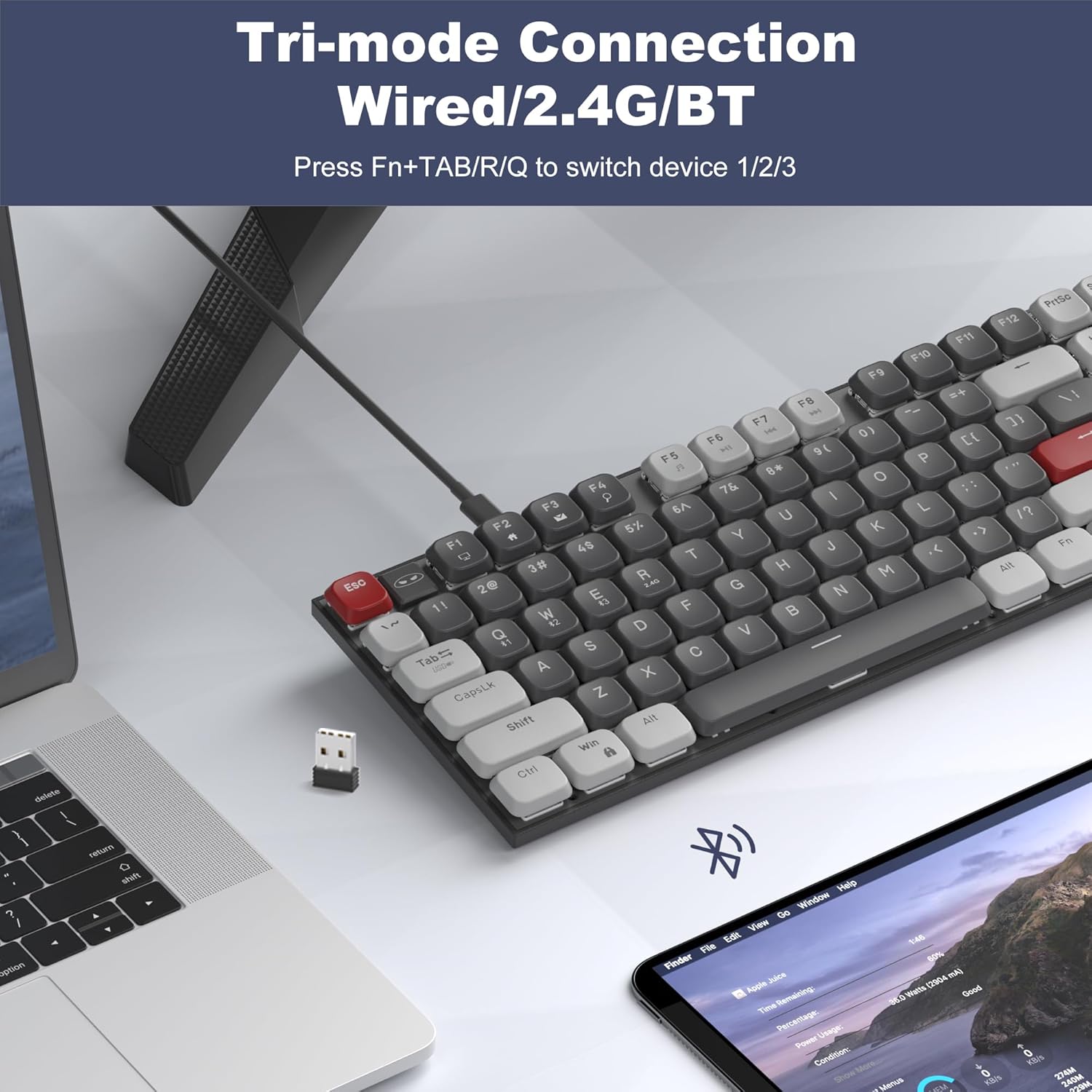
Image: The MageGee Moon104 keyboard shown with a 2.4GHz USB receiver plugged into a laptop, illustrating its wireless connectivity options.
5. Betriebsarten und Funktionen
5.1. Zwischen den Modi wechseln
To switch between the connected devices or modes:
- Drücken Fn + TAB for USB-C Wired Mode.
- Drücken Fn + Q for 2.4GHz Wireless Mode.
- Drücken Fn + W for Bluetooth Channel 1.
- Drücken Fn + E for Bluetooth Channel 2.
5.2. RGB-Hintergrundbeleuchtungssteuerung
The Moon104 keyboard features a seven-color breathing RGB backlight system. Use the following key combinations to control the lighting:
- Drücken Fn + Einf um durch verschiedene Hintergrundbeleuchtungsmodi zu schalten.
- Drücken Fn + Entf to change backlight colors within certain modes.
- Drücken Fn + ↑ (Up Arrow) to increase backlight brightness.
- Drücken Fn + ↓ (Down Arrow) to decrease backlight brightness.
- Drücken Fn + ← (Left Arrow) to decrease backlight speed.
- Drücken Fn + → (Right Arrow) to increase backlight speed.
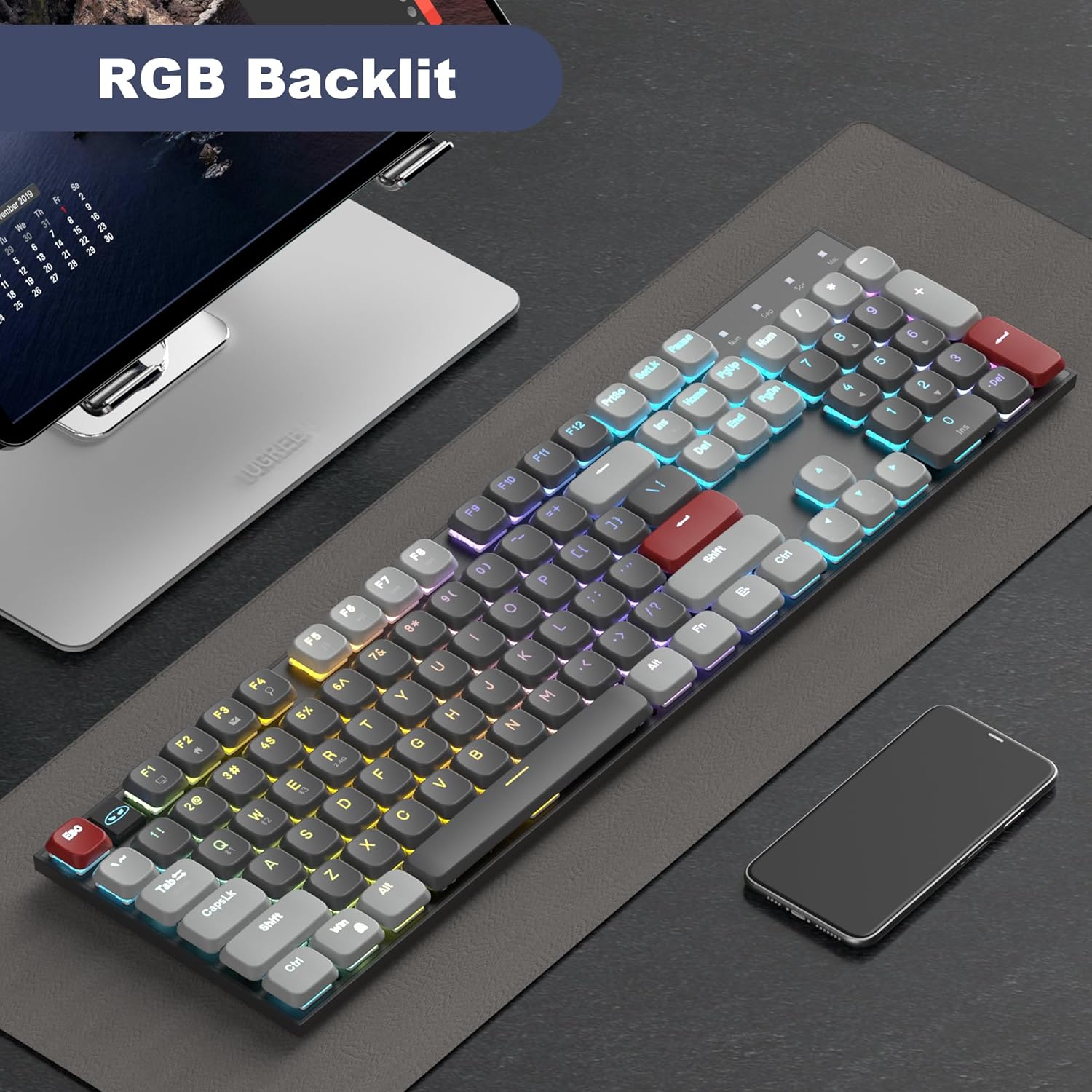
Image: The MageGee Moon104 keyboard displaying its RGB backlighting in a colorful pattern, enhancing visibility in low-light conditions.
5.3. Multimedia- und Funktionstasten
Die Tastatur verfügt über spezielle Funktionstasten (F1-F12), die mit den folgenden kombiniert werden können: Fn key for multimedia controls and other shortcuts. Refer to the keycap legends for specific functions.
- Fn + F1-F12: Various multimedia and system functions (e.g., volume control, media playback, web Browser).
- Feststellanzeige: An indicator light shows when Caps Lock is active.
- Batterieanzeige: An indicator light provides information on battery status.
6. Kompatibilität
The MageGee Moon104 keyboard is compatible with a wide range of operating systems and devices:
- Betriebssysteme: Windows 10/8/7, macOS.
- Geräte: Computers, desktops, PCs, laptops, Surface devices, Smart TVs, gaming consoles.
A dedicated switch on the side of the keyboard allows you to toggle between Windows and Mac compatibility modes for optimal key mapping.
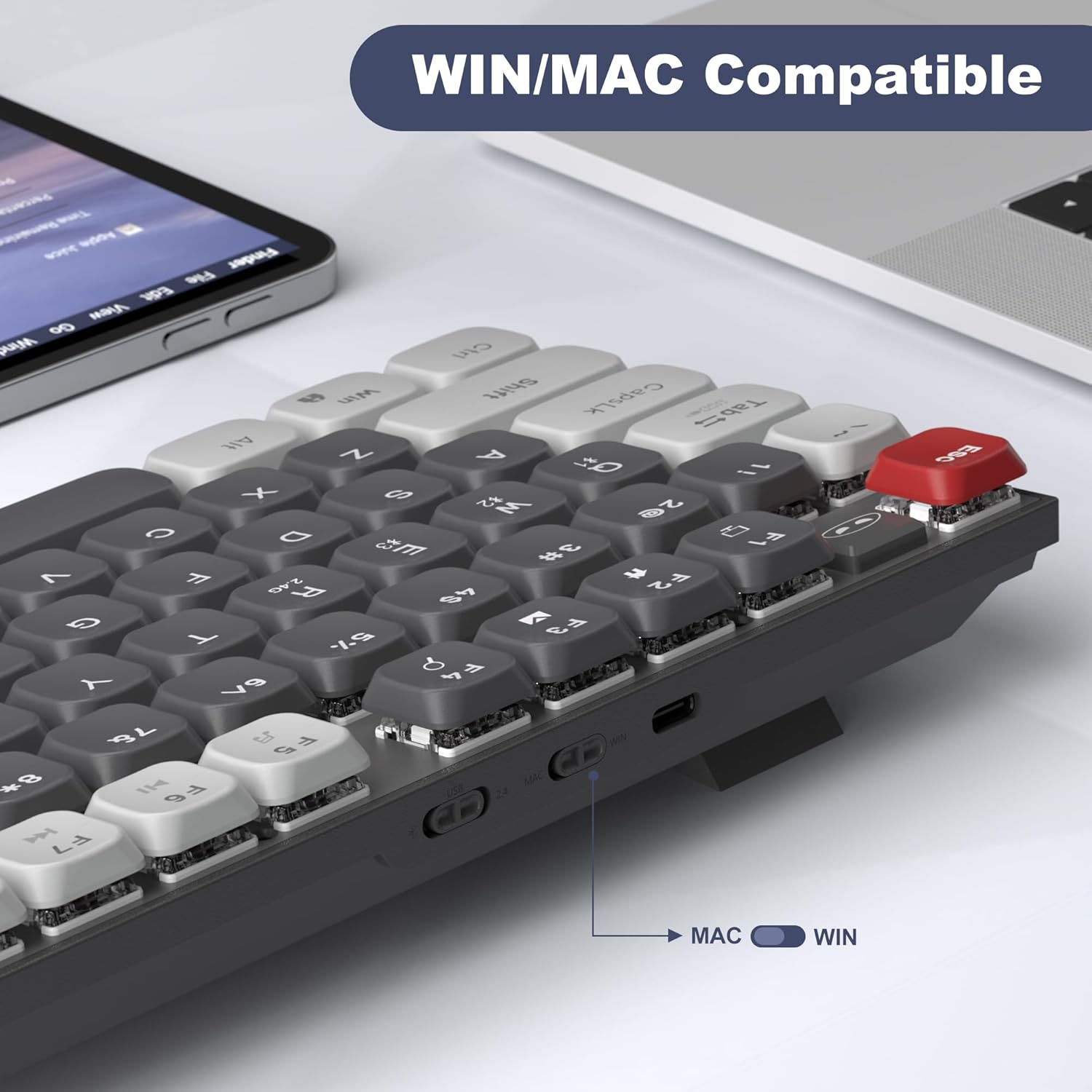
Bild: Eine detaillierte view of the keyboard's side, showing the physical switch to select between WIN (Windows) and MAC operating system modes.
7. Wartung
Durch sachgemäße Wartung werden die Langlebigkeit und Leistungsfähigkeit Ihrer Tastatur gewährleistet:
- Reinigung: Wischen Sie die Tastaturoberfläche mit einem weichen, trockenen Tuch ab. Für eine gründlichere Reinigung verwenden Sie Druckluft, um Staub und Schmutz zwischen den Tastenkappen zu entfernen. Vermeiden Sie die Verwendung von scharfen Chemikalien oder Scheuermitteln.
- Lagerung: Bewahren Sie die Tastatur an einem kühlen, trockenen Ort fern von direkter Sonneneinstrahlung und extremen Temperaturen auf.
- Batteriepflege: For wireless modes, ensure the keyboard is charged regularly using the provided USB-C cable. Avoid completely draining the battery frequently to prolong its lifespan.
- Flüssigkeitsexposition: Avoid spilling liquids on the keyboard. If accidental spills occur, immediately disconnect the keyboard, power it off, and allow it to dry completely before attempting to use it again.
8. Fehlerbehebung
If you encounter issues with your MageGee Moon104 keyboard, please refer to the following troubleshooting steps:
8.1. Keyboard Not Responding (Wired Mode)
- Stellen Sie sicher, dass das USB-C-Kabel sowohl mit der Tastatur als auch mit Ihrem Computer fest verbunden ist.
- Versuchen Sie, die Tastatur an einen anderen USB-Anschluss Ihres Computers anzuschließen.
- Test the cable with another device or use a different USB-C cable if available.
- Ensure the keyboard is set to wired mode (Fn + TAB).
8.2. Keyboard Not Responding (2.4GHz Wireless Mode)
- Ensure the 2.4GHz USB receiver is securely plugged into a USB port on your computer.
- Ensure the keyboard is set to 2.4GHz mode (Fn + Q).
- Prüfen Sie den Akkustand der Tastatur und laden Sie sie gegebenenfalls auf.
- Try plugging the receiver into a different USB port, preferably directly into the computer rather than a USB hub.
- Move the keyboard closer to the receiver to rule out interference.
8.3. Keyboard Not Responding (Bluetooth Mode)
- Stellen Sie sicher, dass Bluetooth auf Ihrem Gerät aktiviert ist.
- Ensure the keyboard is set to the correct Bluetooth channel (Fn + W or Fn + E) and is in pairing mode (flashing indicator).
- Falls die Tastatur zuvor gekoppelt war, versuchen Sie, die Kopplung in den Bluetooth-Einstellungen Ihres Geräts aufzuheben und sie anschließend erneut zu koppeln.
- Prüfen Sie den Akkustand der Tastatur und laden Sie sie gegebenenfalls auf.
- Restart your device's Bluetooth function or restart the device itself.
8.4. Function Keys (e.g., Volume Control) Not Working
- Stellen Sie sicher, dass Sie die Taste drücken. Fn key in combination with the desired function key (e.g., Fn + F1 for media functions).
- Verify the keyboard's operating system switch (WIN/MAC) is set correctly for your system.
- Check your computer's operating system settings for any conflicting hotkey assignments or driver issues.
8.5. Backlight Not Working or Incorrect
- Ensure the backlight is not turned off or set to minimum brightness (Fn + ↑).
- Durchschalten der Hintergrundbeleuchtungsmodi mit Fn + Einf.
- Check battery level; low battery might affect backlight performance.
8.6. Keyboard Enters Sleep Mode Too Quickly
- The keyboard is designed to enter sleep mode to conserve battery. Press any key to wake it up.
- There is no user-adjustable setting to change the sleep timer.
9. Spezifikationen
| Besonderheit | Detail |
|---|---|
| Modell | Mond104 |
| Marke | MageGee |
| Konnektivität | USB-C-Kabelanschluss, 2.4-GHz-Funkverbindung, Bluetooth 3.0/5.0 |
| Anzahl der Schlüssel | 104 |
| Tastaturlayout | QWERTY |
| Schaltertyp | Brown Mechanical Switches (Tactile) |
| Hintergrundbeleuchtung | RGB (7-color breathing backlight system) |
| Kompatible Betriebssysteme | Windows, macOS |
| Material | Plastik |
| Stromquelle | USB-Stromversorgung |
10. Garantie und Support
The MageGee Moon104 keyboard comes with a 1 Jahr Garantie ab Kaufdatum.
If you encounter any issues or have questions regarding your product, please contact MageGee customer support. We aim to reply to all inquiries within 24 hours and provide a satisfactory solution.
Kontaktieren Sie den Support: Please reach out to us via Amazon email for assistance.
Note: This warranty covers manufacturing defects. Damage caused by misuse, accidents, unauthorized modifications, or normal wear and tear is not covered.