
Einführung
The MOBAPAD D1 is a Bluetooth 5.2 wireless controller adapter designed to enhance your gaming experience by allowing you to connect various controllers to multiple platforms. This adapter enables the use of original Switch Joy-Cons and Pro Controllers with Windows 10/11 PCs, Nintendo Switch consoles, and Android devices. It features ultra-low latency connectivity and supports dual controller connections for a seamless gaming experience.
Aufstellen
Lieferumfang
Bevor Sie beginnen, vergewissern Sie sich, dass alle Komponenten vorhanden sind:
- MOBAPAD D1 Bluetooth Wireless Controller Adapter
- Benutzerhandbuch (dieses Dokument)
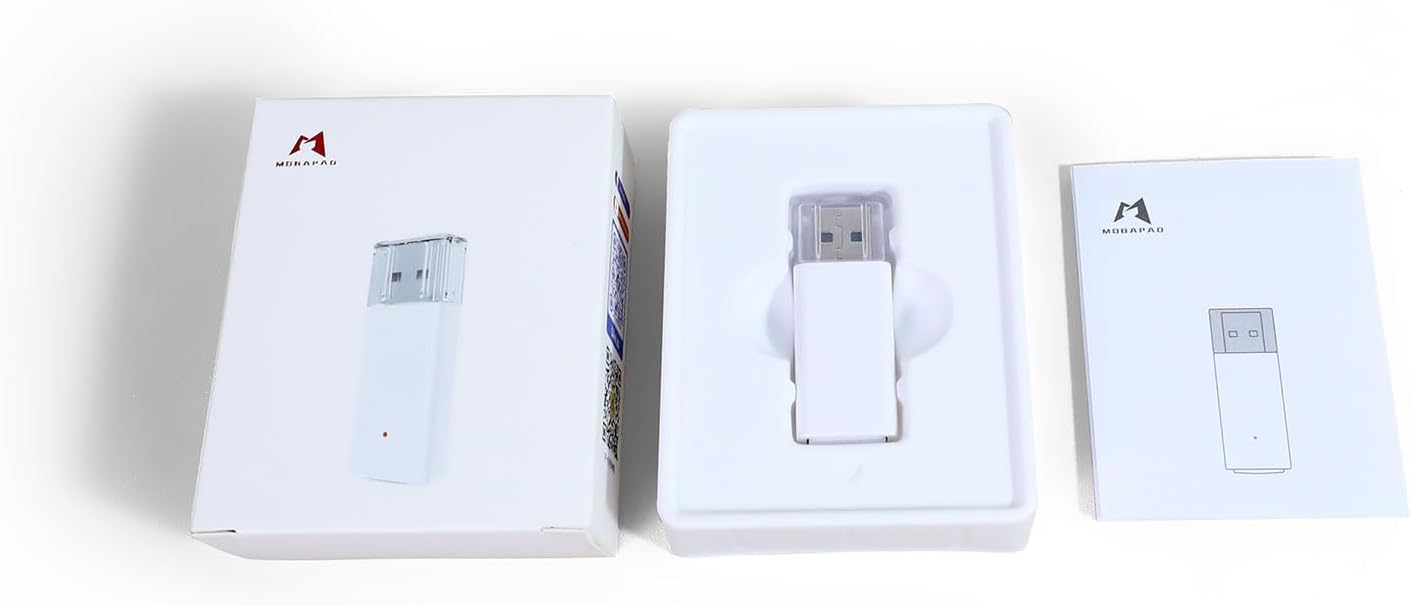
Image: The MOBAPAD D1 adapter shown with its retail packaging and a small printed manual.
Erstverbindung
The MOBAPAD D1 adapter is plug-and-play. No drivers or software installations are required.
- Insert the MOBAPAD D1 adapter into an available USB Type-A port on your desired device (PC, Nintendo Switch dock, Android device via OTG adapter).
- The adapter's indicator light will begin to flash, indicating it is ready for pairing.
Koppeln von Controllern
The adapter supports pairing with original Nintendo Switch Joy-Cons and Pro Controllers.
Pairing Joy-Cons

Image: Illustration of how to connect a pair of Nintendo Joy-Cons to the MOBAPAD D1 adapter.
- Ensure your Joy-Cons are charged and not currently paired to another device.
- Press and hold the small circular pairing button on the side of each Joy-Con until the indicator lights begin to flash.
- The Joy-Cons will automatically connect to the MOBAPAD D1 adapter. The indicator light on the adapter will change to a solid color, and the player indicator lights on the Joy-Cons will illuminate.
Pairing Pro Controllers

Image: Illustration of how to connect two Nintendo Switch Pro Controllers to the MOBAPAD D1 adapter.
- Ensure your Pro Controller is charged and not currently paired to another device.
- Press and hold the small circular pairing button on the top of the Pro Controller until the indicator lights begin to flash.
- The Pro Controller will automatically connect to the MOBAPAD D1 adapter. The indicator light on the adapter will change to a solid color, and the player indicator lights on the Pro Controller will illuminate.
The adapter can remember up to 4 controller pairings.
Betriebsarten
The MOBAPAD D1 adapter supports multiple operating modes to ensure compatibility across various platforms:
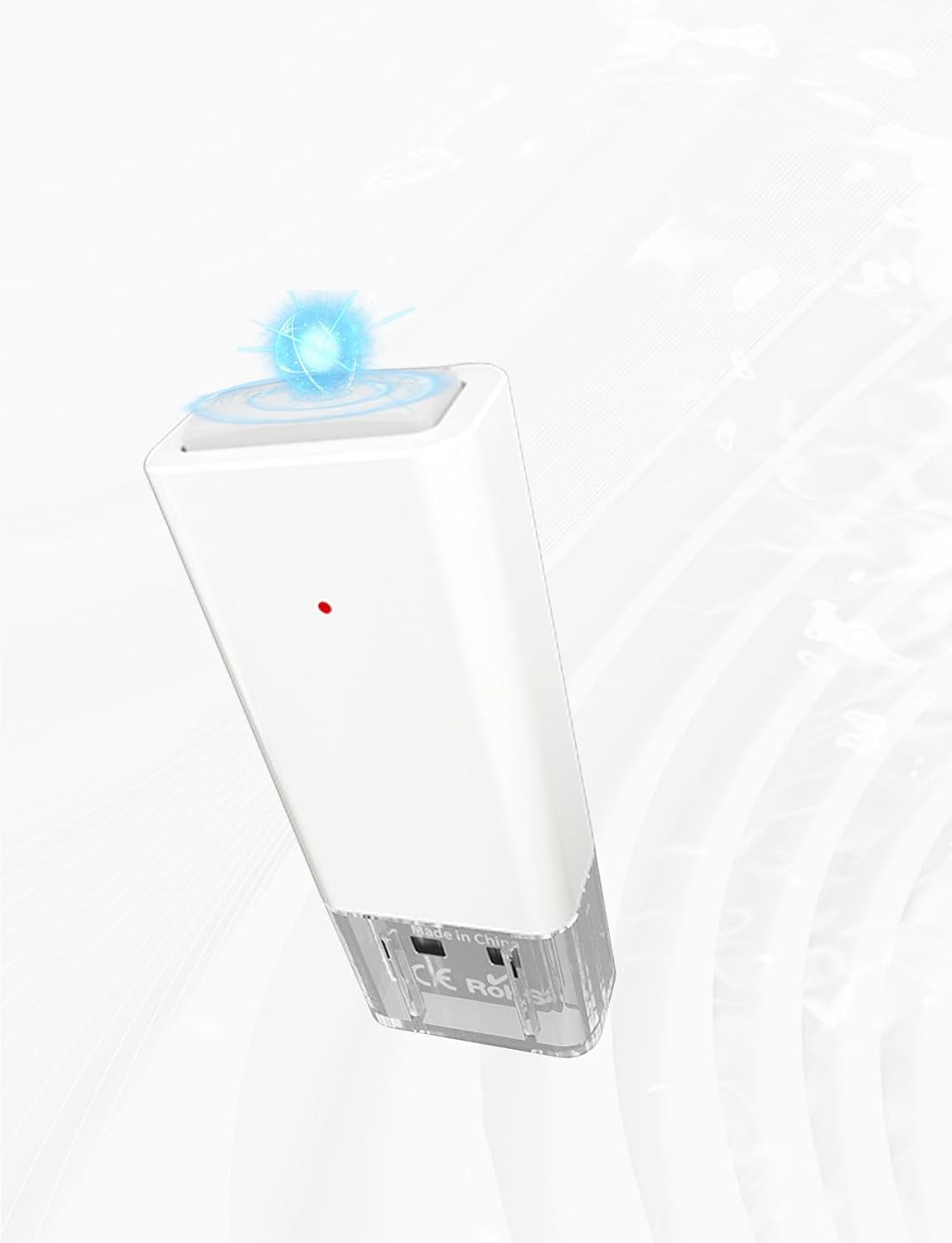
Image: The MOBAPAD D1 adapter supports XINPUT for Windows, Pro Controller mode for Steam, and Gamepad mode for Android.
- XINPUT-Modus: For Windows 10/11 PCs. This mode provides broad compatibility with PC games.
- Switch Pro Mode: For Nintendo Switch consoles and Steam. This mode emulates a Nintendo Switch Pro Controller.
- Android Gamepad Mode: For Android phones and tablets. This mode provides standard gamepad functionality for Android games.
The adapter automatically detects the connected platform and switches to the appropriate mode. No manual switching is required.
Adapter Status Indicator
The small LED light on the adapter indicates its status:

Image: The MOBAPAD D1 adapter displaying its blue indicator light, signifying an active connection.
- Blinklicht: The adapter is in pairing mode, searching for controllers.
- Festes Licht: The adapter is successfully connected to one or more controllers.
Wartung
Reinigung
To maintain the adapter's performance and appearance:
- Wischen Sie die Oberfläche des Adapters mit einem weichen, trockenen Tuch ab.
- Verwenden Sie keine flüssigen Reiniger, Lösungsmittel oder Scheuermittel, da diese das Gerät beschädigen können.
Lagerung
When not in use, store the adapter in a cool, dry place away from direct sunlight and extreme temperatures. Keep it away from dust and moisture.
Fehlerbehebung
Adapter Not Connecting to Device
- Stellen Sie sicher, dass der Adapter vollständig in einen funktionierenden USB-Anschluss eingesteckt ist.
- Versuchen Sie einen anderen USB-Anschluss an Ihrem Gerät.
- If using with an Android device, ensure your device supports USB OTG (On-The-Go) and that the OTG adapter is working correctly.
Controllers Not Pairing
- Ensure the adapter's indicator light is flashing, indicating it is in pairing mode.
- Make sure the controllers are charged and not currently connected to another device (e.g., the Nintendo Switch console).
- Press and hold the pairing button on the controller until its indicator lights flash.
- Move the controller closer to the adapter during the pairing process.
- Restart the host device (PC, Switch, Android) and re-attempt pairing.
Eingangsverzögerung oder Verbindungsabbrüche
- Ensure there are no significant obstructions between the controller and the adapter.
- Minimize interference from other wireless devices (Wi-Fi routers, other Bluetooth devices) by moving them further away.
- Stellen Sie sicher, dass der Akku des Controllers ausreichend geladen ist.
- If multiple controllers are connected, ensure they are within optimal range.
Technische Daten
| Besonderheit | Detail |
|---|---|
| Modellnummer | Mobapad D1 |
| Konnektivität | Bluetooth 5.2 |
| Steckertyp | USB Typ A |
| Kompatible Geräte | Gaming Console (Nintendo Switch), Windows 10/11 PCs, Android devices |
| Unterstützte Controller | Original Switch Joy-Cons, Switch Pro Controllers |
| Abmessungen (L x B x H) | 0.75 x 0.39 x 1.93 Zoll |
| Gewicht | 25 Gramm |
| Farbe | Weiß |
| Leistungsaufnahme | 5V 500mA (via USB) |
Garantieinformationen
The MOBAPAD D1 Bluetooth 5.2 Wireless Controller Adapter comes with a 1 Jahr eingeschränkte Garantie from the date of purchase. This warranty covers manufacturing defects and malfunctions under normal use. It does not cover damage caused by misuse, accidents, unauthorized modifications, or external causes.
Bitte bewahren Sie Ihren Kaufbeleg für Garantieansprüche auf.
Unterstützung
For further assistance, technical support, or warranty inquiries, please contact MOBAPAD customer service through the retailer where the product was purchased or visit the official MOBAPAD webWebsite für Kontaktinformationen.