
1. Einleitung
This manual provides essential information for setting up, operating, maintaining, and troubleshooting your Acer Nitro V 15 gaming laptop. Please read this manual thoroughly to ensure proper use and to maximize the performance and lifespan of your device.
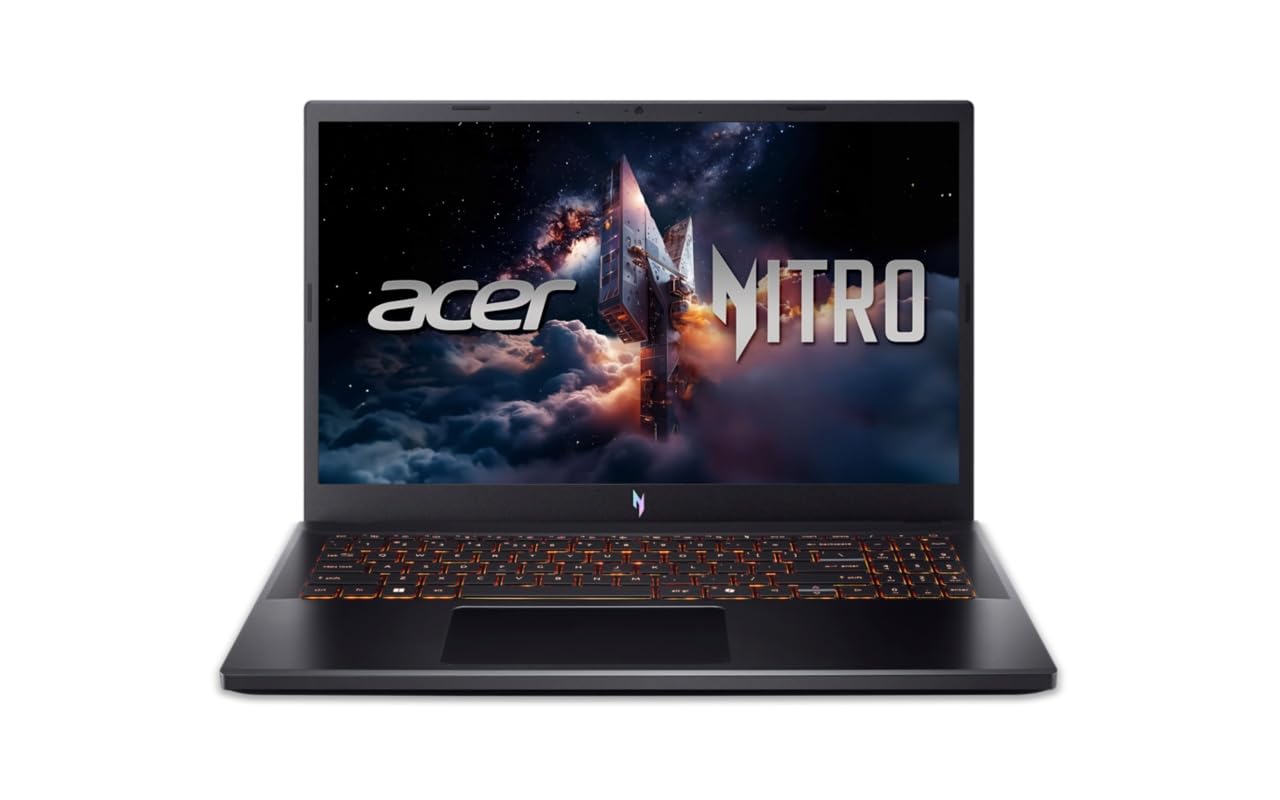
Figure 1: Acer Nitro V 15 Gaming Laptop (Model ANV15-42)
2. Erste Schritte (Einrichtung)
2.1 Auspacken und erste Inspektion
Nehmen Sie Ihren Laptop und sämtliches Zubehör vorsichtig aus der Verpackung. Vergewissern Sie sich, dass alle Komponenten vorhanden sind:
- Acer Nitro V 15 Laptop
- Netzteil und Kabel
- Dokumentation (Schnellstartanleitung, Garantiekarte)
Inspect the laptop for any physical damage. If you find any damage or missing components, contact your retailer immediately.
2.2 An die Stromversorgung anschließen
Before first use, connect the power adapter to the laptop's power input port and then to a power outlet. It is recommended to fully charge the battery before initial use.
2.3 Erste Inbetriebnahme und Einrichtung des Betriebssystems
Press the power button to turn on your laptop. The system will guide you through the initial setup of Windows 11 Home. Follow the on-screen instructions to configure your language, region, network, and user account. No additional pre-installed software is included beyond the operating system.
2.4 Anschließen von Peripheriegeräten
You can connect external devices such as a mouse, keyboard, or external display using the available ports. Refer to Section 3.5 for a detailed overview of the laptop's ports.
3. Bedienung Ihres Laptops
3.1 Anzeigefunktionen
Your Acer Nitro V 15 features a 15.6-inch (39.62 cm) Full HD (1920 x 1080) IPS display with Acer ComfyView LED-backlit TFT LCD technology and a 165Hz refresh rate for smooth visuals.
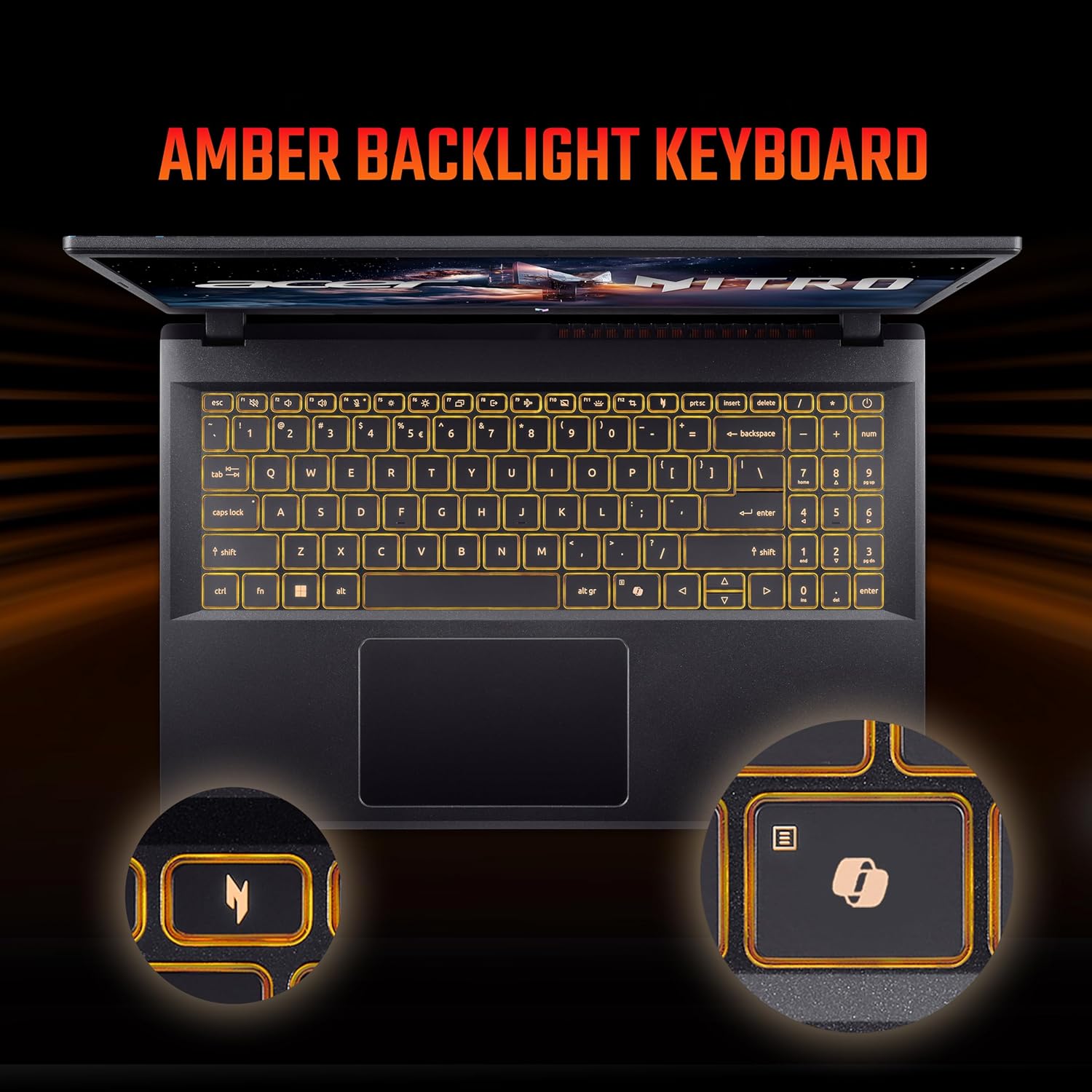
Figure 2: Laptop display showcasing seine visuellen Fähigkeiten.
3.2 Tastatur und Touchpad
The laptop is equipped with a 99-/100-/103-key Acer amber backlight keyboard with international language support and a responsive touchpad for navigation.

Figure 3: The amber backlit keyboard of the Acer Nitro V 15.
3.3 Sondertasten
- NitroSense Key: Instantly monitor and optimize system performance for peak power and cooling.
- Copilot-Taste: Launch Windows Copilot with a single key for instant help, commands, or shortcuts.

Figure 4: The NitroSense key for performance management.

Figure 5: The dedicated Copilot key for quick access to AI assistance.
3.4 Audiofunktionen
The laptop features Acer PurifiedVoice™ with AI noise reduction in dual built-in microphones for clear communication. It also supports DTS X audio for an enhanced sound experience.

Figure 6: Visual representation of DTS X audio technology.
3.5 Anschlüsse und Konnektivität
The Acer Nitro V 15 offers a variety of ports for connectivity:
- 3 x USB 3.2 Gen 1 ports (one with power-off charging)
- 1 x USB Type-C port (Thunderbolt™ 4 compatible)
- 1 x HDMI® 2.1 port
- 1 x Ethernet (RJ-45)-Anschluss
- 1 x Headset/speaker jack
- Steckplatz für Kensington-Schloss
- Power connector (DC-in)

Abbildung 7: Überview der verschiedenen Ein-/Ausgangsanschlüsse des Laptops.
4. Wartung und Pflege
4.1 Allgemeine Reinigung
To keep your laptop in optimal condition:
- Verwenden Sie ein weiches, fusselfreies Tuch, um Bildschirm und Gehäuse zu reinigen.
- Vermeiden Sie die Verwendung aggressiver Chemikalien oder Scheuermittel.
- Halten Sie Flüssigkeiten vom Laptop fern.
4.2 Batteriemanagement
So verlängern Sie die Akkulaufzeit:
- Vermeiden Sie häufiges vollständiges Entladen des Akkus.
- For extended periods of being plugged in, consider setting the maximum charge limit to around 80% if your system offers this feature.
- Store the laptop in a cool, dry place if not used for a long time.
4.3 Pflege des Kühlsystems
The laptop's cooling system is crucial for performance. Ensure proper airflow:
- Blockieren Sie nicht die Belüftungsöffnungen.
- Use the laptop on a hard, flat surface.
- For heavy gaming or demanding tasks, consider using a laptop cooling pad.
- If you engage in heavy gaming, consider professional thermal paste replacement every 6 months to maintain optimal cooling performance.
4.4 Softwareaktualisierungen
Regularly update your operating system, drivers, and BIOS. BIOS updates can resolve performance issues and improve system stability. Check the official Acer support website for the latest updates for your model.
5. Fehlerbehebung
In diesem Abschnitt werden häufig auftretende Probleme behandelt.
5.1 Performance Issues (Freezes, Crashes)
- System Freezes/Restarts: Ensure all drivers, especially graphics drivers, are up to date. Check for any pending Windows updates.
- Spielabstürze: Update your BIOS to the latest version. Ensure your graphics drivers are current. Monitor system temperatures during gaming using the NitroSense utility.
5.2 Battery and Power Issues
- Laptop Shutting Off When Plugged In: Verify the power adapter is securely connected. Test with a known working power outlet. If issues persist, contact support.
- Akku lädt nicht: Check the power adapter and cable for damage. Ensure the charging port on the laptop is clean and free of debris.
5.3 Input Device Issues
- Touchpad/Click Not Working: Ensure all Windows updates are installed, as some driver fixes are delivered via OS updates. Check the device manager for any touchpad driver issues.
5.4 When to Contact Support
If you experience persistent issues that cannot be resolved using the troubleshooting steps above, or if you suspect a hardware malfunction, please contact Acer customer support.
6. Produktspezifikationen
| Besonderheit | Spezifikation |
|---|---|
| Marke | Acer |
| Modellname | Nitro V 15 |
| Modellnummer | ANV15-42 |
| Prozessor | AMD Ryzen 7-7445HS Octa-core (3.1 GHz up to 4.5 GHz) |
| Grafikkarte | NVIDIA GeForce RTX 4050 mit 6 GB GDDR6 VRAM |
| RAM-Speicher | 16 GB DDR5 (Upgradable up to 32 GB) |
| Lagerung | 512 GB PCIe Gen4 NVMe SSD (Upgradable up to 1 TB) |
| Betriebssystem | Windows 11 Home |
| Anzeige | 15.6-inch Full HD (1920 x 1080) IPS, 165Hz Refresh Rate |
| Tastatur | Amber Backlit Keyboard, Numeric Keypad |
| Häfen | 3x USB 3.2 Gen 1, 1x USB Type-C (Thunderbolt 4), 1x HDMI 2.1, 1x Ethernet (RJ-45), 1x Headset/Speaker Jack |
| Kabellose Konnektivität | Wi-Fi 6, Bluetooth |
| WebNocken | T-Type HD camera |
| Audio | Acer PurifiedVoice with AI noise reduction, DTS X |
| Akkulaufzeit | Up to 9.5 Hours (57 Watt Hours) |
| Gewicht | 2.1 Kilogramm |
| Abmessungen (L x B x T) | 24L x 36.2W x 2.4Th Centimeters |
7. Garantieinformationen
Your Acer Nitro V 15 laptop comes with a 1 Jahre Herstellergarantie. Please refer to the warranty card included in your product packaging for detailed terms and conditions. Keep your proof of purchase for warranty claims.
8. Kundendienst
For technical assistance, service, or warranty inquiries, please contact Acer customer support:
- Hersteller: ACER INDIA PRIVATE LIMITED
- Adresse: Embassy Heights, 6th Floor, No. 13, Magrath Road, Next to HOSMAT Hospital, Bangalore, INDIA – 560025
- Offiziell WebWebsite: Besuchen Sie die offizielle Acer-Supportseite. webWebsite finden Sie Kontaktinformationen für Ihre Region.
Note: No official product videos with 'Seller' creator type and m3u8 format were available in the provided data for embedding.


