
1. Einleitung
This manual provides detailed instructions for the HOU Keyboard Case designed for the iPad Pro 13-inch M5/M4 models. Please read this manual carefully before use to ensure proper operation and to maximize the product's lifespan.
1.1 Kompatibilität
Diese Tastaturhülle wurde speziell für die iPad Pro 13-inch M5/M4 (2025 models). Compatible iPad models include: A2925, A2926, A3007.
Important: This case is NOT compatible with iPad Air 13 (M2) 2024 (models A2898, A2899, A2900) or iPad Pro 12.9-inch (2017-2022) (6th/5th/4th/3rd/2nd/1st generation).
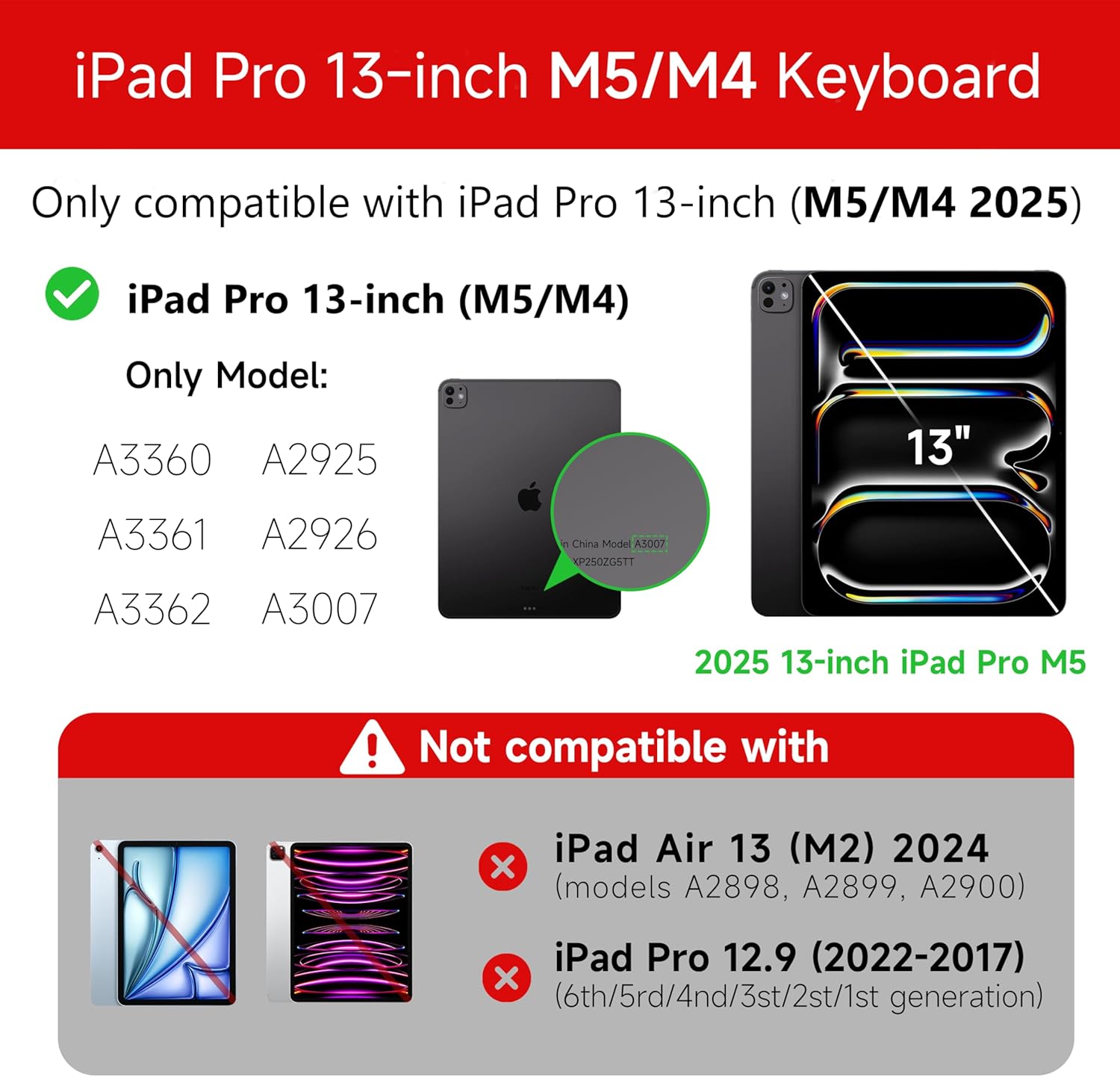
Figure 1: Compatibility details for the HOU iPad Pro 13-inch Keyboard Case.
2. Einrichtung
2.1 Aufladen der Tastatur
Before initial use, fully charge the keyboard. Connect the provided USB-C cable to the charging port on the keyboard and to a power source. The charging indicator light will show the charging status.
- Ladeanschluss: Typ C
- Ladezeit: Approximately <2 hours
- Batteriekapazität: 500 mAh
2.2 Anschließen Ihres iPad Pro
The keyboard case features a magnetic design for secure attachment. Align your iPad Pro 13-inch with the magnetic back panel of the case. The strong magnets will securely hold your iPad in place, providing stability.

Figure 2: Magnetic attachment for secure iPad placement.
2.3 Bluetooth-Verbindung
To connect the keyboard to your iPad Pro via Bluetooth:
- Stellen Sie sicher, dass die Tastatur geladen und eingeschaltet ist.
- Gehen Sie auf Ihrem iPad zu Einstellungen > Bluetooth und schalten Sie Bluetooth ein.
- Drücken und halten Sie auf der Tastatur Fn + Control + R for 3 seconds until the indicator light flashes, indicating pairing mode.
- On your iPad, select the keyboard from the list of available devices (e.g., "HOU Keyboard").
- Sobald die Verbindung hergestellt ist, hört die Kontrollleuchte auf der Tastatur auf zu blinken.
After the initial connection, the keyboard should automatically reconnect to your iPad when both devices are powered on and Bluetooth is enabled.
3. Bedienungsanleitung
3.1 einstellbar ViewWinkel
The keyboard case features a floating design that allows for angle adjustment up to 135 degrees. The keyboard base opens at a 45-degree angle, providing enhanced stability for various viewPositionen für Eingabe und Eingabe.
Abbildung 3: Einstellbar viewing angle up to 135 degrees.
3.2 Hintergrundbeleuchtungsfunktion
The keyboard features an adaptive backlight with 7 different colors and 3 adjustable brightness levels. This allows for comfortable typing in various lighting conditions, including low-light environments.

Figure 4: Keyboard backlight in use for typing at night.
3.3-Zoll-Multi-Touch-Trackpad
The integrated multi-touch trackpad supports full-area press and various swipe gestures, transforming your iPad into a laptop-like experience. It provides responsive controls for scrolling, dragging, input, and media control.
Adjusting Trackpad Sensitivity: You can adjust the trackpad sensitivity directly from your iPad's settings to match your personal preference.
- Gehe zu Einstellungen auf Ihrem iPad.
- Navigieren Sie zu Zugänglichkeit.
- Find and adjust Tracking-Empfindlichkeit.

Figure 5: Multi-touch trackpad functionality and sensitivity adjustment.
3.4 Tastenkombinationen
The keyboard includes a series of shortcut keys to boost productivity. Refer to the keyboard layout for specific functions.
4. Wartung
The exterior of the keyboard case is made from a semi-silicone material, which is wear-resistant and designed to resist fingerprints and stains, making it easy to clean.
- Zum Reinigen die Oberfläche vorsichtig mit einem weichen, feuchten Tuch abwischen.amp Tuch.
- Vermeiden Sie die Verwendung von aggressiven Chemikalien oder Scheuermitteln, da diese die Oberfläche beschädigen können.
- Ensure the charging port and keys are free from dust and debris.
5. Fehlerbehebung
5.1 Tastatur verbindet sich nicht über Bluetooth
- Stellen Sie sicher, dass die Tastatur vollständig aufgeladen ist.
- Stellen Sie sicher, dass Bluetooth auf Ihrem iPad aktiviert ist.
- Re-enter pairing mode on the keyboard by pressing and holding Fn + Control + R für 3 Sekunden.
- Forget the device in your iPad's Bluetooth settings and attempt to pair again.
- Starten Sie sowohl Ihr iPad als auch die Tastatur neu.
5.2 Trackpad Lag or Unresponsiveness
- This can sometimes occur due to Bluetooth connectivity. Try turning the keyboard off and then back on.
- Ensure there are no obstructions between the keyboard and the iPad that might interfere with the Bluetooth signal.
- Check for any available iPadOS updates, as software improvements can sometimes resolve connectivity issues.
5.3 Hintergrundbeleuchtung funktioniert nicht
- Stellen Sie sicher, dass die Tastatur über ausreichend Akkuladung verfügt.
- Check the keyboard's function keys for backlight control (usually a dedicated key or Fn combination).
6. Spezifikationen
| Besonderheit | Detail |
|---|---|
| Marke | HOU |
| Kompatible Geräte | 2025 (M4/M5) iPad Pro 13-inch (A2925/A2926/A3007) |
| Konnektivitätstechnologie | Bluetooth 5.2 |
| Tastaturbeschreibung | Multi-functional with Trackpad |
| Empfohlene Verwendung | Persönlich |
| Besondere Merkmale | Trackpad, Backlit, Hot Keys & Media Keys, Rechargeable, Lightweight |
| Farbe | Weiß |
| Farben der Hintergrundbeleuchtung | 7 RGB-Farben |
| Produktabmessungen (L x B x H) | 32 x 24.2 x 2.7 cm |
| Material | Aluminum, Metal, ABS, Polyurethane (PU), Semi-silicone |
| Artikelgewicht | 1.1 Kilogramm |
| Stromquelle | Batteriebetrieben |
| Batteriekapazität | ~500mAh |
| Betriebsstrom | <10 mA |
| Standby-Zeit | ≥ 30 Tage |
| Reichweite | ≤10 m |
7. Unterstützung
For any questions or further assistance, please contact the seller directly through your Amazon account:
- Melden Sie sich bei Ihrem Amazon-Konto an.
- Go to "Order History".
- Locate your order for the HOU iPad Pro 13-inch Keyboard Case.
- Klicken Sie auf „Verkäufer kontaktieren“.