
1. Produktüberschreitungview
The WisFox 2.4G Wireless Mouse is designed for comfortable and efficient use with laptops, desktops, PCs, and MacBooks. It features an ergonomic design, adjustable DPI settings, and a stable wireless connection.

Image: The WisFox 2.4G Wireless Mouse in mint green, shown alongside its USB receiver and Type-C adapter.
Packungsinhalt:
- WisFox 2.4G Wireless Mouse
- USB-Empfänger (in der Maus verstaut)
- Typ C Adapter
- Benutzerhandbuch (dieses Dokument)
2. Installationsanleitung
2.1 Einlegen der Batterie
- Suchen Sie das Batteriefach auf der Unterseite der Maus.
- Öffnen Sie die Batterieabdeckung.
- Legen Sie eine (1) AA-Batterie ein und achten Sie dabei auf die richtige Polarität (+/-).
- Schließen Sie die Batterieabdeckung fest.

Image: The bottom of the mouse, illustrating the battery slot and the dedicated storage for the USB receiver.
2.2 Anschließen des Empfängers
- Remove the USB receiver from its storage slot within the battery compartment of the mouse.
- For standard USB-A ports: Plug the USB receiver directly into an available USB-A port on your computer.
- For Type-C ports: Attach the Type-C adapter to the USB receiver, then plug the combined unit into an available Type-C port on your computer.
- Schalten Sie die Maus mit dem EIN/AUS-Schalter an der Unterseite ein.
- Die Maus sollte sich automatisch mit Ihrem Computer verbinden. In der Regel sind keine zusätzlichen Treiber erforderlich.
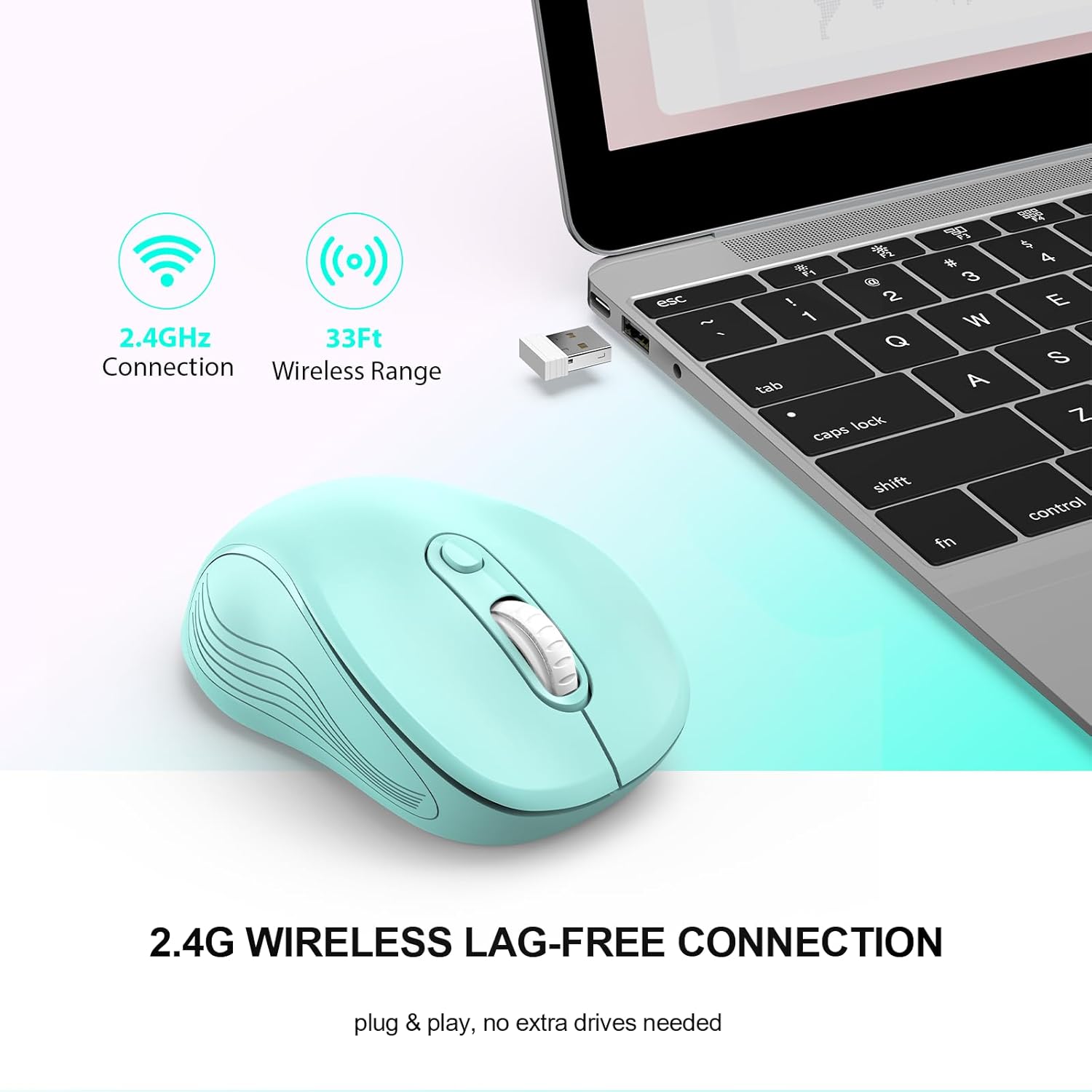
Image: The mouse in use with a laptop, demonstrating the 2.4GHz wireless connection and 33ft wireless range.
3. Bedienungsanleitung
3.1 Grundfunktionen
- Linke Taste: Primäre Klickfunktion.
- Rechter Knopf: Sekundärklickfunktion, typischerweise für Kontextmenüs.
- Scrollrad: Scrollen Sie in den Dokumenten nach oben oder unten und web Seiten. Kann auch per Mittelklick bedient werden.
- Page Up/Page Down Buttons: Located on the side, these buttons facilitate quick navigation in documents or web Browsern.
Image: A detailed diagram highlighting the six buttons of the WisFox wireless mouse, including the DPI switch, scroll wheel, and side buttons.
3.2 DPI-Einstellung (Empfindlichkeit)
The mouse features 3 adjustable DPI levels to control cursor speed and precision.
- Drücken Sie die DPI-Umschalttaste (located below the scroll wheel) to cycle through the available DPI settings: 800, 1200 (default), and 1600.
- Select the DPI level that best suits your task, whether for precise work or fast navigation.

Image: A visual representation of the three adjustable DPI settings (800, 1200, 1600) and how to change them using the DPI button.
3.3 Ergonomisches Design
The contoured shape and sweat-resistant coating are designed for maximum hand comfort during extended use, reducing strain and fatigue.

Image: A hand comfortably gripping the WisFox wireless mouse, highlighting its ergonomic design for prolonged use.
4. Wartung
4.1 Reinigung der Maus
- Um die Maus zu reinigen, wischen Sie ihre Oberfläche vorsichtig mit einem weichen, fusselfreien Tuch ab.amp Tuch.
- Vermeiden Sie die Verwendung von aggressiven Chemikalien oder Scheuermitteln, da diese die Oberfläche beschädigen können.
- Stellen Sie sicher, dass die Maus vor der Reinigung ausgeschaltet ist.
4.2 Batteriewechsel
Replace the AA battery when the mouse performance degrades or it stops responding. Refer to Section 2.1 for battery installation steps.
4.3 Automatischer Ruhemodus
The mouse is designed with an energy-saving feature. It will enter auto power-saving mode after 1 minute of idling and a deeper sleep mode after 8 minutes of idling. To wake the mouse, simply double-click any button.

Image: A graphic explaining the low power consumption feature, indicating the mouse enters sleep mode after 10 minutes of inactivity.
5. Fehlerbehebung
| Problem | Mögliche Ursache | Lösung |
|---|---|---|
| Maus reagiert nicht | Low battery; Receiver not connected; Mouse is off; Mouse in sleep mode. | Replace battery; Ensure receiver is firmly plugged in; Turn mouse ON; Double-click to wake mouse. |
| Verzögerung oder intermittierende Verbindung | Too far from receiver; Wireless interference. | Move mouse closer to receiver (within 33 feet); Avoid placing receiver near other wireless devices. |
| Cursor movement is too fast/slow | DPI setting is not optimal. | Press the DPI Switch Button to adjust sensitivity (800/1200/1600 DPI). |
| Die Seitentasten funktionieren nicht. | Software conflict or specific application does not support. | Ensure the application supports forward/backward navigation; Check for any conflicting mouse software. |
6. Spezifikationen
- Marke: WisFox
- Modell: B0DKDVB4D2
- Farbe: Mintgrün
- Konnektivitätstechnologie: 2.4Ghz RF Wireless Technology
- Bewegungserkennungstechnologie: Optisch
- DPI-Stufen: 800, 1200, 1600 (einstellbar)
- Tasten: 6 (Links, Rechts, Scrollrad, DPI-Umschalter, Bild auf, Bild ab)
- Akku-Typ: 1 AA-Batterie (nicht im Lieferumfang enthalten)
- Artikelgewicht: 2.4 Unzen
- Paketabmessungen: 7.17 x 2.68 x 1.73 Zoll
- Besonderheit: Soundless clicks, Auto Sleep Mode
- Kompatibilität: Windows 7/8/10/11/XP, Vista 7/8, Linux, Mac OS (V10.4 or higher)

Image: A graphic illustrating the wide compatibility of the WisFox wireless mouse with various operating systems, including Windows, Mac, and Linux.
7. Garantie und Support
WisFox products are manufactured to high quality standards. For specific warranty information, please refer to the product packaging or contact the seller directly through your purchase platform.
If you encounter any issues or have questions regarding your WisFox 2.4G Wireless Mouse, please contact WisFox customer support for assistance. Contact details can typically be found on the product packaging or the official WisFox webWebsite.