
1. Einleitung
Thank you for choosing the Tongtion Wireless HDMI Transmitter and Receiver Kit. This device allows you to wirelessly transmit high-definition video and audio signals from your source device to a display, eliminating the need for long HDMI cables. It supports 1080P@60Hz resolution, operates on dual 2.4G/5G bands, and offers a plug-and-play experience for various applications, including home entertainment and office presentations.
2. Sicherheitshinweise
- Setzen Sie das Gerät weder Feuchtigkeit noch extremen Temperaturen oder direkter Sonneneinstrahlung aus.
- Vermeiden Sie es, das Gerät zu zerlegen oder zu verändern, da dies zum Erlöschen der Garantie führt und Schäden verursachen kann.
- Verwenden Sie ausschließlich die mitgelieferten Stromkabel und Adapter.
- Sorgen Sie für ausreichende Belüftung, um eine Überhitzung zu vermeiden.
- Außerhalb der Reichweite von Kindern aufbewahren.
3. Packungsinhalt
Bitte überprüfen Sie den Packungsinhalt, um sicherzustellen, dass alle Artikel vorhanden sind:
- 1x HDMI Transmitter (TX)
- 1x HDMI Receiver (RX)
- 1x USB Type-C to HDMI Adapter (supports max 4K input)
- 1x Mini HDMI Adapter
- 1x Micro HDMI Adapter
- 2x USB Type-C Power Cables
- 1x Benutzerhandbuch

Image: Contents of the Tongtion Wireless HDMI Transmitter and Receiver Kit, including the transmitter, receiver, various adapters, and cables.
4. Produktüberschreitungview
The Tongtion Wireless HDMI Kit consists of a Transmitter (TX) and a Receiver (RX). Both units are compact and designed for ease of use.
4.1 Sender (TX)
The Transmitter connects to your source device (e.g., laptop, PC, game console). It features an HDMI output and a USB-C port for power. For laptops manufactured after 2022, the transmitter may draw power directly from the HDMI port, eliminating the need for a separate power cable.
4.2 Empfänger (RX)
The Receiver connects to your display device (e.g., TV, projector, monitor). It has an HDMI input and a USB-C port for power. The receiver typically requires external power via the USB-C cable.

Bild: Vorderseite view of the Tongtion Wireless HDMI Transmitter and Receiver units.

Abbildung: Seite view of the Tongtion Wireless HDMI Transmitter and Receiver, highlighting the HDMI and USB-C ports.
5. Einrichtungsanweisungen
Befolgen Sie diese Schritte für eine schnelle und einfache Einrichtung:
- Connect the Receiver (RX) to your Display: Plug the HDMI end of the Receiver into an available HDMI port on your TV, projector, or monitor. Connect the USB-C power cable to the Receiver and then to a USB power source (e.g., TV's USB port, USB wall adapter).
- Connect the Transmitter (TX) to your Source Device: Plug the HDMI end of the Transmitter into the HDMI output port of your laptop, PC, game console, or other source device. If your source device is a laptop manufactured after 2022, it may power the transmitter directly. Otherwise, connect the USB-C power cable to the Transmitter and then to a USB power source.
- Geräte einschalten: Stellen Sie sicher, dass sowohl Ihr Quellgerät als auch Ihr Anzeigegerät eingeschaltet sind.
- Automatische Kopplung: The Transmitter and Receiver are pre-paired from the factory. They should automatically connect within a few seconds. The display will show the content from your source device.
- Verwenden von Adaptern: For devices with Mini HDMI, Micro HDMI, or USB Type-C video output, use the included adapters to connect the Transmitter.

Image: Diagram illustrating the simple plug-and-play connection of the Transmitter to a laptop and the Receiver to a TV.
Image: Visual representation of compatible source devices (laptop, TV box, PC, phone/touch screen, camera) with the Transmitter, and compatible display devices (projector, display, TV) with the Receiver.
Video: A demonstration of the Tongtion Wireless HDMI Transmitter and Receiver setup, highlighting its plug-and-play functionality, dual-band support, and compatibility with various devices and display modes.
6. Bedienungsanleitung
6.1 Display Modes (Mirror/Extend)
The system supports both Mirror Mode and Extend Mode, depending on your operating system settings:
- Spiegelmodus: The display shows the exact same content as your source device's screen. This is ideal for presentations or sharing content directly.
- Erweiterungsmodus: The display acts as a secondary monitor, extending your desktop. This allows you to have different content on your source device and the external display, improving multitasking.
To switch between modes, adjust the display settings on your source device (e.g., Windows Display Settings, macOS System Settings > Displays).

Image: Illustration showing a laptop connected to a large screen, demonstrating both Mirror Mode (duplicate display) and Extend Mode (extended desktop).
6.2 Multiple Transmitters (Optional)
The system supports connecting up to 4 Transmitters (TX) to 1 Receiver (RX). To switch the video signal from another transmitter, simply press the button on that transmitter to initiate the switch.

Image: A meeting room setup showing multiple laptops connected via transmitters to a single receiver, displaying content on a large screen.
6.3 Übertragungsbereich und Leistung
The device offers a transmission range of up to 30 meters (98 feet) in an open environment. Performance may vary based on environmental factors:
- Obstacles such as walls, furniture, or other electronic devices can reduce the transmission distance and signal quality.
- Interference from other wireless devices (e.g., Wi-Fi routers, Bluetooth devices) operating on the 2.4G or 5G bands can affect performance.
- For optimal performance, ensure a clear line of sight between the Transmitter and Receiver.
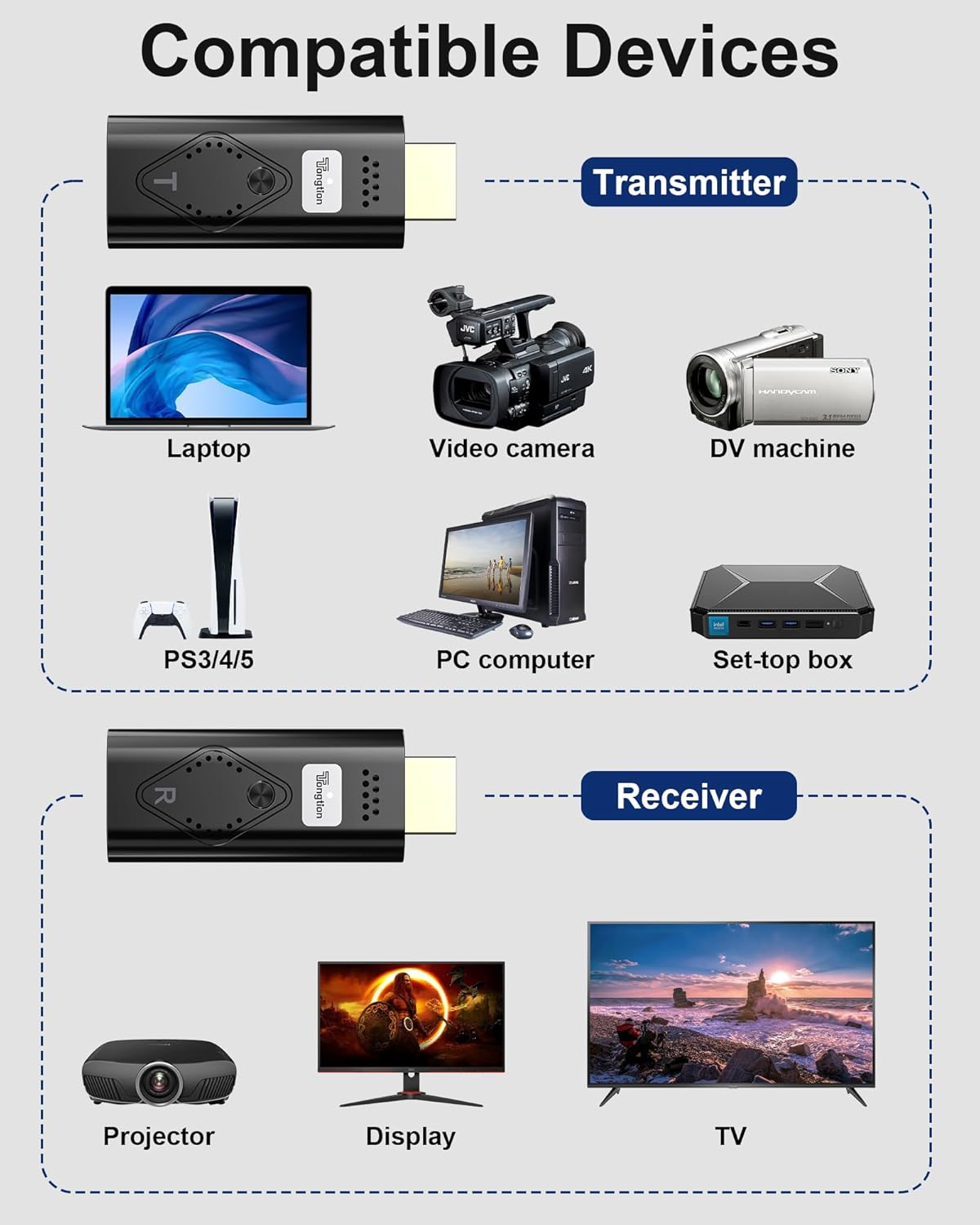
Image: A visual representation of the wireless transmission range, showing a laptop (TX) transmitting to a projector (RX) across a distance of 30 meters (98 feet) with low latency.
7. Spezifikationen
| Besonderheit | Beschreibung |
|---|---|
| Marke | Zunge |
| Modell | Wireless HDMI Transmitter & Receiver Kit |
| Farbe | Schwarz |
| Unterstützte Lösungen | Input up to 4K, Output 1080P@60Hz |
| Drahtlose Frequenz | 2.4G/5G Dualband |
| Übertragungsdistanz | Up to 30m (98ft) in open environment |
| Latenz | <0.1 Sekunden |
| HDCP Unterstützung | HDCP1.2 Certified |
| Compatible Devices (Source) | Laptop, PC, Game Consoles (PS3/4/5), Blu-ray Players, Smartphones, Tablets, Video Cameras, Set-top boxes |
| Compatible Devices (Display) | Fernseher, Projektor, Monitor |
| Häfen | HDMI, USB Type-C (for power) |
| Mitgelieferte Adapter | USB Type-C to HDMI (max 4K), Mini HDMI, Micro HDMI (max 8K) |
8. Fehlerbehebung
Sollten Sie auf Probleme stoßen, beachten Sie bitte die folgenden gängigen Lösungsansätze:
- Kein Signal auf dem Display:
- Ensure both Transmitter (TX) and Receiver (RX) are properly connected and powered.
- Verify that the HDMI input on your display is set to the correct port where the Receiver is connected.
- Prüfen Sie alle Kabelverbindungen auf festen Sitz.
- Versuchen Sie, sowohl das Quellgerät als auch das Display neu zu starten.
- Schlechte Video-/Audioqualität oder zeitweise Signalausfälle:
- Verringern Sie den Abstand zwischen Sender und Empfänger.
- Remove any obstacles (walls, large furniture) between the units.
- Minimieren Sie Störungen durch andere drahtlose Geräte, indem Sie diese weiter entfernt aufstellen.
- Ensure both units are receiving adequate power.
- Transmitter Not Powering On (for laptops):
- If your laptop is older than 2022, it may not provide sufficient power via HDMI. Connect the USB-C power cable to the Transmitter.
- Ensure the USB-C power cable is connected to a reliable power source.
- Cannot Switch Between Multiple Transmitters:
- Ensure all Transmitters are powered on and within range of the Receiver.
- Press the button on the desired Transmitter firmly to initiate the switch.
9. Wartung
Um die Langlebigkeit und optimale Leistung Ihres Geräts zu gewährleisten:
- Reinigen Sie das Gerät mit einem weichen, trockenen Tuch. Verwenden Sie keine flüssigen Reiniger oder Sprays.
- Bewahren Sie das Gerät bei Nichtgebrauch an einem kühlen, trockenen Ort auf.
- Lassen Sie das Gerät nicht fallen und setzen Sie es keinen starken Stößen aus.
10. Garantie und Support
Tongtion products come with a standard manufacturer's warranty. For detailed warranty information, technical support, or customer service, please refer to the contact information provided on the product packaging or the official Tongtion webBitte bewahren Sie Ihren Kaufbeleg für Garantieansprüche auf.