
1. Einleitung
This manual provides essential information for the installation, operation, and maintenance of your ADATA Legend 860 Solid State Drive. Please read this guide thoroughly before using the product to ensure optimal performance and longevity.
The ADATA Legend 860 is a high-performance NVMe SSD designed for expanding storage in compatible devices such as desktop PCs, laptops, and gaming consoles like the PlayStation 5. It utilizes PCIe Gen4 x4 interface for fast data transfer speeds.

Figure 1: ADATA Legend 860 NVMe Solid State Drive
2. Sicherheitshinweise
- Fassen Sie die SSD immer an den Kanten an, um zu vermeiden, dass Sie die Goldanschlüsse oder andere Bauteile berühren.
- Stellen Sie sicher, dass Ihr System vor der Installation ausgeschaltet und vom Stromnetz getrennt ist.
- Discharge any static electricity from your body before handling the SSD. Use an anti-static wrist strap if available.
- Schützen Sie die SSD vor Feuchtigkeit, extremen Temperaturen und starken Magnetfeldern.
- Do not attempt to disassemble or modify the SSD, as this will void the warranty.
3. Packungsinhalt
Überprüfen Sie, ob alle Artikel in Ihrem Paket vorhanden sind:
- ADATA Legend 860 Solid State Drive

Figure 2: ADATA Legend 860 SSD Retail Packaging
4. Spezifikationen
| Marke | ADATA |
| Serie | Legend 860 |
| Modellnummer | SLEG-860-1000GCS |
| Digitale Speicherkapazität | 1 TB |
| Festplattenschnittstelle | NVMe |
| Konnektivitätstechnologie | PCIe Gen4 x4 |
| Formfaktor | M.2 2280 |
| Kompatible Geräte | Desktop-PC, Spielekonsole (PS5), Laptop |
| Artikelgewicht | 0.353 Unzen |
| Technische Daten | 5.24 x 0.31 x 1.57 Zoll |
5. Einrichtung und Installation
The ADATA Legend 860 SSD is designed for easy installation into compatible M.2 slots. Follow these general steps for installation:
- Bereiten Sie Ihr System vor: Power off your computer or gaming console and unplug all cables. Open the casing zum Zugriff auf das Motherboard oder den M.2-Erweiterungssteckplatz.
- M.2-Steckplatz finden: Identify an available M.2 slot on your motherboard. These slots are typically labeled and may be covered by a heatsink.
- Setzen Sie die SSD ein: Gently slide the ADATA Legend 860 SSD into the M.2 slot at a 30-degree angle. Ensure the gold connectors are fully seated.
- SSD sichern: Once inserted, push the SSD down until it is parallel with the motherboard. Secure it with the provided screw (usually included with your motherboard or console).
- Schließen Sie Casing: Replace any heatsinks or covers, and close your system's casing.
- Power On and Initialize: Reconnect all cables and power on your system. You may need to initialize and format the new SSD through your operating system's Disk Management (Windows) or Disk Utility (macOS) before it can be used. Refer to your operating system's documentation for detailed instructions.
Installation Bspamples:
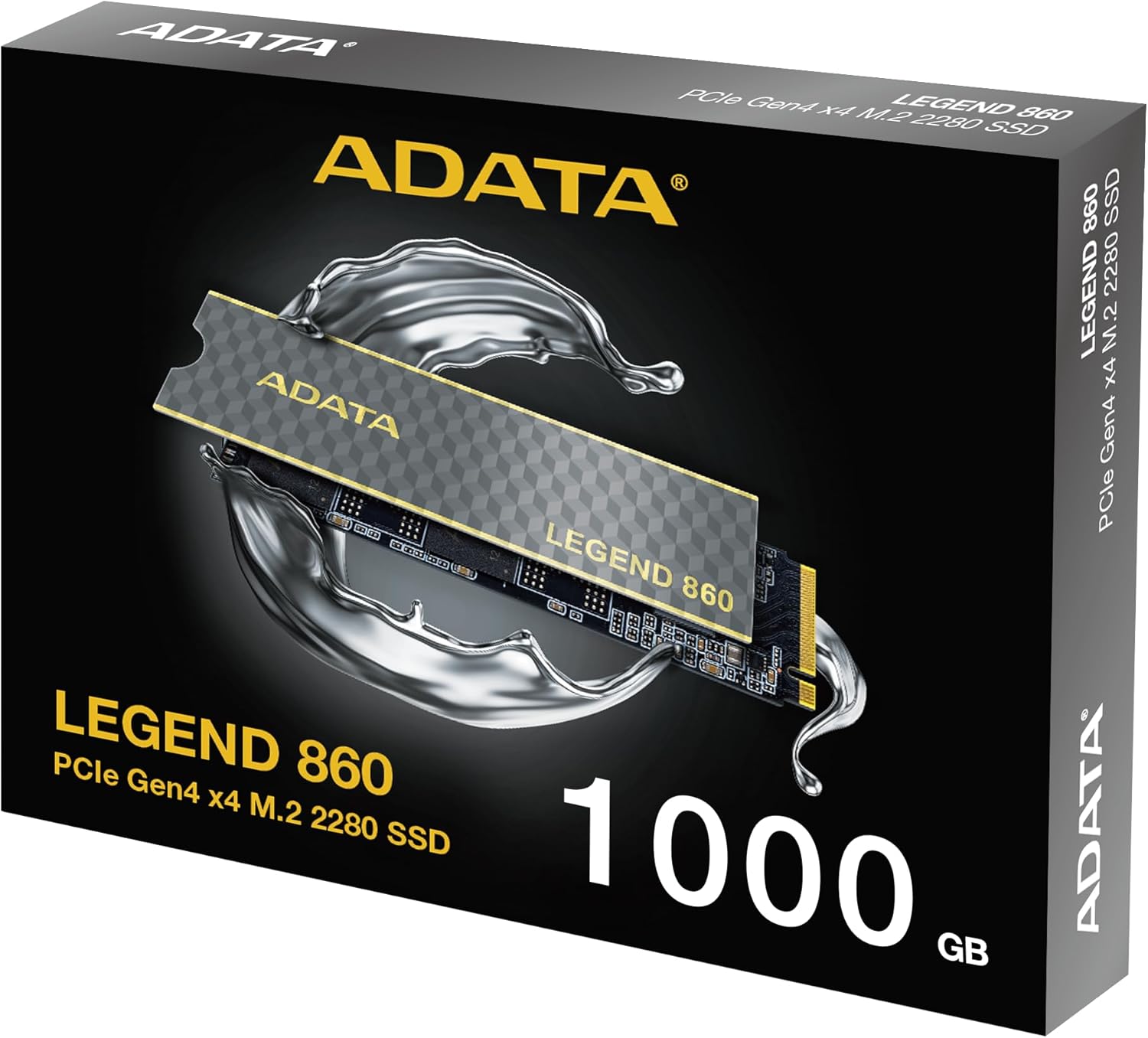
Figure 3: SSD installed in a desktop motherboard

Figure 4: SSD installed in a PlayStation 5 console
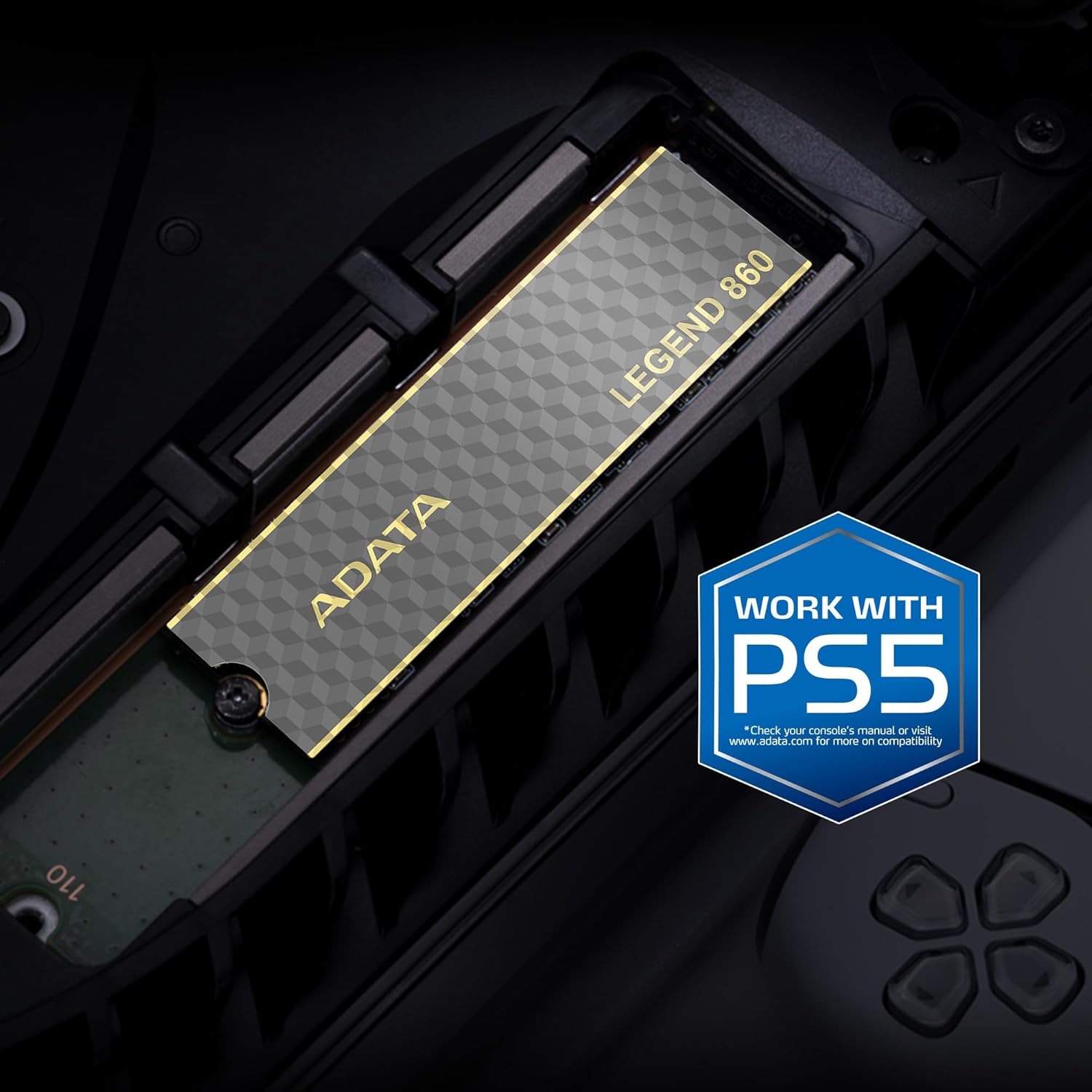
Figure 5: SSD installed in a laptop
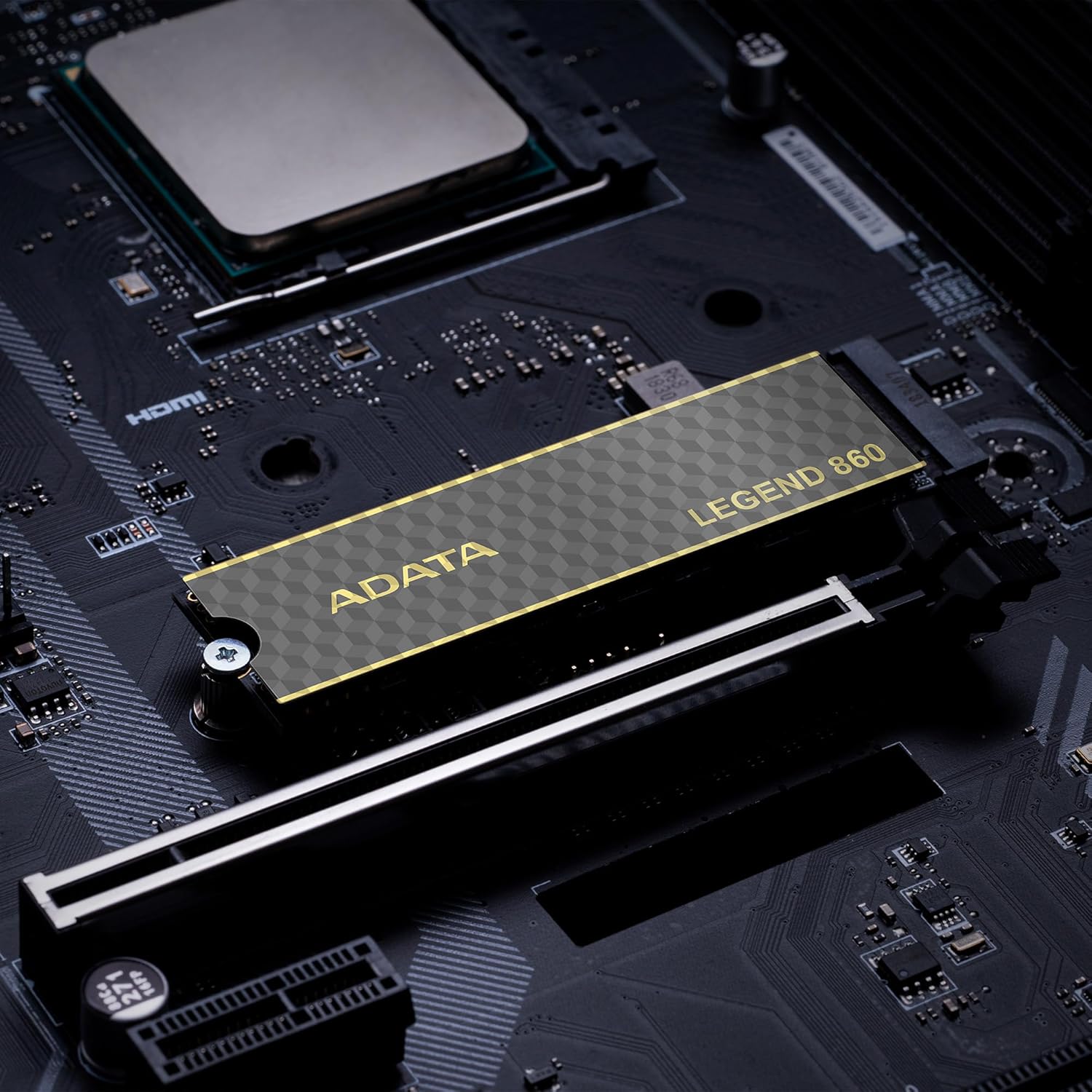
Figure 6: SSD in an external enclosure for portable use
6. Bedienung
Once installed and formatted, your ADATA Legend 860 SSD will function as a high-speed storage device. You can use it for:
- Betriebssystemlaufwerk: Install your operating system for faster boot times and overall system responsiveness.
- Gaming Library: Store your games to significantly reduce load times and improve gaming experience.
- Anwendungsspeicher: Install demanding applications for quicker launch and operation.
- Datenspeicherung: Use it for high-speed storage of large files, such as 4K videos, high-resolution images, and large project files.
For optimal performance, ensure your system's drivers and firmware are up to date.
7. Wartung
To maintain the performance and longevity of your ADATA Legend 860 SSD:
- Halten Sie die Firmware auf dem neuesten Stand: Periodically check the ADATA official webWebsite für Firmware-Updates Ihrer SSD. Firmware-Updates können Leistung, Stabilität und Kompatibilität verbessern.
- Überfüllung vermeiden: While SSDs perform well even when nearly full, leaving some free space (typically 10-15%) can help maintain optimal performance and extend lifespan.
- TRIM aktivieren: Stellen Sie sicher, dass TRIM in Ihrem Betriebssystem aktiviert ist. TRIM hilft der SSD, ihren Speicherplatz effizient zu verwalten und so Leistungseinbußen im Laufe der Zeit zu verhindern. Die meisten modernen Betriebssysteme aktivieren TRIM standardmäßig für SSDs.
- Zustand überwachen: Use SSD monitoring tools (often provided by ADATA or third-party software) to check the health and estimated lifespan of your drive.
- Regelmäßige Backups: Sichern Sie wichtige Daten regelmäßig auf einem anderen Speichermedium. SSDs sind zwar zuverlässig, aber kein Speichermedium ist vor Ausfällen gefeit.
8. Fehlerbehebung
If you encounter issues with your ADATA Legend 860 SSD, consider the following troubleshooting steps:
- SSD nicht erkannt:
- Stellen Sie sicher, dass die SSD korrekt im M.2-Steckplatz sitzt.
- Check your system's BIOS/UEFI settings to confirm the M.2 slot is enabled and configured correctly.
- Verify that your motherboard or console supports NVMe PCIe Gen4 SSDs.
- Try the SSD in a different M.2 slot or a compatible external enclosure to rule out a motherboard issue.
- Langsame Leistung:
- Ensure your system's M.2 slot supports PCIe Gen4 speeds. If it's a Gen3 slot, the SSD will operate at Gen3 speeds.
- Check if TRIM is enabled (as mentioned in Maintenance).
- Ensure the SSD is not nearly full.
- Update your motherboard's chipset drivers and SSD firmware.
- Systeminstabilität/Abstürze:
- Ensure the SSD is properly secured and not overheating.
- Run a diagnostic tool to check the SSD's health.
- Check for system-wide issues (RAM, CPU, power supply).
If problems persist, contact ADATA customer support for further assistance.
9. Garantie und Support
The ADATA Legend 860 Solid State Drive typically comes with a manufacturer's warranty. Please refer to the official ADATA website or your product packaging for specific warranty terms and conditions, including the duration and coverage details.
For technical support, driver downloads, firmware updates, and additional product information, please visit the official ADATA support webWebsite: www.adata.com
Bewahren Sie Ihren Kaufbeleg für Garantieansprüche auf.