
1. Einleitung
This manual provides detailed instructions for the installation, operation, and maintenance of your Jufodrca Android 13 Car Stereo Radio. Please read this manual thoroughly before using the product to ensure proper function and safety.
Hauptmerkmale:
- Betriebssystem: Android 13 with 1.6GHz Octa-Core CPU, 4GB RAM + 32GB storage.
- Anzeige: 10.1-inch 1280×800 HD Touchscreen.
- Konnektivität: Wireless CarPlay & Android Auto, Bluetooth 5.0, Dual-band 2.4G/5G WiFi, USB.
- Navigation: Built-in GPS supporting offline and online maps.
- Audio: AM/FM/RDS Radio, 36-band EQ, DSP Sound.
- Kamera-Unterstützung: AHD 720P/1080P backup camera input.
- Kontrolle: Steering Wheel Control (SWC) support.
2. Lieferumfang
Vergewissern Sie sich vor Beginn der Installation, dass alle Komponenten vorhanden sind:
- 1 x Head Unit
- 1 x Rückfahrkamera
- 1 x Reversing Cable
- 1 x CanBus Box
- 1 x Crowbar (for trim removal)
- 1 x Netzkabel
- 1 x RCA-Kabelset
- 2 x USB Kabel
- 1 x GPS-Antenne
- 1 x 3.5-mm-Mikrofon

3. Installationsanleitung
Eine Installation durch einen Fachmann wird empfohlen. Stellen Sie sicher, dass die Fahrzeugbatterie vor Beginn der Installation abgeklemmt ist.
3.1 Kabelverbindungen
Follow these steps to connect the wiring harness to the head unit:
- Connect the main power cable to the corresponding port on the head unit.
- Connect the Canbus box to the 8-pin connector on the wiring harness, then plug the 8-pin connector into the head unit.
- Connect the 20-pin RCA cable set to the head unit. This includes audio output, video input/output, and auxiliary inputs.
- Connect the 3.5mm microphone to the designated input on the RCA cable set.
- Connect the 4-pin and 6-pin USB cables to the head unit.
- Connect the GPS antenna to the dedicated GPS port on the head unit.
- Connect the 10-pin rear camera signal wire to the head unit.
3.2 Physische Installation
After connecting all necessary wires, carefully mount the head unit into your vehicle's dashboard. Ensure all connections are secure and no wires are pinched. Test the unit before fully reassembling the dashboard trim.

4. Bedienungsanleitung
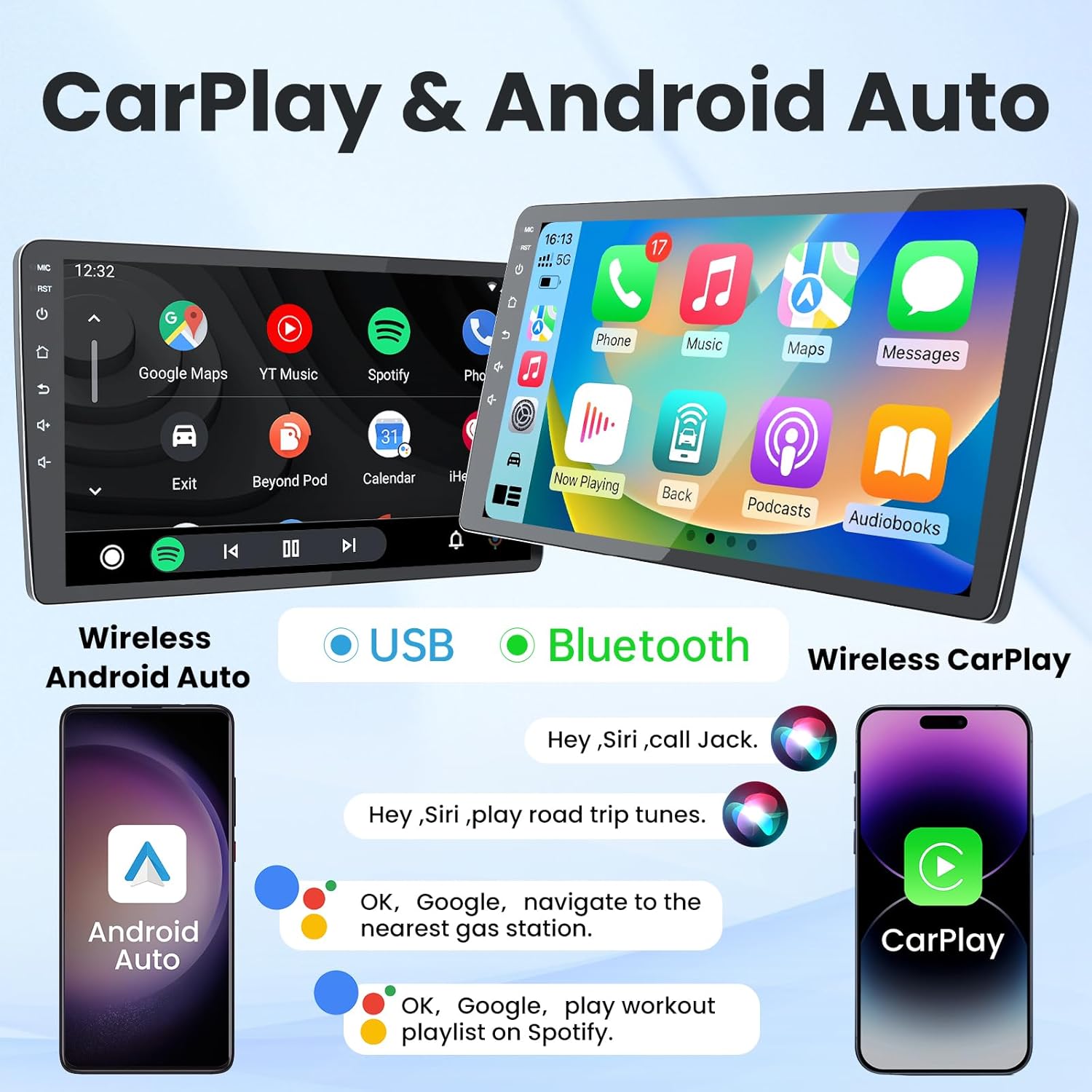
4.1 Kabelloses CarPlay & Android Auto
Connect your iPhone or Android device wirelessly to access navigation, music, calls, and messages directly on the stereo's display. Use voice commands for hands-free operation.
4.2 GPS-Navigation
The unit features built-in GPS with support for both offline and online maps. Download map data for North America for navigation without an internet connection. Connect to WiFi for real-time traffic updates and online map services.

4.3Bluetooth 5.0
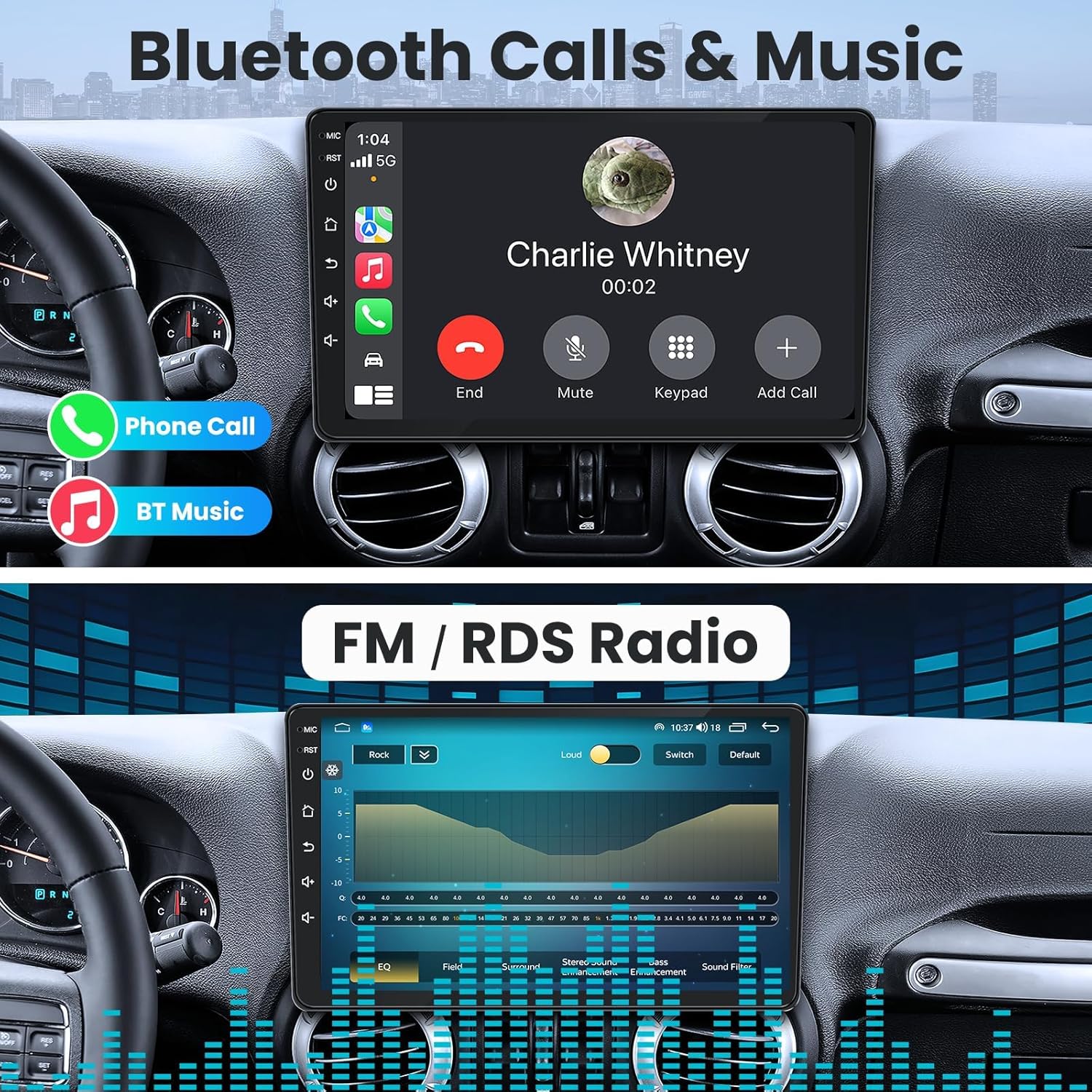
Pair your smartphone via Bluetooth 5.0 for hands-free calling and audio streaming. Access your phonebook and call history directly from the stereo.

4.4-Zoll-AM/FM/RDS-Radio
Tune into your favorite AM/FM radio stations. RDS (Radio Data System) provides additional information like station name and song titles where available.
4.5 Rückfahrkamera
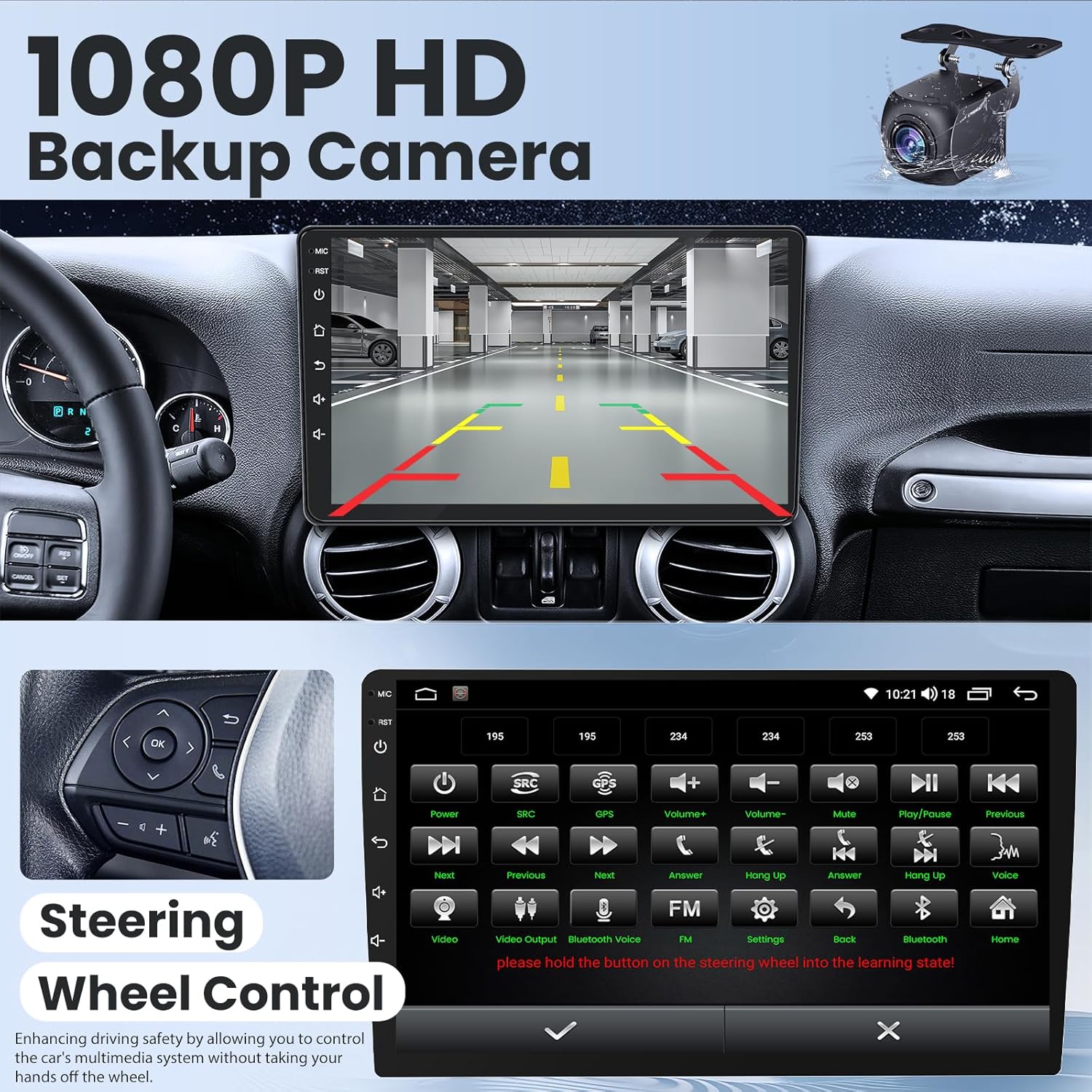
The system supports AHD 720P/1080P backup cameras, providing a clear view of the area behind your vehicle when reversing. The image automatically displays when the vehicle is shifted into reverse gear.

4.6 Lenkradsteuerung (SWC)
Integrate with your vehicle's existing steering wheel controls for safe and convenient operation of the stereo's functions, such as volume, track changes, and call management.
4.7 DSP Sound Effects & EQ
Utilize the built-in Digital Sound Processor (DSP) and 36-band equalizer to fine-tune your audio experience. Adjust sound fields, surround effects, bass enhancement, and apply sound filters to match your preferences.

4.8 Split-Screen-Funktionalität
The split-screen feature allows you to run two applications simultaneously, such as navigation and music, or radio and web browsing, enhancing multitasking capabilities.

4.9 UI Replacement
Customize the user interface (UI) of your car stereo with various available themes and layouts to personalize your experience.

5. Spezifikationen
| Besonderheit | Detail |
|---|---|
| Technische Daten | 5.5 x 12.2 x 8.3 Zoll |
| Artikelgewicht | 3.56 Pfund |
| Bildschirmgröße | 10.1 Zoll |
| Betriebssystem | Android 13 |
| Speicher | 4 GB RAM + 32 GB ROM |
| Konnektivitätstechnologie | Bluetooth 5.0, USB, Wi-Fi (2.4G/5G) |
| Besondere Merkmale | 1080P hinten View Camera Support, FM RDS Radio & DSP, GPS, SWC, Mirror Link, Wireless Carplay & Android Auto |
| Kartentyp | Nordamerika |
| Audioausgabemodus | Stereo |
| Montagetyp | Dashboard-Halterung |
6. Fehlerbehebung
If you encounter issues with your Jufodrca car stereo, refer to the following common troubleshooting steps:
- Kein Strom: Check all power connections and ensure the vehicle's battery is properly connected and charged. Verify fuses.
- Kein Ton: Check speaker connections, volume levels, and audio settings (EQ, DSP). Ensure the correct audio source is selected.
- Probleme mit der Bluetooth-Verbindung: Stellen Sie sicher, dass Bluetooth sowohl auf der Stereoanlage als auch auf Ihrem Gerät aktiviert ist. Löschen Sie vorherige Kopplungen und versuchen Sie, die Verbindung erneut herzustellen.
- GPS-Signalverlust: Stellen Sie sicher, dass die GPS-Antenne ordnungsgemäß installiert ist und eine freie Sicht hat. view of the sky. Check map data for corruption or outdated versions.
- CarPlay/Android Auto verbindet sich nicht: Verify your phone's operating system is up to date. Ensure the feature is enabled on the stereo and your phone. Try restarting both devices.
- Rückfahrkamera zeigt kein Bild an: Check the camera's power and video signal connections. Ensure the reverse gear signal wire is correctly connected to the stereo.
- Lenkradbedienelemente funktionieren nicht: Ensure the SWC wires are correctly connected and the controls are programmed in the stereo's settings.
For persistent issues, contact Jufodrca customer support.
7. Wartung
Um die Langlebigkeit und optimale Leistung Ihres Autoradios zu gewährleisten, beachten Sie bitte folgende Wartungshinweise:
- Reinigung: Reinigen Sie den Bildschirm und das Gehäuse mit einem weichen, trockenen Tuch. Vermeiden Sie Scheuermittel oder Lösungsmittel.
- Software-Updates: Prüfen Sie regelmäßig, ob Software-Updates verfügbar sind, und installieren Sie diese, um die Leistung zu verbessern und neue Funktionen hinzuzufügen.
- Temperatur: Vermeiden Sie es, das Gerät extremen Temperaturen auszusetzen, da dies die elektronischen Bauteile beeinträchtigen kann.
- Verdrahtung: Regularly inspect wiring for any signs of wear or damage.
8. Garantie und Support
Your Jufodrca car stereo is covered by a manufacturer's warranty. Please refer to the warranty card included in your package for specific terms and conditions. For technical support, troubleshooting assistance, or warranty claims, please contact Jufodrca customer service through their official webWebsite oder den Händler, bei dem das Produkt gekauft wurde.
Bewahren Sie Ihren Kaufbeleg als Kaufnachweis für Garantiezwecke auf.