
1. Einleitung
This manual provides essential information for setting up, operating, maintaining, and troubleshooting your Acer Nitro V ANV15-41 gaming laptop. Please read this manual thoroughly to ensure proper use and to maximize the performance and longevity of your device.

Abbildung 1.1: Vorderseite view of the Acer Nitro V ANV15-41 Gaming Laptop.
2. Erste Schritte
2.1 Auspacken und Ersteinrichtung
- Nehmen Sie den Laptop und sämtliches Zubehör vorsichtig aus der Verpackung.
- Verify that all components listed in the 'What's in the Box' section are present.
- Connect the power adapter to the laptop's power connector and then to an electrical outlet.
- Öffnen Sie den Laptopdeckel und drücken Sie den Netzschalter, um das Gerät einzuschalten.
- Folgen Sie den Anweisungen auf dem Bildschirm, um die Ersteinrichtung von Windows 11 Home abzuschließen.
2.2 Was ist in der Box?
- Acer Nitro V ANV15-41 Laptop
- Netzteil
- Akku (integriert)
3. Hardware-Overview
3.1 Anzeige
The laptop features a 15.6-inch (39.6 cm) Full HD (1920 x 1080) IPS display with a 165 Hz refresh rate. It includes Acer ComfyView technology for reduced glare and enhanced viewKomfort.
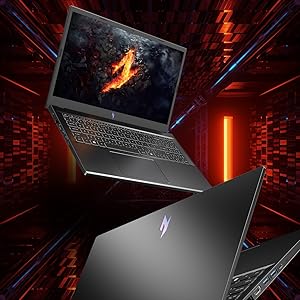
Figure 3.1: The laptop's 15.6-inch Full HD IPS display with a high refresh rate.
3.2 Tastatur und Touchpad
The Acer Nitro V ANV15-41 is equipped with a backlit keyboard, offering visibility in low-light conditions. It includes a dedicated NitroSense key for quick access to system performance settings and a Copilot key for AI assistance.
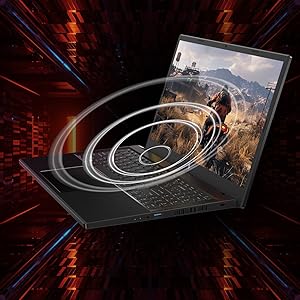
Figure 3.2: Keyboard layout highlighting the NitroSense and Copilot keys.
3.3 Anschlüsse und Steckverbinder
The laptop provides various ports for connectivity:
- 2 x USB 3.2 Gen 1-Anschlüsse
- 1 x USB 3.2 Gen 1 port with power-off charging
- 1 x USB 4-Anschluss
- 1 x HDMI 2.1-Anschluss
- 1 x Ethernet (RJ-45)-Anschluss
- 1 x Headset/speaker jack
- Power connector (DC-in)
- Steckplatz für Kensington-Schloss
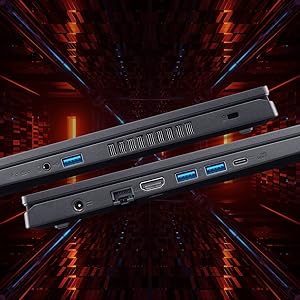
Abbildung 3.3: Seite view illustrating the available ports and connectors.
4. Leistungsmerkmale
4.1 Prozessor und Grafik
The laptop is powered by an AMD Ryzen 5 6600H hexa-core processor and features an NVIDIA GeForce RTX 3050 GPU with 6 GB of dedicated GDDR6 VRAM for graphics processing.
4.2 Speicher und Speicher
It comes with 16 GB of DDR5 system memory, upgradable up to 32 GB. Storage is provided by a 512 GB PCIe Gen4 NVMe SSD, with support for up to two 1 TB drives.
4.3-Kühlsystem
The Acer Nitro V ANV15-41 incorporates a dual-fan cooling system designed to maintain optimal operating temperatures during intensive use.
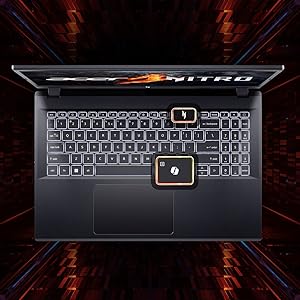
Figure 4.1: Illustration of the dual-fan cooling system.
5. Audio and Visual
5.1 Audiotechnologie
The laptop features DTS:X Ultra Audio for an immersive sound experience. Acer PurifiedVoice technology, with AI-powered noise reduction, enhances clarity for built-in microphones.

Figure 5.1: Visual representation of DTS:X Ultra Audio and Acer PurifiedVoice technologies.
5.2 WebNocken
A T-Type HD camera is integrated for video conferencing and communication.
6. Wartung und Pflege
- Reinigung: Use a soft, lint-free cloth to clean the screen and exterior. Avoid harsh chemicals.
- Belüftung: Ensure the laptop's ventilation openings are clear and unobstructed to prevent overheating.
- Software-Updates: Regularly update your operating system and drivers to ensure optimal performance and security.
- Batteriepflege: To prolong battery life, avoid extreme temperatures and fully discharging the battery frequently.
- Lagerung: Store the laptop in a cool, dry place when not in use.
7. Fehlerbehebung
7.1 Häufige Probleme und Lösungen
| Ausgabe | Mögliche Lösung |
|---|---|
| Laptop lässt sich nicht einschalten | Ensure the power adapter is securely connected and the outlet is functional. Check battery charge level. |
| Das System ist langsam oder reagiert nicht. | Schließen Sie unnötige Anwendungen. Überprüfen Sie Hintergrundprozesse. Stellen Sie sicher, dass ausreichend Speicherplatz frei ist. Aktualisieren Sie die Treiber. |
| Überhitzung | Ensure ventilation openings are clear. Use the laptop on a hard, flat surface. Consider using NitroSense software to adjust fan speeds. |
| Display issues (no image, flickering) | Check display cable connections if using an external monitor. Restart the laptop. Update graphics drivers. |
| Die Tastaturbeleuchtung funktioniert nicht. | Check keyboard backlight settings in Windows or via dedicated function keys. |
8. Technische Daten
| Besonderheit | Spezifikation |
|---|---|
| Marke | Acer |
| Modellname | Nitro V |
| Modellnummer | ANV15-41 |
| Bildschirmgröße | 15.6 Zoll |
| Bildschirmauflösung | 1920 x 1080 (Full HD) |
| Display-Technologie | IPS, LED, 165 Hz Refresh Rate |
| Prozessor | AMD Ryzen 5 6600H hexa-core (3.3 GHz base, up to 4.5 GHz max boost) |
| Grafikkarte | NVIDIA GeForce RTX 3050 mit 6 GB GDDR6 VRAM |
| RAM-Speicher | 16 GB DDR5 (4800 MHz), upgradable to 32 GB |
| Lagerung | 512 GB NVMe SSD (PCIe Gen4) |
| Betriebssystem | Windows 11 Home |
| Kabellose Konnektivität | Wi-Fi 6 (802.11ax), Bluetooth |
| Häfen | 2x USB 3.2 Gen 1, 1x USB 3.2 Gen 1 (power-off charging), 1x USB 4, 1x HDMI 2.1, 1x RJ-45, 1x Headset/speaker jack |
| WebNocken | T-Type HD camera |
| Tastatur | Tastatur mit Hintergrundbeleuchtung, Ziffernblock |
| Batterieenergieinhalt | 57 Watt Hours (Lithium Ion) |
| Artikelgewicht | 2.1 Kilogramm |
| Abmessungen (Länge x Breite x Dicke) | 24L x 36.2W x 2.4Th Centimeters |
9. Garantie und Support
9.1 Garantieinformationen
This product comes with a 1-Year Manufacturer's Limited Warranty. Please refer to the warranty card included with your product for detailed terms and conditions.
9.2 Manufacturer and Importer Information
Hersteller: Acer, Compal Electronics Pvt Ltd, No.D01, Zone D, Air Port Section of LiangLu CunTan Free Trade Port Area, YuBei District, Chongqing, China
Importeur: ACER INDIA PRIVATE LIMITED Embassy Heights, 6th Floor, No. 13 Magrath Road, Next to HOSMAT Hospital, Bangalore, INDIA – 560025
For technical support or service inquiries, please contact your local Acer support center or visit the official Acer webWebsite.